
1. Einleitung
This user manual provides essential information for the safe and efficient operation of your Redmi Xiaomi F Series 55-inch 4K Smart LED Fire TV. Please read this manual thoroughly before using the television and retain it for future reference. This television features a 4K Ultra HD display, Fire TV Built-In, and various connectivity options.

Bild 1.1: Vorderseite view of the Redmi Xiaomi F Series 55-inch 4K Smart LED Fire TV.
2. Sicherheitshinweise
Always follow basic safety precautions when using this television to reduce the risk of fire, electric shock, and injury. Keep the television away from water and moisture. Do not block ventilation openings. Use only attachments/accessories specified by the manufacturer. Refer all servicing to qualified service personnel.
3. Lieferumfang
Prüfen Sie, ob alle Komponenten in der Verpackung vorhanden sind:
- LED TV (1 Unit)
- Remote Control (1 Unit)
- User Manual (1 Unit)
- Stands (2 Units)
- Screws (4 Units)
- Batteries (2 Units)
- Power Cable (1 Unit)
4. Physischer Aufbau
4.1. Anbringen des Ständers
Carefully place the TV screen-down on a soft, flat surface. Align the two stand units with the corresponding slots on the bottom of the TV. Secure each stand with the provided screws.
4.2. Wandmontage
For wall mounting, remove the stand units if already attached. Use a VESA-compatible wall mount kit (sold separately) that supports the TV's weight and VESA pattern. Refer to the wall mount kit's instructions for installation. Ensure proper ventilation around the TV when wall-mounted.

Image 4.1: Television dimensions for planning installation.
5. Peripheriegeräte anschließen
Der Fernseher bietet verschiedene Anschlüsse zum Verbinden externer Geräte.

Image 5.1: Diagram illustrating the available ports on the television.
5.1. HDMI Devices
Connect set-top boxes, gaming consoles, DVD/Blu-ray players, or other HDMI-enabled devices to the HDMI ports. This TV includes 2 HDMI ports with ARC support.
5.2. USB-Geräte
Connect USB storage devices to the 2 USB ports for media playback.
5.3. Netzwerkverbindung
Connect to the internet via Dual Band Wi-Fi (2.4 GHz/5 GHz) or an Ethernet cable for smart TV features and streaming.
5.4. Audio Devices
Use the 3.5mm earphone jack for headphones or external speakers. Optical audio output is also available for compatible sound systems.
6. Ersteinrichtung
6.1. Einschalten
Connect the power cable to the TV and a power outlet. Press the power button on the remote control or the TV to turn it on.
6.2. Fire TV OS Configuration
Follow the on-screen instructions to complete the initial setup, including language selection, network connection, and Fire TV account login. This process will configure your smart TV features.
7. Bedienung Ihres Fernsehgeräts
7.1. Fernbedienungsfunktionen
The minimalist remote control provides access to all TV functions. It includes dedicated buttons for popular streaming apps and an Alexa voice control button.

Bild 7.1: Überview of the remote control design and key buttons.
7.2. Navigating Fire TV
Use the navigation buttons on the remote to browse the Fire TV interface. The home screen provides access to installed apps, live TV, and personalized content recommendations.

Image 7.2: The Fire TV interface showing profiles, app store, live TV, personalization, parental control, and Alexa integration.
7.3. Using Voice Control (Alexa)
Press the Alexa button on your remote and speak into the microphone to search for content, launch apps, control smart home devices, and more.
7.4. Streaming-Apps
Access a wide range of streaming services like Prime Video, Netflix, Disney+ Hotstar, and YouTube directly from the Fire TV interface. Over 12,000 apps are available from the App Store.
7.5. Bildschirmspiegelung
The TV supports Airplay 2 and Miracast for mirroring content from compatible smartphones, tablets, or computers to the TV screen.
7.6. Picture-in-Picture (PiP) Mode
Utilize the Picture-in-Picture mode to view two sources simultaneously, allowing you to watch content while browsing or multitasking.
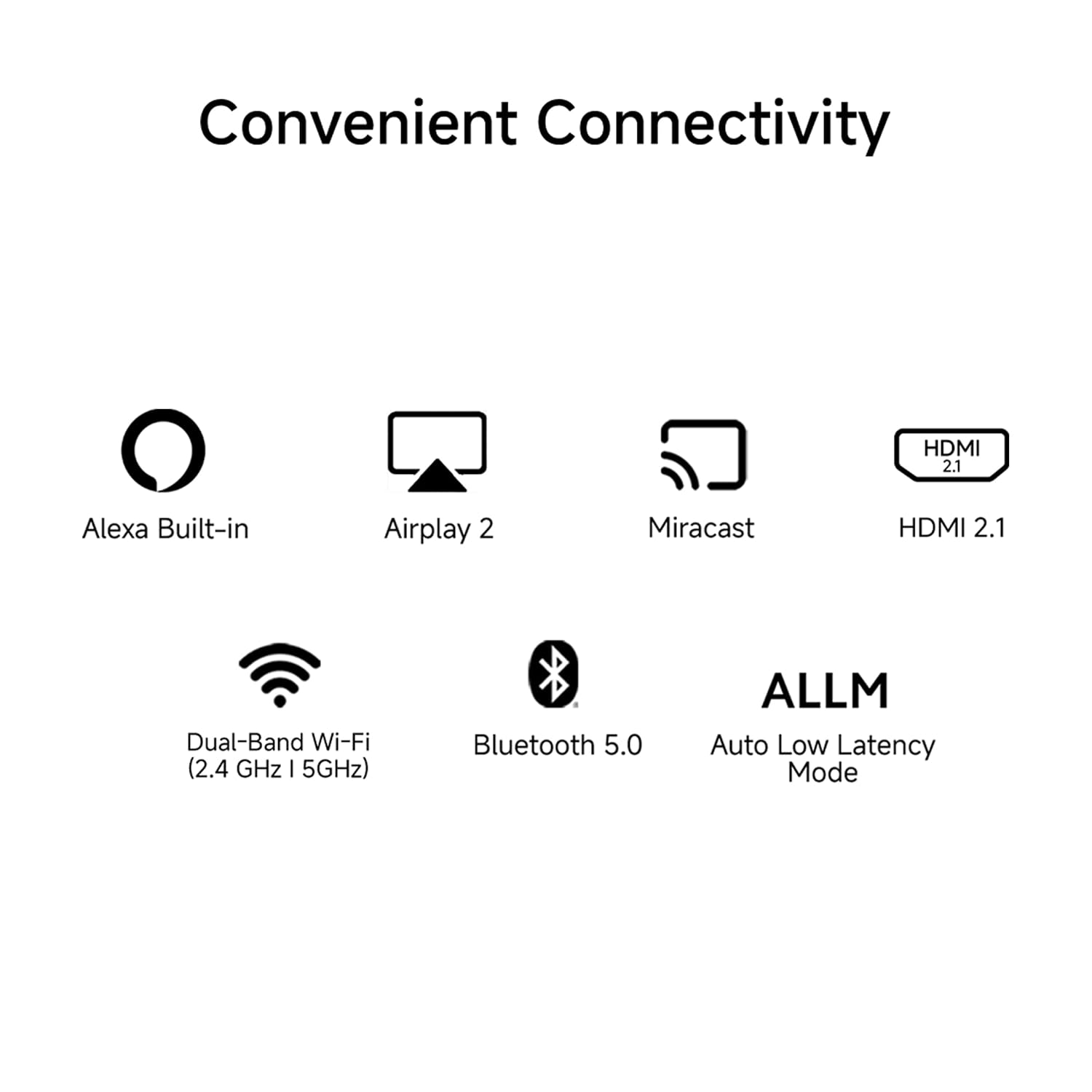
Image 7.3: The television displaying content in Picture-in-Picture mode.
7.7. Anzeigeeinstellungen
Passen Sie die Bildeinstellungen an, um Ihr Ergebnis zu optimieren. viewing experience. The TV features a 4K Ultra HD (3840 x 2160) resolution with HDR support and a 60 Hz refresh rate. The Vivid Picture Engine enhances color and contrast. RealityFlow MEMC technology provides smoother motion for fast-paced content.

Image 7.4: The 4K HDR display with Vivid Picture Engine and Wide Viewing Range features.

Image 7.5: Comparison of video motion with and without RealityFlow MEMC technology.
7.8. Toneinstellungen
The TV is equipped with 30 Watts output speakers. It supports Dolby Audio, DTS Virtual:X, and DTS-HD for an immersive audio experience. Adjust sound modes and equalizer settings in the audio menu.

Image 7.6: Illustration of the 30W powerful speakers with Dolby Audio, DTS-HD, and DTS Virtual:X support.
8. Wartung
8.1. Reinigung
Unplug the TV before cleaning. Use a soft, dry cloth to wipe the screen and cabinet. For stubborn marks, lightly dampen the cloth with water or a mild, non-abrasive cleaner specifically designed for electronics. Do not use alcohol, benzene, or thinners.
8.2. Software-Updates
Ensure your TV is connected to the internet to receive automatic software updates. Regular updates improve performance and add new features. You can also manually check for updates in the TV's settings menu.
9. Fehlerbehebung
- Kein Strom: Ensure the power cable is securely connected and the power outlet is functioning. Try a different outlet.
- Kein Bild/Ton: Check all cable connections (HDMI, AV). Ensure the correct input source is selected. For external devices, verify they are powered on.
- Fernbedienung funktioniert nicht: Tauschen Sie die Batterien aus. Stellen Sie sicher, dass sich keine Hindernisse zwischen der Fernbedienung und dem Infrarotsensor des Fernsehers befinden.
- Netzwerkverbindungsprobleme: Restart your router and modem. Check Wi-Fi password. For Ethernet, ensure the cable is connected properly.
- App-Leistungsprobleme: Close and reopen the app. Clear the app's cache in the TV settings. Ensure sufficient internal storage is available.
10. Spezifikationen
| Marke | Redmi |
| Modell | L55MA-FVIN |
| Bildschirmgröße | 55 Zoll |
| Display-Technologie | Ultra HD (4K) LED |
| Auflösung | 3840x2160 Pixel (4K) |
| Bildwiederholrate | 60 Hz |
| Betriebssystem | FireOS |
| Tonausgabe | 30 Watt |
| Audiotechnik | Dolby Audio, DTS Virtual:X, DTS-HD |
| Konnektivität | Dual Band Wi-Fi (2.4 GHz/5 GHz), Bluetooth 5.0, 2 HDMI ports (ARC), 2 USB ports, Ethernet, 3.5mm earphone Jack |
| Prozessor | Quad-Core ARM Cortex-A55 CPU |
| Speicher | 2 GB RAM + 8 GB interner Speicher |
| Produktabmessungen (L x B x H) | 122.64 x 8.17 x 71.5 cm |
| Artikelgewicht | 10.1 kg |
| Besondere Merkmale | Metal Bezel-less Screen, Vivid Picture Engine, RealityFlow MEMC, Picture-in-Picture Mode, Voice Remote with Alexa, Airplay 2 & Miracast |
11. Garantie und Support
Your Redmi Xiaomi F Series 55-inch 4K Smart LED Fire TV comes with a 2-year warranty, which includes a 1-year comprehensive warranty and an additional 1-year free warranty specifically on the display panel. Please note that any physical damages to the unit are not covered under this warranty.
To avail of brand warranty services, please retain your Amazon invoice as proof of purchase. For further assistance or to access the official user manual, visit the Redmi official webWebsite oder wenden Sie sich an den Kundendienst.