
1. Einleitung
Thank you for choosing the MEETION BTM011 Ergonomic Wireless Bluetooth Vertical Mouse. This device is designed to provide a comfortable and efficient computing experience by promoting a natural hand position, reducing wrist strain. It offers versatile connectivity options for multiple devices and adjustable precision to suit various tasks.

The ergonomic design of the MEETION vertical mouse helps maintain a natural hand and wrist posture, reducing discomfort compared to traditional mice.
2. Packungsinhalt
- MEETION BTM011 Ergonomic Wireless Bluetooth Vertical Mouse
- USB 2.4G Receiver (stored in the mouse battery compartment)
- USB-A zu USB-C Adapter
- Bedienungsanleitung
3. Produktüberschreitungview
Familiarize yourself with the various components and buttons of your MEETION BTM011 mouse.

Detaillierte view of the mouse components, including the Mode Switching Button, Power Switch (ON/OFF), Low Battery Indicator, Charging Indicator, DPI Speed Switch Button, 2.4G Connection Indicator, Bluetooth 1 Connection Indicator, and Bluetooth 2 Connection Indicator.
- Linke Taste: Standardmäßige Linksklick-Funktion.
- Rechter Knopf: Standardmäßige Rechtsklick-Funktion.
- Scrollrad: Zum Hoch- und Runterscrollen.
- Vorwärts-Taste: Navigiert vorwärts in web Browser bzw file Entdecker.
- Zurück-Schaltfläche: Navigiert rückwärts in web Browser bzw file Entdecker.
- DPI-Umschalttaste: Passt die Cursorempfindlichkeit an.
- Modus-Umschalttaste: Switches between 2.4G, Bluetooth 1, and Bluetooth 2 modes.
- Netzschalter (EIN/AUS): Schaltet die Maus ein oder aus.
- Batteriefach: Located at the bottom, for 1x AA battery and USB receiver storage.
4. Einrichtungsanweisungen
4.1 Einlegen der Batterie
Für die Maus wird eine AA-Batterie benötigt (nicht im Lieferumfang enthalten).
- Suchen Sie die Abdeckung des Batteriefachs an der Unterseite der Maus.
- Schieben Sie die Abdeckung auf.
- Legen Sie eine AA-Batterie ein und achten Sie dabei auf die richtige Polarität (+/-).
- Schließen Sie den Batteriefachdeckel fest.

Insert one AA battery into the compartment. The USB receiver is also stored here.
4.2 Ein-/Ausschalten
Slide the power switch located on the bottom of the mouse to the "ON" position to turn it on. Slide to "OFF" to conserve battery when not in use.
4.3 Verbindungsmodi
The MEETION BTM011 mouse supports three connection modes: 2.4GHz wireless (via USB receiver) and two independent Bluetooth 5.3 channels (BT1 and BT2). You can connect to up to three devices simultaneously and switch between them.

The mouse supports 2.4G wireless and two Bluetooth 5.3 connections for seamless switching between devices.
4.4 2.4GHz USB Connection
- Nehmen Sie den USB-Empfänger aus dem Batteriefach der Maus.
- Insert the USB receiver into an available USB-A port on your computer. If your computer only has USB-C ports, use the provided USB-A to USB-C adapter.
- Schalten Sie die Maus mit dem Netzschalter ein.
- Press the Mode Switching Button until the 2.4G Connection Indicator (green light) lights up. The mouse should now be connected.
4.5 Bluetooth-Verbindung (BT1 / BT2)
- Schalten Sie die Maus mit dem Netzschalter ein.
- Press the Mode Switching Button to select either Bluetooth 1 (BT1) or Bluetooth 2 (BT2). The corresponding blue indicator light will blink, indicating pairing mode.
- Gehen Sie auf Ihrem Gerät (Computer, Laptop, Tablet, Smartphone) zu den Bluetooth-Einstellungen.
- Suchen nach new devices. You should find "Meetion_MS_BT1" or "Meetion_MS_BT2".
- Select the device to pair. Once paired, the blue indicator light will stop blinking and remain solid for a few seconds.

Visual guide for connecting the mouse via 2.4G USB receiver and Bluetooth modes.
5. Bedienungsanleitung
5.1 DPI-Anpassung
The mouse features 4 adjustable DPI levels: 1200, 1600, 2400, and 3200. Press the DPI Switch Button (located behind the scroll wheel) to cycle through these settings. Each press changes the cursor speed, allowing you to select the precision suitable for your task.
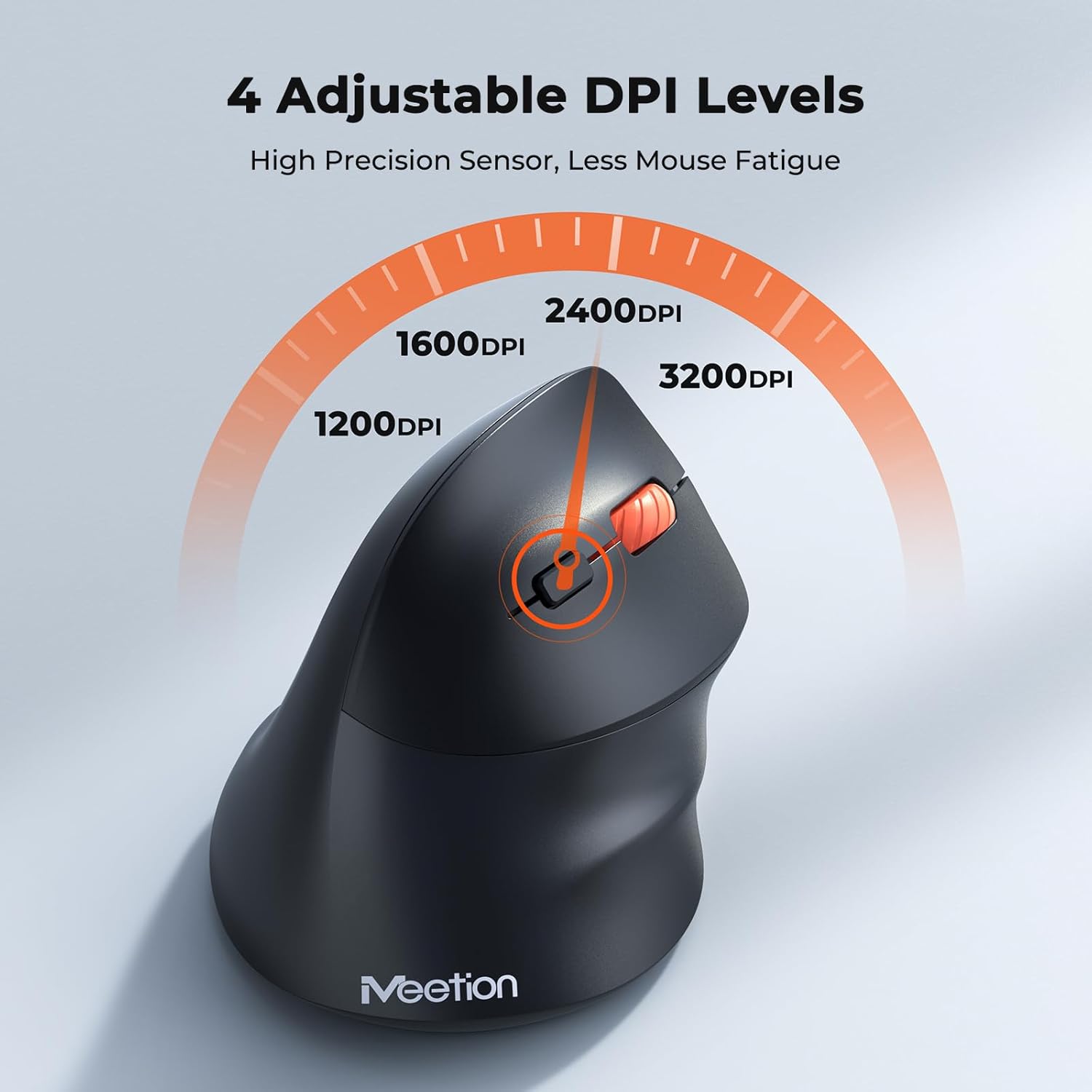
Adjust the DPI to match your preference for cursor speed and precision.
5.2 Umschaltung mehrerer Geräte
To switch between connected devices, simply press the Mode Switching Button located on the bottom of the mouse. The corresponding indicator light (green for 2.4G, blue for BT1/BT2) will illuminate to show the active connection.
5.3 Vor-/Zurück-Tasten
Use the Forward and Back buttons, conveniently located on the side of the mouse, for quick navigation in web Browser, file explorers, and other applications that support these functions.
6. Energieverwaltung
6.1 Automatischer Schlafmodus
To conserve battery life, the mouse will automatically enter sleep mode after 20 minutes of inactivity. This intelligent feature helps extend the battery's operational time.
6.2 Waking the Mouse
To wake the mouse from sleep mode, simply press any button. It will instantly reconnect to the last active device.
6.3 Akkulaufzeit
With typical usage, a single AA battery can power the mouse for up to 3 months. Actual battery life may vary based on usage patterns and battery quality.
7. Wartung
To ensure optimal performance and longevity of your mouse, follow these maintenance guidelines:
- Reinigung: Wischen Sie die Oberfläche der Maus mit einem weichen, trockenen Tuch ab. Bei hartnäckigem Schmutz verwenden Sie ein leicht feuchtes Tuch.amp Ein Tuch kann verwendet werden, achten Sie jedoch darauf, dass keine Feuchtigkeit in das Gerät eindringt. Vermeiden Sie aggressive Chemikalien oder Scheuermittel.
- Batteriewechsel: Replace the AA battery when the low battery indicator lights up or when mouse performance degrades. Always dispose of used batteries responsibly.
- Lagerung: Wenn die Maus längere Zeit nicht benutzt wird, schalten Sie sie aus und bewahren Sie sie an einem trockenen, kühlen Ort auf.
8. Fehlerbehebung
If you encounter issues with your MEETION BTM011 mouse, refer to the following solutions:
| Problem | Lösung |
|---|---|
| Maus reagiert nicht |
|
| Die Cursorbewegung ist unregelmäßig oder langsam. |
|
| Verbindung über Bluetooth nicht möglich |
|
| Forward/Back buttons not working |
|
9. Spezifikationen
| Besonderheit | Detail |
|---|---|
| Modell | BTM011 |
| Konnektivität | 2.4-GHz-Funktechnologie, Bluetooth 5.3 (BT1, BT2) |
| DPI-Stufen | 1200 / 1600 / 2400 / 3200 |
| Schaltflächen | 7 (Left, Right, Scroll Wheel, Forward, Back, DPI Switch, Mode Switch) |
| Stromquelle | 1x AA-Batterie (nicht im Lieferumfang enthalten) |
| Automatischer Ruhezustand | Nach 20 Minuten Inaktivität |
| Kompatibilität | Windows, Mac OS, Linux, Android, iOS (for iPad/iPhone) |
| Material | Plastik |
| Abmessungen (ca.) | 4.4 x 3.29 x 2.74 Zoll (11.18 x 8.36 x 6.96 cm) |
10. Garantie und Support
10.1 Garantieinformationen
MEETION products are designed and manufactured to the highest quality standards. This product is covered by a limited warranty against defects in materials and workmanship. Please retain your proof of purchase for warranty claims. Specific warranty terms may vary by region; refer to your local retailer or the official MEETION webWebsite für Details.
10.2 Kundendienst
For technical assistance, troubleshooting, or general inquiries, please contact MEETION customer support:
- E-Mail: service@meetion.com
- WebWebsite: Visit the official MEETION webWebsite mit häufig gestellten Fragen und weiterführenden Informationen.


