
Einführung
This manual provides detailed instructions for the setup, operation, maintenance, and troubleshooting of your ATTACK SHARK X98PRO Wireless Mechanical Keyboard. This keyboard features a 98-key layout, a 1.14-inch TFT display, a multi-function CNC metal knob, tri-mode connectivity (Bluetooth, 2.4GHz wireless, USB-C wired), hot-swappable switches, RGB backlighting, and a 4000mAh battery. Please read this manual thoroughly before using the product to ensure optimal performance and longevity.
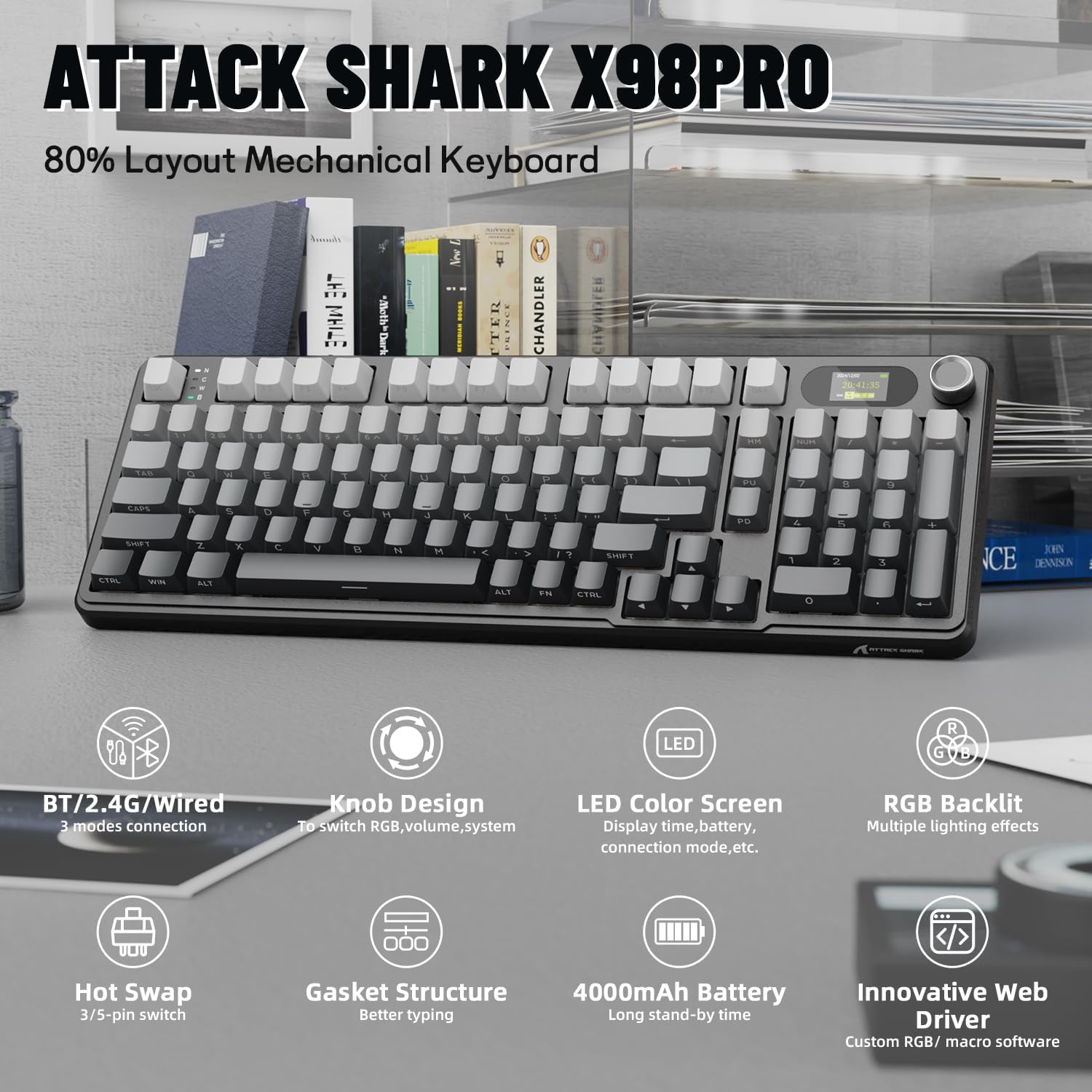
Bild: Überview of the ATTACK SHARK X98PRO keyboard, highlighting its 80% layout and key features such as tri-mode connection, knob design, LED color screen, RGB backlit, hot-swap capability, gasket structure, 4000mAh battery, and innovative web Treiber.
Aufstellen
1. Auspacken und erste Inspektion
Carefully remove the keyboard and all accessories from the packaging. Verify that the following items are included:
- ATTACK SHARK X98PRO Mechanische Tastatur
- Geflochtenes USB-C-zu-USB-A-Kabel
- 2.4GHz Wireless Dongle (often stored in the keyboard's dongle slot)
- Keycap Puller and Switch Puller (for hot-swappable models)
2. Erstes Aufladen
Before first use, it is recommended to fully charge the keyboard. Connect the provided USB-C cable to the keyboard's USB-C port and the other end to a powered USB-A port on your computer or a wall adapter. The TFT screen will indicate charging status. The keyboard features a 4000mAh battery for extended use.

Image: The ATTACK SHARK X98PRO keyboard with an overlay indicating a 4000mAh high-capacity battery, showing estimated usage times of about 7 days with backlight on (5 hours/day) and about 15 days with backlight off (5 hours/day).
3. Connectivity Options (Tri-Mode)
The X98PRO keyboard supports three connection modes: USB-C wired, 2.4GHz wireless, and Bluetooth 5.0. A switch on the side of the keyboard allows you to select the desired mode.

Image: The ATTACK SHARK X98PRO keyboard connected to multiple devices via USB-C, 2.4GHz wireless, and Bluetooth 5.0, illustrating its versatile tri-mode connectivity.
USB-C-Kabelmodus:
Connect the USB-C cable to the keyboard and your computer. Ensure the mode switch on the keyboard is set to 'USB'. The keyboard will be recognized automatically.
2.4-GHz-Wireless-Modus:
Insert the 2.4GHz wireless dongle into an available USB port on your computer. Set the mode switch on the keyboard to '2.4G'. The keyboard should connect automatically. If not, press and hold Fn + 4 (for 2.4G pairing) until the indicator light flashes, then release. The keyboard will attempt to pair with the dongle.
Bluetooth 5.0-Modus:
Set the mode switch on the keyboard to 'BT'. To enter pairing mode, press and hold Fn + 1, Fn + 2, or Fn + 3 for 3-5 seconds until the corresponding indicator light flashes rapidly. On your device (computer, tablet, phone), search for Bluetooth devices and select 'ATTACK SHARK X98PRO' to connect. You can pair up to three different Bluetooth devices and switch between them using Fn + 1, Fn + 2, or Fn + 3.

Image: The ATTACK SHARK X98PRO keyboard demonstrating its tri-mode connection capabilities, showing it simultaneously connected to a desktop PC via 2.4GHz, a laptop via USB-C, and a tablet via Bluetooth.
4. Web-Based Driver for Customization
The keyboard features an innovative web-based driver for advanced customization. This allows you to edit, upload, and switch display content for the TFT screen, customize RGB effects, remap keys, and set macros without installing software. Access the driver via the manufacturer's official website (refer to packaging or official product page for URL).

Image: The ATTACK SHARK X98PRO keyboard positioned in front of a monitor displaying the web-based driver interface, illustrating options for fully programmable keys, backlight color and effects, custom key combinations, and screen animation settings.
Bedienungsanleitung
1. Multi-Function CNC Metal Knob
The CNC metal knob provides intuitive control over various functions. By default, rotating the knob adjusts volume. Pressing the knob cycles through different control modes.
- Drehen: Adjusts selected parameter (e.g., volume, brightness, RGB speed).
- Drücken: Cycles through knob functions (e.g., Volume, RGB Brightness, RGB Speed, Connection Mode).
- Fn + Knob Press: Some functions may require holding the Fn key while pressing the knob to switch between primary and secondary functions (e.g., switching between volume control and display menu navigation).

Bild: Eine detaillierte view of the ATTACK SHARK X98PRO's CNC knob and TFT display. The image illustrates how to rotate the knob to select sections (e.g., volume) and press to confirm or enter menus, with examples of RGB mode, intensity, speed, GIF display, and language choice on the screen.
2. TFT Smart Screen
The 1.14-inch TFT screen can display various information and custom content:
- Systemstatus
- Akkulaufzeit
- Uhrzeit und Datum
- Verbindungsmodus
- Custom GIFs or animations (configurable via web Treiber)
3. RGB-Hintergrundbeleuchtungssteuerung
The keyboard features full RGB backlighting. Use the following key combinations to adjust lighting effects:
- Fn + Eingabetaste: Switch between different lighting effects.
- Fn + \|: Switch lighting color.
- Fn + ↑ (Pfeil nach oben): Hintergrundbeleuchtungshelligkeit erhöhen.
- Fn + ↓ (Pfeil nach unten): Verringern Sie die Helligkeit der Hintergrundbeleuchtung.
- Fn + ← (Linkspfeil): Verringern Sie die Geschwindigkeit der Hintergrundbeleuchtung.
- Fn + → (Rechtspfeil): Erhöhen Sie die Hintergrundbeleuchtungsgeschwindigkeit.

Image: The ATTACK SHARK X98PRO keyboard showcasing its vibrant RGB full-color backlighting, with an overlay illustrating key combinations (Fn + Enter, Fn + arrow keys) for switching light effects, colors, brightness, and speed.
4. Hot-Swap-fähige Schalter
The X98PRO keyboard features a hot-swappable PCB, allowing you to easily change mechanical switches without soldering. It is compatible with most 3-pin and 5-pin mechanical switches.
- So entfernen Sie einen Schalter: Use the provided switch puller to gently grip the top and bottom of the switch and pull upwards.
- So installieren Sie einen Schalter: Align the pins of the new switch with the holes on the PCB. Gently press down until the switch clicks into place. Ensure pins are not bent.

Image: A close-up of the ATTACK SHARK X98PRO keyboard with several keycaps and switches removed, showing the hot-swappable sockets. A switch puller is depicted, along with an exploded view of a Blueberry linear switch and its specifications, emphasizing compatibility with 3 or 5-pin switches.
5. Key Customization and Macros
Nutzen Sie die web-based driver to remap keys, create custom key combinations, and program macros for enhanced productivity or gaming. Refer to the driver interface for detailed instructions on these advanced features.
Wartung
1. Reinigung der Tastatur
Regelmäßige Reinigung trägt dazu bei, das Aussehen und die Funktionalität der Tastatur zu erhalten.
- Tastenkappen: Verwenden Sie einen Tastenkappenabzieher, um die Tastenkappen zu entfernen. Reinigen Sie sie mit einer milden Seifenlauge und einem weichen Tuch und trocknen Sie sie anschließend gründlich ab, bevor Sie sie wieder anbringen.
- Tastaturgehäuse: Wischen Sie die Oberfläche mit einem weichen, damp Tuch. Übermäßige Feuchtigkeit vermeiden.
- Zwischen den Tasten: Verwenden Sie Druckluft, um Staub und Schmutz zwischen den Schaltern zu entfernen.
2. Batteriepflege
Um die Batterielebensdauer zu maximieren:
- Vermeiden Sie häufiges vollständiges Entladen des Akkus.
- Bewahren Sie die Tastatur an einem kühlen, trockenen Ort auf, wenn Sie sie längere Zeit nicht verwenden.
- Bei längerer Lagerung sollte der Akku vor der Einlagerung auf etwa 50 % aufgeladen werden.
3. Austausch von Schaltern und Tastenkappen
As the switches are hot-swappable, you can replace individual switches or the entire set if desired. Ensure replacement switches are compatible (3-pin or 5-pin). Keycaps can also be replaced with standard MX-style keycaps.
Fehlerbehebung
1. Verbindungsprobleme
- Keyboard not connecting in 2.4GHz or Bluetooth mode: Ensure the mode switch is in the correct position. For 2.4GHz, try re-inserting the dongle and re-pairing (Fn + 4). For Bluetooth, ensure the keyboard is in pairing mode (Fn + 1/2/3 for 3-5 seconds) and your device's Bluetooth is enabled.
- Kabelverbindung nicht erkannt: Check the USB-C cable connection at both ends. Ensure the mode switch is set to 'USB'. Try a different USB port or cable.
2. Probleme mit der Hintergrundbeleuchtung
- RGB lights not working or stuck: Ensure the keyboard is charged. Try adjusting brightness (Fn + ↑/↓) or cycling through effects (Fn + Enter). A factory reset (if available, check web driver) might resolve persistent issues.
3. Knob or TFT Screen Issues
- Knob not responding: Press the knob to cycle through functions. Ensure no debris is obstructing its movement.
- Bildschirm wird nicht korrekt angezeigt: Check battery level. If customized content is not showing, verify settings in the web-basierter Treiber.
4. Unintended Key Presses
- If experiencing unintended key presses, ensure proper typing posture and avoid resting hands heavily on keys. The linear switches have a light actuation force.
5. Bedenken hinsichtlich der Akkulaufzeit
- If battery life seems shorter than expected, ensure the keyboard is fully charged. Reduce RGB brightness or turn off backlighting to conserve power. Ensure the keyboard is turned off when not in use.
Technische Daten
| Besonderheit | Detail |
|---|---|
| Marke | ANGRIFFSHAI |
| Modell | X98PRO |
| Tastaturbeschreibung | Mechanisch |
| Konnektivitätstechnologie | 2.4GHz, Bluetooth 5.0, USB-C Wired |
| Anzahl der Schlüssel | 98 |
| Schaltertyp | Linear (Hot-Swappable 3/5-pin) |
| Batteriekapazität | 4000 mAh |
| Besondere Merkmale | Customizable TFT Display, Multi-Function Knob, RGB Backlit, Gasket Mount |
| Kompatible Geräte | Laptop, PC, Tablet |
| Kompatibles Betriebssystem | Windows, Mac, Linux |
| Technische Daten | 16.4 Zoll L x 5.8 Zoll B x 1.8 Zoll H |
| Material | Aluminum (Knob), Fiberglass Composite (Case) |
Garantie
The ATTACK SHARK X98PRO Wireless Mechanical Keyboard comes with a 1-year manufacturer's warranty from the date of purchase. This warranty covers defects in materials and workmanship under normal use. Please retain your proof of purchase for warranty claims. The warranty does not cover damage caused by misuse, accident, unauthorized modification, or normal wear and tear.
Unterstützung
For further assistance, technical support, or warranty inquiries, please contact ATTACK SHARK customer service through their official website or the retailer where the product was purchased. Please have your product model and purchase information ready when contacting support.
Produktvideos
ATTACK SHARK X98PRO Wireless Keyboard Overview
Video: Ein überview of the ATTACK SHARK X98PRO Wireless Mechanical Keyboard, showcasing sein Design und seine Funktionen.
X98PRO 98-Key Mechanical Keyboard with TFT Display Features
Video: A demonstration of the ATTACK SHARK X98PRO 98-key mechanical keyboard, focusing on its TFT display and other key functionalities.