
1. Einleitung
Thank you for choosing the QDVOPHZA 4K 8MP PTZ Outdoor WiFi Security Camera. This manual provides detailed instructions for the installation, operation, and maintenance of your security camera. Please read this manual thoroughly before use to ensure proper functionality and to maximize the camera's performance.
This camera is designed for outdoor surveillance, offering advanced features such as 4K Ultra HD resolution, 10X optical zoom, automatic tracking, and color night vision, all within a durable, weatherproof design.

Image: The QDVOPHZA PTZ camera highlighting its key features including automatic tracking, multi-lens design, and dual-screen preview capability, alongside a mobile app interface.
2. Produktmerkmale
- 4K 8MP Ultra HD-Auflösung: Provides clear and detailed images for comprehensive surveillance.
- 10-facher optischer Zoom: Ermöglicht die klare Vergrößerung entfernter Objekte ohne Verlust der Bildqualität.
- Automatische Nachverfolgung: Intelligently tracks moving objects, keeping them within the monitoring field.
- Farbnachtsicht: Delivers clear, colorful images even in low-light or complete darkness.
- IP66-Wetterschutzklasse: Ensures stable operation in various weather conditions, including heavy rain and snow.
- Schwenk- und Neigefunktion: Offers a 355° horizontal pan and 90° vertical tilt for wide area coverage, controllable via mobile app.
- Dual-lens Dual-screen Preview: Enables simultaneous monitoring of a fixed wide view und eine vergrößerte PTZ-Kamera view.
- Humanoid Detection Alarm: Advanced detection capabilities to identify human figures and trigger alarms.
- Zweiwege-Audio: Ermöglicht die Kommunikation über die Kamera.
- Mehrere Speicheroptionen: Supports TF card storage (up to 128G) and cloud storage (if applicable).
3. Packungsinhalt
Bitte überprüfen Sie den Packungsinhalt nach dem Auspacken. Sollten Artikel fehlen oder beschädigt sein, kontaktieren Sie bitte unseren Kundenservice.
- QDVOPHZA 4K 8MP PTZ Outdoor WiFi Security Camera
- Netzteil (DC 12 V)
- Befestigungsschrauben und Dübel
- Benutzerhandbuch (dieses Dokument)
- Wasserdichter Kit für Netzwerkkabel (falls zutreffend)
4. Installationsanleitung
4.1 Physische Installation
Choose a suitable outdoor location for installation, ensuring a clear line of sight and access to a power source. The camera can be mounted on a wall or pole.
- Bohrpositionen markieren: Use the mounting template (if provided) or the camera base to mark the screw holes on the desired surface.
- Bohrlöcher: Bohren Sie Löcher an den markierten Stellen. Verwenden Sie Dübel, wenn Sie die Montage auf Mauerwerk vornehmen.
- Sichere Kamera: Attach the camera base to the surface using the provided screws. Ensure it is securely fastened.
- Strom anschließen: Connect the DC 12V power adapter to the camera's power input and plug it into an outdoor-rated power outlet.

Image: The QDVOPHZA PTZ camera mounted on a tree, illustrating its 355° pan and 90° tilt capabilities for wide area coverage.
4.2 Installation und Kopplung der mobilen App
Download the compatible mobile application (e.g., "iCSee" or similar, refer to packaging for specific app name) from your device's app store (iOS App Store or Google Play Store).
- Lade App herunter: Suchen nach the recommended app and install it on your smartphone.
- Account registrieren: Öffnen Sie die App und folgen Sie den Anweisungen auf dem Bildschirm, um ein neues Konto zu registrieren oder sich anzumelden, falls Sie bereits eines besitzen.
- Gerät hinzufügen: Tippen Sie in der App auf das Symbol "+" oder auf die Option "Gerät hinzufügen".
- Kameratyp auswählen: Choose "WiFi Camera" or "Smart Camera" and follow the prompts for network configuration.
- Mit WLAN verbinden: Ensure your phone is connected to a 2.4GHz WiFi network. The camera supports 2.4GHz WiFi.
- QR-Code scannen: The app will guide you to scan a QR code on the camera or generate a QR code on your phone for the camera to scan. Hold your phone's screen towards the camera lens until you hear a confirmation sound.
- Komplette Einrichtung: Sobald die Verbindung hergestellt ist, benennen Sie Ihre Kamera und vergeben Sie ein Passwort.
4.3 Installation einer Micro-SD-Karte (optional)
For local video storage, install a Micro SD card (up to 128GB, not included unless specified in your purchase).
- Ausschalten: Disconnect the camera from the power supply before installing or removing the SD card.
- Steckplatz suchen: Find the SD card slot, usually under a protective cover on the camera body.
- Karte einführen: Gently insert the Micro SD card into the slot with the contacts facing the correct direction until it clicks into place.
- Einschalten: Reconnect the power. Format the SD card via the mobile app settings if prompted.
5. Bedienungsanleitung
5.1 Live View und PTZ-Steuerung
Öffnen Sie die mobile App und wählen Sie Ihre Kamera aus, um auf die Live-Übertragung zuzugreifen. view.
- Schwenken/Neigen: Use the directional controls (arrows or joystick) on the app interface to rotate the camera horizontally (pan) and vertically (tilt).
- Zoom: Use the pinch-to-zoom gesture on the live view or dedicated zoom buttons to activate the 10X optical zoom.

Image: The camera's 10X optical zoom capability, illustrating how distant objects like a camel in a snowy landscape can be clearly magnified.
5.2 Automatische Verfolgung
Enable the automatic tracking feature in the camera settings within the app. When activated, the camera will automatically follow detected moving objects.
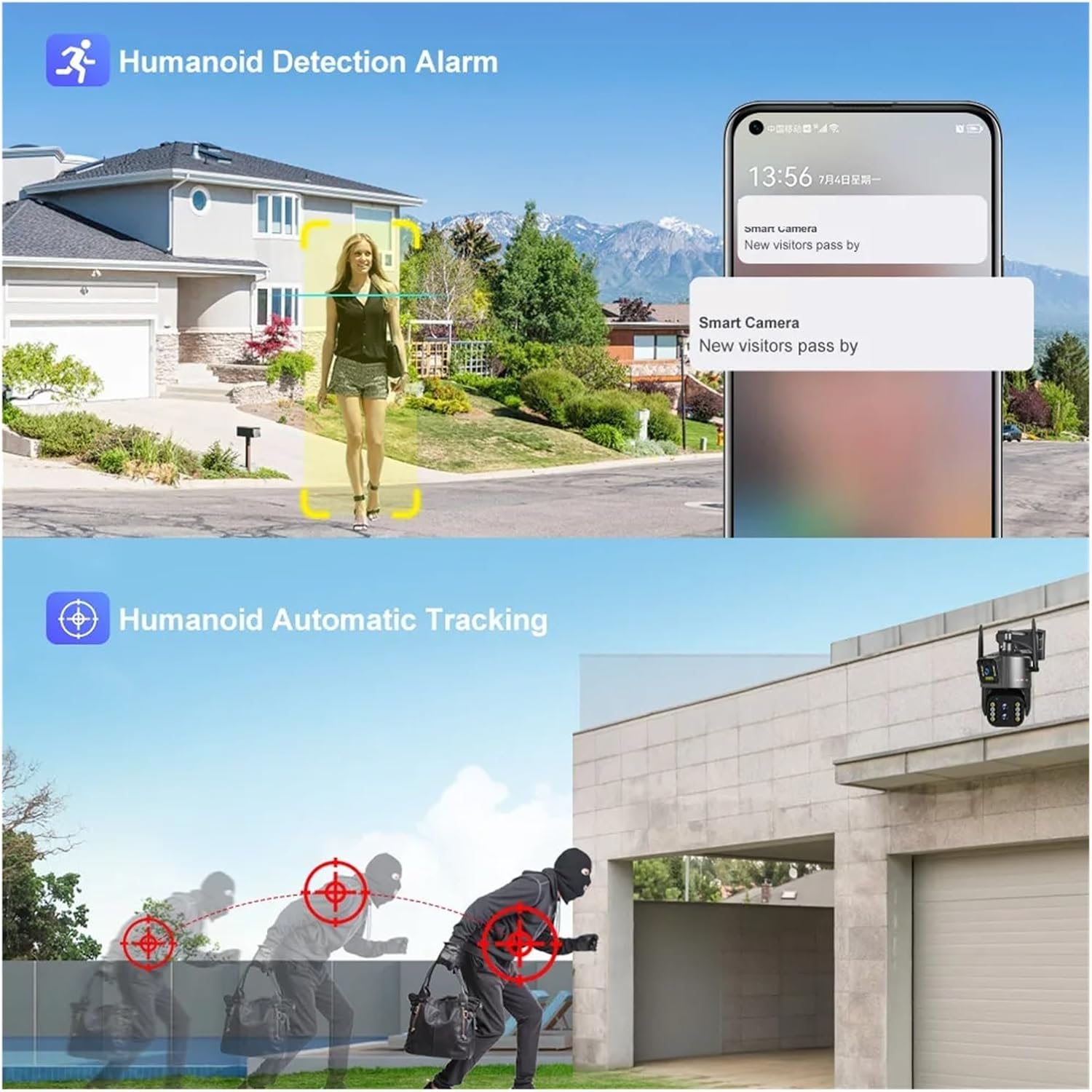
Image: Illustration of the camera's humanoid detection and automatic tracking, showing how it follows a person and a potential intruder.
5.3 Nachtsichtmodi
The camera supports both infrared (black and white) and full-color night vision. You can switch between modes or set it to automatic in the app settings.
- Infrarotmodus: Liefert klare Schwarzweißbilder in völliger Dunkelheit.
- Vollfarb-Nachtsichtmodus: Utilizes built-in spotlights to illuminate the area, providing color images at night.

Image: A comparison demonstrating the clarity of infrared night vision versus the vibrant detail of full-color night vision provided by the camera.
5.4 Dual-lens Dual-screen Preview
Mit dieser Funktion können Sie view two video streams simultaneously: one from the fixed wide-angle lens and another from the PTZ (pan-tilt-zoom) lens. This enables comprehensive monitoring with both a general overview und detaillierte Nahaufnahmen.

Image: The dual-lens dual-screen preview feature, displaying both a wide-angle fixed view und eine vergrößerte PTZ-Kamera view concurrently on a single screen.
5.5 Aufnahme und Wiedergabe
Recordings are stored on the Micro SD card or cloud storage (if subscribed). Access playback through the app's "Playback" or "History" section.
- Ereignisaufzeichnung: Records automatically when motion or humanoid detection is triggered.
- Kontinuierliche Aufnahme: Can be enabled in settings for 24/7 recording (requires sufficient storage).
- Wiedergabe: Select a date and time in the app to review aufgenommenes footage.
6. Wartung
- Reinigung: Reinigen Sie das Kameraobjektiv regelmäßig mit einem weichen, trockenen Tuch, um eine klare Bildqualität zu gewährleisten. Verwenden Sie keine scharfen Chemikalien.
- Firmware-Updates: Check the mobile app regularly for firmware updates. Keeping the firmware updated ensures optimal performance and security.
- Stromversorgung: Ensure the power adapter and cable are free from damage. Replace if necessary.
- SD-Kartenverwaltung: If using an SD card, periodically check its status in the app. Consider formatting it every few months to maintain performance.
7. Fehlerbehebung
7.1 Kamera offline
- Überprüfen Sie die Leistung: Ensure the camera is properly connected to a power source and the outlet is working.
- Check WiFi: Verify your WiFi router is functioning and the camera is within range. Restart the router if necessary.
- Kamera neu koppeln: If the issue persists, try re-pairing the camera with the app.
7.2 Schlechte Bildqualität
- Linse reinigen: Reinigen Sie die Kameralinse von Schmutz und Flecken.
- Netzwerkstabilität: Ensure a stable WiFi connection. Poor signal can affect streaming quality.
- Auflösungseinstellungen: Check the resolution settings in the app; ensure it's set to 4K or 8MP for best quality.
7.3 Automatic Tracking Not Working
- Funktion aktivieren: Confirm that automatic tracking is enabled in the app settings.
- Klar View: Stellen Sie sicher, dass keine Hindernisse die Sicht der Kamera blockieren. view.
- Empfindlichkeit: Passen Sie die Empfindlichkeit der Bewegungserkennung in der App an.
7.4 SD-Karte zeichnet nicht auf
- Richtig einfügen: Stellen Sie sicher, dass die SD-Karte korrekt eingelegt ist.
- Karte formatieren: Formatieren Sie die SD-Karte über die App.
- Card Capacity/Health: Check if the SD card is full or damaged. Replace if necessary.
- Aufnahmeeinstellungen: Verify that recording options (event or continuous) are enabled in the app.
8. Spezifikationen
| Besonderheit | Detail |
|---|---|
| Modellnummer | w0u5903wei (LS-WL341) |
| Auflösung | 4K 8MP (4.0 Megapixels) |
| Optischer Zoom | 10X |
| Linse | 2.8-12 mm |
| Schwenkbereich | 0°-360° (typically 355° controllable) |
| Neigungsbereich | Other (typically 90° controllable) |
| Nachtsicht | Color Night Vision, Infrared Mode |
| Konnektivität | WLAN (2.4 GHz) |
| Lagerung | TF-Karte (bis zu 128 GB), Cloud-Speicher (optional) |
| Audio | Zwei-Wege-Audio |
| IP-Schutzart | IP66 (wasserdicht / wetterfest) |
| Stromversorgung | Gleichstrom 12 V |
| Betriebstemperatur | -10 °C bis 60 °C (14 °F bis 140 °F) |
| Abmessungen (L x B x T) | 25x20x18cm (approx. 9.8 x 7.9 x 7.1 inches) |
| Unterstützte mobile Systeme | Android, iOS |
| Videokomprimierung | H.264, H.265 |
9. Garantie und Support
For warranty information and technical support, please refer to the documentation included with your purchase or visit the official QDVOPHZA webWebsite. Sie können den Verkäufer auch direkt über die Plattform kontaktieren, auf der das Produkt gekauft wurde.
Bitte bewahren Sie Ihren Kaufbeleg für eventuelle Garantieansprüche auf.