
1. Einleitung
Thank you for choosing the MageGee MK-Box 60% Mechanical Gaming Keyboard. This compact 68-key keyboard is designed for both gaming and office use, offering a space-saving layout without compromising essential functionality. Featuring responsive red mechanical switches and customizable LED backlighting, the MK-Box provides a comfortable and efficient typing experience. This manual will guide you through the setup, operation, and maintenance of your new keyboard.
2. Produktüberschreitungview
Hauptmerkmale:
- Mini-tragbar, 60 % kompaktes Layout: The MK-Box features 68 keys, including separate arrow keys and Fn function keys, optimizing desk space while retaining necessary functions.
- Mechanische rote Schalter: Characterized by a linear and smoother feel with minimal resistance, these switches offer fast action without a tactile bump, making typing and gaming effortless.
- Klassisch charmant blau LED-hintergrundbeleuchtet: Customize your experience with approximately 16 illuminated LED light effects. Adjust backlight modes, speed, and brightness using simple key combinations.
- Vollständiges Anti-Ghosting: All 68 keys are conflict-free, ensuring every keystroke is registered accurately during intense gaming sessions.
- Ergonomisches Design: Features ergonomic suspension double-color injection keycaps, double kickstand feet for adjustable typing angles, and a detachable USB cable for convenience and durability.
- Umfangreiche Kompatibilität: Compatible with Windows (2000, XP, ME, Vista, 7, 8), Linux, and Mac operating systems. Plug and play, no drivers or software required.
Was ist in der Box:
- MageGee MK-Box mechanische Tastatur x 1
- Detachable USB-C to USB-A Cable x 1
- Extra Keycaps (e.g., 16 purple keycaps, red WASD keys) x 1 set
- Tastenkappenabzieher x 1
- Benutzerhandbuch x 1
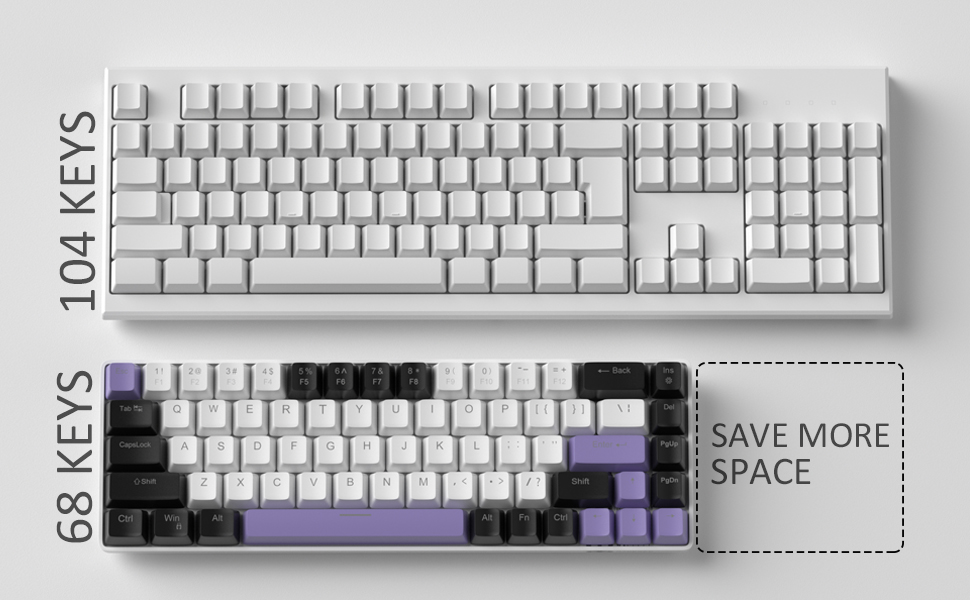
Image: Contents of the MageGee MK-Box packaging, including the keyboard, detachable USB-C cable, extra keycaps, keycap puller, and user manual.
3. Einrichtung
- Schließen Sie die Tastatur an: Locate the detachable USB-C cable. Plug the USB-C end into the port on the left side of the keyboard and the USB-A end into an available USB port on your computer (Laptop, PC, Mac).
Image: Close-up of the detachable USB-C port on the side of the MageGee MK-Box keyboard, with the cable being inserted.
- Tippwinkel anpassen: Flip the keyboard over to reveal the double kickstand feet. Gently pull out the feet to adjust the keyboard to your preferred typing angle for ergonomic comfort. There are two levels of adjustment.
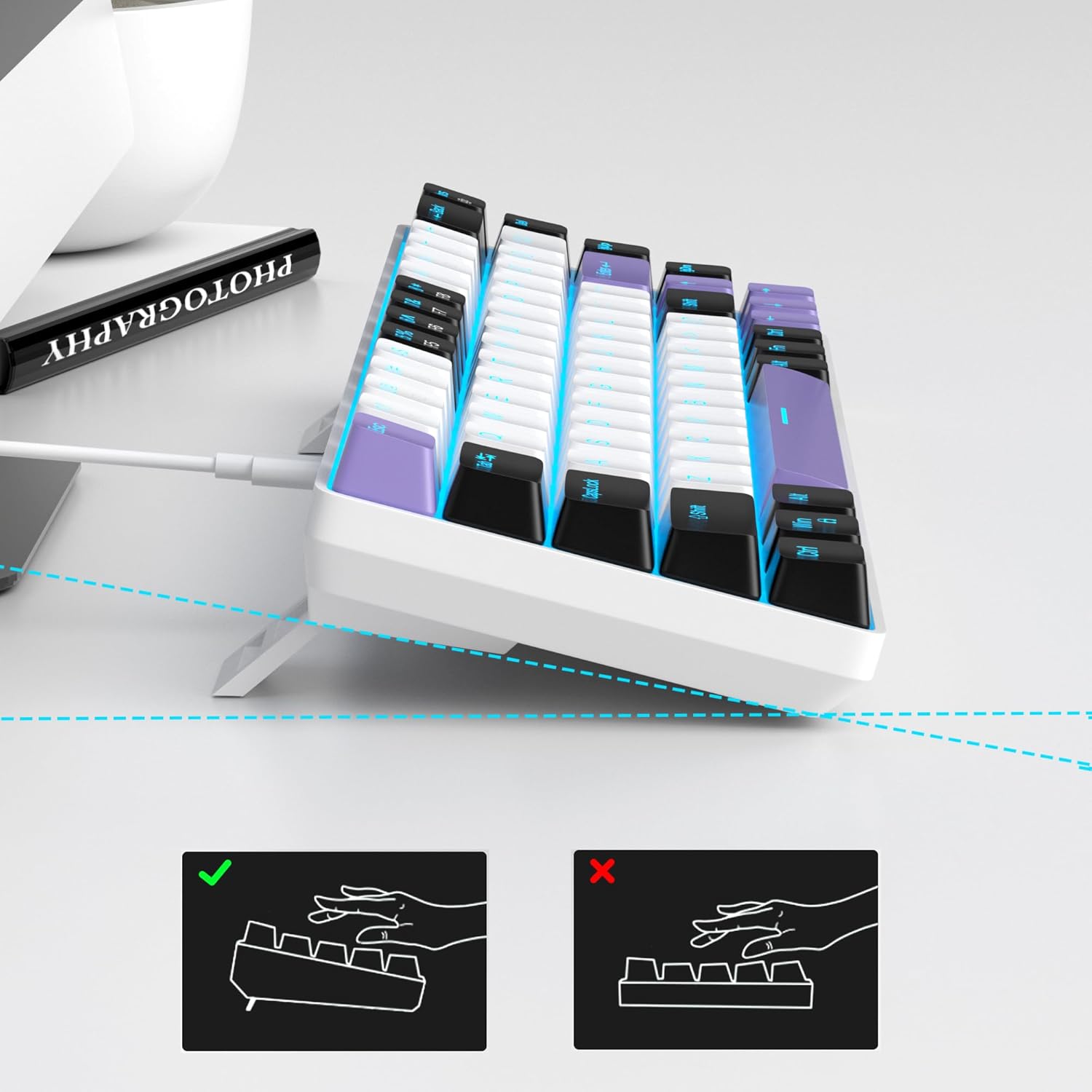
Image: The MageGee MK-Box keyboard shown from a side angle with its adjustable feet extended, illustrating the ergonomic tilt for comfortable typing.
- Systemerkennung: Your computer should automatically recognize the keyboard. No additional drivers or software installation is required.
4. Bedienungsanleitung
Grundlegende Schlüsselfunktionen:
- The keyboard features a standard QWERTY layout with 68 keys.
- Dedicated arrow keys are located on the bottom right.
- Function keys (F1-F12) are accessed via the Fn key in combination with the number row keys.
Steuerung der Hintergrundbeleuchtung:
The MageGee MK-Box features a classic blue LED backlight with multiple modes and adjustable settings.
- Hintergrundbeleuchtungsmodus ändern: Drücken Fn + Einf um durch etwa 16 verschiedene Hintergrundbeleuchtungseffekte zu schalten.
- Geschwindigkeit der Hintergrundbeleuchtung anpassen: Drücken Fn + ← (Linkspfeil) to decrease speed or Fn + → (Rechtspfeil) Geschwindigkeit zu erhöhen.
- Helligkeit der Hintergrundbeleuchtung anpassen: Drücken Fn + ↓ (Pfeil nach unten) to decrease brightness or Fn + ↑ (Pfeil nach oben) Helligkeit zu erhöhen.

Image: A diagram illustrating the key combinations for controlling the backlight effects, speed, and brightness on the MageGee MK-Box keyboard.
5. Wartung
- Reinigung: Use a soft, dry cloth to wipe down the keyboard surface. For deeper cleaning, you can use a can of compressed air to remove dust and debris from between the keycaps.
- Entfernen der Tastenkappe: To clean under the keycaps or replace them with the provided extra keycaps, use the included keycap puller. Gently attach the puller to a keycap and pull straight up. When reattaching, align the keycap with the switch stem and press down firmly until it clicks into place.
- Kabelpflege: Das abnehmbare USB-C-Kabel sollte vorsichtig behandelt werden. Vermeiden Sie scharfe Knicke und starkes Ziehen, um Beschädigungen vorzubeugen.

Image: A close-up of the keycap puller tool, used for safely removing and replacing keycaps on the mechanical keyboard.
6. Fehlerbehebung
- Tastatur reagiert nicht:
- Stellen Sie sicher, dass das USB-Kabel sowohl mit der Tastatur als auch mit Ihrem Computer fest verbunden ist.
- Versuchen Sie, die Tastatur an einen anderen USB-Anschluss Ihres Computers anzuschließen.
- Testen Sie die Tastatur an einem anderen Computer, um ein computerspezifisches Problem auszuschließen.
- Hintergrundbeleuchtung funktioniert nicht/ist fehlerhaft:
- Stellen Sie sicher, dass die Tastatur ordnungsgemäß angeschlossen ist und mit Strom versorgt wird.
- Drücken Fn + Einf to cycle through backlight modes, as it might be set to an 'off' mode.
- Passen Sie die Helligkeit an mit Fn + ↑/↓.
- Keys Not Registering (Ghosting):
- The MK-Box features full anti-ghosting. If you experience issues, ensure no debris is lodged under the keycaps.
- Try reconnecting the keyboard or restarting your computer.
7. Spezifikationen
| Besonderheit | Detail |
|---|---|
| Marke | MageGee |
| Modellname | MK-Box |
| Tastaturbeschreibung | Mechanisch |
| Anzahl der Schlüssel | 68 |
| Schaltertyp | Linear (Red Switch) |
| Konnektivitätstechnologie | USB (kabelgebunden) |
| Kompatible Geräte | Notebook, PC |
| Kompatible Betriebssystemfamilie | Windows, Linux, Mac |
| Besonderheit | 60% Mechanical Design, LED Backlit, Anti-Ghosting |
| Tastaturlayout | QWERTY |
| Material | Plastik |
| Wasserbeständigkeit | Nicht wasserfest |
8. Garantie und Support
MageGee products are designed for durability and performance. For any product-related inquiries, technical support, or warranty claims, please refer to the contact information provided on the product packaging or visit the official MageGee webBitte bewahren Sie Ihren Kaufbeleg für Garantieleistungen auf.