
Einführung
Thank you for choosing the Phomemo M221 Bluetooth Thermal Label Printer. This manual provides essential information for the safe and efficient operation of your device. Please read it thoroughly before use and retain it for future reference. The Phomemo M221 is designed for fast, clear, and smart label printing, supporting various label types and applications for small businesses, home, and school use.
Sicherheitshinweise
Um einen sicheren Betrieb zu gewährleisten und Schäden zu vermeiden, beachten Sie bitte folgende Vorsichtsmaßnahmen:
- Do not disassemble, repair, or modify the printer.
- Halten Sie den Drucker von Wasser, Feuchtigkeit und direkter Sonneneinstrahlung fern.
- Use only Phomemo-approved power adapters and accessories.
- Vermeiden Sie es, den Druckkopf unmittelbar nach dem Drucken zu berühren, da er heiß sein kann.
- Store the printer and labels in a cool, dry place.
Packungsinhalt
Überprüfen Sie, ob alle Artikel in Ihrem Paket vorhanden sind:
- Phomemo M221 Etikettendrucker
- USB-Kabel Typ C.
- 1 roll of 40 x 30 mm thermal labels
- 1 roll of 50 x 80 mm thermal labels
- 1 roll of 70 x 80 mm thermal labels
- Tragbare Tragetasche
- Benutzerhandbuch (dieses Dokument)
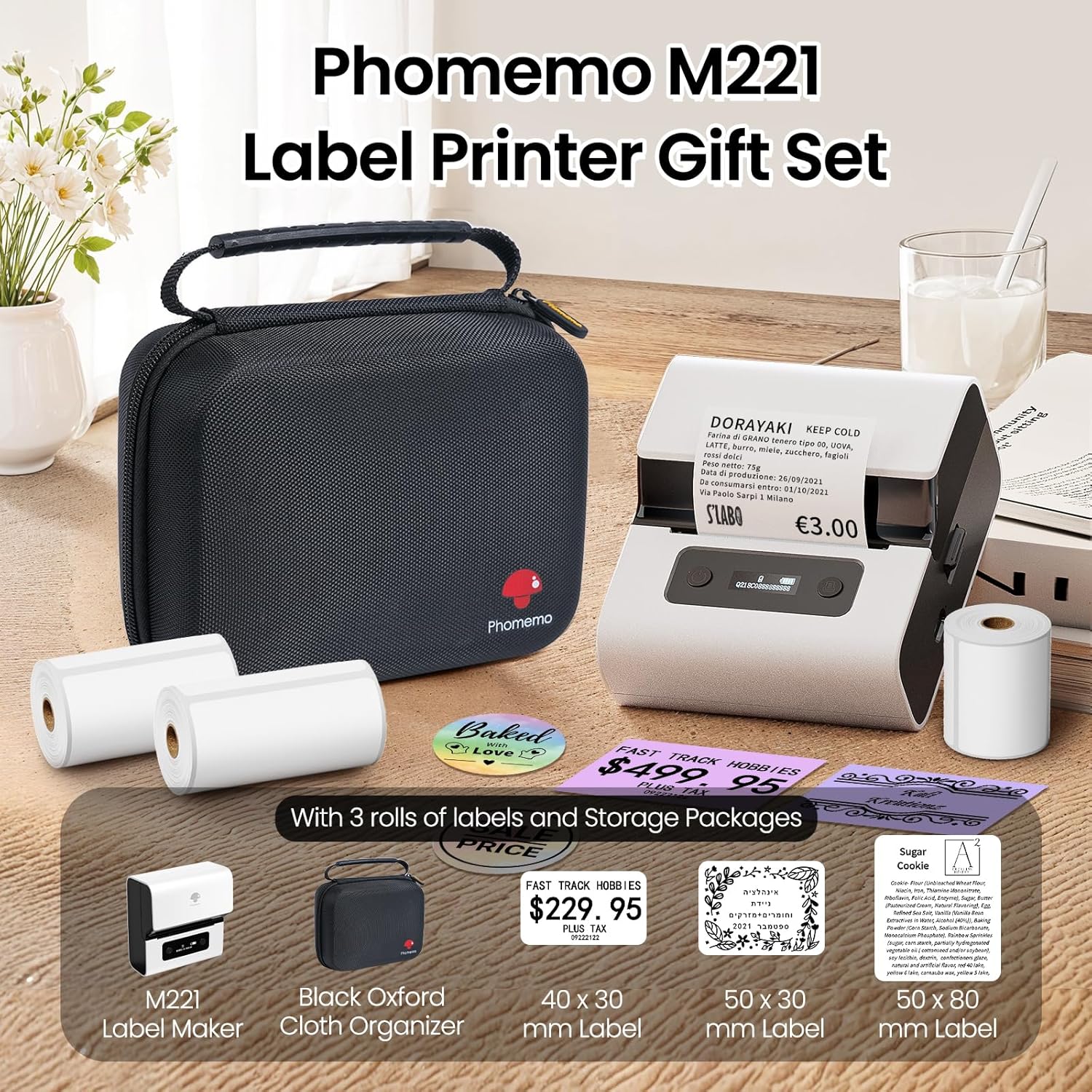
Image: Phomemo M221 Label Printer Gift Set, showing the printer, a black carrying case, and three rolls of white thermal labels.
Produkt überview
The Phomemo M221 is a compact and efficient thermal label printer. Key features include:
- Thermodrucktechnologie: No ink or toner required.
- Breite Etikettenkompatibilität: Supports labels from 20mm to 80mm (0.78" to 3.14") wide, including rectangular, round, transparent, and colored types.
- Konnektivität: Bluetooth for iOS/Android smartphones and tablets, USB for Windows PCs.
- Hochleistungsbatterie: 2200 mAh battery with Type-C fast charging.
- Schneller und leiser Betrieb: Prints at 50 mm/s with reduced noise.
- Benutzerfreundliches Design: Easy label loading and automatic gap detection.

Image: Phomemo M221 Label Maker Set, illustrating its features such as no ink requirement, large battery capacity, Bluetooth wireless printing, and its suitability as a gift.
Aufstellen
1. Aufladen des Druckers
Before first use, fully charge the Phomemo M221 printer.
- Schließen Sie das mitgelieferte USB-Typ-C-Kabel an den Ladeanschluss des Druckers an.
- Verbinden Sie das andere Ende des Kabels mit einem 5V USB-Netzteil (nicht im Lieferumfang enthalten) oder einem USB-Anschluss Ihres Computers.
- The indicator light will show charging status. A full charge typically takes several hours. The 2200 mAh battery supports extended use.
2. Etiketten einlegen
The M221 features an integrated label fixing structure for easy loading.
- Öffnen Sie die Druckerabdeckung.
- Insert the label roll into the compartment, ensuring the printing side faces upwards and the labels feed smoothly.
- Adjust the side guide plates to secure the label roll in place.
- Close the printer cover. The printer will automatically detect and calibrate the label gap.
3. Verbindung mit Ihrem Gerät herstellen
Der Phomemo M221 unterstützt sowohl Bluetooth- als auch USB-Verbindungen.
Bluetooth Connection (Smartphones/Tablets)
- Stellen Sie sicher, dass Bluetooth auf Ihrem iOS- oder Android-Gerät aktiviert ist.
- Download and install the "Print Master" application from your device's app store.
- Open the "Print Master" app and follow the on-screen instructions to search for and connect to your M221 printer.

Image: Phomemo M221 printer demonstrating Bluetooth wireless connection with a tablet and a smartphone.
USB Connection (Windows PC)
- Connect the USB Type-C cable from the printer to an available USB port on your Windows PC.
- Download and install the "Labelife" software and printer drivers from the official Phomemo webWebsite.
- Follow the software installation prompts. Once installed, you can select the M221 as your printer.

Image: Phomemo M221 printer connected to a laptop using a USB cable, indicating wired connectivity.
Bedienungsanleitung
1. Basic Printing with "Print Master" App (Mobile)
- Ensure your M221 printer is connected via Bluetooth to your mobile device.
- Open the "Print Master" app.
- Select a template or create a new label design. The app offers various templates for text, images, barcodes, QR codes, and more.
- Customize your label content.
- Tap the print icon. Confirm print settings such as quantity.
- The printer will begin printing your labels.
2. Printing with "Labelife" Software (PC)
- Ensure your M221 printer is connected via USB to your Windows PC.
- Open the "Labelife" software.
- Design your label using the software's features, including text, images, barcodes, and QR codes.
- Gehe zu "File" > "Drucken" oder klicken Sie auf das Drucksymbol.
- Select the Phomemo M221 from the list of available printers and adjust any necessary print settings.
- Click "Print" to start printing.
3. Stapeldruck
Both "Print Master" and "Labelife" support batch printing for efficiency.
- In the print dialogue, specify the desired number of copies.
- The printer will automatically print multiple labels consecutively.

Image: Phomemo M221 printer demonstrating its versatility with examples of address labels, price tags, ingredient labels, and gift tags.

Image: Phomemo M221 printer showcasing its compatibility with over 50 types of thermal labels, including various shapes and designs.
Wartung
1. Reinigung des Druckkopfes
Die regelmäßige Reinigung des Druckkopfes gewährleistet eine optimale Druckqualität.
- Schalten Sie den Drucker aus und trennen Sie das Netzkabel.
- Öffnen Sie die Druckerabdeckung.
- Den Druckkopf vorsichtig mit einem Wattestäbchen abwischen.ampmit Isopropylalkohol gereinigt.
- Lassen Sie den Druckkopf vollständig trocknen, bevor Sie die Abdeckung schließen und den Drucker einschalten.
2. Speicherung
Store the printer in a clean, dry environment, away from extreme temperatures and direct sunlight. When not in use for extended periods, ensure the printer is fully charged and then powered off.

Image: A man holding the Phomemo M221 printer's carrying case, illustrating its portable design.
Fehlerbehebung
Printer Does Not Turn On or Charge
- Überprüfen Sie den Stromanschluss: Ensure the USB Type-C cable is securely connected to both the printer and a working power source (5V adapter or PC USB port).
- Überprüfen Sie das Netzteil: Use a reliable 5V USB power adapter.
- Ladedauer: Allow sufficient time for charging. The battery indicator should show charging status.
No Printing or Blank Output
- Check Label Orientation: Ensure the thermal labels are loaded correctly with the printing side facing upwards.
- Etikettentyp: Confirm you are using thermal labels. The M221 does not use ink.
- Sauberkeit des Druckkopfes: A dirty print head can cause blank lines or poor print quality. Refer to the Maintenance section for cleaning instructions.
- Beschriftungsausrichtung: Ensure the label roll is properly seated and aligned by the side guide plates to prevent misalignment errors.
Probleme mit der Bluetooth-Verbindung
- Drucker an: Ensure the printer is powered on and within Bluetooth range of your device.
- Bluetooth-fähig: Verify Bluetooth is active on your smartphone or tablet.
- App-Verbindung: Connect through the "Print Master" app, not directly through your device's Bluetooth settings.
- Geräte neu starten: Try restarting both the printer and your mobile device.
Schlechte Druckqualität
- Sauberkeit des Druckkopfes: Reinigen Sie den Druckkopf wie im Abschnitt Wartung beschrieben.
- Etikettenqualität: Use high-quality thermal labels.
- Druckdichteeinstellungen: Adjust print density settings within the "Print Master" app or "Labelife" software if available.
Technische Daten
| Besonderheit | Detail |
|---|---|
| Modellnummer | M221 |
| Marke | Phomemo |
| Konnektivitätstechnologie | Bluetooth, USB Typ C |
| Drucktechnologie | Thermal |
| Druckausgabe | Einfarbig |
| Maximale Druckgeschwindigkeit (Monochrom) | 15.0 pages per minute (50 mm/s) |
| Maximale Druckauflösung (Monochrom) | 203 dpi |
| Unterstützte Etikettenbreite | 20 mm - 80 mm (0.78" - 3.14") |
| Batterie | 2200 mAh (1 D - included) |
| Artikelgewicht | 820 Gramm |
| Produktabmessungen (L x B x H) | 12.9 x 6.7 x 11.9 Zentimeter |
| Control Device Type | Smartphone/PC |
| Medientyp | Labels |
Garantie und Support
Informationen zur Garantie und zum technischen Support finden Sie auf der offiziellen Phomemo-Website. webBesuchen Sie die Website oder kontaktieren Sie direkt den Kundenservice. Bewahren Sie Ihren Kaufbeleg als Kaufnachweis auf.
Online-Ressourcen: Besuchen Sie die Phomemo Store auf Amazon for product updates and FAQs.