
Dosilkc RM
Dosilkc 8CH POE NVR User Manual
Modell: RM
Produkt überview
The Dosilkc 8-Channel POE Network Video Recorder (NVR) is designed for home security camera systems, supporting resolutions up to 4K. It features H.265+ video compression for efficient storage and remote access capabilities for convenient monitoring.

This image displays the front and rear panels of the Dosilkc 8-Channel POE NVR. The front panel shows indicator lights, while the rear panel features 8 PoE ports, audio input/output, VGA, HDMI, and USB ports for connectivity.
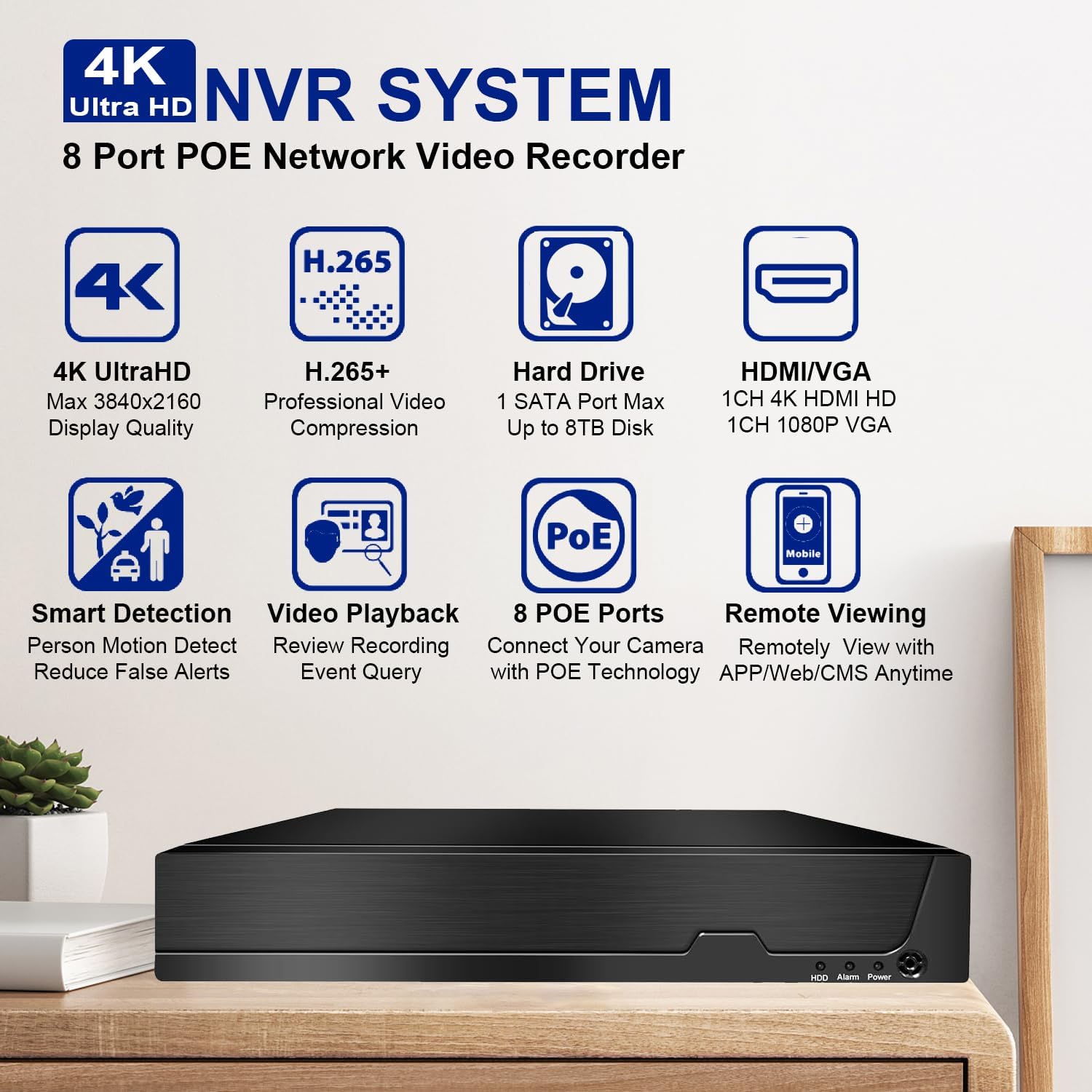
This image highlights the key features of the Dosilkc 4K Ultra HD NVR System, including 4K UltraHD display quality, H.265+ video compression, support for up to 8TB hard drive, HDMI/VGA output, smart detection, video playback, 8 PoE ports, and remote viewing-Fähigkeiten.
Packungsinhalt
Bitte überprüfen Sie vor Beginn der Installation, ob alle unten aufgeführten Artikel in Ihrem Paket enthalten sind:
- NVR Unit
- USB-Maus
- Netzteil
- Benutzerhandbuch (dieses Dokument)
Installationshandbuch
1. Hardware-Verbindung
The Dosilkc NVR features Power over Ethernet (PoE) ports, simplifying camera installation by providing both power and data through a single Ethernet cable.
- Kameras anschließen: Connect your PoE IP cameras to the NVR's PoE ports using Ethernet cables. The NVR will automatically power the cameras.
- Monitor anschließen: Connect a monitor to the NVR using either the HDMI or VGA port. HDMI supports up to 4K resolution, while VGA supports 1080p.
- Maus anschließen: Schließen Sie die mitgelieferte USB-Maus an einen der USB-Anschlüsse des NVR an.
- Netzwerkverbindung: Connect the NVR to your local network router using an Ethernet cable for remote access capabilities.
- Einschalten: Schließen Sie das Netzteil an den NVR und anschließend an eine Steckdose an. Der NVR schaltet sich automatisch ein.

This diagram illustrates the typical setup for the Dosilkc PoE NVR, showing connections for PoE IP cameras, a VGA/HDMI monitor, an internet router for remote viewing, audio input/output, a USB mouse, and the power supply.

This image emphasizes the "Plug & Play Easy Setup" feature, demonstrating how a single Ethernet cable provides both network access and power supply to the cameras, simplifying installation.
2. Erstkonfiguration
Upon first boot, the NVR may guide you through a setup wizard. Follow the on-screen prompts to set up basic parameters such as date/time, network settings, and administrator password.
Festplatteninstallation (falls nicht vorinstalliert): The NVR supports up to an 8TB SATA hard drive. Refer to the NVR's internal diagram for proper installation of the HDD. Ensure the NVR is powered off before installing or removing a hard drive.
Bedienungsanleitung
1. Lokal Viewund Wiedergabe
Once connected to a monitor, you can view live feeds from your cameras and manage recordings directly from the NVR interface using the USB mouse.
- Live View: The main screen displays live video feeds from all connected cameras.
- Wiedergabe: Greifen Sie auf das Wiedergabemenü zu, um erneutview aufgenommenes footage. You can search by time, calendar, event, or channel.
- Aufnahmemodi: The NVR supports various recording modes including manual, alarm, dynamic detection, and scheduled timing.

This image illustrates the 24/7 HDD Recording & Playback capability, showing a monitor displaying live camera feed and icons representing up to 8TB HDD storage and PC LMS Server Storage for video recording without monthly fees.
2. Fernzugriff
The NVR allows remote viewing of your security system from mobile devices or computers.
- Mobile App: Download the free "Videolink" app from the App Store (iOS) or Google Play (Android). Follow the app's instructions to add your NVR using its unique ID or QR code.
- PC-Client: Use the LMS client software for Windows or Mac to access your NVR from a computer.
- Web Browser: Access the NVR interface directly via a web browser (Firefox, Google Chrome, Microsoft Edge) by entering the NVR's IP address.

This image details the various remote access methods for the NVR, including the "Videolink" mobile app for iOS and Android, AJDev Tools, LMS client for Windows and Mac, and web browser access via Firefox, Google Chrome, and Microsoft Edge, showing live view on different devices.

This image illustrates the compatibility of the Dosilkc NVR system with various viewing devices, including different types of cameras, laptops, tablets, and smartphones, allowing users to view their home from anywhere.
3. Erweiterte Funktionen
- H.265+ Videokomprimierung: This advanced compression technology reduces file sizes by up to 50% without compromising video quality, allowing for longer recording times and saving hard drive space.
- Smart Detection & Alerts: Configure the NVR for intelligent motion detection, including human and vehicle detection, to reduce false alarms. Receive alerts via FTP, app notifications, email, or live alarms.
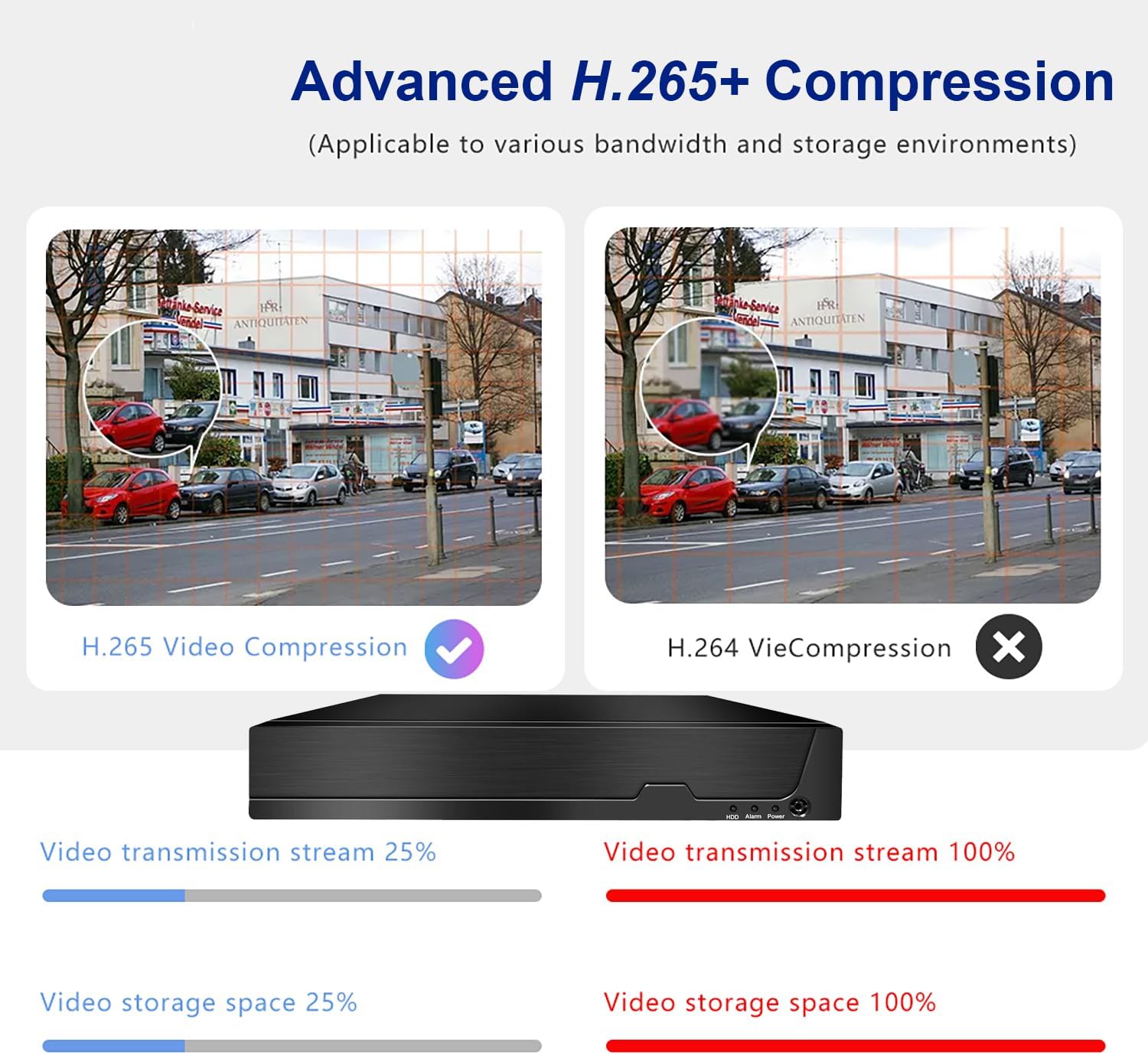
This image compares Advanced H.265+ Compression with H.264, showing that H.265+ significantly reduces video transmission stream and storage space requirements while maintaining quality.

This image demonstrates the AI Human and Vehicle Detection feature, showing how the system can differentiate between human/vehicle movement and other movements (like a dog running), sending alerts only for relevant events.

This image highlights the Smart Motion Detect & Alerts features, including options for FTP upload, app notifications, email alerts, and live alarms, ensuring users are promptly informed of detected events.
Wartung
- Regelmäßige Reinigung: Keep the NVR unit free from dust. Use a soft, dry cloth for cleaning. Do not use liquid cleaners.
- Firmware-Updates: Periodically check the Dosilkc official webWebsite für Firmware-Updates zur Gewährleistung optimaler Leistung und Sicherheit.
- Festplattenzustand: Monitor the health of your hard drive through the NVR's system settings. Replace the HDD if any issues are detected to prevent data loss.
- Belüftung: Stellen Sie sicher, dass der NVR in einem gut belüfteten Bereich aufgestellt wird, um eine Überhitzung zu vermeiden. Blockieren Sie keine Lüftungsöffnungen.
Fehlerbehebung
Kein Videoausgang am Monitor
- Prüfen Sie, ob der NVR eingeschaltet ist und das Netzteil fest angeschlossen ist.
- Überprüfen Sie die HDMI/VGA-Kabelverbindung zwischen dem NVR und dem Monitor.
- Stellen Sie sicher, dass der Monitor auf die richtige Eingangsquelle (HDMI/VGA) eingestellt ist.
- Versuchen Sie es mit einem anderen HDMI/VGA-Kabel oder Monitor.
Cameras Not Displaying
- Check the Ethernet cable connection for each camera to its respective PoE port on the NVR.
- Ensure the cameras are powered on (indicator lights on cameras should be active).
- If using non-Dosilkc PoE cameras, ensure they are ONVIF compatible and their IP addresses are configured to be on the same subnet as the NVR's PoE ports. Use the provided tool software to adjust IP addresses if necessary.
- Reboot the NVR and the cameras.
Fernzugriff funktioniert nicht
- Verify the NVR is connected to your internet router and has a valid network connection.
- Ensure your mobile device or computer has an active internet connection.
- Double-check the NVR's ID or QR code entered in the mobile app/client software.
- Check your router's firewall settings; port forwarding may be required for direct IP access (though P2P/Cloud access via app usually bypasses this).
No Recording / HDD Issues
- Ensure a hard drive is installed and properly connected inside the NVR.
- Check the HDD status in the NVR's system settings. Format the HDD if it's new or unrecognized.
- Überprüfen Sie, ob die Aufnahmepläne oder die Einstellungen für die Bewegungserkennung korrekt konfiguriert sind.
Technische Daten
| Besonderheit | Detail |
|---|---|
| Modellnummer | RM |
| Kanäle | 8 Channel POE |
| Maximale Auflösungsunterstützung | 12MP/8MP/5MP/4MP/3MP/1080P HD POE IP Cameras |
| Videokomprimierung | H.265 + |
| Festplattenschnittstelle | 1 SATA-Schnittstelle |
| Max. Festplattenkapazität | Bis zu 8 TB (Festplatte nicht im Lieferumfang enthalten) |
| Videoausgang | HDMI (max 4K@30fps), VGA (max 1080p@30fps) |
| App für Fernzugriff | Videolink (iOS/Android) |
| PC Client Software | LMS Client |
| Wiedergabequalität | 1x12MP@30fps, 1x8MP@30fps, 2x5MP@25fps+2xD1, 4x4MP@25fps, 4x3MP@25fps, 4x1080p@30fps |
| Maße | 13.9 x 11 x 3 Zoll |
| Artikelgewicht | 3.3 Pfund |
| Konnektivitätstechnologie | VGA, Ethernet, HDMI |
Garantie und Support
Dosilkc products come with a standard manufacturer's warranty. Please refer to the warranty card included in your package or visit the official Dosilkc webAuf der Webseite finden Sie die detaillierten Garantiebedingungen.
For technical support, troubleshooting assistance, or any inquiries regarding your Dosilkc NVR, please contact our customer support team. Contact information can typically be found on our official webauf der Website oder auf der Produktverpackung.
Online-Ressourcen:
- Dosilkc Official WebWebsite: Visit Dosilkc Store on Amazon
Ask a question about this manual
Ask about setup, troubleshooting, compatibility, parts, safety, or missing instructions. Manuals+ will review the question and use this page’s manual context to help answer it.