
1. Einleitung
This manual provides detailed instructions for the installation, operation, and maintenance of your ANKEWAY XBH-7702 Car Radio. This unit is specifically designed for Fiat Panda models manufactured between 2003 and 2012, ensuring optimal compatibility and stability with your vehicle's original configuration. It features Android 13, wireless Android Auto and CarPlay, RDS radio, and includes essential accessories like a reversing camera, microphone, and CANBUS adapter.
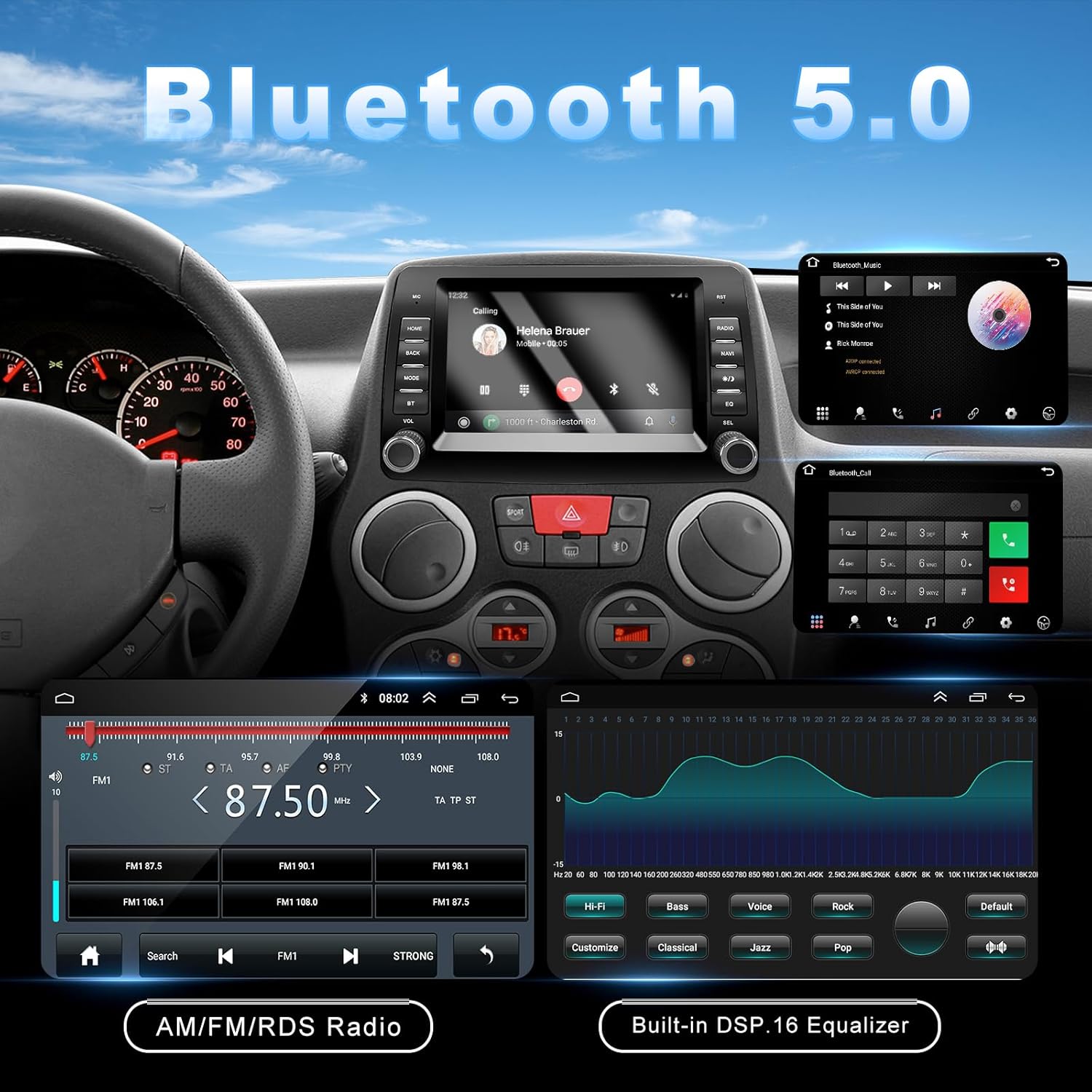
Image 1.1: Before and After Installation in Fiat Panda Dashboard. This image illustrates the seamless integration of the ANKEWAY car radio into the Fiat Panda dashboard, replacing the original stereo unit.
2. Packungsinhalt
Bitte überprüfen Sie, ob alle unten aufgeführten Artikel in Ihrem Paket enthalten sind. Sollten Artikel fehlen oder beschädigt sein, kontaktieren Sie bitte unseren Kundenservice.
- 1x ANKEWAY Car Radio for Fiat Panda
- 1x 6-pin USB Cable
- 1x 4-pin USB Cable
- 1x GPS-Antenne
- 1x CANBUS Adapter
- 1x externes Mikrofon
- 1x Stromkabelbaum
- 1x RAC Cable
- 1x AHD Rear Camera and Connection Cable
- 4x Plastic Removal Levers

Image 2.1: Package Contents. This image displays the car radio unit alongside all included accessories such as cables, antennas, and tools.
3. Einrichtung und Installation
The ANKEWAY XBH-7702 car radio is designed for easy installation, with pre-grouped cables and connectors that directly interface with your vehicle's original wiring. No additional frames or accessories are typically required.
3.1 Allgemeine Installationsschritte
- Vorbereitung: Vor Beginn der Installation sicherstellen, dass die Zündung des Fahrzeugs ausgeschaltet und die Batterie abgeklemmt ist.
- Originalradio ausbauen: Use the provided plastic removal levers to carefully detach the trim and remove the existing car radio from the dashboard.
- Kabelbaum anschließen: Connect the supplied power cable harness to the vehicle's original wiring. The CANBUS adapter should be integrated at this stage to ensure compatibility with original steering wheel controls.
- Peripheriegeräte anschließen: Attach the GPS antenna, external microphone, USB cables, and RAC cable as needed.
- Installation der Rückfahrkamera: Install the AHD rear camera at the rear of your vehicle and route its connection cable to the car radio unit.
- Neues Funkgerät montieren: Carefully slide the ANKEWAY car radio into the dashboard opening, ensuring all connections are secure and no wires are pinched.
- Testfunktionalität: Reconnect the battery, turn on the ignition, and test all functions of the car radio before fully reassembling the dashboard trim.
3.2 CANBUS Adapter
The included CANBUS adapter resolves protocol incompatibility issues, preserving the functionality of your original steering wheel controls without the need for an external controller.
3.3 Rückfahrkamera
The high-quality reversing camera supports high-definition input, night vision, and automatic display when reversing, significantly enhancing your driving experience.
Image 3.1: Reversing Camera System. This image shows the car radio display with the reversing camera feed and the physical camera unit.
4. Bedienungsanleitung
Your ANKEWAY car radio runs on Android 13, offering a versatile and user-friendly interface.
4.1 Kabelloses CarPlay und Android Auto
Connect your iOS or Android smartphone wirelessly or via USB to access CarPlay or Android Auto. This allows you to use navigation, music, messaging, and other compatible apps directly on the car radio display. Voice control is supported for a safer driving experience. Mirror-Link functionality is also available.

Image 4.1: CarPlay and Android Auto Interfaces. This image shows the distinct user interfaces for Apple CarPlay and Android Auto on the car radio screen, along with compatible apps.

Image 4.2: Connectivity Options. This image highlights the features and connection methods for Apple CarPlay, Android Auto, and MirrorLink.
4.2 Android 13 System and Apps
The Android 13 operating system allows you to connect to the internet via Wi-Fi and install various applications directly from the app store. The system supports multiple languages, including Italian, Spanish, German, and French.

Image 4.3: Wi-Fi Connectivity. This image demonstrates the car radio's ability to connect to mobile Wi-Fi for internet access and app downloads.

Image 4.4: App Interface. This image shows the car radio's screen displaying a selection of installed applications, including music streaming and social media apps.
4.3 Split-Screen-Funktionalität
Die Split-Screen-Funktion ermöglicht Ihnen Folgendes: view zwei Anwendungen gleichzeitig, z. B.ampauf der einen Seite Navigation, auf der anderen Musik.

Image 4.5: Split Screen View. This image demonstrates the car radio's capability to display two applications concurrently, such as radio and a video player.
4.4 FM RDS Radio
The radio supports station frequency display and allows audio adjustment via DSP (Digital Signal Processor) and equalizer functions for optimal sound quality.

Image 4.6: FM RDS Radio and Equalizer. This image displays the FM radio interface with RDS information and the built-in DSP 16-band equalizer for sound customization.

Image 4.7: RDS Radio Interface. This image shows the car radio's RDS radio interface, displaying current station frequencies and presets.
4.5 Navigation
Utilize navigation applications through Android Auto, CarPlay, or directly via the Android 13 system with the included GPS antenna.

Image 4.8: Navigation Display. This image shows a navigation application running on the car radio screen, providing route guidance.
4.6 Lenkradsteuerung
The CANBUS adapter ensures that your original steering wheel controls remain fully functional, allowing you to manage audio and other features without taking your hands off the wheel.

Image 4.9: Steering Wheel Control Interface. This image illustrates the car radio's interface for configuring and utilizing steering wheel controls for various functions.
5. Wartung
To ensure the longevity and optimal performance of your ANKEWAY car radio, follow these simple maintenance guidelines:
- Reinigen des Bildschirms: Verwenden Sie ein weiches, fusselfreies Tuch, um den Bildschirm vorsichtig abzuwischen. Bei hartnäckigen Flecken leicht andrücken.ampReinigen Sie das Tuch mit Wasser oder einem für Bildschirme geeigneten Reiniger. Vermeiden Sie aggressive Chemikalien oder Scheuermittel.
- Software-Updates: Regularly check for and install firmware updates released by our development team to optimize system performance and add new features. Refer to the Support section for how to obtain updates.
- Umgebungsbedingungen: Vermeiden Sie es, das Gerät extremen Temperaturen, direkter Sonneneinstrahlung über längere Zeiträume oder übermäßiger Feuchtigkeit auszusetzen.
- Kabelverbindungen: Überprüfen Sie regelmäßig alle Kabelverbindungen, um sicherzustellen, dass sie fest sitzen und keine Beschädigungen aufweisen.
6. Fehlerbehebung
Sollten Sie Probleme mit Ihrem Autoradio haben, beachten Sie bitte die folgenden gängigen Schritte zur Fehlerbehebung:
6.1 Gerät schaltet sich nicht ein
If the car radio does not power on after installation:
- Check Yellow Wire Connection: Ensure the yellow wire labeled 'battery port' is correctly connected. There might be multiple yellow wires; try connecting another one if the first attempt fails.
- Verify Power Harness: Inspect the power harness for any loose connections or damage. If possible, try using an alternative power harness to rule out a faulty cable.
- Check Vehicle Fuses: Ensure the vehicle's relevant fuses for the car radio are intact and not blown.

Image 6.1: Power On Troubleshooting. This image provides visual guidance for troubleshooting power issues, specifically checking the yellow 'battery port' wire and the power harness.
6.2 Kein Ton
- Überprüfen Sie die Lautsprecheranschlüsse.
- Überprüfen Sie die Lautstärkepegel und die Stummschaltungseinstellungen.
- Stellen Sie sicher, dass die richtige Audioquelle ausgewählt ist.
6.3 CarPlay/Android Auto verbindet sich nicht
- Stellen Sie sicher, dass Bluetooth und WLAN auf Ihrem Smartphone aktiviert sind.
- Check for any pending software updates on your smartphone or the car radio.
- Try restarting both the car radio and your smartphone.
- If using a wired connection, ensure the USB cable is functional and properly connected.
7. Spezifikationen
| Marke | KNÖPFE |
| Modellnummer | XBH-7702 |
| Betriebssystem | Android 13 |
| Konnektivitätstechnologie | USB, Wireless (Bluetooth, Wi-Fi) |
| Kompatible Geräte | Smartphone, Tablet |
| Audioausgabemodus | Stereo |
| Surround Sound-Kanalkonfiguration | 5.1 |
| Videokodierung | H.264, H.265/HEVC |
| Anzahl der Audiokanäle | 2 |
| Audioausgabetyp | Lautsprecher |
| Hersteller | Shenzhen Cheluzhe technology co., LTD |
8. Garantie und Support
8.1 Produktgarantie
This ANKEWAY car radio comes with a 1 Jahr Garantie Die Garantie gilt ab Kaufdatum und deckt Herstellungsfehler sowie Funktionsstörungen bei normalem Gebrauch ab. Bitte bewahren Sie Ihren Kaufbeleg für Garantieansprüche auf.
8.2 Customer Support and Firmware Updates
Our development team regularly releases firmware updates to optimize the system experience. If you require a system update or have any technical questions, please contact ANKEWAY customer support. You can typically find contact information on the product packaging or the official ANKEWAY webWebsite.