
1. Einleitung
Thank you for choosing the Auusda T156A 15.6-inch Business Laptop. This manual provides essential information for setting up, operating, and maintaining your new laptop. Please read this manual thoroughly before using the device to ensure proper function and longevity. This laptop is designed for productivity and portability, featuring a 4-core processor, 8GB DDR4 RAM, and a 512GB M.2 PCIe NVMe SSD, all running on Windows 11 Pro.
2. Packungsinhalt
Überprüfen Sie, ob alle Artikel im Paket vorhanden sind:
- Australien T156A Laptop
- Netzteil und Kabel
- Transparent Keyboard Cover
- Spanish Keyboard Cover
- Bedienungsanleitung (dieses Dokument)

Image: The laptop, power adapter, and keyboard covers as included in the package.
3. Produktüberschreitungview
3.1 Hauptmerkmale
- Starke Leistung: Equipped with a 4-core N95 processor (1.7-3.4 GHz) and 8GB DDR4 RAM for efficient multitasking.
- Ample Lagerung: Features a 512GB M.2 PCIe NVMe SSD for fast data access and sufficient storage.
- Vibrant Full HD Display: A 15.6" Full HD IPS LCD screen offers clear visuals with wide viewwinkeln.
- Praktische Funktionen: Includes a backlit keyboard for low-light use and a fingerprint reader for secure access.
- Connectivity & Versatility: Offers Bluetooth, an SD card reader, and essential ports for various devices.

Bild: Ein überview of the Auusda T156A laptop with its main features labeled.
3.2 Prozessor und Speicher
The laptop is powered by an Intel N95 4-core processor, capable of speeds up to 3.4 GHz, ensuring smooth operation for business and academic tasks. It comes with 8GB of DDR4 RAM and a 512GB M.2 PCIe NVMe Solid State Drive (SSD) for quick boot times and application loading.

Image: A visual representation of the 4-core N95 processor chip.

Image: The laptop highlighting its 8GB RAM and 512GB SSD configuration.
3.3 Anzeige
Experience clear and vibrant visuals on the 15.6-inch Full HD (1920x1080) IPS LCD display. The screen features a narrow bezel and supports 16 million colors, providing an immersive viewing experience. A privacy shutter is integrated for the webNocken.

Image: The laptop's 15.6-inch Full HD IPS LCD display and its features.
3.4 Tastatur und Touchpad
The laptop features a full-size backlit keyboard, allowing comfortable typing in various lighting conditions. The integrated touchpad includes a fingerprint sensor for secure and quick login.

Image: The backlit keyboard and the fingerprint ID sensor on the touchpad.
3.5 Anschlüsse und Konnektivität
The Auusda T156A offers a range of connectivity options:
- Gleichstromeingang
- USB-A Ports (multiple)
- HDMI-Ausgang
- microSD-Kartenleser
- Kopfhöreranschluss
- Bluetooth and Wi-Fi (802.11ac, 802.11ax)
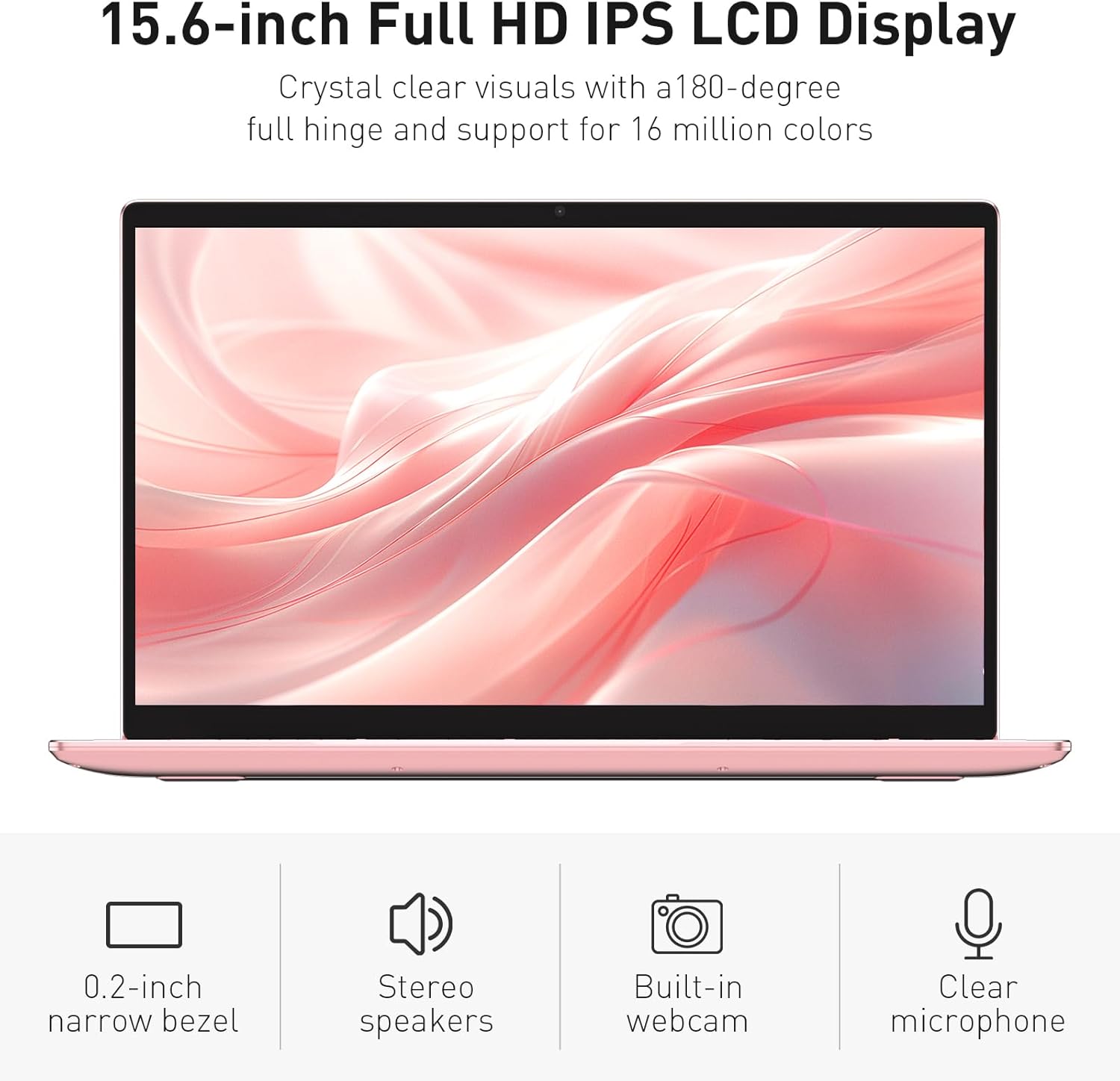
Image: The various ports available on the sides of the laptop.
4. Einrichtung
4.1 Erstes Einschalten und Laden
- Nehmen Sie den Laptop und das Netzteil aus dem Karton.
- Schließen Sie das Netzteil an den Gleichstromeingang des Laptops und anschließend an eine Steckdose an.
- Allow the laptop to charge for at least 30 minutes before initial use, or until the charging indicator light shows a full charge.
- Drücken Sie den Netzschalter, um den Laptop einzuschalten.
4.2 Windows 11 Pro-Setup
Follow the on-screen instructions to complete the initial Windows 11 Pro setup. This will include:
- Auswahl Ihrer Region und Ihres Tastaturlayouts.
- Verbindung mit einem Wi-Fi-Netzwerk herstellen.
- Annahme des Lizenzvertrags.
- Ein Benutzerkonto erstellen oder sich mit einem Microsoft-Konto anmelden.
4.3 Fingerabdrucksensor-Einrichtung
For enhanced security, set up the fingerprint sensor:
- Sobald Windows eingerichtet ist, navigieren Sie zu Einstellungen > Konten > Anmeldeoptionen.
- Under 'Windows Hello Fingerprint', click Aufstellen.
- Follow the on-screen prompts to register your fingerprint. You will be asked to lift and place your finger multiple times on the sensor until it is fully registered.
5. Bedienung des Laptops
5.1 Grundlegende Verwendung
- Ein-/Ausschalten: Drücken Sie den Netzschalter oben rechts auf der Tastatur, um den Laptop ein- oder auszuschalten.
- Schlafmodus: Schließen Sie den Deckel oder drücken Sie kurz den Netzschalter, um den Laptop in den Ruhemodus zu versetzen.
- Restart/Shut Down: Access these options from the Start Menu in Windows.
5.2 Hintergrundbeleuchtete Tastatursteuerung
The keyboard backlight can be adjusted or turned off using the function keys. Look for the key with a keyboard icon (often F5 or F6) to cycle through brightness levels or toggle the backlight on/off.
5.3 WebCam Sichtschutz
Die integrierte webcam includes a physical privacy shutter. Slide the small cover located directly above the webcam lens to open or close it, ensuring your privacy when the camera is not in use.
5.4 Externe Geräte anschließen
Use the available ports to connect peripherals:
- USB-Geräte: Plug USB drives, mice, or keyboards into the USB-A ports.
- Externe Anzeige: Connect an external monitor or projector using the HDMI port.
- Audio: Use the headphone jack for headphones or external speakers.
- MicroSD-Karte: Insert a microSD card into the dedicated slot for additional storage or data transfer.
5.5 Spieleleistung
The Auusda T156A is capable of handling light gaming and provides a smooth experience for many popular titles. For optimal performance, ensure your drivers are updated and close unnecessary background applications.
Video: Demonstration of the Auusda T156A laptop's light gaming capabilities.
Video: Ein kurzer Clip zeigtasing the laptop's performance during racing games.
6. Wartung
- Reinigung: Verwenden Sie ein weiches, fusselfreies Tuch, um den Bildschirm und das Gehäuse zu reinigen. Bei hartnäckigen Flecken dampReinigen Sie das Tuch mit Wasser oder einem für Bildschirme geeigneten Reiniger. Vermeiden Sie aggressive Chemikalien.
- Batteriepflege: To prolong battery life, avoid fully discharging the battery frequently. It is recommended to keep the battery charged between 20% and 80% when possible. Store the laptop in a cool, dry place.
- Software-Updates: Prüfen Sie regelmäßig, ob Windows-Updates und Treiber-Updates verfügbar sind, und installieren Sie diese, um optimale Leistung und Sicherheit zu gewährleisten.
- Belüftung: Um eine Überhitzung zu vermeiden, stellen Sie sicher, dass die Lüftungsschlitze des Laptops nicht blockiert sind. Verwenden Sie den Laptop auf einer harten, ebenen Fläche.
- Datensicherung: Um Datenverlust zu vermeiden, sollten Sie wichtige Daten regelmäßig auf einer externen Festplatte oder in der Cloud sichern.
7. Fehlerbehebung
Dieser Abschnitt behandelt häufige Probleme, die bei Ihrem Audida T156A Laptop auftreten können.
| Problem | Mögliche Lösung |
|---|---|
| Der Laptop lässt sich nicht einschalten. | Ensure the power adapter is securely connected and the outlet is working. Try charging the laptop for a while before attempting to power it on again. |
| Der Bildschirm ist leer oder schwarz. | Check if the laptop is powered on. Try pressing Fn + F1 (or the display toggle key) to ensure the display is not turned off. Connect to an external monitor to check if the issue is with the laptop's screen. |
| Probleme mit der WLAN-Verbindung. | Stellen Sie sicher, dass WLAN in den Windows-Einstellungen aktiviert ist. Starten Sie Ihren Router und Ihren Laptop neu. Prüfen Sie, ob aktualisierte WLAN-Treiber verfügbar sind. |
| Fingerabdrucksensor funktioniert nicht. | Ensure your finger is clean and dry. Re-register your fingerprint in Windows settings. Check for driver updates for the fingerprint sensor. |
| Die Tastaturbeleuchtung funktioniert nicht. | Press the dedicated backlight function key (e.g., Fn + F5 or F6) to toggle or adjust brightness. |
| Der Laptop läuft langsam. | Close unnecessary applications. Check Task Manager for resource-intensive processes. Ensure sufficient free space on the SSD. Run a malware scan. |
8. Spezifikationen
Detaillierte technische Spezifikationen für das Australia T156A Notebook:
| Besonderheit | Detail |
|---|---|
| Marke | Auusda |
| Modellname | T156A |
| Bildschirmgröße | 15.6 Zoll |
| Festplattengröße | 512 GB (SSD) |
| CPU Modell | Intel N95 (4-Core, 1.7 GHz base, up to 3.4 GHz turbo) |
| Größe des installierten RAM-Speichers | 8 GB DDR4 |
| Betriebssystem | Windows 11 Pro |
| Besondere Merkmale | Tastatur mit Hintergrundbeleuchtung, Fingerabdruckleser |
| Grafik-Coprozessor | UHD Graphics (Integrated) |
| Konnektivitätstechnologie | Bluetooth, Wi-Fi (802.11ac, 802.11ax) |
| Anzahl der Ports | 2 (USB-A, HDMI, microSD, Headphone Jack) |
| Batteriezellentyp | Lithium-Polymer (6000 mAh) |
| Artikelabmessungen (L x B x Dicke) | 14 Zoll L x 9 Zoll B x 0.7 Zoll T |
| Native Auflösung | 1920 x 1080 Pixel |
| Bildwiederholrate | 60 Hz |
| Webcam Capability | Yes (with privacy shutter) |
9. Garantie und Support
9.1 Produktgarantie
The Auusda T156A laptop comes with a 2 Jahr Herstellergarantie. Please retain your proof of purchase for warranty claims. For detailed warranty terms and conditions, refer to the documentation provided with your product or contact Auusda customer support.
9.2 Kundendienst
For technical assistance, troubleshooting, or service inquiries, please visit the official Auusda Store or contact their customer support channels. You can find more information and support resources at the Auusda Official Store on Amazon.
Video: A short promotional video from the Auusda Official Store, showcasing the laptop's features for college students.