
Einführung
This manual provides detailed instructions for the safe and efficient use of your Canon PIXMA MegaTank G4780 All-in-One Printer. This device is designed for home and office use, offering print, scan, copy, and fax functionalities with high-yield ink tanks and wireless connectivity. Please read this manual thoroughly before using the printer and keep it for future reference.
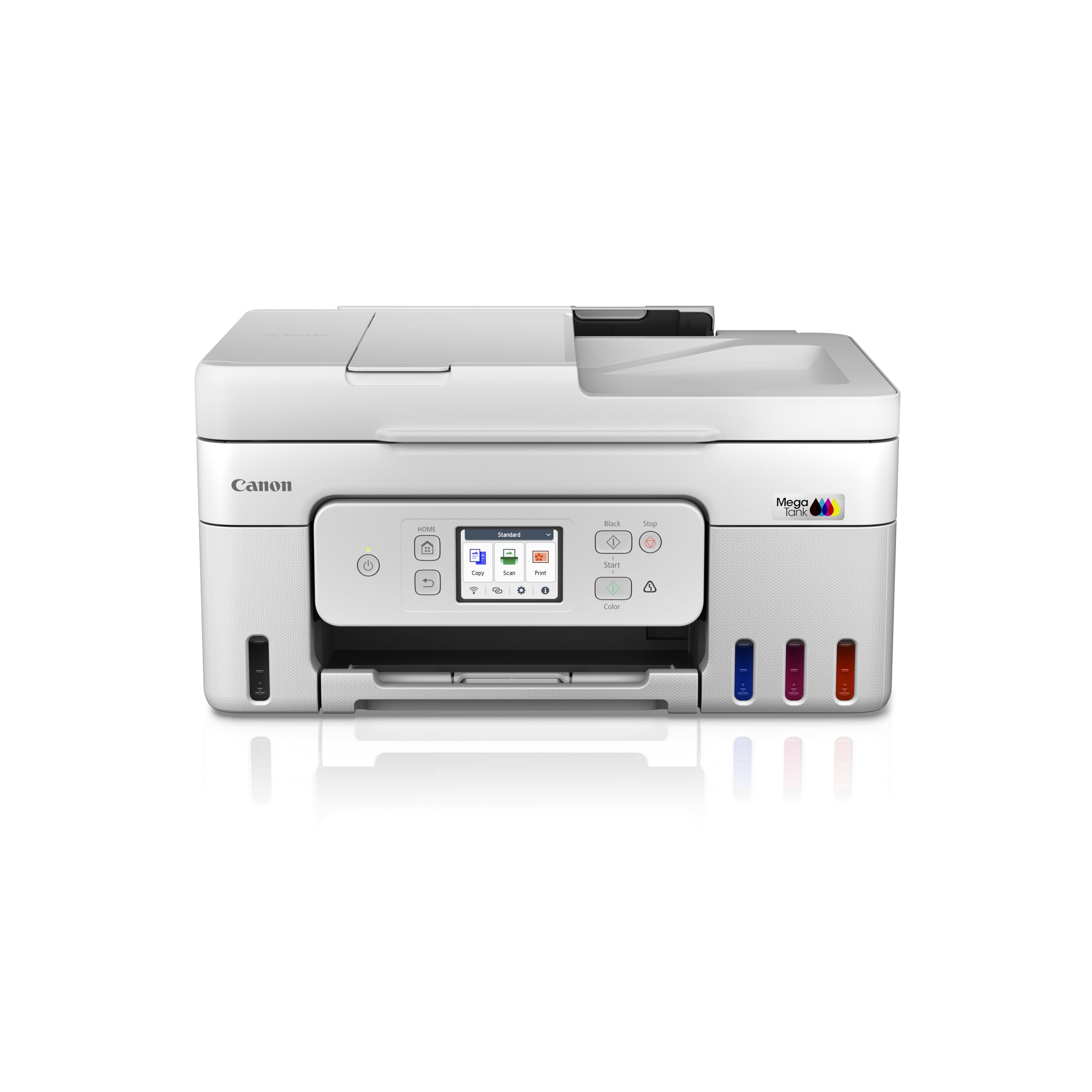
Bild: Vorderseite view of the Canon PIXMA MegaTank G4780 All-in-One Printer, showing its compact design and front control panel.
1. Einrichtung
1.1 Auspacken und erste Vorbereitung
Carefully remove the printer and all accessories from the packaging. Ensure all protective tapes and packing materials are removed from the printer's exterior and interior. Refer to the quick start guide for visual instructions on tape removal.
1.2 Tintenfüllung
The PIXMA G4780 uses high-yield ink bottles. Follow these steps to fill the ink tanks:
- Open the ink tank covers located on the front of the printer.
- Öffnen Sie die Kappe der entsprechenden Tintenflasche (Schwarz, Cyan, Magenta, Gelb).
- Align the bottle nozzle with the inlet of the correct ink tank and gently insert it. The ink will flow automatically. Do not squeeze the bottle.
- Once the tank is full, remove the bottle and recap it. Close the ink tank cover securely.
- Wiederholen Sie den Vorgang für alle Farben.

Image: The Canon PIXMA G4780 printer displayed with its four high-yield ink bottles (Black, Cyan, Magenta, Yellow) ready for filling.
1.3 Einschalten und Erstkonfiguration
Connect the power cord to the printer and a wall outlet. Press the power button. Follow the on-screen instructions on the printer's display for initial setup, including language selection and date/time settings.
1.4 Software- und Treiberinstallation
Insert the provided installation CD into your computer or download the latest drivers and software from the official Canon website. Follow the on-screen prompts to install the necessary software for printing, scanning, and faxing functions.
1.5 Drahtlose Verbindung
To connect your printer to a Wi-Fi network:
- On the printer's control panel, navigate to the Wi-Fi setup menu.
- Wählen Sie Ihr drahtloses Netzwerk (SSID) aus der Liste aus.
- Enter the network password (WPA/WPA2 key).
- Confirm the connection. The Wi-Fi indicator on the printer will illuminate when connected.
The printer supports various wireless printing options including AirPrint, Mopria, Canon Print Service (Android), and Direct Wireless.

Image: A graphic illustrating three simple steps to get the printer ready: Establish Connection, Install Driver, and Ready To Print.
2. Bedienung des Druckers
2.1 Dokumente drucken
Load paper into the rear tray or front cassette. From your computer or mobile device, select the Canon G4780 printer. Adjust print settings such as paper size, type, and quality. For double-sided printing, enable the Automatischer Duplexdruck option in your printer settings to save paper and time.
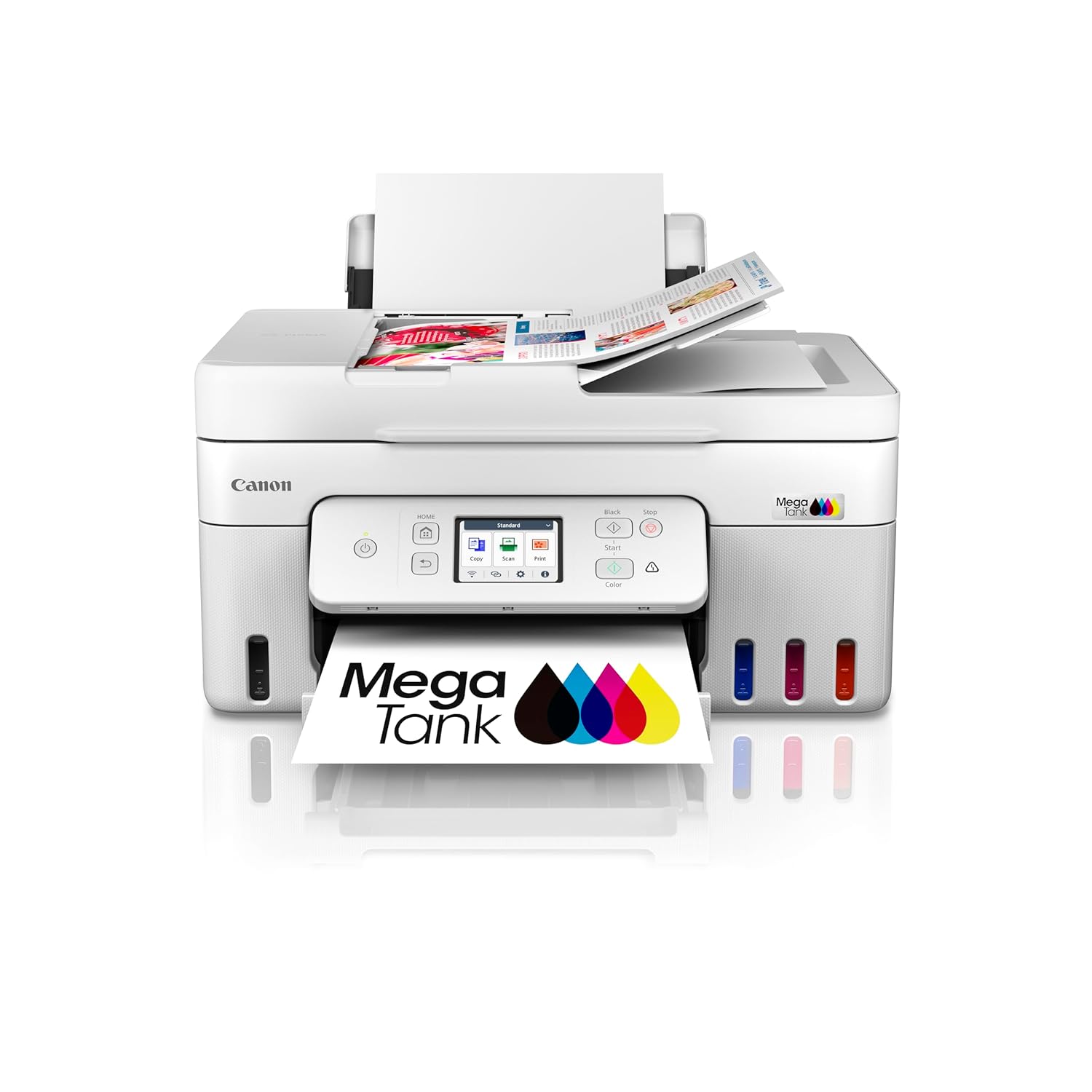
Image: The Canon PIXMA G4780 printer with paper loaded in the rear tray and a printed document emerging from the front output tray.
2.2 Dokumente scannen
The printer features both a flatbed scanner and an Automatic Document Feeder (ADF).
- Flachbettscannen: Place the document face-down on the scanner glass. Use the Canon IJ Scan Utility software on your computer or the printer's control panel to initiate a scan.
- ADF-Scannen: For multiple pages, load up to 35 sheets into the ADF tray. The ADF allows for quick batch scanning, copying, or faxing without manual page turning.
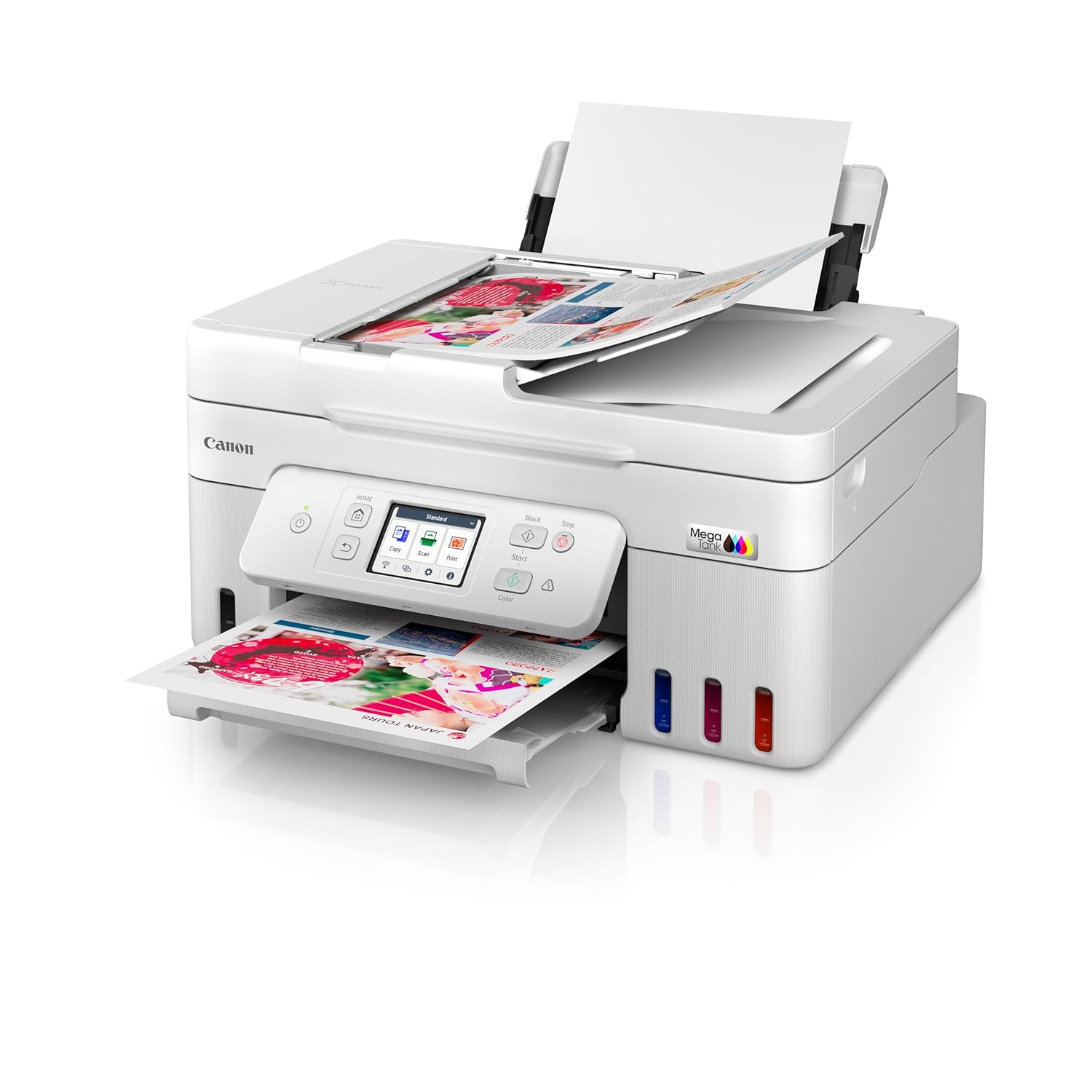
Image: The Canon PIXMA G4780 printer with multiple sheets of paper loaded into the Automatic Document Feeder (ADF) for scanning or copying.

Image: A graphic highlighting the Auto Document Feeder (ADF) for batch scanning and Auto Duplex Printing for automatic double-sided printing.
2.3 Dokumente kopieren
Place your document on the scanner glass or in the ADF. On the printer's control panel, select the "Copy" function. Adjust settings such as number of copies, paper size, and copy quality. Press the Start button to begin copying.
2.4 Dokumente faxen
Load the document into the ADF or place it on the scanner glass. On the printer's control panel, select the "Fax" function. Enter the recipient's fax number and press the Start button. Ensure your printer is connected to a telephone line for fax functionality.
2.5 Mobile and Cloud Printing
Utilize the Canon PRINT Inkjet/SELPHY app for seamless printing and scanning from your smartphone or tablet. The printer also supports cloud services, allowing you to print directly from various online platforms.

Image: A graphic illustrating the mobile and cloud printing capabilities, showing a smartphone connected wirelessly to the printer.
3. Wartung
3.1 Tintenstand prüfen
Regularly check the ink levels through the printer's display panel or the Canon PRINT app. Refill ink tanks promptly when levels are low to prevent air from entering the ink tubes, which can affect print quality.

Abbildung: Eine Grafik zeigtasing the high page yield ink bottles and stacks of printed pages, emphasizing cost-effective printing.
3.2 Reinigung des Druckkopfs
If print quality declines (e.g., streaks, faded colors), perform a print head cleaning. This can be done from the printer's maintenance menu or through the printer driver on your computer. A deep cleaning may be required for more stubborn clogs.
3.3 Behebung von Papierstaus
If a paper jam occurs, the printer's display will show an error message. Carefully open the printer covers and remove any jammed paper following the instructions on the screen or in the online manual. Avoid tearing the paper to prevent small pieces from remaining inside.
3.4 Allgemeine Reinigung
Wischen Sie die Außenseite des Druckers mit einem weichen, fusselfreien Tuch ab.amp cloth. Clean the scanner glass regularly to ensure clear scans and copies. Avoid using abrasive cleaners or solvents.
4. Fehlerbehebung
This section addresses common issues you might encounter with your Canon PIXMA G4780 printer.
4.1 Drucker reagiert nicht
- Stellen Sie sicher, dass der Drucker eingeschaltet und mit dem Computer oder Netzwerk verbunden ist.
- Check all cable connections (USB, power, network).
- Restart both the printer and your computer/router.
- Vergewissern Sie sich, dass im Druckdialog Ihrer Anwendung der richtige Drucker ausgewählt ist.
4.2 Mangelhafte Druckqualität
- Prüfen Sie den Tintenstand und füllen Sie gegebenenfalls nach.
- Führen Sie über das Wartungsmenü des Druckers eine Druckkopfreinigung und einen Düsentest durch.
- Stellen Sie sicher, dass Sie für Ihren Druckauftrag die richtige Papiersorte und die richtigen Qualitätseinstellungen verwenden.
- If lines or streaks persist, a print head alignment may be required.
4.3 Probleme mit dem Papiereinzug
- Ensure paper is loaded correctly and not exceeding the maximum capacity of the tray.
- Fächern Sie den Papierstapel vor dem Einlegen auf, um ein Zusammenkleben der Blätter zu verhindern.
- Check for any foreign objects or small paper scraps in the paper path.
4.4 Network Connection Problems
- Überprüfen Sie, ob Ihr WLAN-Router ordnungsgemäß funktioniert.
- Stellen Sie sicher, dass sich der Drucker in Reichweite Ihres WLAN-Routers befindet.
- Re-enter the Wi-Fi password on the printer.
- Try connecting via USB temporarily to ensure the printer itself is functional.
5. Spezifikationen
| Besonderheit | Detail |
|---|---|
| Modellname | PIXMA G4780 |
| Funktionen | Drucken, scannen, kopieren, faxen |
| Konnektivitätstechnologie | USB, WLAN |
| Drucktechnologie | Tintenstrahl |
| Druckerausgabe | Farbe |
| Maximale Druckauflösung (Farbe) | 4800 x 1200 dpi |
| Maximale Druckgeschwindigkeit (Monochrom) | 11 ppm |
| Maximale Druckgeschwindigkeit (Farbe) | 6 ppm |
| Duplexdruck | Automatisch |
| Automatischer Dokumenteneinzug (ADF) | Ja |
| Scannertyp | Bogenoffset |
| Artikelgewicht | 7500 Gramm |
| Artikelabmessungen (T x B x H) | 36.3 cm (T) x 41.6 cm (B) x 21.2 cm (H) |
| Lieferumfang | Tintenflaschen |
6. Garantie und Support
6.1 Garantieinformationen
Your Canon PIXMA MegaTank G4780 printer comes with a 2-year or 30,000 prints (whichever is earlier) onsite warranty from the date of purchase. This warranty covers manufacturing defects only and includes print heads. Please retain your purchase receipt for warranty claims.
For warranty service, contact Canon India Pvt Limited. Their contact information is: 214-218, 2nd floor, Narain Manzil, Barakhamba Road, Connaught Place, New Delhi-110001, India.
6.2 Kundendienst
For technical assistance, troubleshooting, or service requests, please visit the official Canon support website or contact their customer service. Online resources often include FAQs, driver downloads, and detailed digital manuals.