
Imagebon W60N-JP
Tragbares 11.3-Zoll-Android-Autodisplay mit CarPlay & Android Auto – Benutzerhandbuch
Brand: Imagebon | Model: W60N-JP
1. Einleitung
Vielen Dank für Ihren Einkauf.asing the Imagebon Portable 11.3-inch Android Car Display. This advanced multimedia system is designed to enhance your driving experience by providing seamless access to navigation, entertainment, and communication features directly from your dashboard. With its powerful Android system, large display, and versatile connectivity options, it transforms your vehicle into a smart hub.

Figure 1.1: The Imagebon Portable 11.3-inch Android Car Display, showcasing sein schlankes Design und sein großer Bildschirm.
2. Produktmerkmale
- Leistungsstarkes Android-System: Equipped with an 8-core CPU, 4GB RAM, and 64GB ROM, allowing for smooth operation and installation of various apps via Wi-Fi connection.
- Large 11.3-inch HD Touchscreen: Provides a clear and immersive visual experience for navigation, videos, and apps, designed to not obstruct the driver's view.
- Kabelloses CarPlay & Android Auto: Seamlessly integrates with your smartphone for navigation, calls, and music with hands-free operation.
- Multimedia-Unterhaltung: Supports popular streaming apps like YouTube, Netflix, and Prime Video for in-car entertainment.
- 1080P Rear Camera Included: Assists with safe parking by automatically displaying the rear view when in reverse gear, showing obstacles and blind spots.
- Mehrere Audioausgabemodi: Offers BT (Bluetooth), Native, FM, and AUX output options to suit various audio setups.
- OTA Update Support: Enables one-click over-the-air software updates for continuous improvement and bug fixes.
- Einfache Installation: Simple plug-and-play setup via the cigarette lighter socket, compatible with most car models.

Figure 2.1: Illustration of the powerful internal components, including the 8-core CPU, 4GB RAM, and 64GB ROM, ensuring smooth performance.
3. Packungsinhalt
Bitte überprüfen Sie, ob alle Artikel in Ihrem Paket vorhanden sind:
- Imagebon Portable 11.3-inch Android Car Display
- Autoladegerät
- 10 m Rückfahrkamera
- Klebebefestigung
- GPS-Antenne
- AUX-Kabel
- Bedienungsanleitung

Abbildung 3.1: Alle im Produktpaket enthaltenen Komponenten.
4. Einrichtung
The Imagebon Portable Car Display is designed for easy installation in most vehicles.
- Montage: Attach the adhesive mount to a suitable, clean, and flat surface on your dashboard, ensuring it does not obstruct your view or interfere with airbags. Securely attach the display to the mount.
- Stromanschluss: Insert the car charger into your vehicle's cigarette lighter socket. Connect the other end of the car charger cable to the Type-C port on the display.
- GPS-Antennenanschluss: Connect the GPS antenna to the designated GPS port on the display. Position the antenna in a location with a clear view des Himmels für optimalen Signalempfang.
- Anschlussmöglichkeit für eine Rückkamera (optional): If using the rear camera, connect its cable to the AV IN port on the display. Route the cable carefully to the rear of your vehicle and install the camera according to its specific instructions.
- AUX-Anschluss (optional): If you wish to output audio to your car's stereo system via AUX, connect the provided AUX cable from the display's AUX output to your car's AUX input.

Figure 4.1: The portable display installed on a car dashboard, showing its placement and integration.
5. Bedienungsanleitung
Once powered on, the display will boot into the Android home screen. You can navigate the interface using the touchscreen.
- Startbildschirm: The home screen provides quick access to essential functions like time, date, audio output settings, and frequently used applications.
- App-Zugriff: Tap on app icons to launch applications such as YouTube, Netflix, Spotify, TikTok, and Maps. You can download more apps from the Google Play Store when connected to Wi-Fi.
- Medienwiedergabe: Use dedicated media apps to play music or videos. Adjust volume using the on-screen controls or your car's audio system if connected via AUX/FM.
- Navigation: Utilize pre-installed navigation apps or those accessed via CarPlay/Android Auto for turn-by-turn directions.
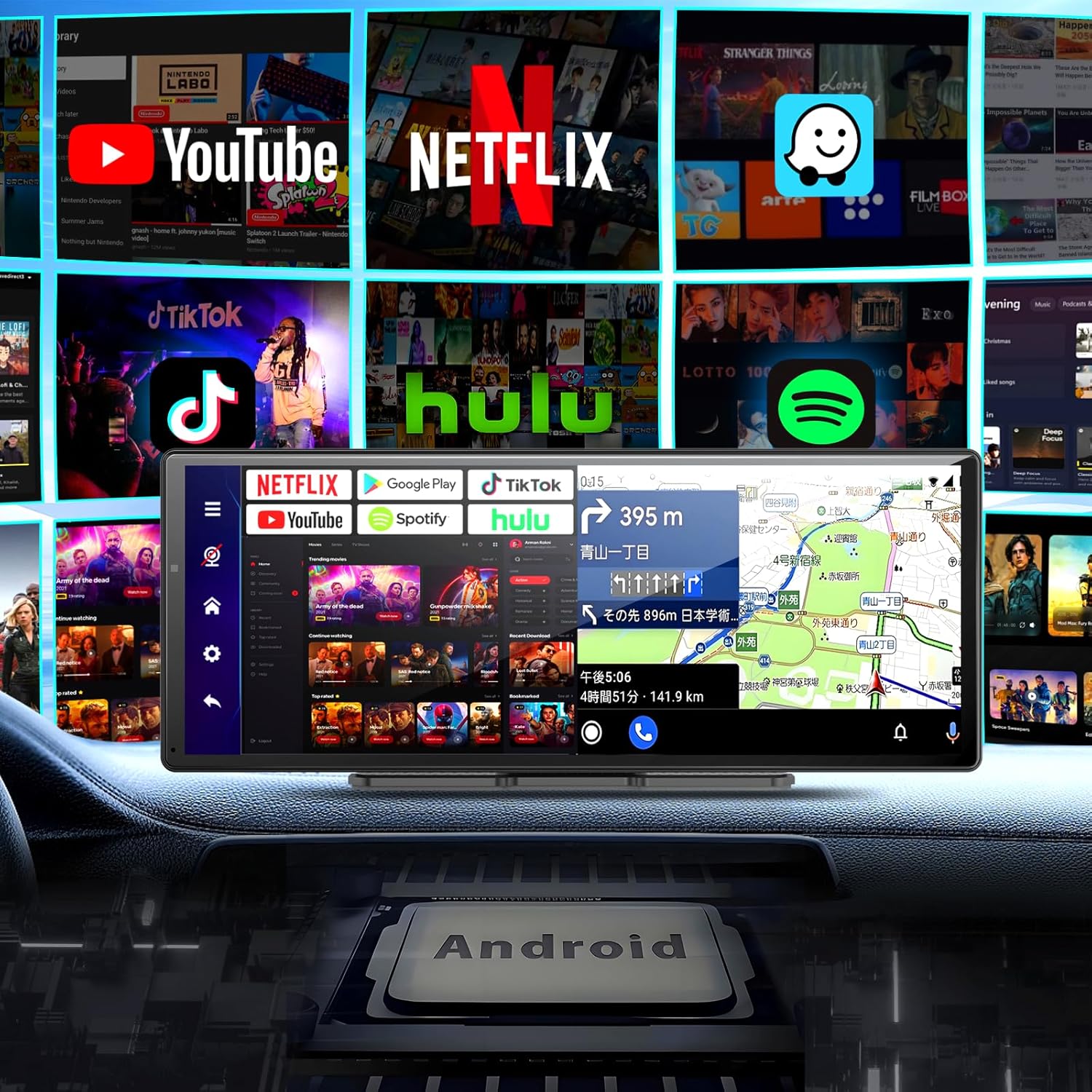
Figure 5.1: The display interface showcasing various pre-installed and downloadable applications for entertainment and navigation.
6. Konnektivität
The display offers multiple ways to connect and interact with your devices.
6.1. Kabelloses Apple CarPlay & Android Auto
Connect your smartphone wirelessly for a streamlined in-car experience.
- Stellen Sie sicher, dass Bluetooth und WLAN auf Ihrem Smartphone aktiviert sind.
- Wählen Sie auf dem Display das CarPlay- oder Android Auto-Symbol aus.
- Follow the on-screen prompts to pair your phone. Once connected, you can access navigation, make calls, send messages, and play music hands-free.
6.2. Bluetooth 5.0
For general audio streaming and hands-free calling.
- Öffnen Sie die Bluetooth-Einstellungen auf dem Display.
- Enable Bluetooth and make the device discoverable.
- On your smartphone, search for the display's Bluetooth name (e.g., "Imagebon W60N-JP") and pair.
- Once paired, you can stream audio and manage calls directly from the display.
6.3. MirrorLink
Mirror your smartphone screen directly onto the display.
- Select the MirrorLink option on the display.
- Follow the specific instructions for your smartphone model to enable screen mirroring.

Figure 6.1: Wireless connectivity for Apple CarPlay and Android Auto, enabling voice control and seamless smartphone integration.
7. Parking Assist (Rear Camera)
Die integrierte 1080P-Rückkamera liefert ein klares Bild. view of the area behind your vehicle, making parking safer and easier.
- Automatische Aktivierung: When the rear camera is properly connected and you shift your vehicle into reverse gear, the display will automatically switch to the rear camera view.
- Parkrichtlinien: The screen will show dynamic parking guidelines to help you accurately judge distances to obstacles and navigate tight spaces.
- Verbesserte Sichtbarkeit: The 1080P resolution ensures a clear and detailed image, reducing blind spots and preventing accidental scrapes or collisions.

Figure 7.1: The parking assist feature in action, displaying the rear camera feed with guiding lines for precise parking.
8. OTA-Updates
The device supports Over-The-Air (OTA) updates, allowing you to easily keep your system software up-to-date without complex procedures.
- Stellen Sie sicher, dass das Gerät mit einem stabilen WLAN-Netzwerk verbunden ist.
- Navigate to the system settings on the display.
- Look for the "About device" or "System Update" option.
- Click to check for updates. If an update is available, follow the on-screen prompts to download and install it.
- The device will automatically restart after the update is complete.

Figure 8.1: Visual guide for performing an OTA software update on the device.
9. Wartung
To ensure the longevity and optimal performance of your Imagebon display, follow these maintenance guidelines:
- Reinigung: Verwenden Sie ein weiches, fusselfreies Tuch, um den Bildschirm und das Gehäuse zu reinigen. Hartnäckige Flecken lassen sich leicht mit einem feuchten Tuch entfernen.ampReinigen Sie das Tuch mit Wasser oder einem für Bildschirme geeigneten Reiniger. Vermeiden Sie scheuernde Materialien oder aggressive Chemikalien.
- Temperatur: Setzen Sie das Gerät nicht über längere Zeiträume extremen Temperaturen (Hitze oder Kälte) aus.
- Lagerung: When not in use for a long time, disconnect the device from power and store it in a cool, dry place. The easy plug-and-play design allows for convenient removal and storage.
- Kabelmanagement: Achten Sie darauf, dass alle Kabel ordentlich verlegt sind und nicht eingeklemmt oder verheddert werden, um Beschädigungen zu vermeiden.
10. Fehlerbehebung
If you encounter issues with your Imagebon display, refer to the following common problems and solutions:
| Problem | Mögliche Ursache | Lösung |
|---|---|---|
| Gerät lässt sich nicht einschalten. | No power, loose connection, faulty cigarette lighter socket. | Check if the car charger is securely plugged into both the display and the cigarette lighter. Test the cigarette lighter with another device. Ensure the car's ignition is on. |
| Power drops after a short period (e.g., 15 minutes). | Insufficient power supply, overheating, internal fault. | Ensure the car charger is providing stable power. Check for overheating (ensure vents are not blocked). If the issue persists, contact customer support. |
| CarPlay/Android Auto verbindet sich nicht. | Bluetooth/Wi-Fi off, incorrect pairing, phone compatibility. | Ensure Bluetooth and Wi-Fi are enabled on your phone. Forget the device on your phone and re-pair. Restart both the display and your phone. Verify your phone's compatibility with CarPlay/Android Auto. |
| Keine Audioausgabe. | Incorrect audio output mode, volume too low, loose AUX/FM connection. | Check the display's audio output settings (BT, Native, FM, AUX). Increase volume on both the display and your car stereo. Ensure AUX cable is fully inserted. If using FM, tune your car radio to the correct frequency. |
| Die Rückkamera zeigt kein Bild an. | Camera not connected, faulty camera, car not in reverse. | Ensure the rear camera cable is securely connected to the AV IN port. Verify the car is in reverse gear. Check the camera for any visible damage. |
| Apps sind langsam oder stürzen ab. | Insufficient storage, too many apps running, outdated software. | Periodically clear unnecessary apps and data to free up storage. Close background apps. Perform an OTA update to ensure the latest software is installed. |
11. Spezifikationen
| Besonderheit | Spezifikation |
|---|---|
| Bildschirmgröße | 11.3 Zoll |
| Betriebssystem | Android |
| CPU | 8-Kern |
| RAM | 4 GB |
| ROM | 64 GB |
| Konnektivität | Bluetooth, USB, WLAN |
| Bluetooth-Version | 5.0 |
| Kompatible Geräte | Smartphones (Android, iOS) |
| Besondere Merkmale | Android Auto, Apple CarPlay, Built-in Bluetooth, Hands-free calling, MirrorLink, OTA Updates |
| Auflösung der Rückkamera | 1080P (Included) |
| Audio-Ausgabemodi | BT, Native, FM, AUX |
| Produktgewicht | 0.95 Kilogramm |
| Verpackungsabmessungen | 31 x 14.9 x 11.2 cm |
| Modellnummer | W60N-JP |
| ASIN | B0DWXGSY31 |
12. Garantie und Support
Imagebon is committed to providing high-quality products and customer satisfaction. While specific warranty details are not provided in this manual, please retain your proof of purchase for any warranty claims.
If you encounter any issues or have questions regarding your Imagebon Portable 11.3-inch Android Car Display, please contact our customer support team immediately. Our team is ready to assist you with troubleshooting, technical support, and any other inquiries you may have.
For support, please refer to the contact information provided on the product packaging or the official Imagebon webWebsite.
Ask a question about this manual
Ask about setup, troubleshooting, compatibility, parts, safety, or missing instructions. Manuals+ will review the question and use this page’s manual context to help answer it.