
Einführung
This manual provides detailed instructions for the setup, operation, and maintenance of your T'nB KBWERGO Ergonomic Wireless Rechargeable Bluetooth Keyboard. This keyboard features an ergonomic wave design, integrated wrist rest, adjustable feet, and dual connectivity modes (Bluetooth and 2.4 GHz USB-A dongle) for compatibility with both PC and Mac systems. It is designed to enhance comfort and reduce wrist strain during extended use.
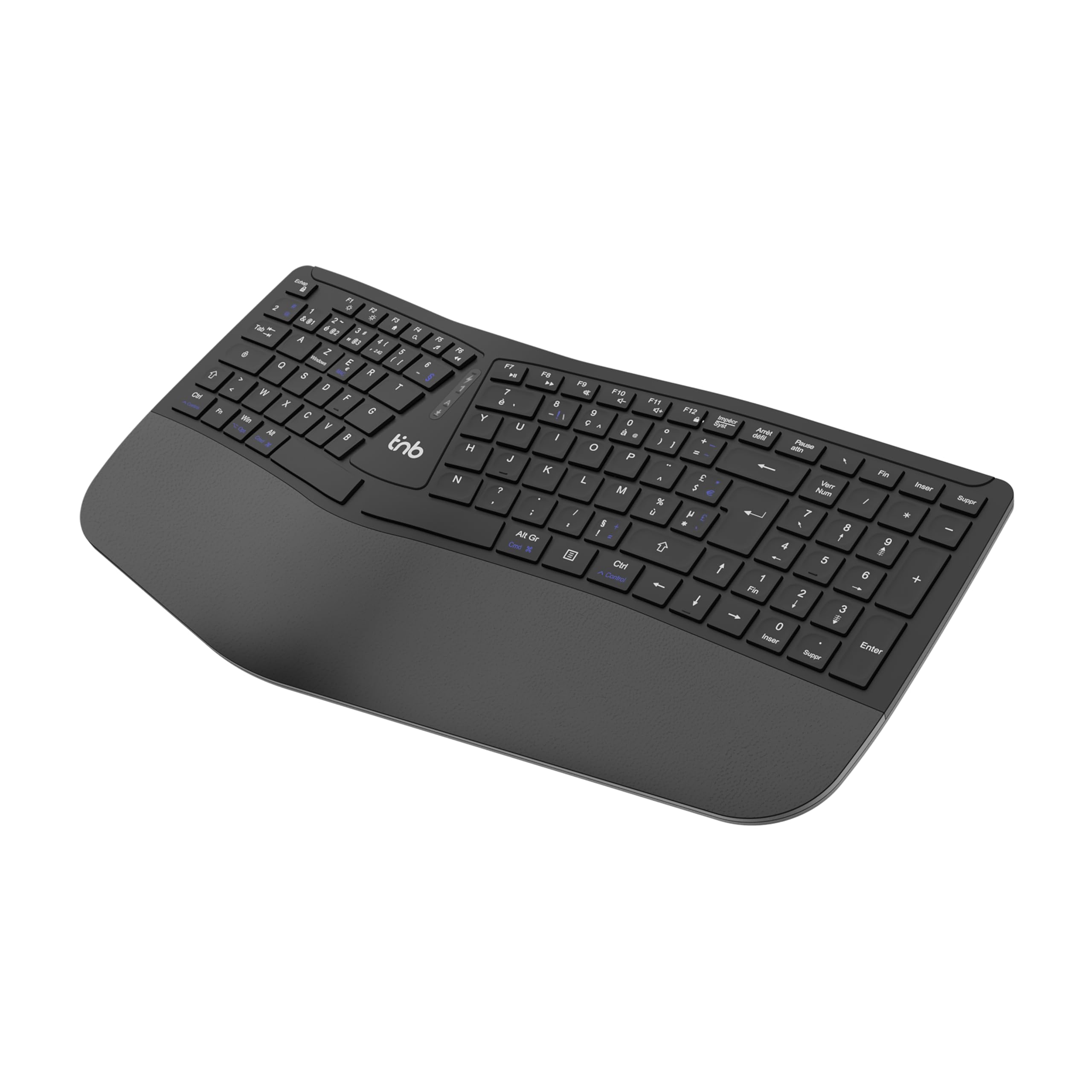
Abbildung 1: Oben view of the T'nB KBWERGO Ergonomic Wireless Keyboard.
Packungsinhalt
Bitte vergewissern Sie sich, dass alle Artikel im Paket vorhanden sind:
- T'nB KBWERGO Ergonomic Wireless Keyboard
- USB-A 2.4 GHz Wireless Dongle (typically stored in the keyboard's battery compartment)
- USB-C-Ladekabel
- Benutzerhandbuch (dieses Dokument)
Aufstellen
1. Aufladen der Tastatur
The keyboard is equipped with a rechargeable Lithium-Ion battery. Before first use, it is recommended to fully charge the keyboard.
- Suchen Sie den USB-C-Ladeanschluss an der Tastatur.
- Connect one end of the provided USB-C cable to the keyboard's charging port.
- Connect the other end of the USB-C cable to a USB-A power source (e.g., computer USB port, USB wall adapter).
- Die Ladeanzeige leuchtet auf. Sobald der Akku vollständig geladen ist, kann die Anzeige die Farbe ändern oder erlöschen.
2. Anschließen der Tastatur
The keyboard supports dual-mode connectivity: 2.4 GHz wireless via USB-A dongle and Bluetooth (up to 3 profileS).
2.1. 2.4 GHz Wireless Connection (USB-A Dongle)
- Locate the USB-A wireless dongle, usually stored in a compartment on the underside of the keyboard.
- Insert the USB-A dongle into an available USB-A port on your computer.
- Schalten Sie die Tastatur mit dem Netzschalter ein (die Position kann variieren, befindet sich normalerweise auf der Rückseite oder an der Seite).
- The keyboard should automatically connect to your computer. No additional drivers are typically required.
2.2. Bluetooth-Verbindung (bis zu 3 Geräte)
The keyboard can be paired with up to three Bluetooth-enabled devices.
- Stellen Sie sicher, dass die Tastatur eingeschaltet ist.
- Press and hold one of the Bluetooth pairing keys (e.g., BT1, BT2, BT3, or a dedicated Bluetooth button) for a few seconds until the corresponding indicator light flashes, indicating pairing mode.
- On your device (PC, Mac, tablet, smartphone), go to Bluetooth settings and search for new devices.
- Select "T'nB KBWERGO" or a similar name from the list of available devices.
- Folgen Sie den Anweisungen auf dem Bildschirm, um den Kopplungsvorgang abzuschließen. Die Kontrollleuchte hört auf zu blinken, sobald die Kopplung erfolgreich war.
- To switch between paired Bluetooth devices, simply press the corresponding Bluetooth key (BT1, BT2, oder BT3).
3. Einstellen der Tastaturneigung
The keyboard features 4 adjustable pads, allowing for two different tilt heights to optimize your typing posture.
- Flip the keyboard over to access the underside.
- Locate the adjustable feet at the front and back of the keyboard.
- Extend the smaller feet for a slight tilt, or extend both the smaller and larger feet for a higher tilt.
- Ensure all four feet are set to the same height for stability.

Abbildung 2: Unterseite view of the keyboard, highlighting the adjustable feet.

Figure 3: Diagram illustrating the ergonomic design and adjustable tilt options.
Bedienung der Tastatur
Vorteile des ergonomischen Designs
The T'nB KBWERGO keyboard features a wave-shaped ergonomic design and an integrated synthetic leather wrist rest. This design aims to:
- Minimize wrist movement and effort to reach all keys.
- Alleviate wrist strain during prolonged typing sessions.
- Provide a natural and comfortable hand position.
- Reduce muscle tension in the arms and shoulders.

Abbildung 4: Seite view illustrating the ergonomic wave design.
Funktionstasten und Tastenkombinationen
The keyboard includes 12 direct access keys (function keys) for common tasks. These keys are typically located along the top row of the keyboard (F1-F12) and may require pressing the Fn key simultaneously for their secondary functions. Refer to the keycap legends for specific functions such as media control, volume adjustment, and application shortcuts.
The keyboard also features a full numeric keypad for efficient data entry.
Kompatibilität
The T'nB KBWERGO keyboard is compatible with both PC (Windows operating systems) and Mac (macOS) systems, offering versatile use across different computing environments.
Wartung
Reinigung
Um das Aussehen und die Funktionalität der Tastatur zu erhalten:
- Stellen Sie sicher, dass die Tastatur vor der Reinigung ausgeschaltet ist.
- Mit einem weichen, fusselfreien Tuch leichtampMit Wasser oder einer milden Reinigungslösung reinigen.
- Avoid harsh chemicals, abrasive cleaners, or spraying liquids directly onto the keyboard.
- Für Staub und Schmutz zwischen den Tasten verwenden Sie Druckluft.
- Wipe the synthetic leather wrist rest gently.
Batteriepflege
The integrated Lithium-Ion battery requires proper care for longevity:
- Vermeiden Sie häufiges vollständiges Entladen des Akkus.
- Laden Sie die Tastatur regelmäßig auf, insbesondere wenn sie über einen längeren Zeitraum gelagert wird.
- Setzen Sie die Tastatur keinen extremen Temperaturen aus.
- Verwenden Sie zum Aufladen ausschließlich das mitgelieferte USB-C-Kabel oder ein zertifiziertes gleichwertiges Kabel.
Fehlerbehebung
Tastatur reagiert nicht
- Überprüfen Sie die Leistung: Stellen Sie sicher, dass die Tastatur eingeschaltet ist und über ausreichend Akkuladung verfügt. Laden Sie den Akku gegebenenfalls auf.
- 2.4-GHz-Verbindung:
- Verify the USB-A dongle is securely plugged into a working USB port on your computer.
- Versuchen Sie, den Dongle an einen anderen USB-Anschluss anzuschließen.
- Bluetooth Verbindung:
- Stellen Sie sicher, dass Bluetooth auf Ihrem Gerät aktiviert ist.
- Confirm the keyboard is selected as the active Bluetooth device (e.g., by pressing the correct BT1/BT2/BT3 key).
- If connection issues persist, try unpairing and re-pairing the keyboard with your device.
- Interferenz: Bringen Sie die Tastatur näher an Ihr Gerät und weg von anderen drahtlosen Geräten, die Störungen verursachen könnten.
- Neustart: Starten Sie Ihren Computer und die Tastatur neu.
Probleme beim Aufladen
- Kabelprüfung: Ensure the USB-C charging cable is securely connected to both the keyboard and the power source.
- Energiequelle: Versuchen Sie es mit einer anderen USB-Stromquelle oder einem anderen Netzteil.
- Kabelschaden: Inspect the charging cable for any signs of damage. Use a different USB-C cable if available.
Technische Daten
| Besonderheit | Detail |
|---|---|
| Modellname | KBWERGO |
| Marke | T'nB |
| Konnektivitätstechnologie | Bluetooth, 2.4 GHz USB-A |
| Number of Bluetooth Profiles | 3 |
| Stromquelle | Wiederaufladbarer Lithium-Ionen-Akku |
| Ladeanschluss | USB-C |
| Tastaturlayout | QWERTY (Spanish layout implied by source, but general QWERTY for instructions) |
| Anzahl der Schlüssel | 104 |
| Besonderheit | Ergonomic design, Integrated Wrist Rest, Adjustable Tilt |
| Kompatible Geräte | Personalcomputer, Laptop |
| Kompatible Betriebssysteme | Windows, macOS |
| Abmessungen (L x B x H) | 43 x 21 x 2 cm (16.9 x 8.3 x 0.8 Zoll) |
| Gewicht | 1.16 kg |
| Material | Plastik |
| Farbe | Schwarz |
Garantie und Support
For warranty information or technical support, please refer to the documentation included with your purchase or contact T'nB customer service through their official webBewahren Sie Ihren Kaufbeleg für Garantieansprüche auf der Website oder beim Händler auf, bei dem Sie das Produkt gekauft haben.
A safety information PDF is available: Sicherheitsinformationen (PDF)