
TECKNET TK-KB005
Benutzerhandbuch für die TECKNET Bluetooth-Tastatur
Modell: TK-KB005
1. Einleitung
Thank you for choosing the TECKNET Bluetooth Keyboard. This full-size wireless keyboard is designed for enhanced productivity and versatility, offering seamless connectivity across multiple devices and operating systems. With its quiet typing experience, long-lasting rechargeable battery, and ergonomic design, it is an ideal companion for your PC, laptop, smart TV, tablet, or smartphone.
Please read this manual carefully to ensure proper use and to maximize the features of your new keyboard.
2. Packungsinhalt
- 1 x TECKNET Multi-Device Keyboard
- 1 x USB-C Ladekabel
- 1 x 2.4G USB-Empfänger
- 1 x Benutzerhandbuch

Image: The TECKNET Bluetooth Keyboard shown with its included USB receiver.
3. Produktmerkmale
- 4 Verbindungsmodi: Seamlessly switch between 4 different devices (3 Bluetooth modes + 1 x 2.4G wireless mode). This allows for broad compatibility across desktops, laptops, tablets, phones, and smart TVs within a 15-meter range. The keyboard automatically detects and adapts to different operating systems.
- Wiederaufladbarer Komfort: Equipped with a built-in 500mAh large-capacity rechargeable battery. A 2-hour charge provides up to 180 days of use (based on 2 hours of daily use). The keyboard features an auto-sleep mode after 30 minutes of inactivity and instant wake-up with any key press.
- Quiet & Fluid Typing: Features 110 upgraded scissor-switch keys, offering approximately 90% noise reduction and a durability of up to 10 million keystrokes. The 2mm key travel and moderate rebound ensure comfortable typing during extended sessions. Silk-screened, matte UV-coated keycaps are designed for wear resistance.
- Ergonomic & Stable Design: Crafted to fit the natural shape of your fingertips for all-day typing comfort. Adjustable support allows customization of the tilt angle between 3° and 7°. Five extended non-slip pads on the bottom ensure stability and prevent unwanted movement.
- Breite Kompatibilität: Compatible with Windows, iOS, macOS, and Android operating systems. Works with a wide range of devices including iPads, tablets, smartphones, laptops, desktops, and smart TVs. For devices without Bluetooth, the included USB receiver provides a stable connection.
- Multimedia-Tasten: Includes 12 dedicated multimedia keys to enhance productivity and control media playback.
Visuelle Merkmale überview

Bild: Ein überview of the keyboard's main features including connectivity options, power management, and typing experience.

Image: Detail of a key highlighting the quiet scissor-switch mechanism, designed for reduced typing noise.
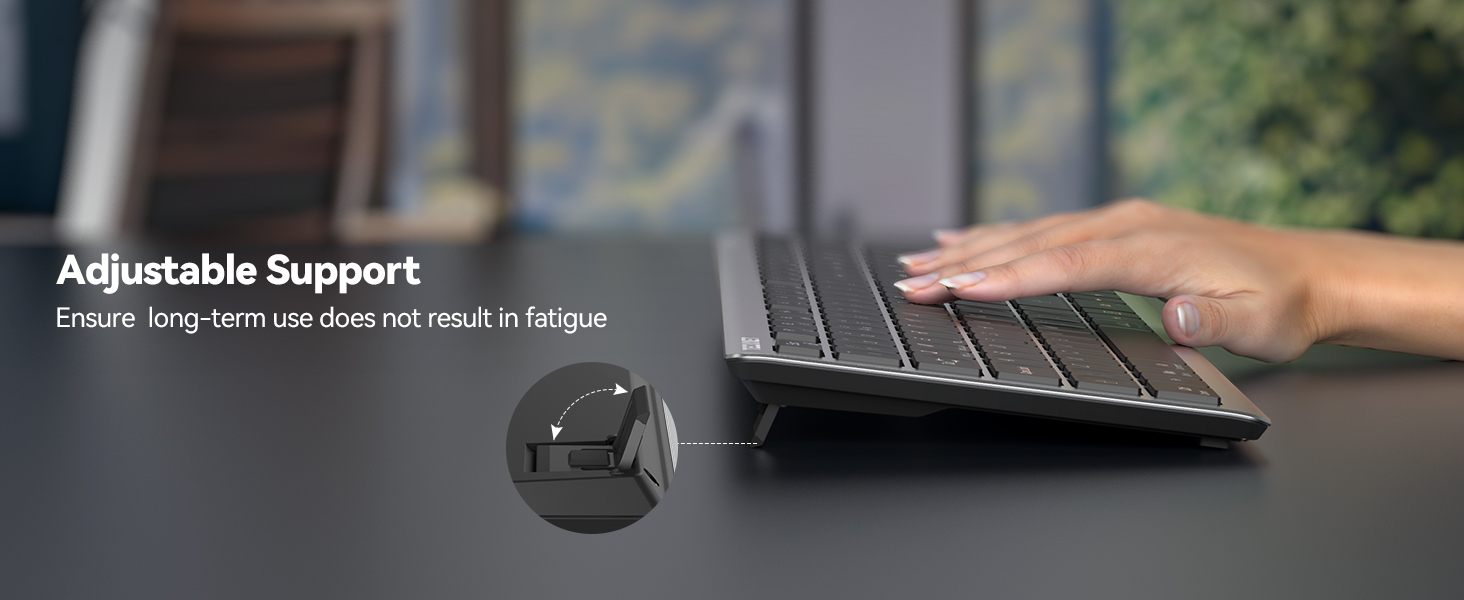
Image: The keyboard's adjustable support stand, allowing users to customize the typing angle for comfort.
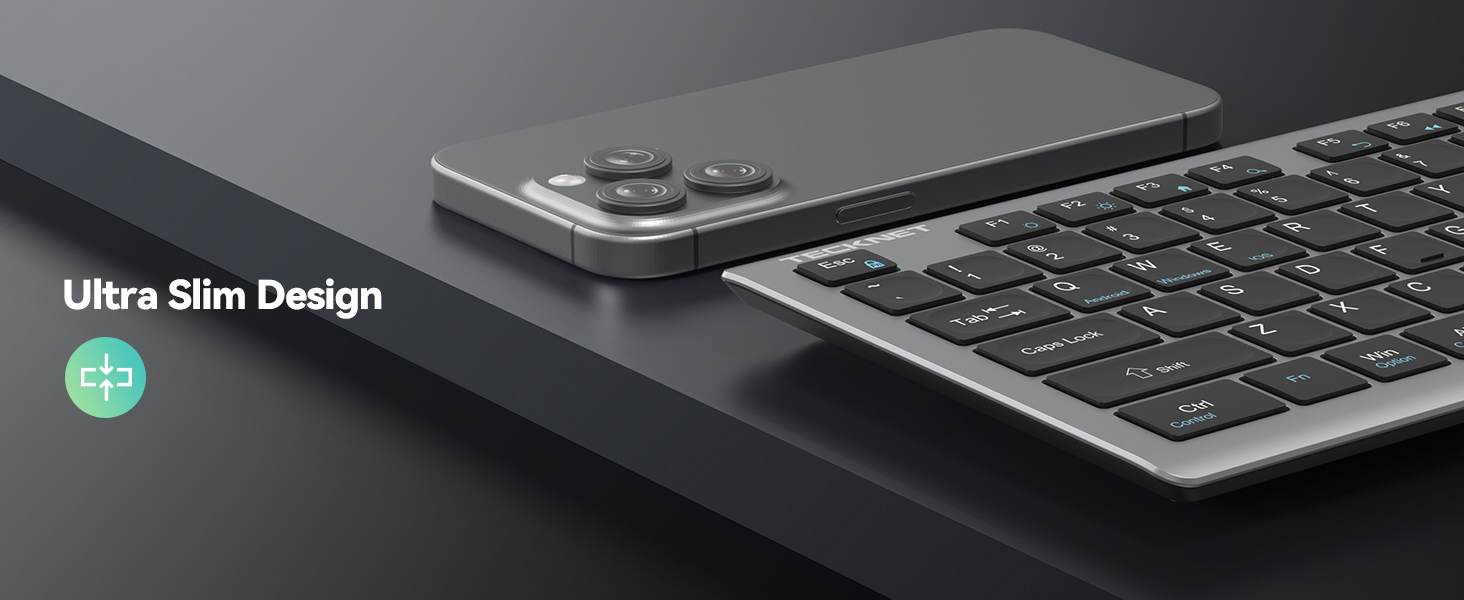
Image: The ultra-slim design of the keyboard, emphasizing its sleek profile.
4. Einrichtung und Konnektivität
4.1 Aufladen der Tastatur
Before first use, please ensure your keyboard is fully charged. Use the provided USB-C charging cable to connect the keyboard to a power source (e.g., computer USB port, USB wall adapter).
- Das vollständige Aufladen dauert ungefähr 2 Stunden.
- The keyboard can last up to 180 days on a single charge with 2 hours of daily use.
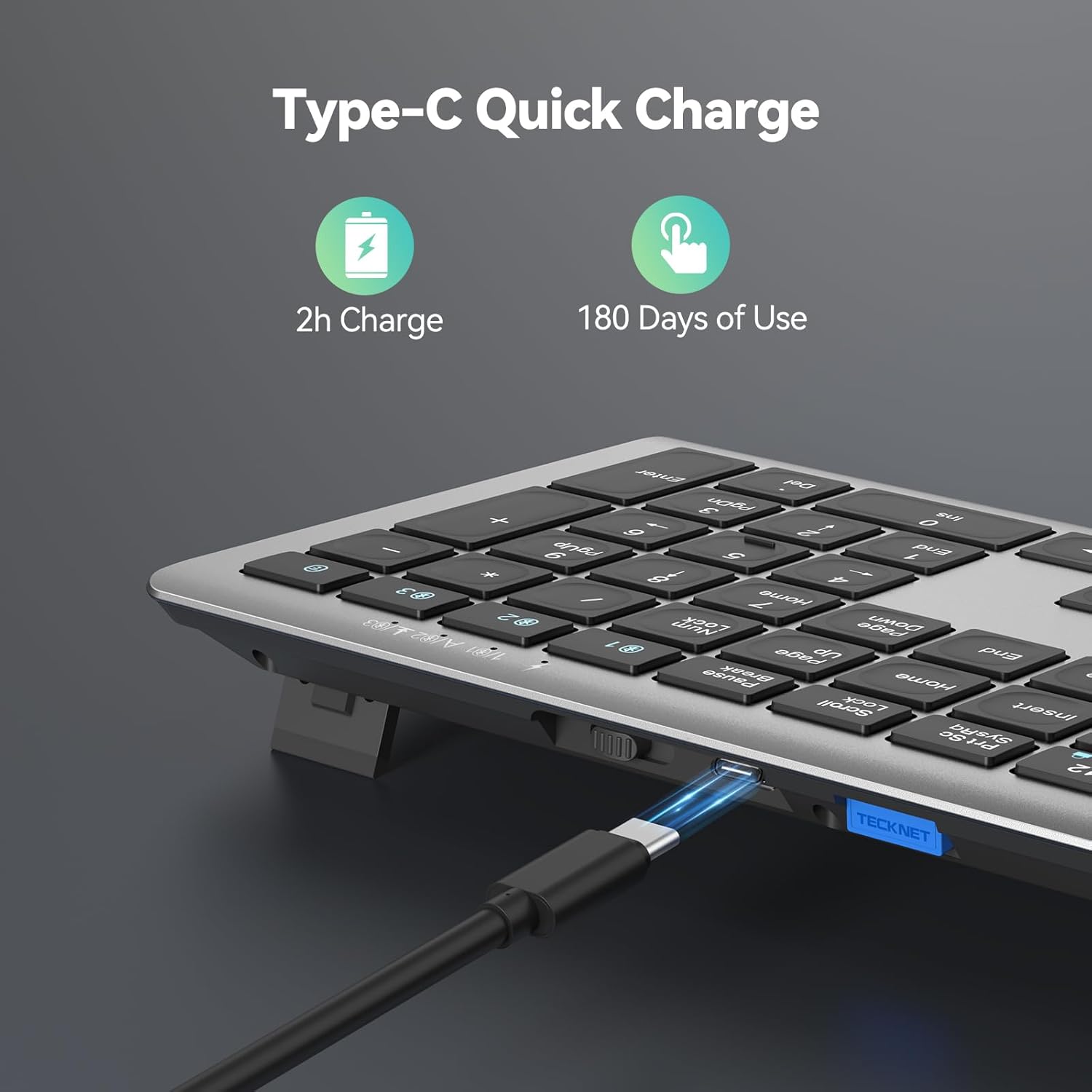
Image: The keyboard's USB-C charging port in use, demonstrating its quick charge capability.
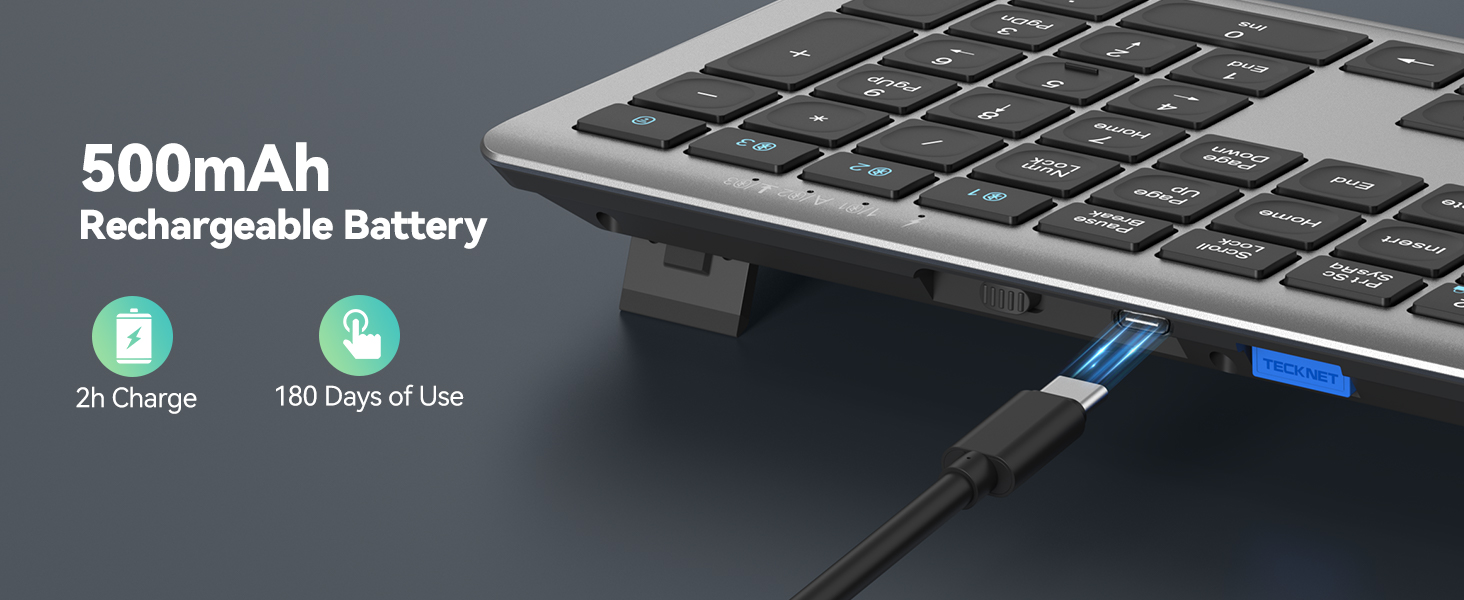
Image: Visual representation of the 500mAh rechargeable battery and charging process.
4.2 Connecting Your Keyboard (4 Modes)
The TECKNET keyboard supports 3 Bluetooth connections and 1 x 2.4G wireless connection, allowing you to connect up to four devices simultaneously.

Image: The keyboard demonstrating its ability to connect to four different devices simultaneously.

Image: A desk setup showing the keyboard connected to a laptop, monitor, and tablet, illustrating multi-device connectivity.
2.4G-Drahtlosverbindung:
- Stecken Sie den 2.4-GHz-USB-Empfänger in einen freien USB-Anschluss Ihres Geräts.
- Turn on the keyboard's power switch (located on the back).
- The keyboard should automatically connect. If not, press the 2.4G channel button (usually indicated by a USB icon) on the keyboard.
Bluetooth Connection (BT1, BT2, BT3):
- Turn on the keyboard's power switch.
- Press and hold one of the Bluetooth channel buttons (BT1, BT2, or BT3) for 3-5 seconds until the corresponding LED indicator flashes rapidly. This indicates pairing mode.
- Gehen Sie auf Ihrem Gerät (Computer, Tablet, Smartphone) zu den Bluetooth-Einstellungen und suchen Sie nach neuen Geräten.
- Select "TECKNET Keyboard" (or similar name) from the list of available devices.
- Follow any on-screen prompts to complete the pairing process. The LED indicator will stop flashing and remain solid for a few seconds, then turn off, indicating successful connection.
4.3 Umschalten zwischen Geräten
Once paired, you can switch between your connected devices by simply pressing the corresponding channel button (2.4G, BT1, BT2, or BT3). The keyboard will automatically connect to the selected device.
4.4 Wechsel der Betriebssysteme
The keyboard is designed to adapt to different operating systems. To optimize key functions for your specific OS, use the following shortcuts:
- Für Android-Geräte: Drücken Sie Fn + Q
- Für Windows-Geräte: Drücken Sie Fn + W
- For iOS/macOS devices: Press Fn + E
Note: Due to differences in systems, key differences will occur. Generally speaking, the system will automatically switch in Bluetooth mode, but if some keys cannot be used, please use the above shortcut keys to switch systems.
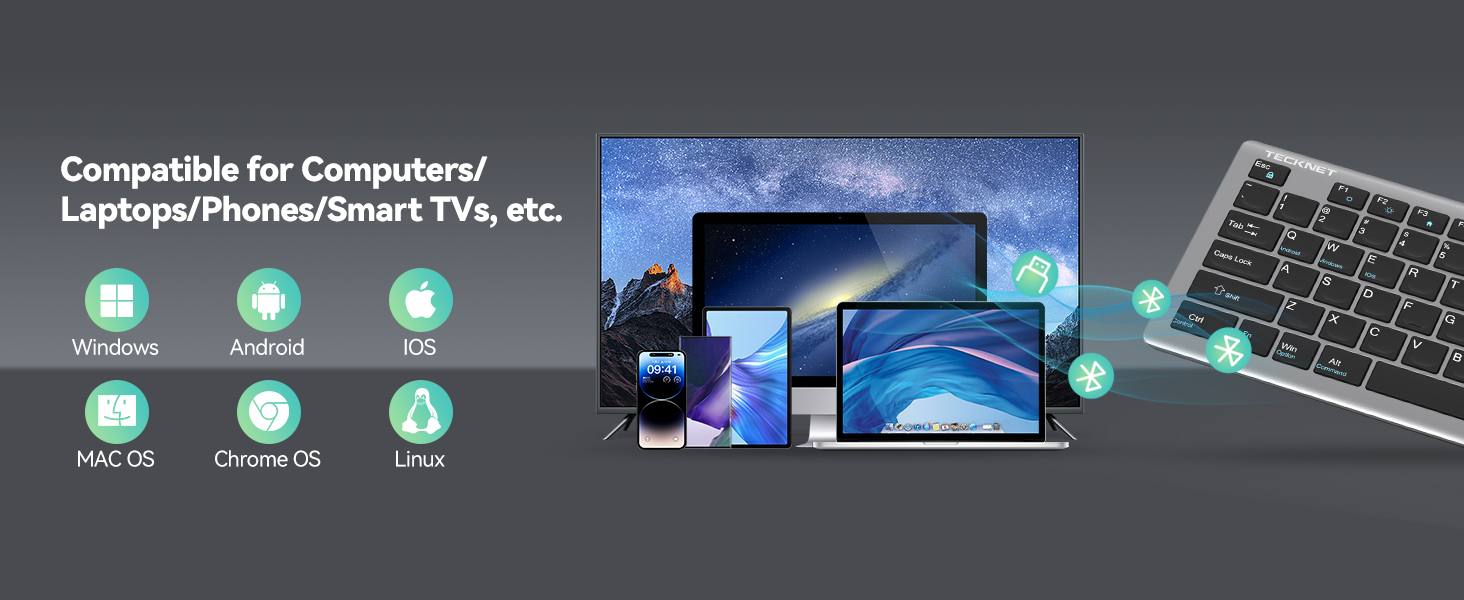
Image: The keyboard's broad compatibility with various operating systems.
5. Bedienungsanleitung
5.1 Multimedia-Tasten
Die Tastatur verfügt über 12 Multimedia-Tasten (F1–F12), die einen schnellen Zugriff auf verschiedene Funktionen ermöglichen. Um diese Funktionen zu nutzen, drücken Sie die entsprechende Taste. Fn gleichzeitig mit der gewünschten Multimedia-Taste drücken.
| Tastenkombination | Funktion |
|---|---|
| Fn + F1 | Heim |
| Fn + F2 | Suche |
| Fn + F3 | Alles auswählen |
| Fn + F4 | Kopie |
| Fn + F5 | Paste |
| Fn + F6 | Schneiden |
| Fn + F7 | Vorheriger Titel |
| Fn + F8 | Abspielen/Pause |
| Fn + F9 | Nächster Titel |
| Fn + F10 | Stumm |
| Fn + F11 | Lautstärke verringern |
| Fn + F12 | Lautstärke erhöhen |
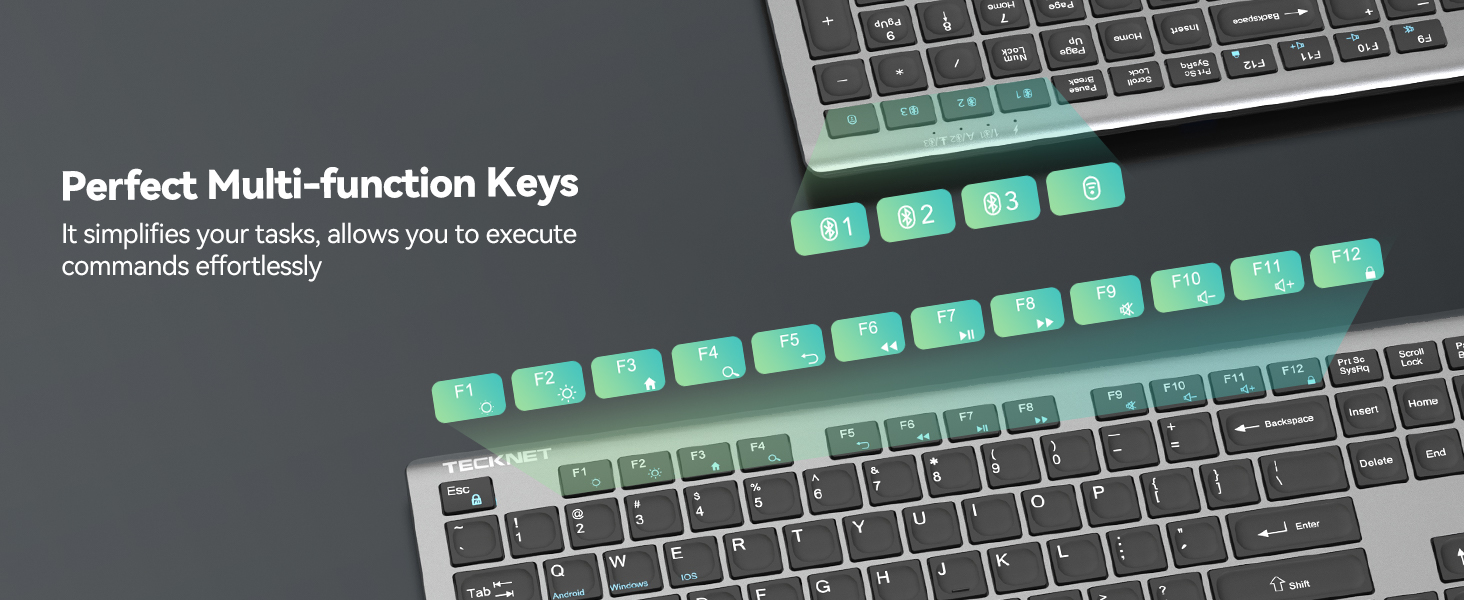
Image: The keyboard's function keys, illustrating their dual purpose as multimedia controls.
5.2 Verstellbarer Ständer
The keyboard features an adjustable stand on the back, allowing you to set the tilt angle between 3° and 7° for optimal typing comfort. Simply flip out the stands to your preferred position.
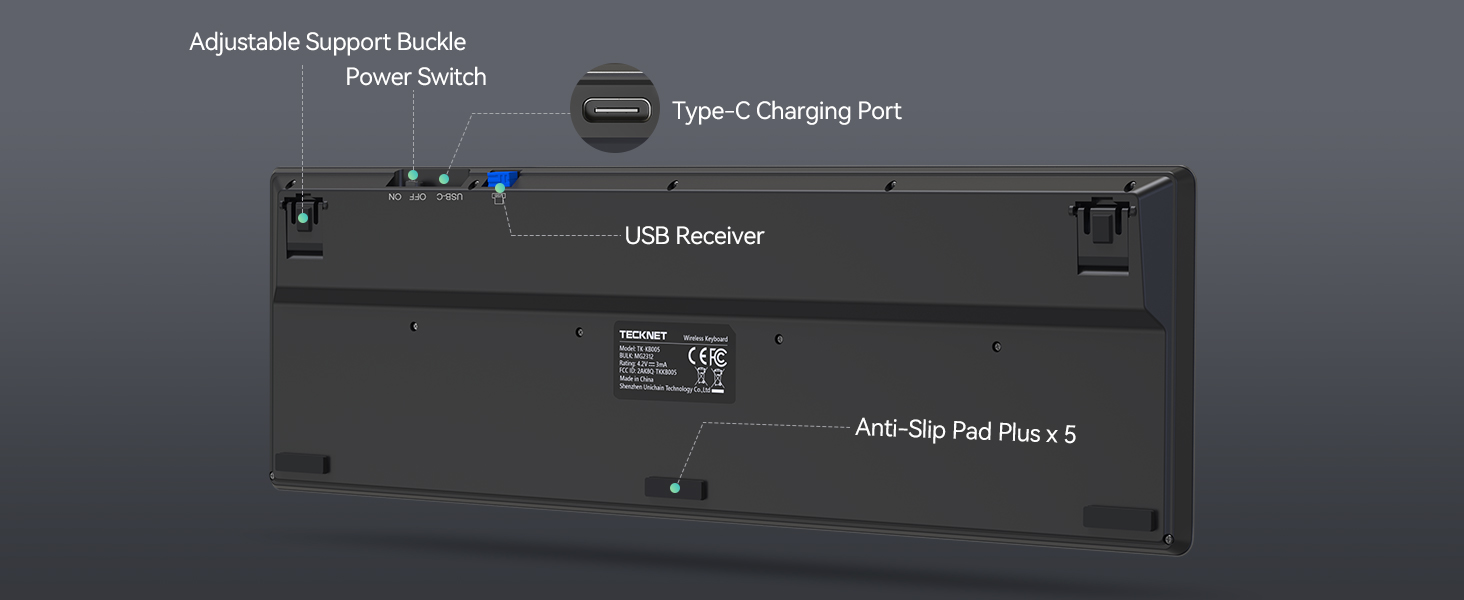
Image: The underside of the keyboard, detailing the adjustable support buckle, power switch, charging port, USB receiver storage, and anti-slip pads.
6. Wartung
- Reinigung: Reinigen Sie die Tastatur mit einem weichen, trockenen Tuch. Bei hartnäckigem Schmutz kann ein leicht feuchtes Tuch hilfreich sein.amp Ein Tuch kann verwendet werden, achten Sie aber darauf, dass keine Flüssigkeit in die Tastatur gelangt. Vermeiden Sie aggressive Chemikalien oder Scheuermittel.
- Lagerung: Bewahren Sie die Tastatur an einem kühlen, trockenen Ort fern von direkter Sonneneinstrahlung und extremen Temperaturen auf.
- Batteriepflege: To prolong battery life, avoid fully discharging the keyboard frequently. Charge it when the low battery indicator appears. If storing for a long period, charge it to about 50% every few months.
7. Fehlerbehebung
Sollten Sie Probleme mit Ihrer TECKNET-Tastatur haben, beachten Sie bitte die folgenden gängigen Lösungsansätze:
Allgemeine Tipps zur Fehlerbehebung:
- The battery may be low; please charge the keyboard wireless as soon as possible.
- Dies kann durch Verzögerungen des Computers verursacht werden; bitte starten Sie Ihren Computer neu und schließen Sie die Tastatur erneut an.
- The effective working distance of TECKNET's Bluetooth keyboard is 49 ft/15M; please make sure the distance between your device and the keyboard is within this range.
- Das Tastatursignal kann gestört werden; bitte halten Sie sich von metallischen Hindernissen oder anderen Funksignalen fern.
- If you are using 2.4G to connect your device and the keyboard, please unplug the USB receiver and re-insert it into the device.
- If the above measures still cannot solve your problem, please feel free to contact our professional customer service team. We are here to help you every step of the way.
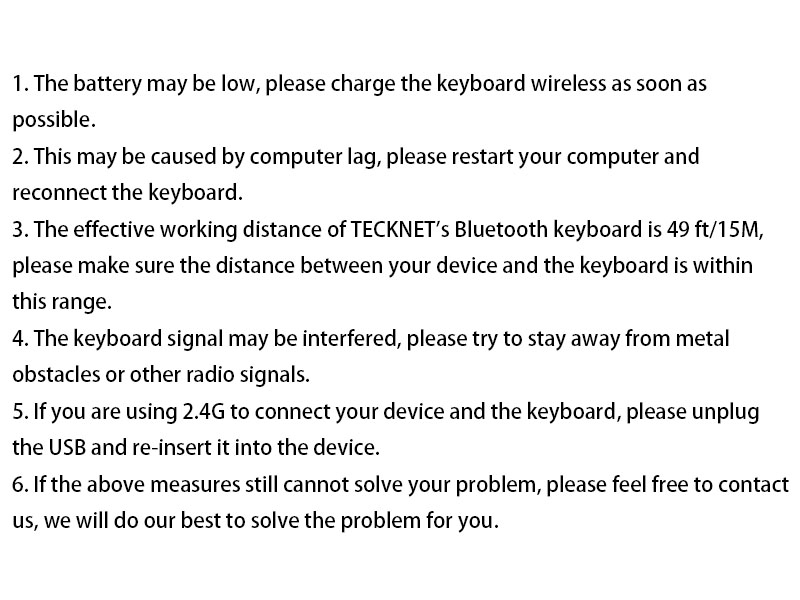
Image: A visual summary of common troubleshooting steps for the keyboard.
Forced Pairing Method (If standard pairing fails):
Bluetooth Forced Pairing:
- Please bring the keyboard close to the device, turn on the device's Bluetooth.
- Short press the Bluetooth channel button corresponding to the device (the light will light up).
- Long press the channel button for more than 3 seconds until the green LED light flashes quickly, complete the pairing of the device and the keyboard within 2 minutes.
- The LED of the channel turns off after being on for 2 seconds, indicating that the device and the keyboard have been successfully paired.
2.4G Forced Pairing:
- Please bring the keyboard close to the device, short press the 2.4G channel button (the light will light up).
- Long press for more than 3 seconds until the red LED flashes quickly.
- Insert the USB Dongle within 20 seconds (make sure the keyboard is close to the receiver).
- The LED of the 2.4G channel turns off after being on for 2 seconds, indicating that the device and the keyboard are paired successfully.
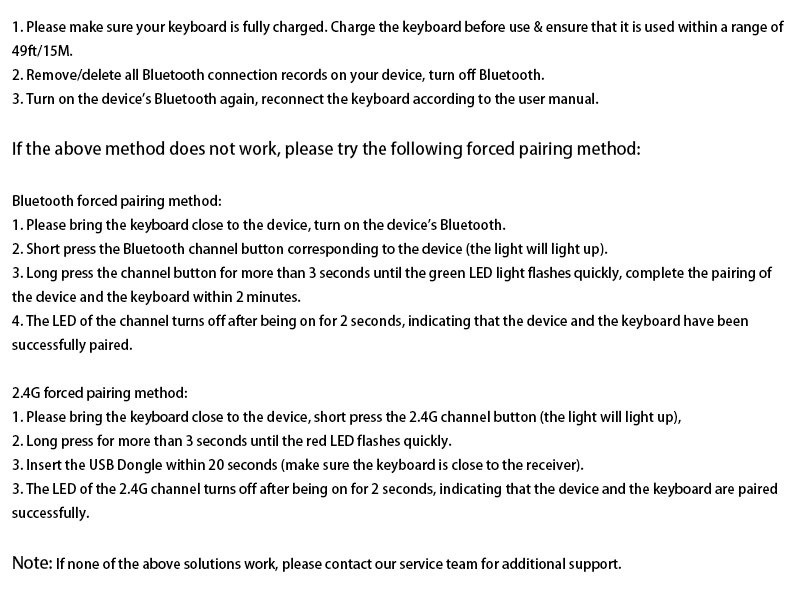
Image: Detailed steps for performing a forced pairing for both Bluetooth and 2.4G connections.
8. Spezifikationen
| Besonderheit | Detail |
|---|---|
| Modellnummer | TK-KB005 |
| Technische Daten | 17.13 x 5.12 x 0.57 Zoll (43.5 x 13 x 1.45 cm) |
| Artikelgewicht | 1.29 Pfund (0.58 kg) |
| Anzahl der Schlüssel | 110 |
| Konnektivitätstechnologie | Bluetooth, 2.4G USB-A |
| Batteriekapazität | 500 mAh |
| Ladezeit | Ca. 2 Stunden |
| Akkulaufzeit | Up to 180 days (2 hours daily use) |
| Schlüsselschalter-Typ | Scherenschalter |
| Lebensdauer der Tastenanschläge | Bis zu 10 Millionen Klicks |
| Rauschunterdrückung | 90 % |
| Einstellbarer Neigungswinkel | 3° - 7° |
| Kompatible Geräte | Laptop, PC, Smart TV, Tablet, Smartphone |
| Kompatibles Betriebssystem | Windows, iOS, macOS, Android |
9. Offizielles Produktvideo
Video: An official product video from TECKNET showcasing the features and multi-device switching capabilities of the keyboard.
10. Garantie und Support
TECKNET provides comprehensive support for its products. Your keyboard comes with up to 36 months of support (registration may be required). If you encounter any problems or have questions regarding your keyboard, please contact our professional customer service team.
For assistance, please refer to the contact information provided on the product packaging or the official TECKNET webWebsite.
Ask a question about this manual
Ask about setup, troubleshooting, compatibility, parts, safety, or missing instructions. Manuals+ will review the question and use this page’s manual context to help answer it.