
KAYSION SK45
KAYSION SK45 Bluetooth Thermal Shipping Label Printer
Bedienungsanleitung
1. Einleitung
This manual provides detailed instructions for the setup, operation, and maintenance of your KAYSION SK45 Bluetooth Thermal Shipping Label Printer. Please read this manual thoroughly before using the printer to ensure optimal performance and longevity.
Produkteigenschaften:
- Bluetooth-Konnektivität: Seamless wireless printing from smartphones and tablets (iOS and Android).
- USB-Verbindung: Compatible with Mac OS and Windows laptops and PCs.
- Benutzerfreundliches Design: Durable print head, one-touch paper feed calibration, and quiet operation.
- Smart Thermal Printing: No ink or toner required, 203 DPI resolution for clear prints, and high-speed printing up to 150mm/s.
- Breite Etikettenkompatibilität: Supports labels from 1" to 4.4" width, including 4x6'' shipping labels, product labels, address labels, and more.
- Vielseitige Anwendungen: Ideal for commercial and domestic use, including shipping, barcode, product pricing, and organization.
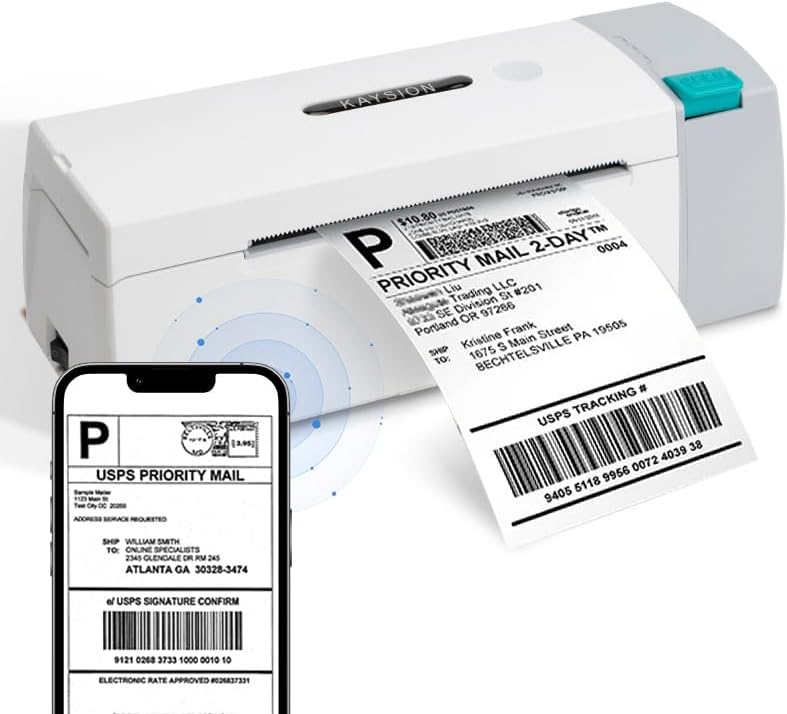
The KAYSION SK45 Thermal Printer in operation, demonstrating its ability to print shipping labels directly from a mobile device.
2. Installationsanleitung
2.1 Auspacken und erste Inspektion
Nehmen Sie alle Komponenten vorsichtig aus der Verpackung. Stellen Sie sicher, dass folgende Teile vorhanden sind:
- KAYSION SK45 Thermal Printer
- Netzteil
- USB-Kabel
- Sample Etiketten
Inspect the printer for any visible damage. If any components are missing or damaged, please contact customer support.
2.2 Ladeetiketten
The SK45 printer features a built-in paper compartment designed to accommodate label rolls up to 12 meters in length.
- Press the 'Open' button on the side of the printer to lift the top cover.
- Place the label roll into the paper tray, ensuring the labels feed from the bottom and the printable side faces upwards.
- Pull a few labels out past the print head.
- Schließen Sie den oberen Deckel fest, bis er einrastet.
- The printer will automatically calibrate and feed a few labels to detect the label size.

Image illustrating the internal paper tray of the KAYSION SK45 printer, showing where to load the label roll.
2.3 Stromanschluss
Connect the power adapter to the printer's power port and then plug it into a wall outlet. The power indicator light will illuminate.
2.4 Software- und App-Installation
The KAYSION SK45 printer supports both wired and wireless connections.
For Mobile Devices (Bluetooth):
Download and install the official application for your smartphone or tablet:
- Android App: "Print Label"
- iOS App: "Zlabel"
You can typically find these apps on the Google Play Store or Apple App Store by searching for the respective names. Once installed, open the app and follow the in-app instructions to connect to your printer via Bluetooth.

Visual guide showing the four steps to connect the printer via Bluetooth using the mobile application: scan QR, connect, edit, and print.
For Computers (USB):
For Mac OS and Windows laptops and PCs, connect the printer using the provided USB cable. Drivers may be required and can typically be found on the KAYSION official website or included on a CD/USB drive with your purchase.

The KAYSION SK45 printer demonstrating its dual connectivity options, showing a wireless connection to a smartphone and a wired USB connection to a laptop.
3. Bedienungsanleitung
3.1 Printing Your First Label
Once the printer is connected and labels are loaded, you can begin printing. The process will vary slightly depending on whether you are using the mobile app or a computer application.
Verwendung der mobilen App:
- Open the "Print Label" (Android) or "Zlabel" (iOS) app.
- Select or create the label design you wish to print.
- Ensure the printer is selected and connected via Bluetooth within the app.
- Tap the 'Print' button. The printer will automatically feed and print the label.
Einen Computer benutzen:
- Open your preferred label design software or shipping platform.
- Select the KAYSION SK45 as your printer.
- Passen Sie die Druckeinstellungen nach Bedarf an (z. B. Etikettengröße, Ausrichtung).
- Initiate the print command from your software.

A user demonstrating the ease of operation of the KAYSION SK45 printer, printing labels for various purposes.
3.2 Unterstützte Etikettenarten und -größen
The KAYSION SK45 is designed to print on a wide range of thermal labels, with a printing width from 0.78 inches (20mm) to 4.09 inches (104mm).
Commonly supported label types include:
- 4x6 inch shipping labels
- 3x2 inch product labels
- 3x1 inch address labels
- 2x2 inch circle labels
- 2.25x1.25 inch product SKU labels
- 2x1 inch barcode labels
- 1x1 inch QR code labels
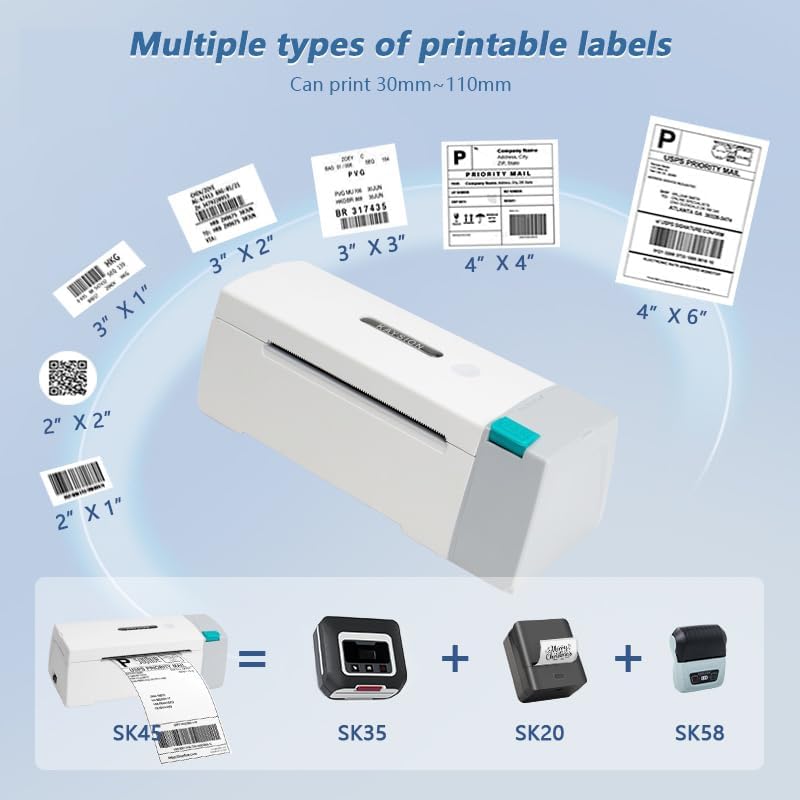
Eine Illustration zeigtasing the diverse range of label sizes and types that can be printed using the KAYSION SK45 thermal label printer.

The KAYSION SK45 printer demonstrating its compatibility with different types of thermal labels, suitable for various business and personal needs.
3.3 Video Guide: KAYSION SK45 Thermal Printer Overview
Dieses Video bietet einen visuellen Überblick überview of the KAYSION SK45 Thermal Printer, including its features and basic operation. It demonstrates the printer's design, paper loading, and various printing applications.
4. Wartung
Regular maintenance ensures the longevity and optimal performance of your KAYSION SK45 printer.
4.1 Reinigung des Druckkopfes
The print head is a critical component and should be cleaned periodically, especially if print quality degrades or lines appear on labels.
- Schalten Sie den Drucker aus und ziehen Sie das Netzkabel ab.
- Öffnen Sie die obere Abdeckung des Druckers.
- Gently wipe the print head surface with an alcohol swab or a lint-free cloth lightly dampmit Isopropylalkohol gereinigt.
- Lassen Sie den Druckkopf vollständig trocknen, bevor Sie die Abdeckung schließen und den Drucker wieder einschalten.
4.2 Allgemeine Reinigung
Wipe the exterior of the printer with a soft, dry cloth to remove dust and debris. Avoid using abrasive cleaners or solvents.
5. Fehlerbehebung
If you encounter issues with your KAYSION SK45 printer, refer to the following common problems and solutions:
| Problem | Mögliche Ursache | Lösung |
|---|---|---|
| Drucker lässt sich nicht einschalten | Kein Strom, Netzteil defekt | Check power connections. Ensure the power adapter is securely plugged into both the printer and the wall outlet. Try a different outlet. |
| Etiketten werden nicht zugeführt oder blockieren | Labels incorrectly loaded, paper path obstruction, incorrect label type | Ensure labels are loaded correctly and not creased. Clear any obstructions in the paper path. Use only thermal labels compatible with the printer. Perform a one-touch paper feed calibration. |
| Poor print quality (faint, lines, blank) | Dirty print head, low-quality labels, incorrect print density settings | Clean the print head as described in the Maintenance section. Use high-quality thermal labels. Adjust print density settings in your printing software/app. |
| Probleme mit der Bluetooth-Verbindung | Printer not in pairing mode, app issues, device Bluetooth off | Ensure the printer's Bluetooth indicator is active. Restart the printer and your mobile device. Reinstall the printing app. Ensure Bluetooth is enabled on your device. |
| USB-Verbindung nicht erkannt | Missing or incorrect drivers, faulty USB cable, incorrect port | Install or update printer drivers. Try a different USB cable or USB port on your computer. Restart your computer. |
If the problem persists after trying these solutions, please contact KAYSION customer support for further assistance.
6. Spezifikationen
Detailed technical specifications for the KAYSION SK45 Thermal Shipping Label Printer:
- Modell: SK45
- Drucktechnologie: Thermal
- Druckauflösung: 203 DPI (203 x 203 DPI)
- Maximale Druckgeschwindigkeit (Monochrom): 150 mm/s
- Druckbreite: 0.78" - 4.09" (20 mm - 104 mm)
- Konnektivität: Bluetooth, USB
- Hardware-Schnittstelle: USB
- Farbe: Weiß
- Produktabmessungen: 8.38 x 2.75 x 2.95 Zoll (21.29 x 6.99 x 7.49 cm)
- Artikelgewicht: 2.2 Pfund (1 kg)
- Maximale Blattkapazität: 50 (für Rollenetiketten)
- Speicherkapazität: 64 MB
- Enthaltene Komponenten: Labels (sample)
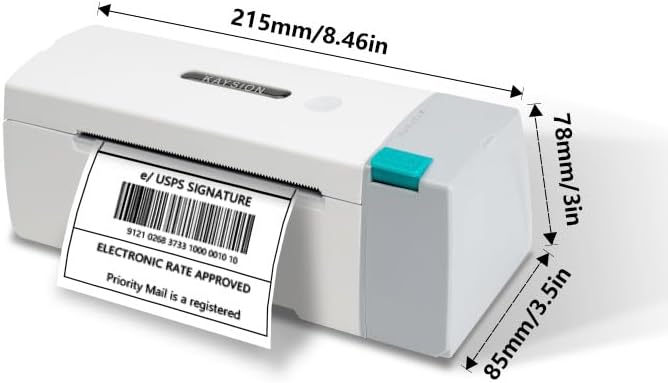
Diagram showing the physical dimensions of the KAYSION SK45 printer in both millimeters and inches.
7. Garantie und Support
Your KAYSION SK45 Bluetooth Thermal Shipping Label Printer comes with a standard manufacturer's warranty. For specific warranty terms and conditions, please refer to the warranty card included with your product or visit the official KAYSION webWebsite.
For technical support, troubleshooting assistance, or any inquiries regarding your printer, please contact KAYSION customer service through the contact information provided on their official webWebsite oder Ihre Einkaufsplattform.
Hersteller: Shanghai Dengyuan Information Technology Co., Ltd
Ask a question about this manual
Ask about setup, troubleshooting, compatibility, parts, safety, or missing instructions. Manuals+ will review the question and use this page’s manual context to help answer it.