
Einführung
This manual provides detailed instructions for the installation, operation, and maintenance of your Zyyini B150M V3 Computer Motherboard. Please read this manual thoroughly before proceeding with installation to ensure proper setup and to prevent damage to the components. This motherboard is designed for desktop computers, supporting LGA 1151 CPUs and DDR4 memory, offering a stable and efficient platform for various computing needs.
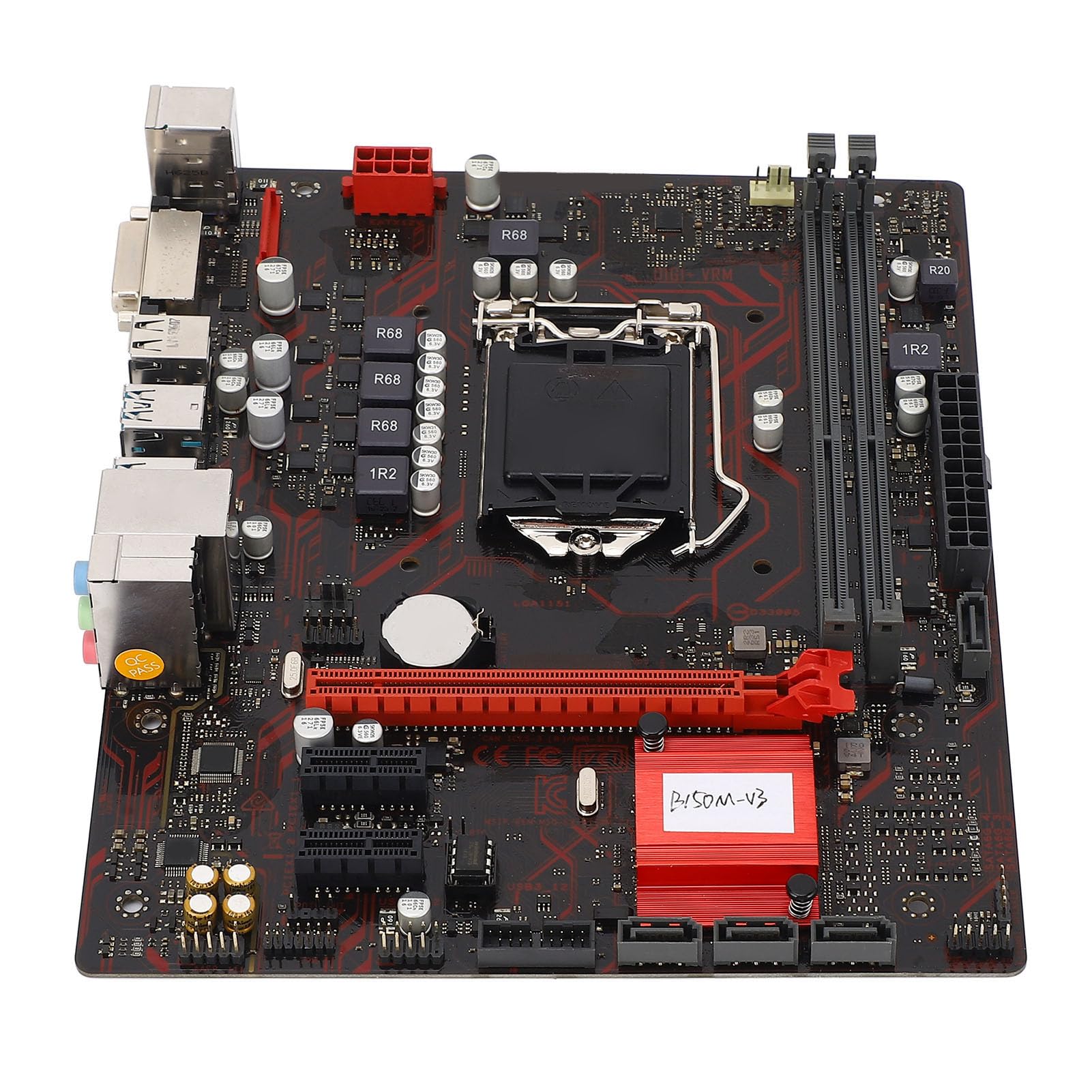
Abbildung 1: Überview of the Zyyini B150M V3 Motherboard.
Setup und Installation
Before beginning installation, ensure your workspace is clean and static-free. It is recommended to wear an anti-static wrist strap to prevent electrostatic discharge (ESD) damage to components.
1. Sicherheitsvorkehrungen
- Vor dem Einbau oder Ausbau von Bauteilen muss immer die Stromversorgung von der Steckdose getrennt werden.
- Handle components by their edges to avoid touching sensitive circuits.
- Ensure proper grounding to prevent ESD.
- Refer to the CPU, memory, and other component manuals for specific installation instructions.
2. Motherboard-Layout

Abbildung 2: Draufsicht view highlighting key components and connectors on the motherboard.
Familiarize yourself with the locations of the CPU socket, memory slots, PCI-E slots, SATA ports, and power connectors before installation.
3. CPU-Installation (LGA 1151)
- Suchen Sie den LGA 1151 CPU-Sockel auf dem Motherboard.
- Drücken Sie den Ladehebel vorsichtig nach unten und ziehen Sie ihn seitlich heraus, um die CPU-Sockelabdeckung zu öffnen.
- Carefully align the notches on your Intel Core i7/i5/i3/Pentium/Celeron (14nm) processor with the corresponding keys on the socket. Ensure the gold triangle on the CPU matches the triangle on the socket.
- Place the CPU gently into the socket without forcing it.
- Schließen Sie die Ladeplatte und drücken Sie den Ladehebel wieder in seine Ausgangsposition, bis er einrastet.

Abbildung 3: Nahaufnahme view of the LGA 1151 CPU socket, ready for processor installation.
4. Memory Installation (DDR4 DIMM)
The motherboard features two DDR4 DIMM slots, supporting dual-channel DDR4 2133MHz memory up to a maximum of 32GB.
- Öffnen Sie die Klemmen an beiden Enden des DIMM-Steckplatzes.
- Richten Sie die Kerbe am DDR4-Speichermodul an der entsprechenden Aussparung im DIMM-Steckplatz aus.
- Schieben Sie das Speichermodul fest in den Steckplatz, bis die Halteklammern einrasten. Stellen Sie sicher, dass beide Halteklammern geschlossen sind.

Figure 4: The two DDR4 DIMM slots for memory installation.
5. Storage Device Installation (SATA III & M.2)
The motherboard provides 4 x Serial ATA III interfaces and 1 x M.2 slot for storage devices.
- SATA-Geräte: Connect one end of a SATA data cable to a SATA III port on the motherboard and the other end to your SATA hard drive or SSD. Connect the SATA power cable from your power supply to the drive.
- M.2-Geräte: Insert your M.2 SSD into the M.2 slot, securing it with the provided screw.
6. Installation der Erweiterungskarte (PCI-E)
The motherboard includes 1 x PCI-E x16 graphics card slot and 2 x PCI-E x1 slots for expansion cards.
- Align your PCI-E expansion card (e.g., graphics card, sound card, network card) with the desired PCI-E slot.
- Press the card firmly into the slot until it is fully seated. Secure the card with a screw to the chassis.
7. Anschließen von Peripheriegeräten und Frontplatte
Connect your USB devices, DVI display, audio devices, and Ethernet cable to the rear I/O panel. Connect the front panel connectors (power button, reset button, USB ports, audio jacks) from your PC case to the corresponding headers on the motherboard.

Abbildung 5: Ausführlich view of the rear I/O panel, showing USB, DVI, Ethernet, and audio ports.
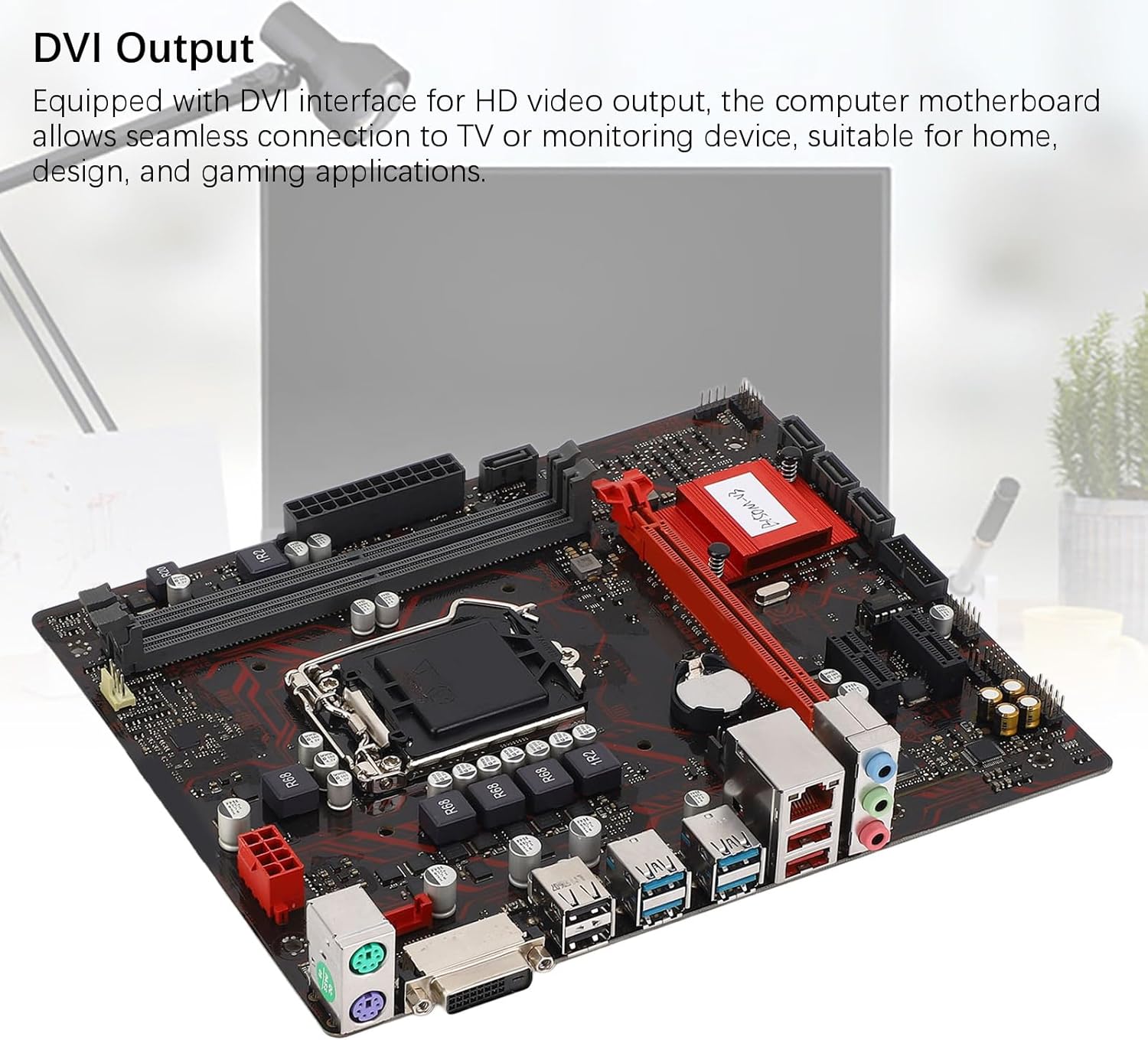
Figure 6: The DVI interface for connecting a display.
8. Stromanschlüsse
Connect the 24-pin ATX power connector and the 8-pin CPU power connector from your power supply to the respective ports on the motherboard. Ensure they are firmly seated.

Abbildung 7: Schräg view showing the location of power connectors and other ports.
Bedienungsanleitung
1. Erster Startvorgang
After all components are installed and connected, power on your system. The system should initiate the boot process. If no display appears, refer to the troubleshooting section.
2. BIOS/UEFI-Konfiguration
During boot-up, press the designated key (usually DEL or F2) to enter the BIOS/UEFI setup. Here you can configure boot order, system time, and other advanced settings. Save changes before exiting.
3. Treiberinstallation
After installing your operating system, install the necessary drivers for the motherboard chipset, network, and audio. These are typically provided on a driver CD or available for download from the manufacturer's webWebsite.
Wartung
1. Staubreinigung
Regularly clean the inside of your computer case to prevent dust buildup, which can lead to overheating and component failure. Use compressed air to gently remove dust from fans, heatsinks, and motherboard surfaces.
2. BIOS-Updates
Überprüfen Sie regelmäßig die Herstellerangaben. webWebsite für BIOS-Updates. BIOS-Updates können die Systemstabilität verbessern, Unterstützung für neue Hardware hinzufügen oder Fehler beheben. Befolgen Sie die Update-Anweisungen sorgfältig, um Schäden am Mainboard zu vermeiden.
Fehlerbehebung
1. Kein Strom
- Ensure the power supply is connected to the wall outlet and switched on.
- Verify that the 24-pin and 8-pin power connectors are securely attached to the motherboard.
- Überprüfen Sie die Verbindung des Netzschalters an der Vorderseite mit dem Motherboard.
2. Keine Anzeige
- Confirm that the monitor is connected to the correct video output (DVI) on the motherboard or graphics card and is powered on.
- Reseat the memory modules. Try booting with only one memory module installed.
- Setzen Sie die Grafikkarte gegebenenfalls neu ein.
- Ensure the CPU is properly installed and the CPU cooler is securely attached.
3. Systeminstabilität / Abstürze
- Check for overheating. Ensure all fans are working and heatsinks are clean.
- Verify that all components (CPU, RAM, storage) are properly seated.
- Führen Sie Speicherdiagnosetools aus, um den Arbeitsspeicher auf Fehler zu überprüfen.
- Stellen Sie sicher, dass alle Treiber auf dem neuesten Stand sind.
Technische Daten

Figure 8: The motherboard's robust construction ensures stable performance and longevity.
| Besonderheit | Detail |
|---|---|
| Motherboard-Modell | B150M-V3 |
| Chipsatz | B150-Chipsatz |
| CPU-Sockel | LGA 1151 |
| Compatible CPU Type | Intel Core i7, i5, i3, Pentium, Celeron (14nm processors) |
| Speichertyp | 2 x DDR4 DIMM (Dual Channel) |
| Speichergeschwindigkeit | 2133 MHz |
| Maximale Speicherkapazität | 32 GB |
| PCI-E-Standard | PCI-E 3.0 |
| PCI-E x16-Steckplätze | 1 |
| PCI-E x1-Steckplätze | 2 |
| Speicherschnittstellen | 4 x Serial ATA III, 1 x M.2 |
| USB Interfaces (Rear) | 4 x USB3.0, 4 x USB2.0 |
| USB Interfaces (Internal) | 1 x USB3.0 header, 1 x USB2.0 header |
| Video Interface | 1 x DVI |
| Network Chip | Realtek RTL8111GR Gigabit Ethernet |
| Soundchip | Realtek ALC887 8-Channel |
| Stromschnittstellen | One 8-Pin, One 24-Pin |
| Formfaktor | M-ATX |
| Netzteil-Modus | 5 Phase |
| Andere Schnittstellen | RJ45, Chassis Fan, Internal Speaker, System Panel, Sound, PS/2 Mouse, PS/2 Keyboard, COM |
Garantieinformationen
For specific warranty terms and conditions, please refer to the documentation provided with your purchase or visit the official Zyyini webDie Garantie deckt in der Regel Material- und Verarbeitungsfehler bei normalem Gebrauch ab.
Kundenservice
If you encounter any issues that cannot be resolved using this manual, please contact your retailer or visit the Zyyini official support channels for assistance. Have your product model number (B150M-V3) and purchase details ready when seeking support.