
Einführung
This manual provides comprehensive instructions for the LogiLink ID0212 Wireless 28-Key Bluetooth 5.0 Scissor Mechanism Keyboard. It covers setup, operation, maintenance, and troubleshooting to ensure optimal performance and user experience. Please read this manual thoroughly before using the device.
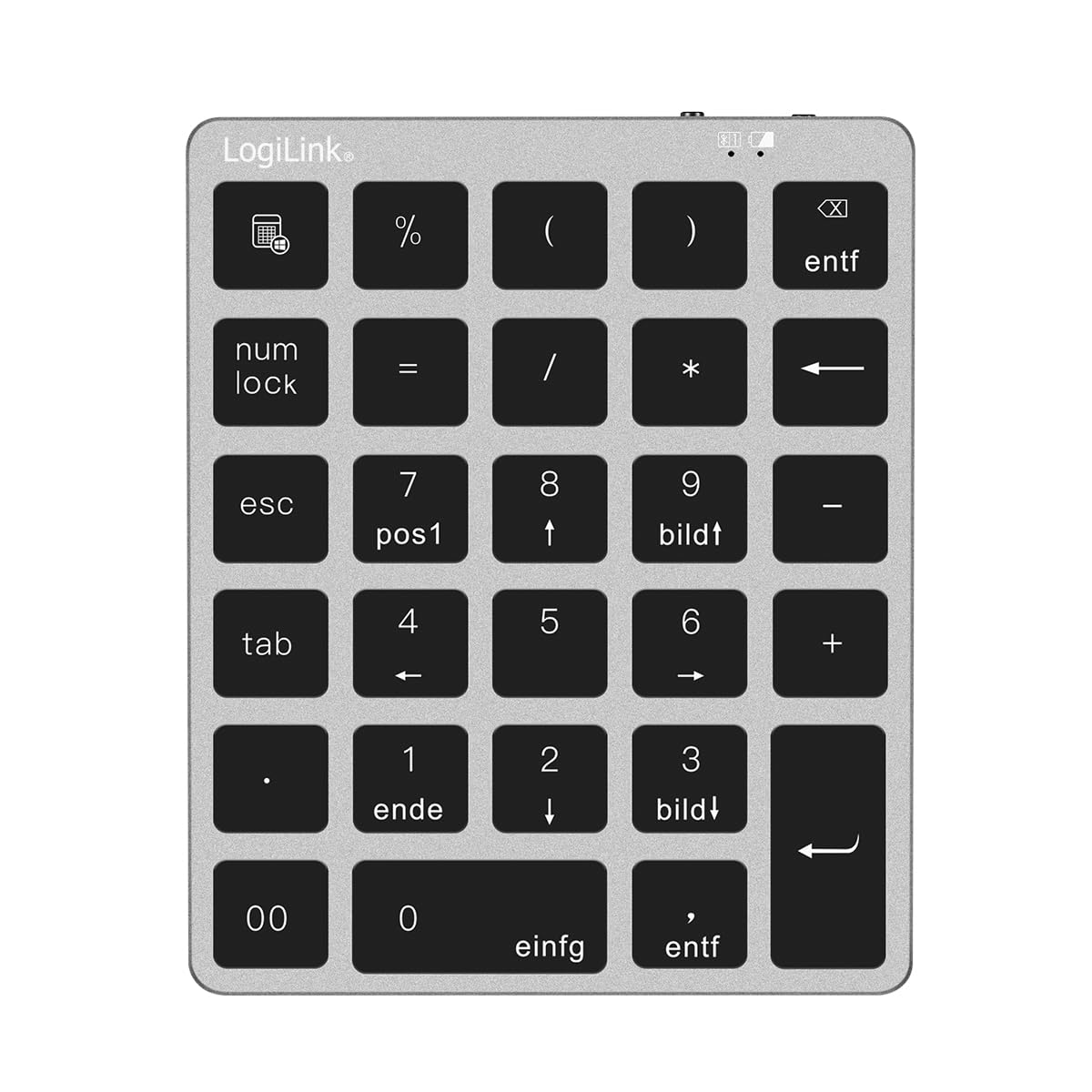
Figure 1: LogiLink ID0212 Wireless 28-Key Bluetooth 5.0 Scissor Mechanism Keyboard. This image shows the overall design of the numeric keypad.
Packungsinhalt
Stellen Sie sicher, dass alle Artikel im Paket vorhanden sind:
- LogiLink ID0212 Wireless 28-Key Bluetooth 5.0 Keyboard
- USB-C-Ladekabel
- Benutzerhandbuch (dieses Dokument)
Aufstellen
1. Aufladen der Tastatur
Before initial use, fully charge the keyboard. Connect the supplied USB-C cable to the keyboard's charging port and the other end to a USB power source (e.g., computer USB port, USB wall adapter).
- Die LED-Anzeige leuchtet auf Rot während des Ladevorgangs.
- The LED indicator will turn off or change color (depending on model) when fully charged.
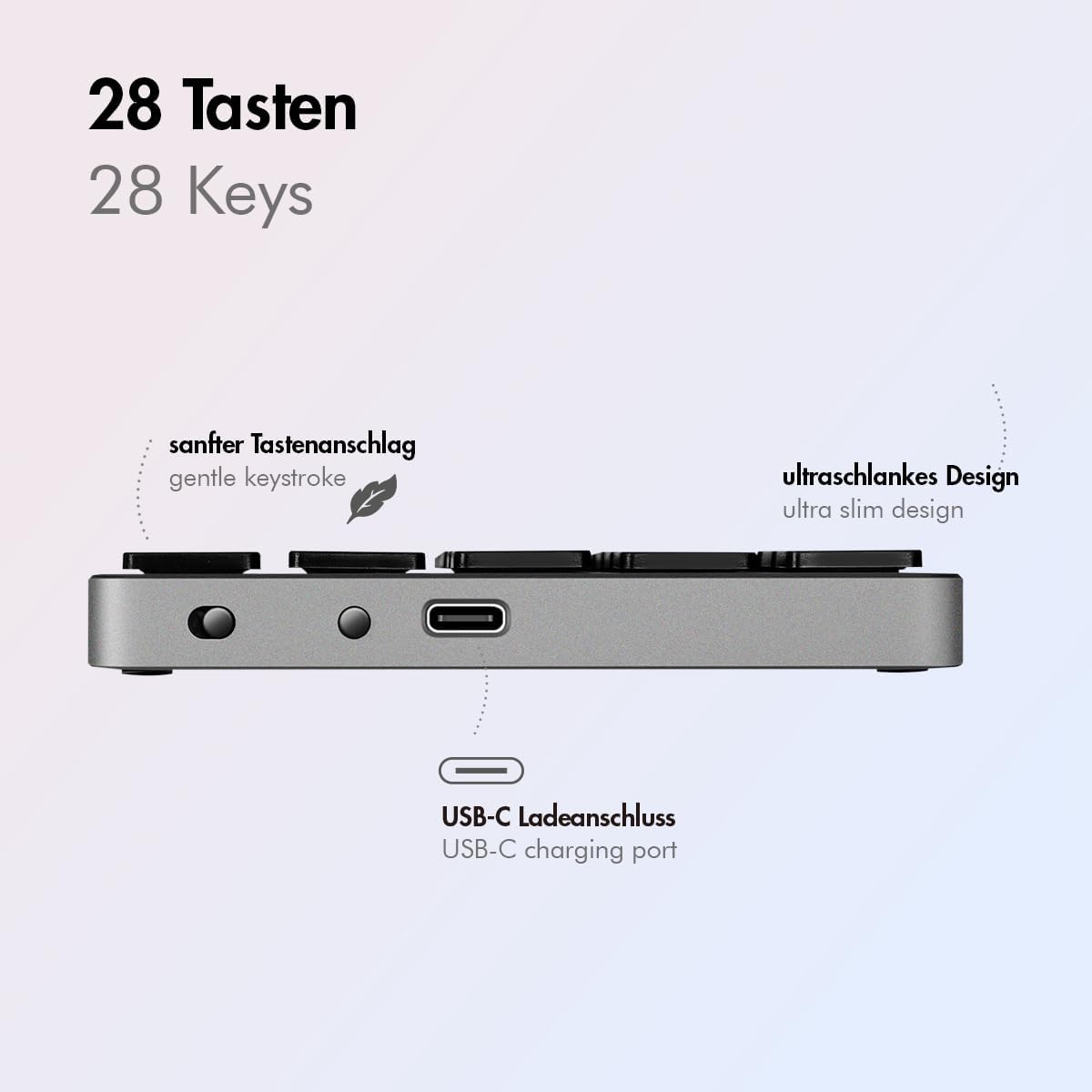
Abbildung 2: Seite view of the LogiLink ID0212 keyboard showing the USB-C charging port. This image highlights the location of the charging port and the ultra-slim design.

Abbildung 3: Ausführlich view of the LogiLink ID0212 keyboard's side profile, indicating the USB-C charging port, gentle keystroke mechanism, and ultra-slim design.
2. Bluetooth-Kopplung
Follow these steps to connect your LogiLink ID0212 keyboard via Bluetooth 5.0:
- Stellen Sie sicher, dass die Tastatur geladen und eingeschaltet ist.
- Aktivieren Sie Bluetooth auf Ihrem Gerät (Computer, Tablet, Smartphone).
- Put the keyboard into pairing mode. Look for a small button on the back or side, or a key combination like Fn+C (common for Bluetooth keyboards). The LED indicator will flash Blau when in pairing mode.
- Suchen Sie auf Ihrem Gerät nach verfügbaren Bluetooth-Geräten.
- Select "LogiLink ID0212" or a similar name from the list of found devices.
- If prompted, enter the pairing code displayed on your screen using the LogiLink ID0212 keyboard and press Eingeben.
- Once paired, the blue LED indicator will stop flashing and remain solid for a few seconds, then turn off. The keyboard is now ready for use.
The keyboard supports a stable connection up to 10 meters (33 feet) and is compatible with iOS, Android, Windows, MacOS, Chrome OS, and iPadOS.
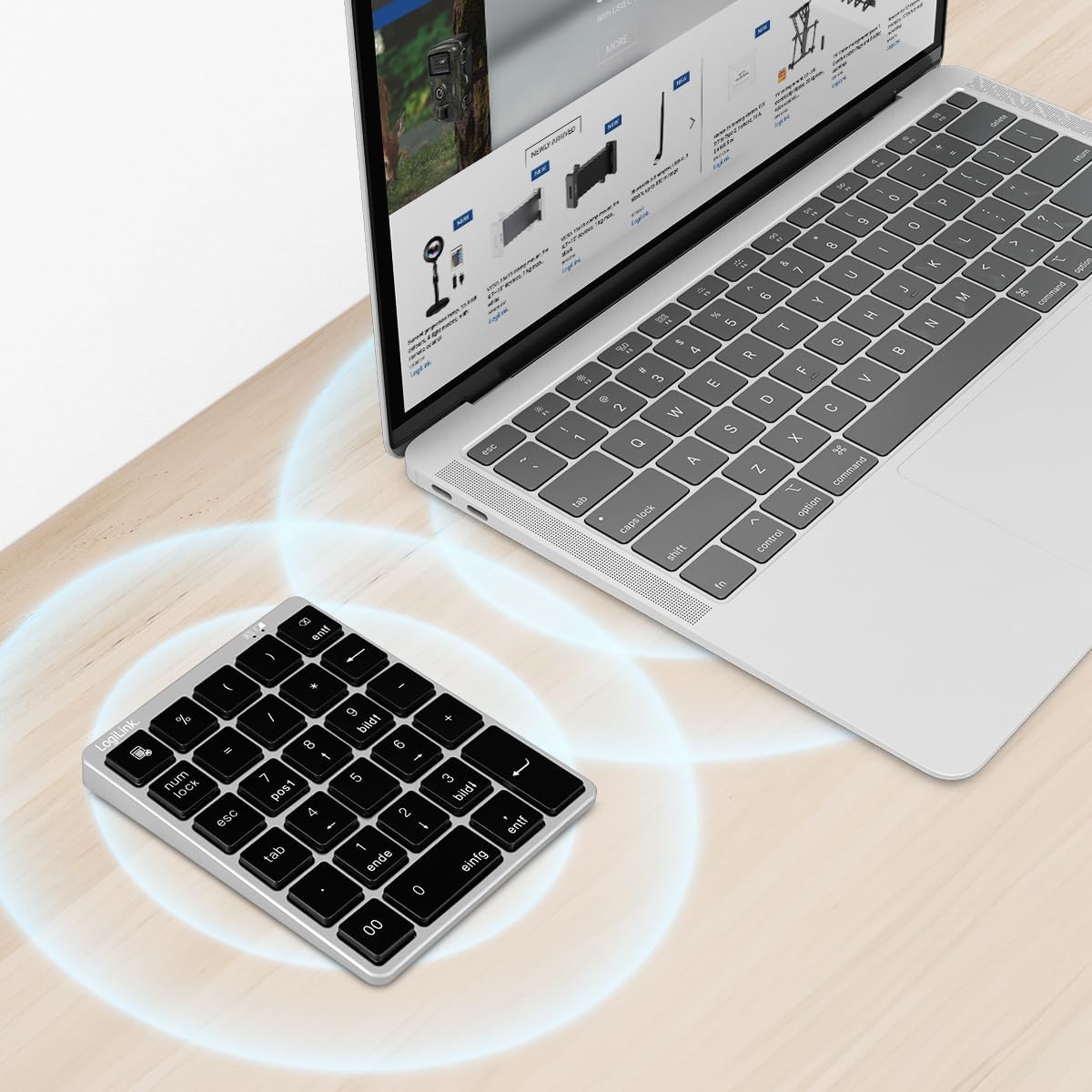
Figure 4: The LogiLink ID0212 keyboard positioned next to a laptop, illustrating its wireless connectivity. This image demonstrates the keyboard's use in a typical workspace setup.
Bedienungsanleitung
Grundlegende Tastenfunktionen
The LogiLink ID0212 features 28 keys designed for efficient data entry and calculations. Key functions include:
- Zifferntasten (0-9)Standard-Zahleneingabe.
- Arithmetische Operatoren (+, -, *, /): For calculations.
- Komma (.): For fractional numbers.
- NumLock: Toggles the numeric keypad function. When NumLock is active, the green LED indicator will be on.
- ESC: Escape key, typically used to cancel operations or close menus.
- Delete (DEL): Deletes characters.
- Rechner-Schaltfläche: Launches the calculator application on compatible operating systems.
- Tab: Bewegt den Cursor zum nächsten Tabstopp oder Feld.
- Home/End/PgUp/PgDn: These keys (often labeled as 'pos1', 'ende', 'bildt', 'bildl' or similar) provide navigation functions.
The scissor mechanism keys provide a gentle and quiet keystroke, enhancing typing comfort.

Figure 5: The LogiLink ID0212 keyboard in active use, demonstrating its compact layout and key functions alongside a laptop. This image provides a clear view of the keypad's design and key labels.
LED-Anzeigen
The keyboard features LED indicators to provide status information:
- Rote LED: Indicates the keyboard is charging.
- Blaue LED: Flashes during Bluetooth pairing mode; solid when successfully paired (then turns off).
- Grüne LED: Indicates that NumLock is active.
Wartung
Reinigung
Um das Aussehen und die Funktionalität der Tastatur zu erhalten:
- Verwenden Sie ein weiches, trockenes, fusselfreies Tuch, um die Oberfläche abzuwischen.
- Bei hartnäckigen Verschmutzungen leicht dampBefeuchten Sie das Tuch mit Wasser oder einer milden Reinigungslösung. Vermeiden Sie übermäßige Feuchtigkeit.
- Verwenden Sie keine Scheuermittel, Lösungsmittel oder Aerosolsprays direkt auf der Tastatur.
Batteriepflege
The integrated 140 mAh lithium battery provides long-lasting power. To prolong battery life:
- Laden Sie die Tastatur mit dem mitgelieferten USB-C-Kabel auf.
- Vermeiden Sie häufiges vollständiges Entladen des Akkus.
- Wenn Sie die Tastatur über einen längeren Zeitraum lagern, laden Sie sie auf etwa 50 % auf und bewahren Sie sie an einem kühlen, trockenen Ort auf.
Fehlerbehebung
Tastatur verbindet sich nicht/koppelt nicht
- Überprüfen des Batteriestands: Ensure the keyboard is sufficiently charged. Charge it if the red LED indicates low battery.
- Rufen Sie den Pairing-Modus erneut auf: Turn the keyboard off and on, then re-enter Bluetooth pairing mode (blue LED flashing).
- Bluetooth-Gerät: Ensure Bluetooth is enabled on your computer/device and it's discoverable.
- Gerät vergessen: On your device, remove or "forget" the keyboard from your Bluetooth device list, then attempt to pair again.
- Distanz: Ensure the keyboard is within the 10-meter (33 feet) operating range of your device.
- InterferenzHalten Sie Abstand zu anderen drahtlosen Geräten, die Störungen verursachen könnten.
Tasten reagieren nicht
- Verbindung: Verify the keyboard is still connected via Bluetooth (blue LED should not be flashing).
- NumLock: If numeric keys are not working as expected, check the green NumLock LED. Press the NumLock key to toggle its state.
- Gerät neustarten: Sometimes, restarting your computer or device can resolve input issues.
- Kompatibilität: While compatible with many OS, specific key functions might behave differently on certain systems (e.g., some special characters on macOS, as noted in reviewS).
Probleme beim Aufladen
- Kabelprüfung: Ensure the USB-C cable is securely connected to both the keyboard and the power source.
- Stromquelle: Try a different USB port or power adapter.
- Rote LED: Confirm the red LED illuminates when charging. If not, the cable or port might be faulty.
Technische Daten
| Besonderheit | Detail |
|---|---|
| Modellnummer | ID0212 |
| Schlüssel | 28 keys (NumLock, ESC, Delete, Calculator button) |
| Schlüsselmechanismus | Scherenmechanismus |
| Konnektivität | Bluetooth 5.0 |
| Betriebsbereich | Bis zu 10 Meter (33 Fuß) |
| Batterie | 140 mAh Lithiumbatterie |
| Ladeanschluss | USB-C |
| LED-Anzeigen | Red (Charging), Blue (Pairing/Connected), Green (NumLock) |
| Material | Aluminium + ABS |
| Farbe | Space Grau |
| Abmessungen (L x B x H) | 12.1 x 10 x 1.3 cm (4.76 x 3.94 x 0.51 Zoll) |
| Gewicht | 95 Gramm (0.21 Pfund) |
| Kompatibilität | iOS, Android, Windows, MacOS, Chrome OS, iPadOS |
| Im Lieferumfang enthaltene Komponenten | USB-C-Kabel |
| Ursprungsland | China |
Garantieinformationen
Specific warranty details for the LogiLink ID0212 keyboard are typically provided at the point of purchase or included with the product packaging. Please refer to your purchase documentation or the official LogiLink webDie aktuellsten und genauesten Garantiebedingungen finden Sie auf dieser Website.
Kundenservice
If you encounter issues not covered in this manual or require further assistance, please contact LogiLink customer support. You can usually find contact information, FAQs, and additional resources on the official LogiLink webWebsite:
When contacting support, please have your product model number (ID0212) and purchase information ready.