
1. Einleitung
Thank you for choosing the FUWANG Touch Keyboard Case. This manual provides detailed instructions for setting up, operating, and maintaining your keyboard case to enhance your iPad experience. Please read this manual thoroughly before use.

The FUWANG Touch Keyboard Case with an iPad inserted, displaying the backlit keyboard and integrated trackpad.
2. Kompatibilität
Diese Tastaturhülle ist mit folgenden iPad-Modellen kompatibel:
- iPad Air 13-inch M3 2025 (Model Numbers: A3268, A3269, A3271)
- iPad Air 13-inch M2 2024 (Model Numbers: A2900, A2899, A2898)
- iPad Pro 12.9-inch 6th Generation (Model Numbers: A2436, A2437, A2764, A2766)
- iPad Pro 12.9-inch 5th Generation (Model Numbers: A2378, A2379, A2461, A2462)
- iPad Pro 12.9-inch 4th Generation 2020 (Model Numbers: A2229, A2069, A2232, A2233)
- iPad Pro 12.9-inch 3rd Generation 2018 (Model Numbers: A1876, A2014, A1895, A1983)
To verify your iPad model, check the back of your device or go to Einstellungen > Allgemein > Info > Modellnummer.

A visual guide detailing the compatible iPad models and instructions on locating your iPad's model number.
3. Packungsinhalt
Bitte prüfen Sie, ob alle Artikel in Ihrem Paket enthalten sind:
- 1 x FUWANG Touch-Tastaturhülle
- 1 x Type-C USB Charging Cable (charger not included)
- 1 x Benutzerhandbuch

A clear layout of the package contents: the Touch Keyboard Case, a Type-C charging cable, and the product manual.
4. Produktmerkmale
- 360° Schwenkdesign: Ermöglicht vielseitige viewing angles and transforms your iPad into a laptop, tablet, or presentation display.
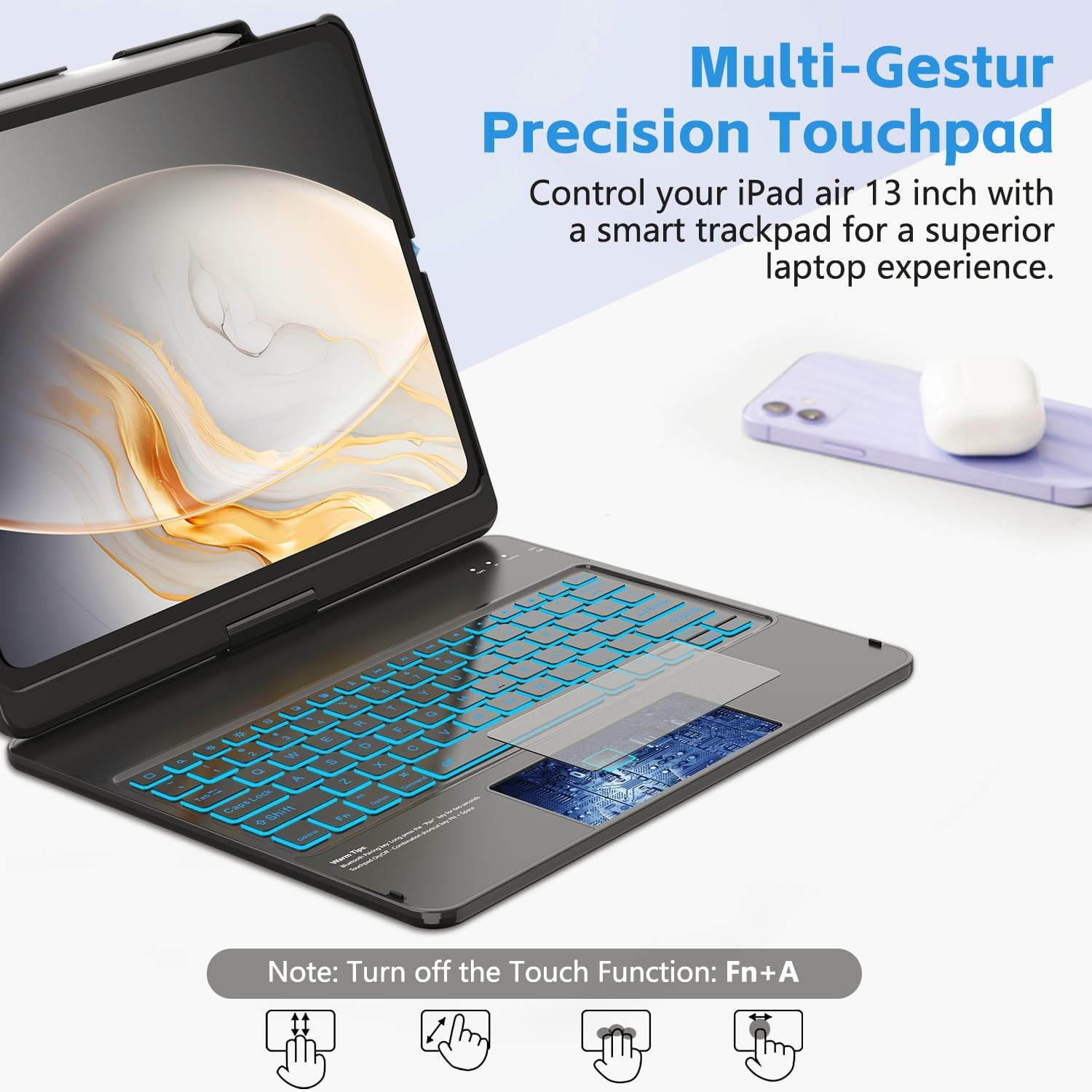
- Multi-Touch-Trackpad: Supports various gestures for precise navigation and control, enhancing productivity.
- Tastatur mit 7-farbiger Hintergrundbeleuchtung: Features adjustable 3-level brightness and 7 color options for comfortable typing in any lighting condition.
- Langlebige Konstruktion: Equipped with aluminum hinges tested for 20,000 folding cycles, ensuring long-lasting stability.
- Wiederaufladbarer Akku: Built-in 500mAh battery provides approximately 120 hours of working time on a 2-3 hour charge.
- Vollständiger Schutz: Hard shell case protects all sides of your iPad from scratches and minor impacts.
- Präzise Ausschnitte: Ensures full access to all ports, buttons, and camera.
- Integrierter Stifthalter: Convenient slot for storing and charging your Apple Pencil.
- Automatischer Schlaf-/Wachmodus: Automatically conserves battery life by putting the iPad to sleep when closed and waking it when opened.

A composite image detailing various design elements: a dedicated slot for the Apple Pencil, the durable scissor-key structure, the Type-C charging port, the responsive multi-touch trackpad, and the overall compact, portable design.
5. Einrichtungsanweisungen
5.1 Aufladen der Tastatur
- Locate the Type-C charging port on the side of the keyboard case.
- Connect the provided Type-C USB cable to the keyboard port and the other end to a USB power adapter (not included) or a computer's USB port.
- Die Ladeanzeige leuchtet auf. Eine vollständige Ladung dauert in der Regel 2–3 Stunden.

Information regarding the keyboard's 500mAh battery, indicating a charging time of 2-3 hours and a working time of approximately 120 hours.
5.2 Pairing with Your iPad via Bluetooth
- Slide the power switch on the keyboard to the 'On' position.
- Press the 'Pair' button (often labeled 'BT' or a Bluetooth icon) for 3 seconds. The Bluetooth indicator light will flash blue, indicating it's in pairing mode.
- Gehen Sie auf Ihrem iPad zu Einstellungen > Bluetooth und stellen Sie sicher, dass Bluetooth aktiviert ist.
- Your iPad will automatically search for nearby devices. Select 'Bluetooth Keyboard' (or a similar name) from the list of available devices to connect.
- Once connected, the Bluetooth indicator light on the keyboard will turn off or remain solid blue.

A step-by-step visual guide on pairing the keyboard with your iPad via Bluetooth.
5.3 Einsetzen Ihres iPads in die Hülle
- Gently align your iPad with the case's frame, ensuring the camera cutout and ports match.
- Press firmly but carefully around the edges until the iPad is securely seated in the case.
- The case is designed for a snug fit to provide maximum protection.
6. Bedienungsanleitung
6.1 Verwendung des Multi-Touch-Trackpads
The integrated trackpad supports various multi-touch gestures (requires iPadOS 13 or later):
- Tippen mit einem Finger: Klicken/Auswählen
- Two Fingers Slide Up/Down: Scrollinhalt
- Two Fingers Pinch In/Out: Vergrößern/Verkleinern
- Drei Finger nach oben wischen: Gehe zum Startbildschirm
- Wischen mit drei Fingern nach links/rechts: Zwischen geöffneten Apps wechseln
To turn off the trackpad function, press Fn + A.
An illustration of the multi-touch trackpad, highlighting various gestures such as two-finger scroll, pinch-to-zoom, three-finger swipe for home, and single-finger tap for clicking.
6.2 Hintergrundbeleuchtung einstellen
The keyboard features 7 colors and 3 levels of brightness:
- Drücken Sie die Glühbirne key (usually near the top right) to cycle through the 7 backlight colors.
- Drücken Sie die Glühbirne Taste + Pfeil nach oben / unten keys to adjust the brightness level (3 levels).

The keyboard illuminated with vibrant backlighting, demonstrating the seven available colors and the function keys for color and brightness adjustment.
6.3 Verwendung von Tastenkombinationen
The top row of the keyboard includes dedicated shortcut keys for quick access to iPad functions:

An illustration pointing out the dedicated row of shortcut keys for quick access to various iPad functions.
6.4 Multi-Angle Usage
The 360° swivel and 180° flip design allows you to adjust your iPad to various positions:
- Laptop-Modus: Für Tippgeschwindigkeit und Produktivität.
- Tablet-Modus: Fold the keyboard back for touch-only interaction.
- Viewing-Modus: Position the screen at an optimal angle for watching videos or presentations.

Visual representations of the case's 360-degree swivel and 180-degree flip functionality, allowing for diverse viewDreh- und Schreibwinkel.
6.5 Automatische Schlaf-/Wachfunktion
The case automatically detects when it is opened or closed. Closing the case will put your iPad to sleep, and opening it will wake your iPad, helping to conserve battery life for both devices.

A visual showing how the case automatically puts the iPad to sleep when closed and wakes it when opened, conserving battery life.
6.6 Stylus Pen Slot
A dedicated slot is provided for your Apple Pencil, allowing for secure storage and charging (if your iPad model supports magnetic charging).
7. Wartung
- Halten Sie das Tastaturgehäuse von Flüssigkeiten und extremen Temperaturen fern.
- Reinigen Sie das Äußere mit einem weichen, damp Tuch. Vermeiden Sie aggressive Chemikalien.
- Stellen Sie sicher, dass der Ladeanschluss frei von Staub und Schmutz ist.
- When not in use for extended periods, fully charge the keyboard and store it in a cool, dry place.
8. Fehlerbehebung
8.1 Tastatur verbindet sich nicht über Bluetooth
- Stellen Sie sicher, dass die Tastatur eingeschaltet und vollständig aufgeladen ist.
- Stellen Sie sicher, dass Bluetooth auf Ihrem iPad aktiviert ist.
- Press the 'Pair' button on the keyboard to enter pairing mode.
- Entferne das Gerät aus den Bluetooth-Einstellungen deines iPads und versuche es erneut mit einer Kopplung.
- Starten Sie sowohl Ihr iPad als auch die Tastatur neu.
8.2 Trackpad reagiert nicht
- Ensure your iPad's operating system is iPadOS 13 or later.
- Check if the trackpad is accidentally turned off (press Fn + A (zum Umschalten).
- Stellen Sie sicher, dass die Bluetooth-Verbindung stabil ist.
- Reinigen Sie die Oberfläche des Trackpads.
8.3 Hintergrundbeleuchtung funktioniert nicht
- Stellen Sie sicher, dass die Tastatur eingeschaltet ist.
- Drücken Sie die Glühbirne key to turn on or cycle through backlight options.
- Prüfen Sie den Batteriestand; ein niedriger Batteriestand kann die Hintergrundbeleuchtung deaktivieren.
9. Spezifikationen
| Technische Daten | 12.99 x 10.63 x 0.98 Zoll |
| Artikelgewicht | 2 Pfund |
| Hersteller | FUWANG |
| Batteriekapazität | 500 mAh Lithium-Ionen-Akku (im Lieferumfang enthalten) |
| Ladezeit | 2-3 Stunden |
| Arbeitszeit | Ungefähr 120 Stunden |
| Konnektivitätstechnologie | Bluetooth |
| Tastaturfunktionen | Flexible Touch Backlit Wireless Bluetooth Keyboard, Scissor-foot keys |
| Besondere Merkmale | 360° Swivel, 7-Color Backlit, Comprehensive Protection, Pencil Holder, Multi-Touch Trackpad, Auto Sleep/Wake |
10. Garantie und Support
10.1 Garantieinformationen
FUWANG products are designed for durability and performance. For specific warranty details, please refer to the warranty card included with your purchase or contact FUWANG customer support. Keep your proof of purchase for warranty claims.
10.2 Kundendienst
If you encounter any issues or have questions not covered in this manual, please contact FUWANG customer support through the retailer where you purchased the product or visit the official FUWANG webWebsite für Unterstützung.