
1. Einleitung
This manual provides essential information for the safe and efficient operation of your Machenike Machcreator N17A laptop. Please read this manual thoroughly before using the device and retain it for future reference.
2. Packungsinhalt
Überprüfen Sie, ob alle Artikel im Paket vorhanden sind:
- Machenike Machcreator N17A Laptop
- Netzteil
- Benutzerhandbuch (dieses Dokument)
3. Produktüberschreitungview
The Machenike Machcreator N17A is a 17.3-inch laptop designed for daily computing tasks. It features an Intel N100 Processor, 8GB DDR5 RAM, and a 256GB PCIe SSD for responsive performance. The 17.3" Full HD 120Hz display provides clear visuals, and the laptop runs on Windows 11 Home.
3.1. Laptop-Komponenten

Abbildung 3.1: Vorderseite view of the Machenike Machcreator N17A laptop.
This image shows the overall design of the Machenike Machcreator N17A laptop, highlighting its large 17.3-inch display and sleek chassis.

Figure 3.2: The 17.3-inch Full HD 120Hz display.
Eine detaillierte view of the laptop's 17.3-inch Full HD display, emphasizing its narrow bezels and 120Hz refresh rate for smooth visuals.

Figure 3.3: Backlit keyboard and touchpad.
This image highlights the backlit keyboard and the spacious touchpad, designed for comfortable typing and navigation.
3.2. Anschlüsse und Stecker
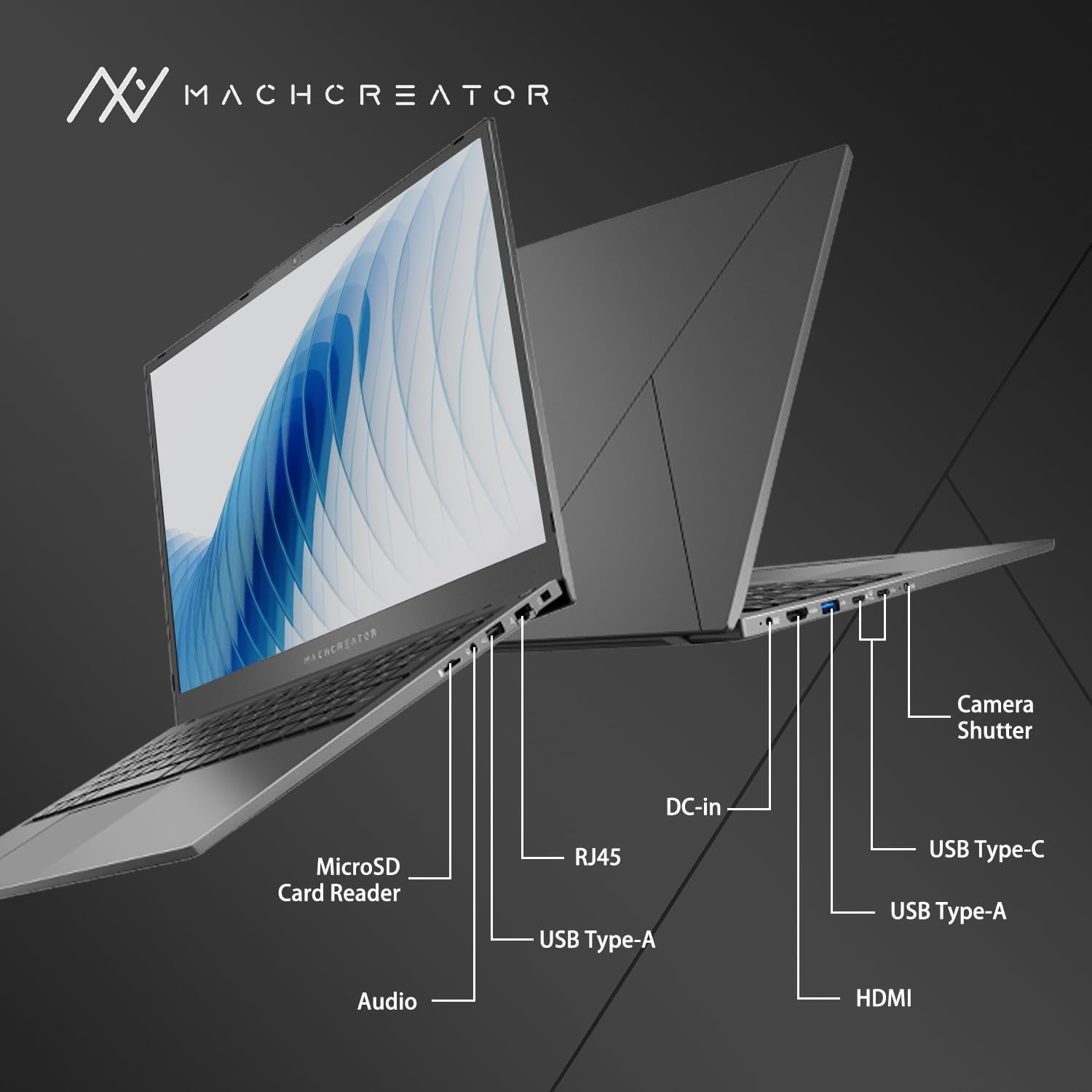
Abbildung 3.4: Seite view mit Portbezeichnungen.
An illustration detailing the various input/output ports available on the laptop, including USB, HDMI, and the SD card reader.
- MicroSD-Kartenleser: For reading and writing data to MicroSD cards.
- DC-Eingang: Connect the power adapter for charging and power supply.
- Thunderbolt 4 (x2): High-speed data transfer, video output, and power delivery.
- USB 2.0 Typ-A (x2): Schließen Sie USB-Geräte an.
- HDMI: Anschluss an externe Displays oder Projektoren.
- RJ45: Ethernet-Anschluss für kabelgebundene Netzwerkverbindung.
- Audiobuchse: Schließen Sie Kopfhörer oder externe Lautsprecher an.
4. Einrichtung
4.1. Erstes Einschalten
- Packen Sie den Laptop und sämtliches Zubehör aus dem Karton aus.
- Schließen Sie das Netzteil an den DC-Eingang des Laptops und anschließend an eine Steckdose an.
- Öffnen Sie den Laptopdeckel.
- Drücken Sie den Netzschalter auf der Tastatur, um den Laptop einzuschalten.
- Folgen Sie den Anweisungen auf dem Bildschirm, um die Einrichtung von Windows 11 Home abzuschließen. Dazu gehört die Auswahl Ihrer Region und Sprache sowie die Einrichtung Ihres Benutzerkontos.
4.2. Verbinden mit Wi-Fi
- During the Windows setup, you will be prompted to connect to a Wi-Fi network. Select your desired network from the list.
- Enter the Wi-Fi password if prompted and click "Connect".
- If you skip this step, you can connect later via Windows Settings: Go to Start > Einstellungen > Netzwerk & Internet > W-lan.
5. Bedienungsanleitung
5.1. Verwendung der Tastatur und des Touchpads
The laptop features a full-size keyboard with a numeric keypad and a large touchpad. The keyboard is backlit, which can be activated or adjusted using the function keys (e.g., Fn + F5).
Abbildung 5.1: Layout von Tastatur und Touchpad.
This image illustrates the keyboard and touchpad, showing the key layout and the size of the touchpad for user interaction.
5.2. Anschließen externer Geräte
Nutzen Sie die verfügbaren Anschlüsse, um externe Geräte anzuschließen:
- USB-Geräte: Plug USB drives, mice, or keyboards into the USB Type-A or Thunderbolt 4 (USB-C) ports.
- Externe Anzeige: Connect an external monitor or TV using the HDMI port or one of the Thunderbolt 4 ports (with an appropriate adapter, if needed).
- SD-Karten: Insert a MicroSD card into the MicroSD Card Reader slot to access its contents.
- Kabelgebundenes Netzwerk: Schließen Sie ein Ethernet-Kabel an den RJ45-Anschluss an, um eine stabile kabelgebundene Internetverbindung herzustellen.
5.3. Adjusting the Display Angle
The laptop screen can be adjusted up to a 170-degree angle, providing flexibility for various viewing positions, presentations, or collaborative work.
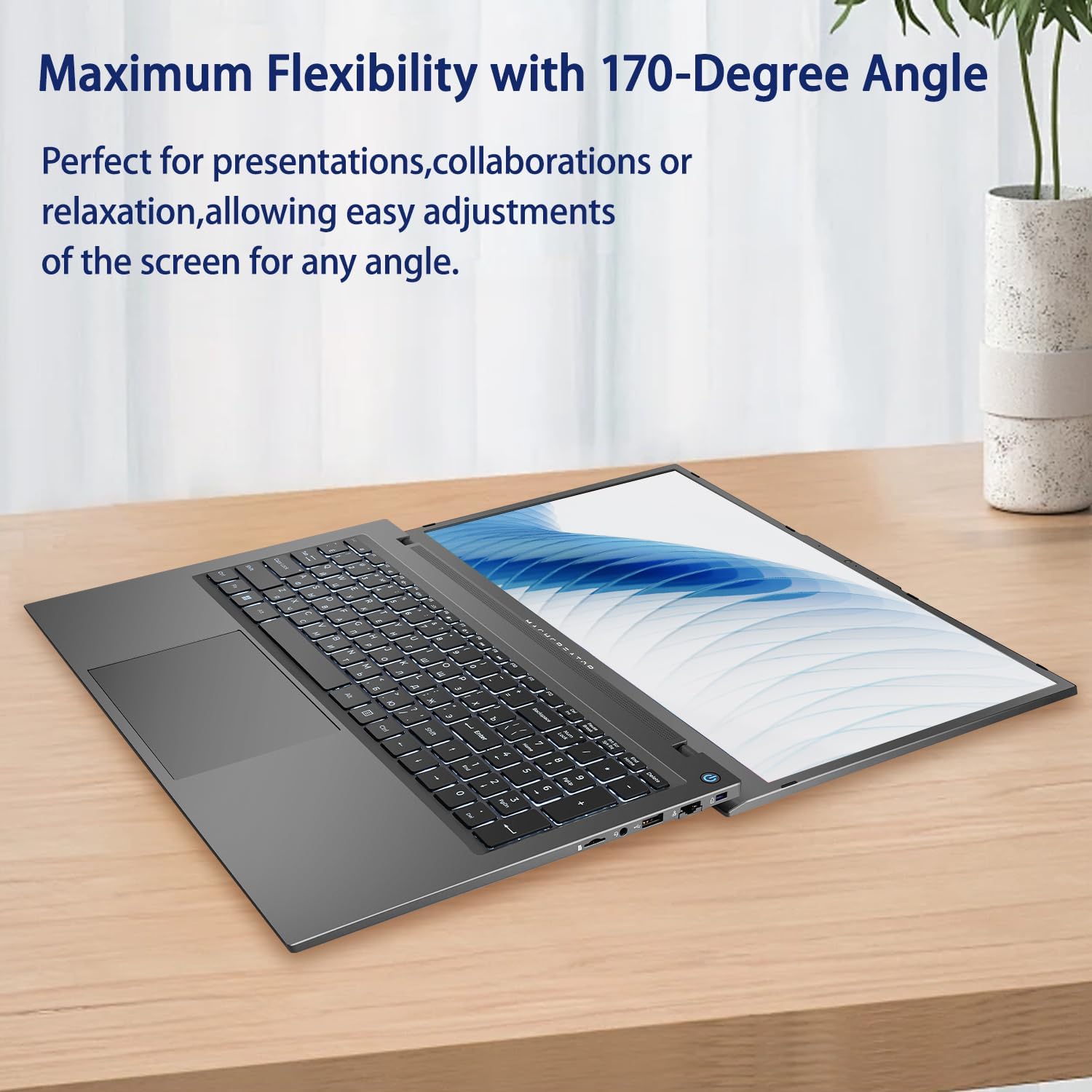
Figure 5.2: Laptop display at 170-degree angle.
This image demonstrates the laptop's ability to open its screen to a wide 170-degree angle, useful for various viewing-Szenarien.
5.4. Laden des Laptops
Connect the provided power adapter to the DC-in port. The laptop also supports fast charging via its USB-C (Thunderbolt 4) ports with a compatible USB-C Power Delivery charger.
6. Wartung
6.1. Reinigung
- Reinigen Sie den Bildschirm mit einem weichen, fusselfreien Tuch. Hartnäckige Flecken können Sie mit einem leichten Tuch entfernen.ampDas Tuch mit Wasser oder einer Bildschirmreinigungslösung befeuchten.
- Reinigen Sie Tastatur und Gehäuse mit einem weichen, trockenen Tuch. Vermeiden Sie die Verwendung von scharfen Chemikalien oder Scheuermitteln.
- Vor der Reinigung unbedingt sicherstellen, dass der Laptop ausgeschaltet und vom Stromnetz getrennt ist.
6.2. Batteriepflege
- Vermeiden Sie häufiges vollständiges Entladen des Akkus.
- Setzen Sie den Laptop keinen extremen Temperaturen aus.
- If storing the laptop for an extended period, charge the battery to approximately 50-70% before turning it off.
6.3. Software-Updates
Regularly update your Windows operating system and drivers to ensure optimal performance and security. Go to Start > Einstellungen > Windows Update um nach Updates zu suchen.
7. Fehlerbehebung
| Problem | Mögliche Lösung |
|---|---|
| Der Laptop lässt sich nicht einschalten. |
|
| Keine WLAN-Verbindung. |
|
| Der Bildschirm ist leer oder flackert. |
|
| Die Tastaturbeleuchtung funktioniert nicht. |
|
8. Spezifikationen
| Besonderheit | Detail |
|---|---|
| Modellname | Machenike Machcreator N17A |
| Prozessor | Intel N100 (4 Cores, up to 3.4 GHz) |
| RAM | 8 GB DDR5 (4800 MHz) |
| Lagerung | 256 GB PCIe SSD |
| Grafik | Intel UHD-Grafik (integriert) |
| Anzeige | 17.3" FHD (1920x1080) IPS, 120Hz |
| Betriebssystem | Windows 11 Home |
| Häfen | 2x Thunderbolt 4, 2x USB 2.0 Type-A, 1x HDMI, 1x RJ45, 1x MicroSD Card Reader, 1x Audio Jack, 1x DC-in |
| Kabellose Konnektivität | Wi-Fi (802.11n) |
| Besondere Merkmale | Tastatur mit Hintergrundbeleuchtung, Ziffernblock |
| Abmessungen (LxBxH) | 15.6 x 10.32 x 1.02 Zoll |
| Gewicht | 5.78 Pfund |
| Farbe | Grau |
9. Garantie und Support
For warranty information and technical support, please refer to the documentation provided with your purchase or visit the official Machenike webBewahren Sie Ihren Kaufbeleg für Garantieansprüche auf.
Online-Ressourcen:
- Machenike-Beamter WebWebsite: www.machenike.com (Hinweis: Dies ist ein Platzhalter. URL, please refer to your product's specific warranty card for the correct support contact.)
10. Produktdemonstrationsvideo
Video 10.1: Machcreator N17A Laptop Overview.
Dieses Video bietet einen visuellen Überblick überview of the Machenike Machcreator N17A laptop, showcasing its design, key features, and various ports. It demonstrates the unboxing experience, the backlit keyboard, and the available connectivity options.