
FUWANG A3354 A3355 A3356 A2696 A2757 A2777
FUWANG Keyboard Case for iPad A16 11th/10th Generation User Manual
Model: A3354, A3355, A3356, A2696, A2757, A2777
1. Produktüberschreitungview
The FUWANG Keyboard Case is designed to enhance your iPad experience, transforming it into a versatile laptop-like device. It features a detachable wireless Bluetooth keyboard with 7-color backlighting, multiple viewing angles, and a protective case with an integrated pencil holder. The case is crafted from durable synthetic leather with a unique marble pattern and a soft TPU inner shell for comprehensive protection.
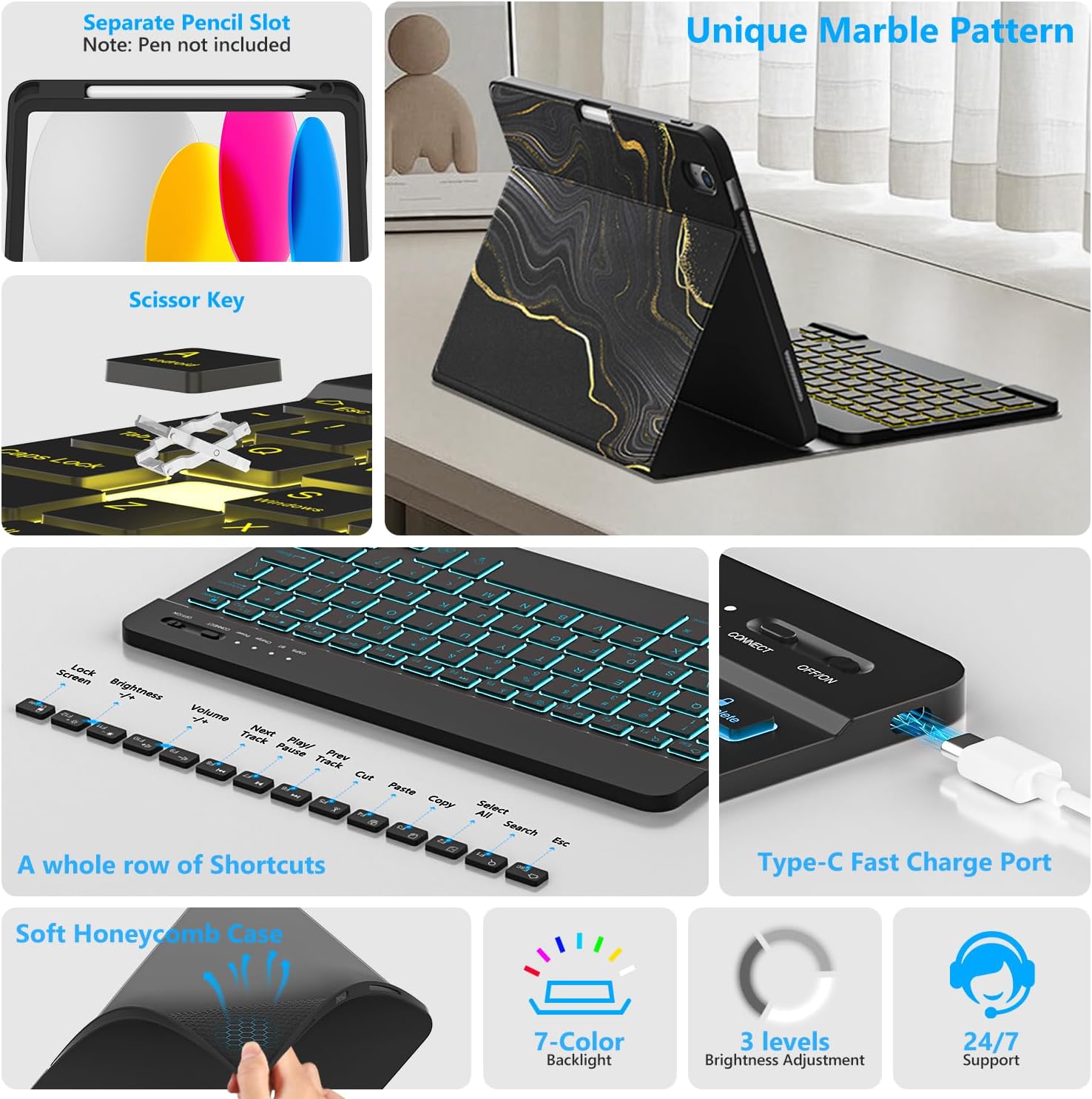
Bild 1.1: Überview of FUWANG Keyboard Case features, highlighting the pencil slot, scissor-key mechanism, keyboard shortcuts, Type-C charging port, and the soft honeycomb case for heat dissipation.
2. Packungsinhalt
- 1 x FUWANG iPad Case (for A16 11th/10th Generation)
- 1 x Wireless Backlit Bluetooth Keyboard
- 1 x Typ-C Ladekabel
- 1 x Benutzerhandbuch
Note: iPad tablet and stylus are not included.
3. Kompatibilität
Diese Tastaturhülle ist speziell für die folgenden iPad-Modelle konzipiert:
- iPad A16 11th Generation 11" 2025: Modellnummern A3354, A3355, A3356
- iPad 10th Generation 10.9" 2022: Modellnummern A2696, A2757, A2777, A3162
To verify your iPad model, please check the back of your tablet for a model number starting with "A". This case is not compatible with other iPad models.
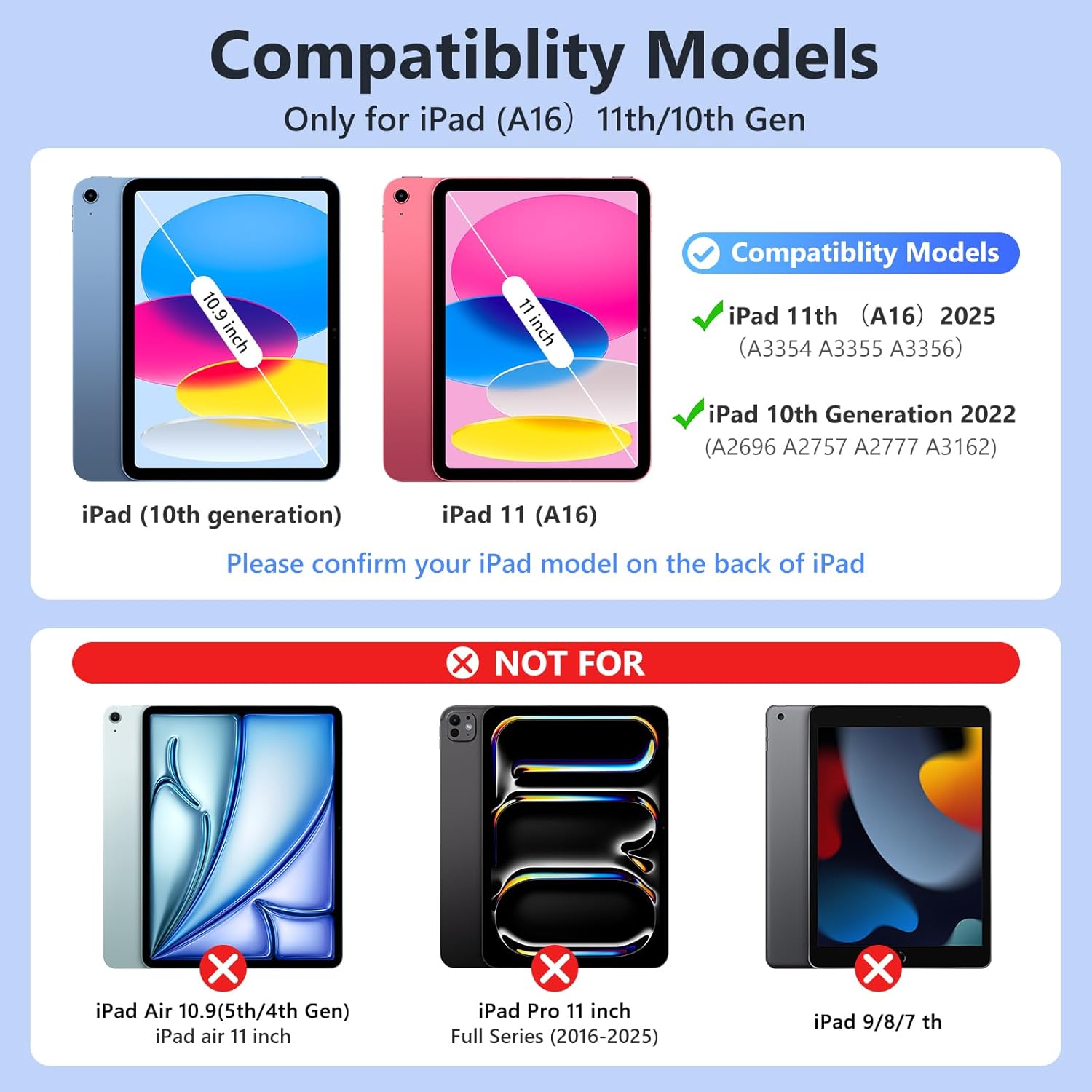
Bild 3.1: Visual guide for iPad model compatibility. Please confirm your iPad model number on the back of your device.
4. Einrichtungsanweisungen
4.1 Initial Charging of the Keyboard
Before first use, fully charge the keyboard for 2 to 3 hours using the provided Type-C charging cable. Connect the cable to the keyboard's Type-C port and a USB power source. The power indicator light will flash during charging and turn off when fully charged.

Bild 4.1: Keyboard charging via Type-C port. Initial charge takes 2-3 hours.
4.2 Koppeln der Bluetooth-Tastatur
- Stellen Sie sicher, dass die Tastatur aufgeladen ist.
- Turn on the keyboard by sliding the power switch to the "ON" position. The power indicator will flash for approximately 3 seconds and then turn off.
- Gehen Sie auf Ihrem iPad zu Einstellungen > Bluetooth und schalten Sie Bluetooth ein.
- The iPad will search for available devices. Select "Bluetooth Keyboard" (or similar name) from the list.
- If prompted, enter the pairing code displayed on your iPad onto the keyboard and press Eingeben.
- Once paired, the keyboard's indicator light will turn off, and your iPad will show the keyboard as "Connected".
For subsequent uses, simply turn on your iPad's Bluetooth and the keyboard's power. Press any key on the keyboard, and it should automatically reconnect.
4.3 Einsetzen des iPads in die Hülle
Gently insert your iPad into the soft TPU inner shell of the case. Ensure all cutouts for the camera, speakers, and volume buttons align perfectly. The case provides full protection against drops and scratches.
5. Bedienungsanleitung
5.1 Using the Backlit Keyboard
Die Tastatur verfügt über eine 7-farbige Hintergrundbeleuchtung mit 3 einstellbaren Helligkeitsstufen.
- To change backlight colors: Press the Glühbirnensymbol key (often next to the Spacebar or Function keys).
- So passen Sie die Helligkeit an: Drücken Sie die Taste Glühbirnensymbol Taste + Pfeiltasten nach oben/unten or a dedicated brightness key (if available).

Bild 5.1: Demonstrating the 7-color backlit keyboard with adjustable brightness settings.
5.2 Einstellen ViewWinkel
The case is designed with three anti-slip grooves, allowing you to adjust your iPad to multiple viewing angles (e.g., 110°, 120°, 130°) for comfortable typing, viewing oder Zeichnung.
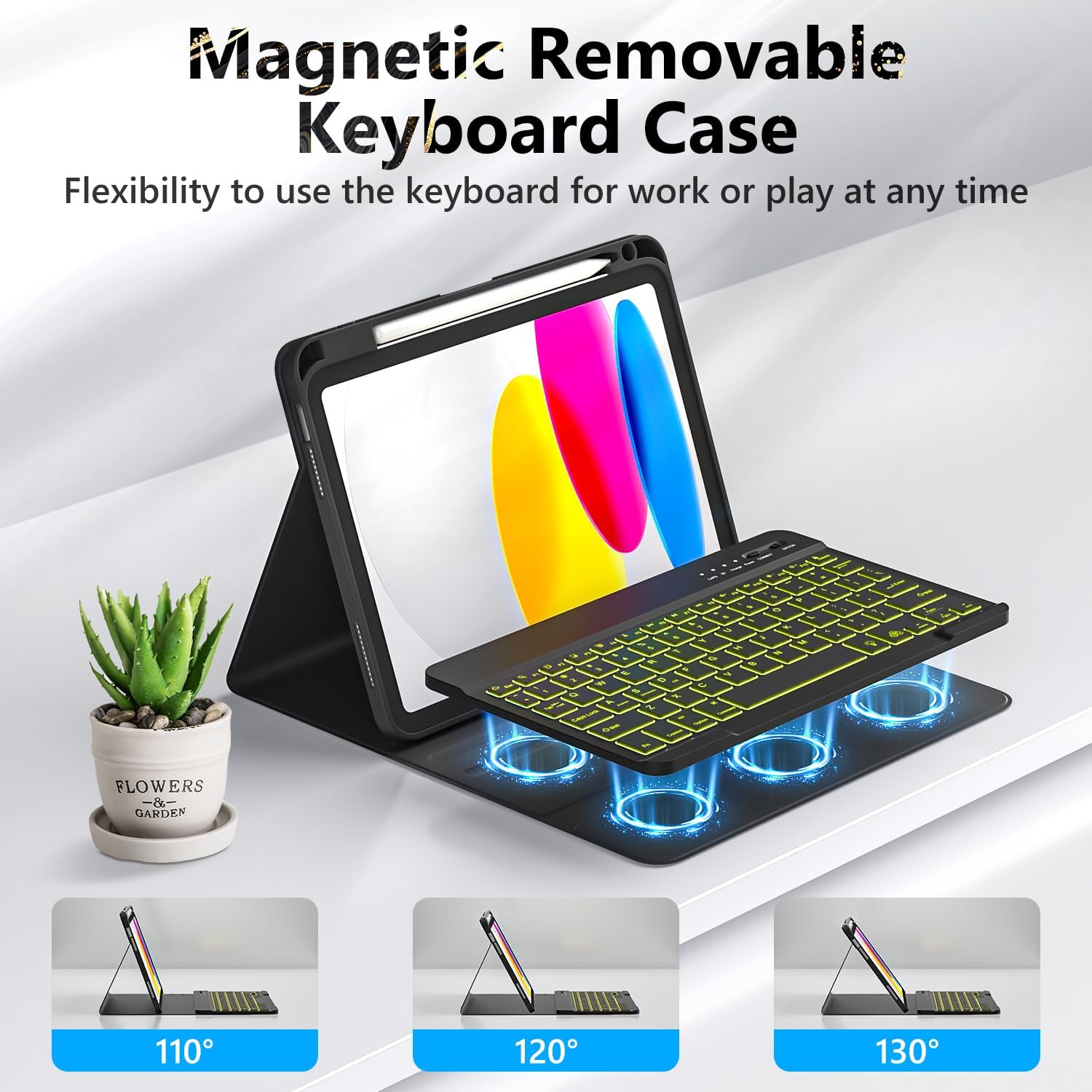
Bild 5.2: The magnetic removable keyboard case offers flexible viewWinkel für verschiedene Aufgaben.
5.3 Tastenkombinationen
The keyboard includes a row of dedicated function keys and shortcuts for quick access to iPad features:
- Sperrbildschirm
- Helligkeitsanpassung
- Lautstärkeregelung
- Steuerelemente für die Medienwiedergabe (Previous Track, Play/Pause, Next Track)
- Copy, Cut, Paste
- Alles auswählen
- Suche
- Heim
5.4 Automatische Schlaf-/Wachfunktion
The case supports the iPad's automatic sleep/wake function, preserving battery life. When closing the case, the iPad will go to sleep; opening it will wake the iPad. For optimal performance of this feature, it is recommended to remove the wireless Bluetooth keyboard from the case, as the keyboard's magnetic components can interfere with the iPad's magnets.
5.5 Verwendung des Stifthalters
The integrated pencil holder securely stores your stylus, keeping it accessible and preventing loss. Simply slide your stylus into the designated slot.
6. Wartung
- Reinigen des Gehäuses: Wipe the synthetic leather case with a soft, damp Tuch. Vermeiden Sie aggressive Chemikalien oder Scheuermittel.
- Reinigung der Tastatur: Use a soft, dry cloth to clean the keyboard keys. For stubborn dirt, a slightly damp Ein Tuch kann verwendet werden, um sicherzustellen, dass keine Feuchtigkeit in die Tastatur eindringt.
- Batteriepflege: Um die Akkulaufzeit zu verlängern, sollte die Tastatur nicht häufig vollständig entladen werden. Laden Sie sie regelmäßig auf, insbesondere wenn sie längere Zeit nicht benutzt wird.
7. Fehlerbehebung
- Tastatur verbindet sich nicht:
- Stellen Sie sicher, dass die Tastatur vollständig aufgeladen ist.
- Vergewissern Sie sich, dass der Netzschalter der Tastatur eingeschaltet ist.
- Vergewissern Sie sich, dass Bluetooth auf Ihrem iPad aktiviert ist.
- Entkoppeln Sie das Gerät in den Bluetooth-Einstellungen Ihres iPads und versuchen Sie, es erneut zu koppeln.
- Starten Sie sowohl Ihr iPad als auch die Tastatur neu.
- Hintergrundbeleuchtung funktioniert nicht/ändert sich nicht:
- Stellen Sie sicher, dass die Tastatur eingeschaltet ist.
- Press the backlight control key (light bulb icon) to cycle through colors and brightness levels.
- If the battery is low, backlighting may be disabled to conserve power. Charge the keyboard.
- Tasten reagieren nicht:
- Prüfen Sie, ob die Tastatur per Bluetooth verbunden ist.
- Stellen Sie sicher, dass die Tastatur aufgeladen ist.
- Entfernen Sie jeglichen Schmutz um die Tasten herum.
- Auto Sleep/Wake Function Issues:
- Stellen Sie sicher, dass das iPad korrekt im Gehäuse sitzt.
- Remove the detachable keyboard from the case when closing the cover, as its magnets can interfere with the auto sleep/wake feature.
8. Spezifikationen
| Marke | FUWANG |
| Modellnummern | A3354, A3355, A3356, A2696, A2757, A2777 |
| Konnektivität | Bluetooth |
| Tastaturtyp | Detachable, Backlit (7 colors, 3 brightness levels) |
| Batteriekapazität | 500 mAh Lithium-Ionen-Akku (wiederaufladbar) |
| Ladezeit | 2-3 Stunden |
| Arbeitszeit | Approx. 120 hours (without backlight) |
| Standby-Zeit | > 130 Tage |
| Reichweite | Bis zu 3 Meter |
| Material | Premium Synthetic Leather, Thermoplastic Polyurethane (TPU) |
| Besondere Merkmale | Pencil holder, Full protection, Multiple viewing angles, Auto sleep/wake function |
9. Garantie und Support
For any questions or issues regarding your FUWANG Keyboard Case, please refer to the contact information provided with your purchase or reach out to the seller directly. Specific warranty details may vary by region and retailer.
Ask a question about this manual
Ask about setup, troubleshooting, compatibility, parts, safety, or missing instructions. Manuals+ will review the question and use this page’s manual context to help answer it.