1. Einleitung
The Jinvocloud Tuya Zigbee 3.0 Hub Wireless Gateway (Model WG003) serves as a central control unit for your Zigbee-enabled smart home devices. This gateway facilitates communication between various Zigbee devices and allows for control via the Tuya/Smart Life application, as well as integration with voice assistants like Amazon Alexa and Google Home Assistant. It operates on a 2.4GHz Wi-Fi network to provide stable and efficient smart home automation.

Image 1.1: Jinvocloud Tuya Zigbee 3.0 Hub Wireless Gateway (Model WG003)
2. Lieferumfang
Bitte überprüfen Sie, ob alle Artikel in Ihrem Paket vorhanden sind:
- 1x Jinvocloud Smart Zigbee Wireless Gateway (Model WG003)
- 1x USB-Datenkabel
- 1x Benutzerhandbuch (Englisch)
3. Spezifikationen
| Technische Daten | 2.5 x 2.5 x 2.8 Zoll (60.5 x 60.5 x 16 mm) |
| Artikelgewicht | 2.24 Unzen (32 g) |
| Leistungsaufnahme | DC 5V 1A (via USB cable) |
| Konnektivitätstechnologie | Zigbee 3.0 |
| Drahtloser Kommunikationsstandard | 802.11b/g/n (2.4GHz Wi-Fi only) |
| Frequenzbandklasse | Einzelband (2.4 GHz) |
| Betriebstemperatur | -10°C bis 55°C |
| Arbeitsfeuchtigkeit | 10% ~ 90% RH (nicht kondensierend) |
| Maximale Verbindungen | Bis zu 50 Geräte |
| Übertragungsdistanz | 50-100 Meter (Freifläche) |
| Kompatible Apps | Tuya Smart / Smart Life App |
| Kompatibilität mit Sprachsteuerung | Amazon Alexa, Google Home Assistant |

Image 3.1: Physical dimensions of the Jinvocloud Zigbee Hub.

Bild 3.2: Überview of Zigbee intelligent wireless gateway features.
4. Installationsanleitung
4.1. Powering On the Gateway
- Connect the provided USB data cable to the gateway's power input port.
- Plug the other end of the USB cable into a standard 5V 1A USB power adapter (not included) or a compatible USB port.
- The gateway will power on, and an indicator light will illuminate.
4.2. App-Installation
- Laden Sie die Tuya Smart or Intelligentes Leben application from your mobile device's app store (Google Play Store for Android or Apple App Store for iOS).
- Registrieren Sie sich für ein neues Konto oder melden Sie sich an, falls Sie bereits eines besitzen.
4.3. Netzwerkkonfiguration
Wichtig: Stellen Sie sicher, dass Ihr Mobiltelefon mit einem Internetanschluss verbunden ist. 2.4 GHz Wi-Fi-Netzwerk. The gateway does not support 5GHz Wi-Fi networks. Your phone and the gateway must be on the same Wi-Fi network during configuration.
- Öffnen Sie die Tuya Smart- oder Smart Life-App.
- On the home page, tap the "+" icon to add a new device.
- Select "Add Manually" and then choose "Gateway Control" followed by "Wireless Gateway (Zigbee)".
- Follow the on-screen instructions in the app to put the gateway into pairing mode. The LED indicator on the gateway should be blinking. If it is not blinking, refer to the app for instructions on how to reset the device.
- Confirm the Wi-Fi network and enter the password if prompted.
- The app will search for and connect to the gateway. Once connected, you can rename the gateway and assign it to a room.
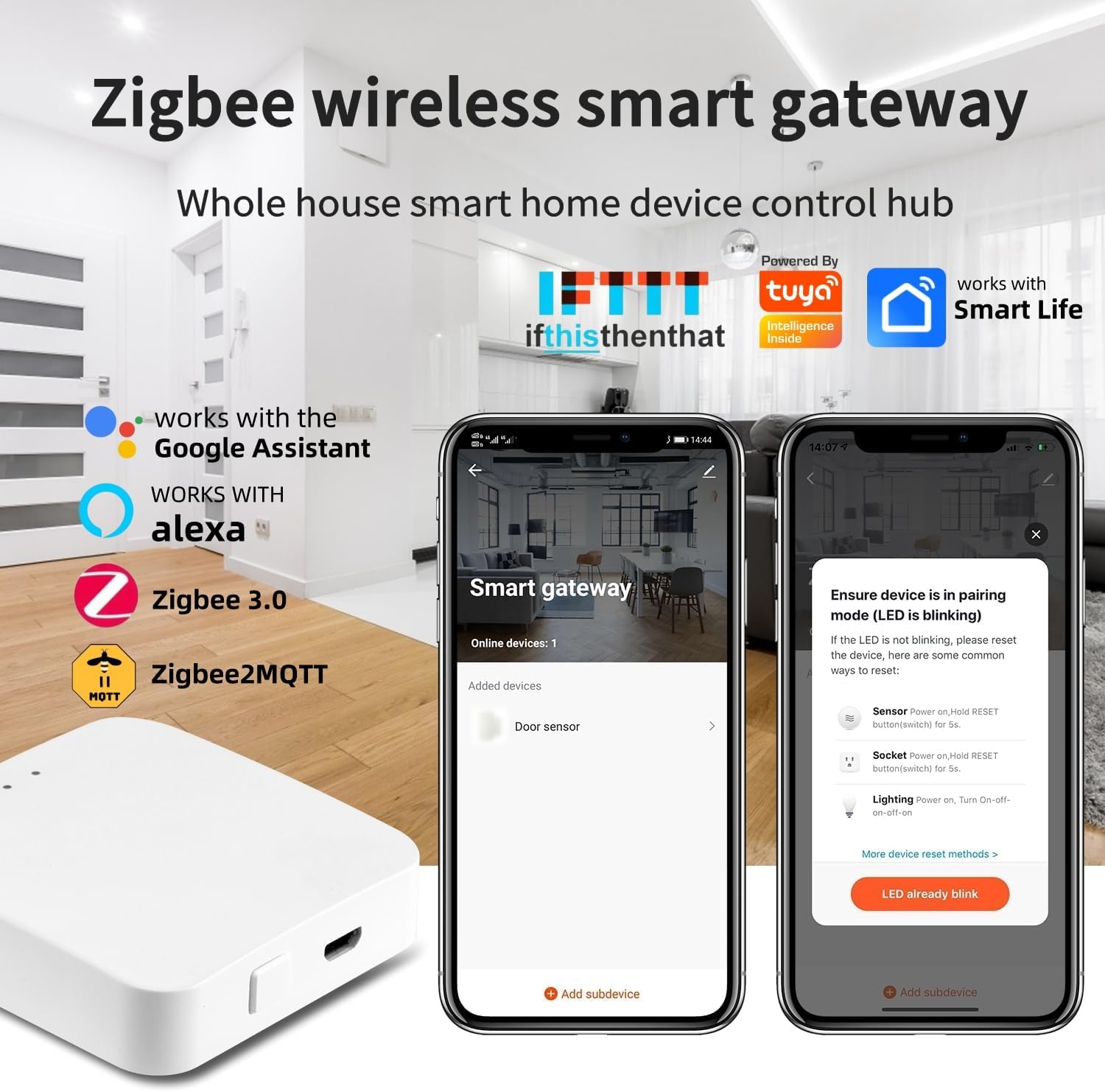
Image 4.1: App interface for pairing the Zigbee gateway.

Image 4.2: Diagram illustrating the gateway's connection to the app and cloud.
4.4. Adding Zigbee Sub-Devices
- Once the gateway is successfully added, navigate to its control panel in the Tuya Smart/Smart Life app.
- Tap "Add Subdevice" or a similar option.
- Put your Zigbee sub-device (e.g., sensor, switch, light bulb) into pairing mode according to its specific instructions.
- The gateway will detect and add the sub-device. You can then configure its settings and integrate it into your smart home scenes.

Image 4.3: The gateway's compatibility with various smart home devices.
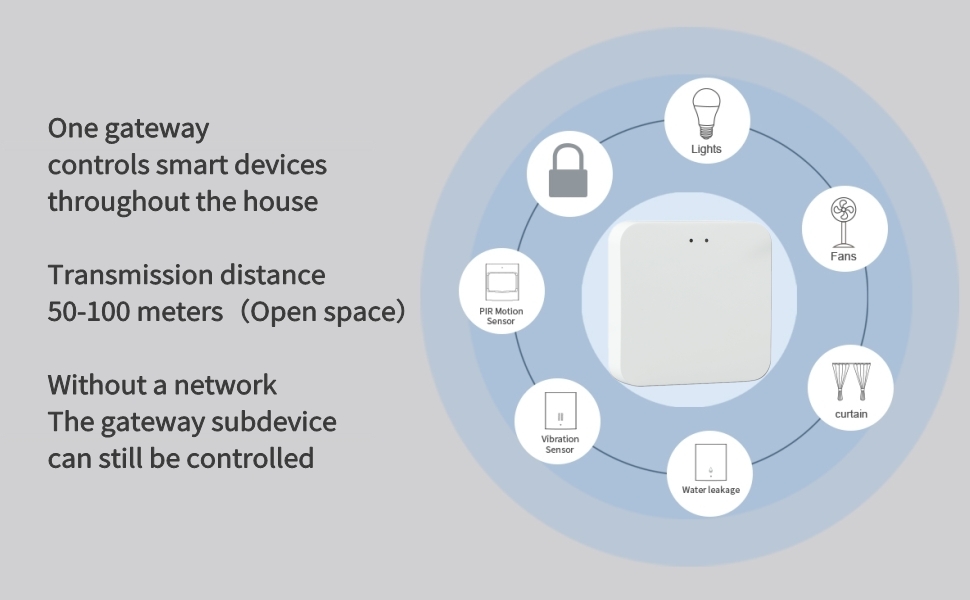
Image 4.4: Illustrates how one gateway can control multiple smart devices throughout a home.
5. Bedienung
5.1. App-Steuerung
The Tuya Smart/Smart Life app allows you to manage all connected Zigbee devices through the gateway. You can:
- Add/Reset Devices: Easily add new Zigbee sub-devices or reset existing ones.
- Geräte gruppieren: Organize devices into groups for simultaneous control (e.g., all lights in a living room).
- Zeitpläne festlegen: Create time-based schedules for devices to turn on/off or perform specific actions.
- Fernbedienung: Control connected devices from anywhere using your smartphone, provided the gateway has an internet connection.
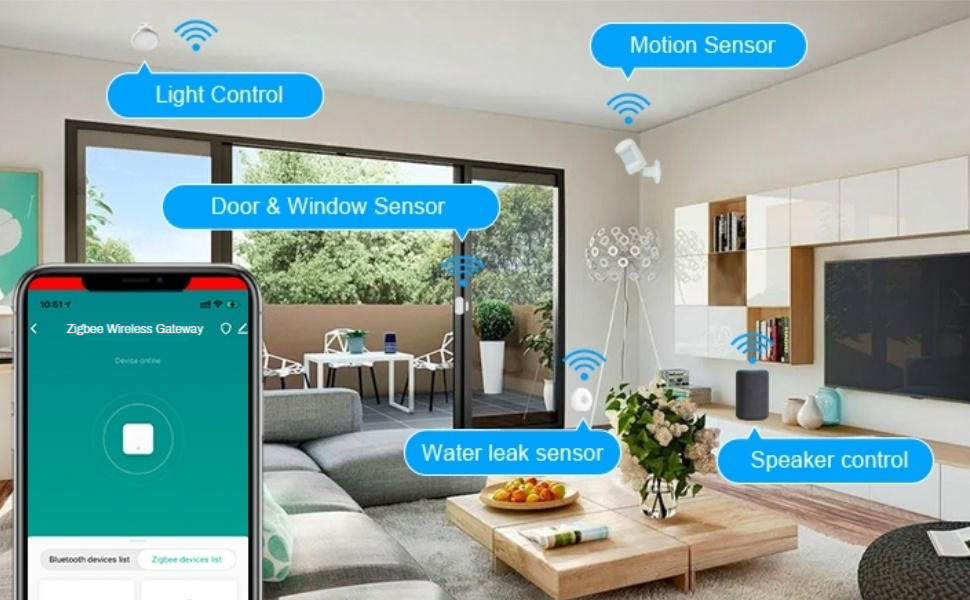
Abbildung 5.1: Beispielample of the Zigbee Wireless Gateway app interface controlling various devices.
5.2. Intelligent Linkage and Scene Automation
Create automation scenes within the Tuya Smart/Smart Life app to enable devices to interact with each other. For exampauf:
- If a door sensor detects an open door, an air conditioner can automatically turn off.
- When a motion sensor detects movement, lights can turn on.
- Set up a 'Good Morning' scene to open smart curtains and turn on a coffee maker.

Abbildung 5.2: Beispielample of intelligent linkage: automatically turning off the air conditioner when a window is opened.
5.3. Sprachsteuerung
The gateway supports voice control through Amazon Alexa and Google Home Assistant. After linking your Tuya Smart/Smart Life account to your voice assistant, you can use voice commands to control connected devices. Examples:
- „Alexa, schalte das Licht im Wohnzimmer ein.“
- "Hey Google, open the smart curtains."
5.4. Offline Functionality
If your internet connection is lost, the devices and tasks directly bound to the Zigbee gateway will continue to perform their automation routines as configured in the app. Remote control via the app will not be possible during an internet outage.

Image 5.3: Illustrates remote control capabilities of the gateway.

Image 5.4: Depicts the gateway's signal coverage and ability to penetrate walls.
6. Wartung
6.1. Reinigung
To maintain optimal performance, periodically clean the exterior of the gateway with a soft, dry cloth. Avoid using liquid cleaners or abrasive materials, as these can damage the device.
6.2. Firmware-Updates
The Tuya Smart/Smart Life app may occasionally prompt you to update the gateway's firmware. It is recommended to perform these updates to ensure the device has the latest features, security patches, and performance improvements. Follow the in-app instructions carefully during the update process.
7. Fehlerbehebung
- Gateway stellt keine Verbindung zum WLAN her:
- Ensure your Wi-Fi network is 2.4GHz. The gateway does not support 5GHz Wi-Fi.
- Verify that your mobile phone is connected to the same 2.4GHz Wi-Fi network as the gateway during setup.
- Überprüfen Sie die Richtigkeit Ihres WLAN-Passworts.
- Ensure the gateway is within range of your Wi-Fi router.
- Try resetting the gateway by following the instructions in the app or the device's specific reset procedure. - ZigBee-Geräte lassen sich nicht koppeln:
- Make sure the Zigbee sub-device is in pairing mode.
- Ensure the sub-device is within the gateway's Zigbee signal range.
- Check if the sub-device is compatible with the Tuya Zigbee 3.0 standard.
- Try resetting the sub-device and attempting the pairing process again. - Fernbedienung funktioniert nicht:
- Verify that your gateway has an active internet connection.
- Check your mobile device's internet connectivity.
- Ensure the Tuya Smart/Smart Life app is up to date. - Probleme mit der Sprachsteuerung:
- Confirm that your Tuya Smart/Smart Life account is correctly linked to your Alexa or Google Home account.
- Stellen Sie sicher, dass die Gerätenamen in der App von Ihrem Sprachassistenten erkannt werden.
- Check the internet connection for both the gateway and your voice assistant device.
8. Garantieinformationen
Specific warranty details for the Jinvocloud Tuya Zigbee 3.0 Hub Wireless Gateway (Model WG003) may vary. Please refer to the product packaging or contact Jinvocloud customer support for detailed warranty terms and conditions.
9. Kundendienst
If you encounter any issues or have questions not covered in this manual, please contact Jinvocloud customer support through their official website or the contact information provided with your product. When contacting support, please have your product model (WG003) and purchase details ready.