
1. Einleitung
The dockteck M.2 NVMe SATA SSD Enclosure Adapter (Model DH0005) provides a convenient and efficient solution for converting your M.2 NVMe or SATA SSD into a portable external storage device. Featuring a tool-free design and high-speed USB 3.2 Gen 2 interface, this enclosure supports data transfer rates up to 10Gbps for NVMe SSDs and 6Gbps for SATA SSDs. It is compatible with various M.2 SSD sizes (2230, 2242, 2260, 2280) and operating systems, making it a versatile accessory for data management and expansion.
2. Packungsinhalt
Bitte überprüfen Sie, ob alle Artikel in Ihrem Paket vorhanden sind:
- 1 x dockteck M.2 SSD Enclosure Adapter
- 1 x USB-C to C Cable (approx. 9.8 inches / 25 cm)
- 1 x USB-A to C Cable (approx. 9.8 inches / 25 cm)
- 1 x Wärmeleitpad
- 1 x Spare Mounting Pin
- 1 x Benutzerhandbuch (dieses Dokument)
3. Funktionen
- Hochgeschwindigkeitsdatenübertragung: USB 3.2 Gen 2 Type-C interface supports up to 10Gbps for NVMe SSDs and 6Gbps for SATA SSDs.
- UASP/TRIM Protocol Support: Enhances SSD read and write speeds for efficient large file Überweisungen.
- Werkzeuglose Installation: Easy slide-open design for quick SSD insertion and removal without tools.
- Effektive Wärmeableitung: Constructed with an aluminum alloy shell and includes a silicone thermal pad to maintain optimal operating temperatures and ensure data stability.
- Breite Kompatibilität: Supports M-Key and B+M Key M.2 NVMe and SATA SSDs of sizes 2230, 2242, 2260, and 2280, up to 4TB capacity.
- Breite Geräteunterstützung: Compatible with Windows, Mac OS, Linux, and Android systems, connecting to PCs, laptops, tablets, smartphones, game consoles, and smart TVs.
- Automatischer Schlafmodus: Enters sleep mode after 15 minutes of inactivity to protect your SSD and conserve power.
4. Einrichtung und Installation
Führen Sie diese Schritte aus, um Ihre M.2 SSD in das Gehäuse einzubauen:
- Öffnen Sie das Gehäuse: Press the button on the end of the enclosure and slide the internal tray out.
- Setzen Sie die SSD ein: Gently insert your M.2 SSD into the slot at a 45-degree angle. Ensure the key type (M-Key or B+M Key) matches the enclosure's slot.
- SSD sichern: Push the SSD down until it is flat, then secure it with the provided rubber mounting pin at the end of the SSD.
- Wärmeleitpad anbringen: Peel off the protective films from both sides of the thermal pad and place it onto the SSD chip. This helps dissipate heat to the aluminum casing.
- Schließen Sie das Gehäuse: Slide the internal tray back into the aluminum shell until it clicks into place.

Figure 1: Easy Installation Steps for M.2 SSD
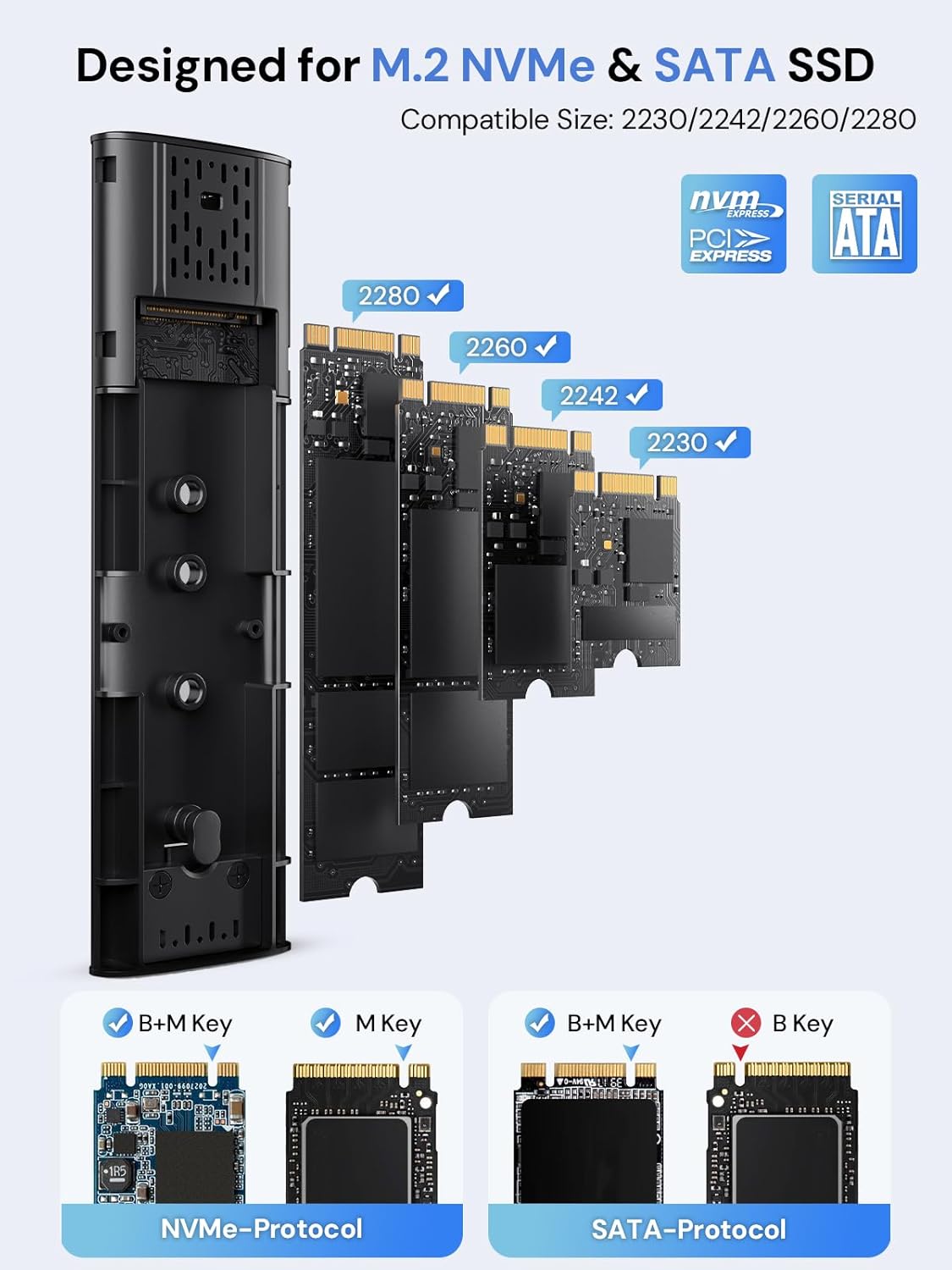
Figure 2: Compatible M.2 SSD Sizes and Key Types
5. Bedienungsanleitung
Once your SSD is installed, connect the enclosure to your device using one of the provided USB cables. The enclosure is plug-and-play, requiring no additional drivers for most operating systems.
- Verbindung: Use the USB-C to C cable for devices with a USB-C port, or the USB-A to C cable for devices with a standard USB-A port.
- Datenübertragung: The enclosure will appear as an external drive on your computer or compatible device. You can drag and drop fileoder verwenden Sie die Ihres Systems. file Management-Tools zur Datenübertragung.
- LED-Anzeige: A clear LED indicator on the enclosure will show activity during data transfer.
- Automatischer Schlaf: To protect your SSD and conserve power, the enclosure will automatically enter sleep mode after 15 minutes of no read/write activity.
Video 1: Demonstration of M.2 SSD Enclosure Adapter usage, including tool-free installation, high-speed data transfer, heat dissipation features, and connectivity with various devices like smartphones and laptops.
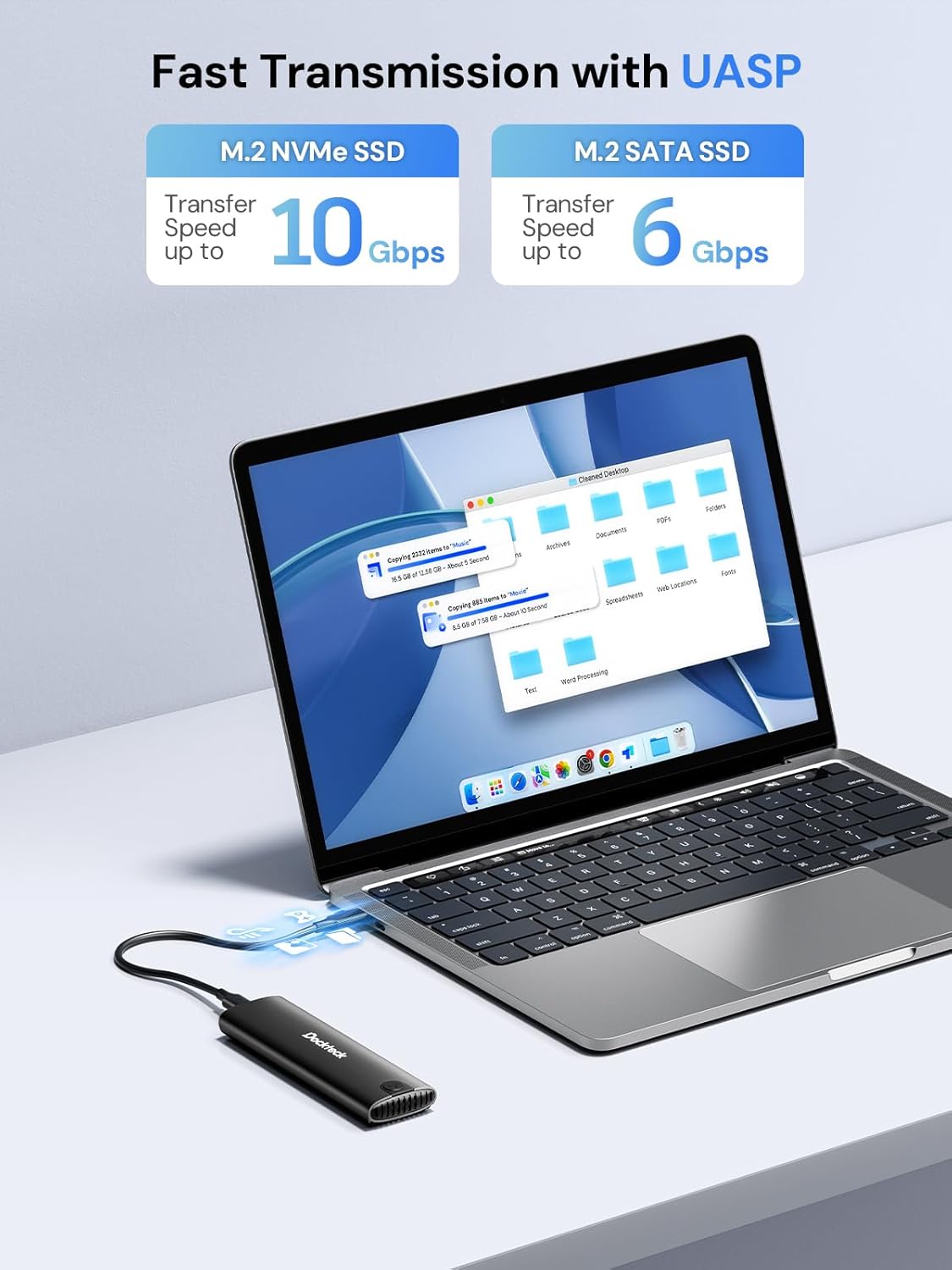
Figure 3: Fast Data Transmission with UASP
6. Wärmeableitung
The dockteck M.2 SSD Enclosure is designed with effective heat dissipation in mind to ensure stable performance and prolong the life of your SSD.
- Schale aus Aluminiumlegierung: Das robuste Aluminium casing acts as a heatsink, drawing heat away from the SSD.
- Silikon-Wärmeleitpad: The included thermal pad creates efficient contact between the SSD and the aluminum shell, further enhancing heat transfer.
- Wärmeableitungslöcher: Strategically placed holes on the enclosure facilitate airflow and heat release.

Figure 4: Effective Heat Dissipation Design
7. Kompatibilität
This enclosure offers broad compatibility with various M.2 SSDs and host devices.
- SSD Protocols: Supports both NVMe (PCIe) and SATA protocols.
- SSD Key Types: Compatible with M-Key and B+M Key M.2 SSDs. (Note: B-Key only SATA SSDs are not supported).
- SSD-Größen: Supports M.2 SSDs of form factors 2230, 2242, 2260, and 2280.
- Maximale Kapazität: Unterstützt M.2 SSDs bis zu 4 TB.
- Betriebssysteme: Works with Windows, Mac OS, Linux, and Android systems.
- Kompatible Geräte: Can be connected to PCs, laptops, tablets, smartphones (with USB-C), game consoles, and smart TVs.

Abbildung 5: Weitgehende Geräte- und Systemkompatibilität
8. Fehlerbehebung
Sollten Probleme auftreten, beachten Sie bitte die folgenden gängigen Schritte zur Fehlerbehebung:
- SSD nicht erkannt:
- Stellen Sie sicher, dass die M.2 SSD korrekt eingesetzt und im Gehäuse befestigt ist.
- Verify that your SSD is either NVMe (M-Key or B+M Key) or SATA (B+M Key). B-Key only SATA SSDs are not supported.
- Check if the SSD is initialized and formatted. New SSDs typically need to be initialized and formatted in Disk Management (Windows) or Disk Utility (Mac OS) before use.
- Try connecting the enclosure to a different USB port on your device.
- Testen Sie es gegebenenfalls mit einem anderen USB-Kabel.
- Langsame Übertragungsgeschwindigkeiten:
- Ensure your device's USB port supports USB 3.2 Gen 2 (10Gbps) for optimal performance. Older USB 2.0 or 3.0 ports will result in lower speeds.
- Vergewissern Sie sich, dass Ihr Betriebssystem und Ihre Treiber auf dem neuesten Stand sind.
- Confirm that the SSD itself is capable of high speeds (e.g., NVMe SSDs are faster than SATA SSDs).
- Vermeiden Sie es, viele kleine Mengen zu übertragen. filegleichzeitig, da dies die Gesamtübertragungsgeschwindigkeit verringern kann.
- Gehege wird warm:
- Es ist normal, dass sich das Aluminiumgehäuse bei starker Beanspruchung erwärmt, da es so konstruiert ist, dass es die Wärme der SSD ableitet.
- Ensure the thermal pad is correctly installed on the SSD to facilitate heat transfer to the enclosure.
- Vermeiden Sie es, das Gehäuse in geschlossenen Räumen aufzustellen, die die Luftzirkulation behindern.
- Zeitweise Verbindungsabbrüche:
- Ensure the USB cable is securely connected to both the enclosure and your device.
- Versuchen Sie es mit einem anderen USB-Anschluss oder Kabel.
- Check for power management settings on your computer that might be turning off USB ports to save power.
9. Spezifikationen
| Besonderheit | Detail |
|---|---|
| Modellnummer | DH0005 |
| Technische Daten | 4.9 x 1.5 x 0.6 Zoll (12.4 x 3.8 x 1.5 cm) |
| Artikelgewicht | 1.92 Unzen (54.4 g) |
| Schnittstelle | USB 3.2 Gen 2 Typ-C |
| Datenübertragungsgeschwindigkeit | Bis zu 10 Gbit/s (NVMe), bis zu 6 Gbit/s (SATA) |
| Unterstützte SSD-Protokolle | NVMe (PCIe) and SATA |
| Supported SSD Key Types | M-Key, B+M Key |
| Unterstützte SSD-Größen | 2230, 2242, 2260, 2280 |
| Maximale SSD-Kapazität | 4 TB |
| Kompatible Betriebssysteme | Windows, MacOS, Linux, Android |
| Material | Aluminiumlegierung |
| Farbe | Schwarz |
| Hersteller | dockteck |
10. Garantie und Support
dockteck products are designed for reliability and performance. For warranty information, technical support, or any inquiries regarding your M.2 NVMe SATA SSD Enclosure Adapter, please contact dockteck customer service through their official webWebsite oder den Händler, bei dem das Produkt gekauft wurde.
You can visit the official dockteck store for more information: dockteck Store on Amazon.