
1. Einleitung
The MEETION DirectorD-KB is a wireless ergonomic keyboard designed for comfortable and natural typing. It features a scientific wave key design and a built-in firm wrist rest to support your hands during extended use. This keyboard offers broad compatibility with Windows and macOS devices through a 2.4GHz wireless connection.

Image: The MEETION DirectorD-KB Wireless Ergonomic Keyboard positioned on a wooden desk, showcasing its wave-curved design and integrated wrist rest.
2. Packungsinhalt
Stellen Sie sicher, dass alle Artikel im Paket vorhanden sind:
- 1 x MEETION DirectorD-KB Wireless Ergonomic Keyboard
- 1 x Benutzerhandbuch
- 1 x USB-A 2.4GHz Wireless Receiver
- 1 x USB-C-Adapter
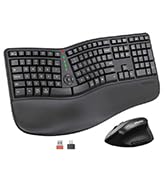
Image: Contents of the MEETION DirectorD-KB package, including the keyboard, user manual, USB-A receiver, and USB-C adapter.
3. Einrichtungsanweisungen
3.1. Einlegen der Batterie
- Suchen Sie das Batteriefach an der Unterseite der Tastatur.
- Öffnen Sie die Abdeckung des Batteriefachs.
- Legen Sie zwei AAA-Batterien (nicht im Lieferumfang enthalten) in das Batteriefach ein und achten Sie dabei auf die richtige Polarität.
- Schließen Sie den Batteriefachdeckel fest.

Image: The underside of the keyboard showing the battery compartment for two AAA batteries and details on power saving features.
3.2. Anschließen des Empfängers
- Locate the USB-A 2.4GHz wireless receiver, typically found in the slot inside the keyboard's battery compartment or in the accessory pouch.
- For devices with a USB-A port: Plug the USB-A receiver directly into an available USB-A port on your computer.
- For devices with a USB-C port: Attach the provided USB-C adapter to the USB-A receiver, then plug the combined unit into an available USB-C port on your computer.
- The keyboard is plug-and-play and should connect automatically.
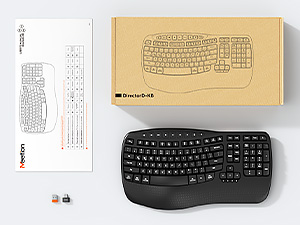
Image: Step-by-step guide on connecting the USB-A receiver with the USB-C adapter to a computer's USB-C port.
3.3. Einschalten
After installing batteries and connecting the receiver, slide the power switch on the keyboard to the 'ON' position. The keyboard is now ready for use.
4. Bedienungsanleitung
4.1. Ergonomisches Design und Handgelenkauflage
The keyboard features a wave-shaped key layout and a firm, integrated wrist rest. This design guides your hands and wrists into a natural, relaxed typing position, reducing strain during long typing sessions.

Image: A user's hands resting comfortably on the integrated wrist rest while typing on the ergonomic keyboard.
4.2. Verstellbare Neigung
Utilize the adjustable tilt legs on the underside of the keyboard to find your preferred typing angle. Different angles can further enhance comfort and reduce wrist fatigue.

Bild: Seitenansichtfiles of the keyboard demonstrating three different adjustable tilt angles for personalized comfort.
4.3. Dual System Layout (Windows/macOS)
The keyboard supports both Windows and macOS layouts. To switch between operating systems:
- Drücken FN+Q für Windows-Layout.
- Drücken Fn + W für macOS-Layout.
4.4. Multimedia-Tasten
The keyboard includes dedicated and combined multimedia keys for quick access to functions like volume control, media playback, and more.
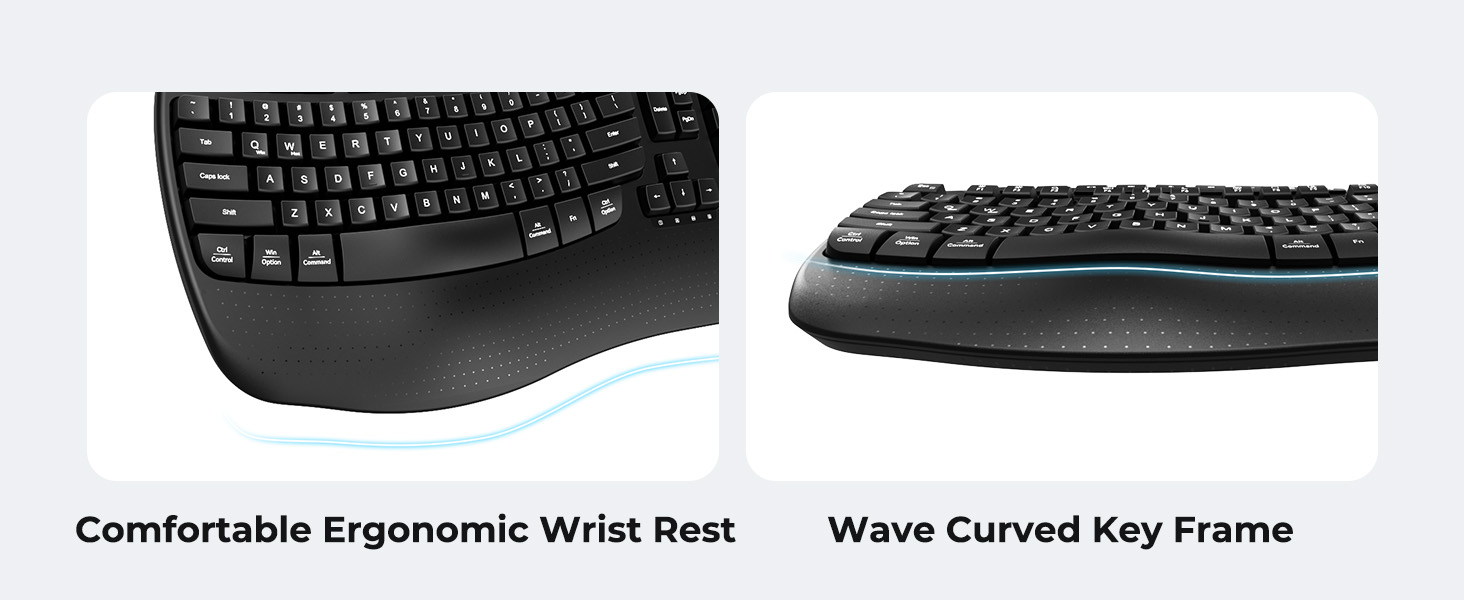
Image: A visual representation of the independent and combined multimedia keys available on the keyboard.
4.5. Intelligente Energiesparfunktion
The keyboard features an auto-sleep mode to conserve battery life. After 20 minutes of inactivity, it will enter hibernation. To wake it up, simply press any key.

Image: Close-up of the keyboard's indicator lights, showing status for Num Lock, Caps Lock, FN Lock, and low battery warning.
5. Wartung
Um die Langlebigkeit und optimale Leistung Ihrer Tastatur zu gewährleisten, beachten Sie bitte folgende Wartungshinweise:
- Reinigung: Use a soft, dry cloth to wipe the surface of the keyboard. For deeper cleaning, a slightly damp Man kann ein Tuch mit milder Seife verwenden, wobei darauf zu achten ist, dass keine Flüssigkeit in die Tastenkappen oder in die internen Komponenten gelangt.
- Vermeiden Sie Flüssigkeiten: Setzen Sie die Tastatur keiner übermäßigen Feuchtigkeit aus und verschütten Sie keine Flüssigkeiten darauf.
- Lagerung: Bewahren Sie die Tastatur an einem kühlen, trockenen Ort fern von direkter Sonneneinstrahlung und extremen Temperaturen auf.
- Batteriewechsel: Replace batteries promptly when the low battery indicator appears to maintain consistent performance.
6. Fehlerbehebung
If you encounter issues with your MEETION DirectorD-KB keyboard, refer to the following common solutions:
- Tastatur reagiert nicht:
- Prüfen Sie, ob die Tastatur eingeschaltet ist.
- Ensure the batteries are correctly installed and not depleted. Replace if necessary.
- Verify that the USB receiver is securely plugged into your computer's USB port (or via the USB-C adapter).
- Versuchen Sie, den Empfänger an einen anderen USB-Anschluss anzuschließen.
- Starten Sie Ihren Computer neu.
- Verzögerung oder zeitweise Verbindungsunterbrechung:
- Ensure the keyboard is within the effective range of the receiver (typically up to 10 meters).
- Minimieren Sie Störungen durch andere drahtlose Geräte, indem Sie diese weiter entfernt aufstellen.
- Vermeiden Sie es, den Empfänger in der Nähe von großen Metallgegenständen aufzustellen.
- Die Tasten funktionieren nicht richtig:
- Prüfen Sie, ob sich unter den Tastenkappen physische Hindernisse befinden.
- Ensure the correct operating system layout (Windows/macOS) is selected using FN+Q or FN+W.
7. Spezifikationen
| Besonderheit | Detail |
|---|---|
| Marke | TREFFEN |
| Modellnummer | DirectorD-KB |
| Konnektivitätstechnologie | 2.4G Wireless (USB-A, USB-C Adapter) |
| Kompatible Geräte | Laptop, PC (Windows XP/7/8/10/11 & macOS X 10.6 or later) |
| Tastaturlayout | QWERTY |
| Anzahl der Schlüssel | 113 |
| Besondere Merkmale | Ergonomic, Hotkeys and Media Keys, Integrated Stand, Wave Keys, Wrist Rest |
| Produktabmessungen (L x B x H) | 17.39" x 9.43" x 1.81" |
| Material | Plastik |
| Stromquelle | Batteriebetrieben (2 x AAA, nicht im Lieferumfang enthalten) |
8. Offizielles Produktvideo
Video: Ein offizielles Produktvideo präsentiertasing the features and ergonomic design of the MEETION DirectorD-KB Wave Ergonomic Wireless Keyboard. (Duration: 0:39)
9. Garantie und Support
This MEETION DirectorD-KB Wireless Ergonomic Keyboard comes with a 1-year manufacturer's warranty.
For further assistance, troubleshooting, or warranty claims, please visit the official MEETION store or contact customer support.
Official MEETION Store: MEETION Store auf Amazon