
GNCC P5
GNCC-Innenraum-Sicherheitskamera – Benutzerhandbuch
Modell: P5
Marke: GNCC
Produkt überview
The GNCC P5 Indoor Security Camera provides comprehensive home monitoring with advanced features. It offers 2K FHD video quality, night vision, two-way audio, and smart motion detection, ensuring you can keep an eye on your home, pets, or baby from anywhere. The camera supports pan and tilt functionality for a wide coverage area and integrates with popular smart home platforms.

Image: GNCC P5 Indoor Security Camera shown alongside a smartphone displaying its live feed, highlighting its remote monitoring capability.
1. Installationsanleitung
1.1 Was ist in der Box?
- GNCC P5 Überwachungskamera für den Innenbereich
- Netzteil
- Type-C Power Cable (2 meters)
- Screw Package (for optional wall mounting)
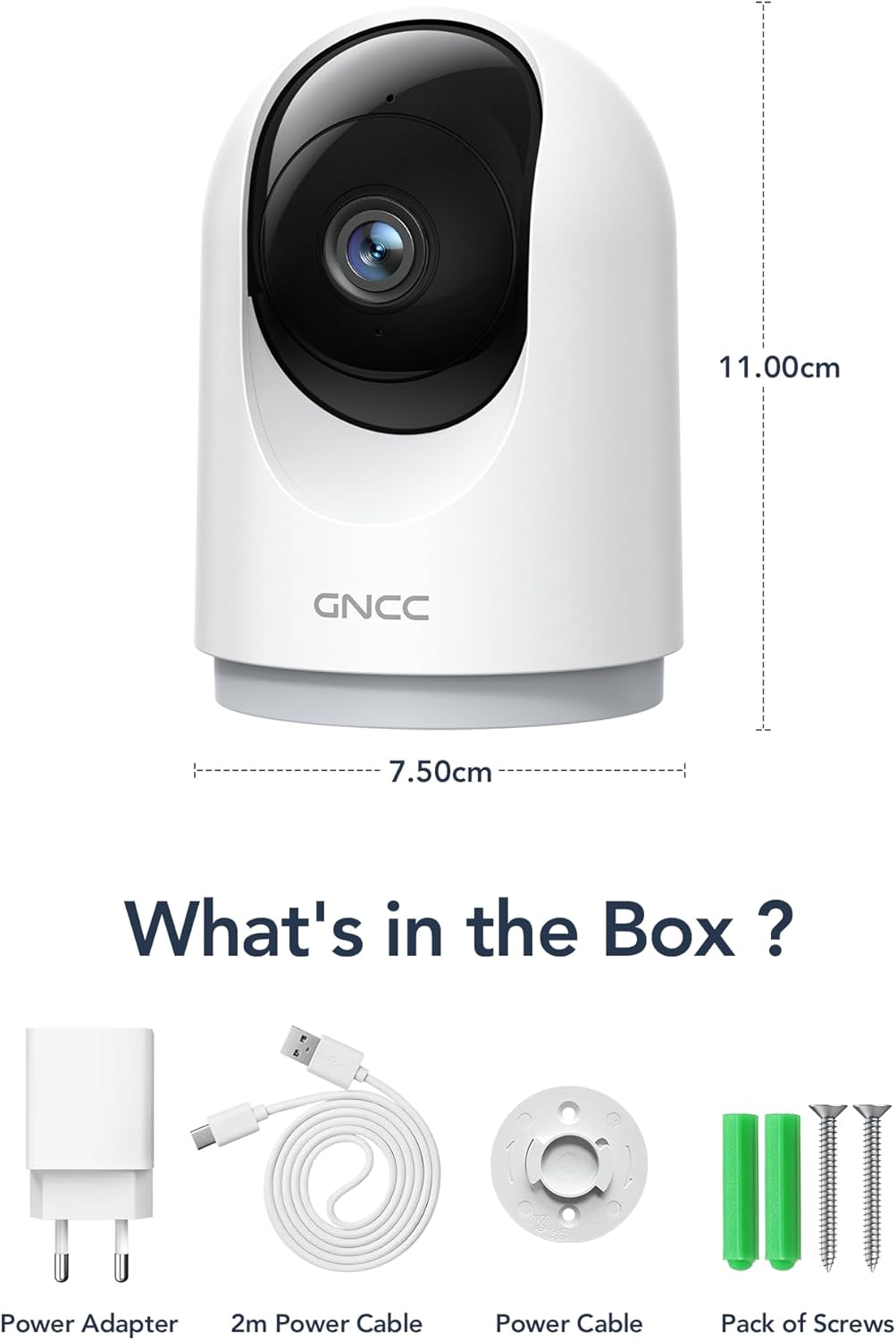
Image: Illustration of the GNCC P5 camera and its included accessories: power adapter, USB-C cable, and mounting hardware.
1.2 Physische Einrichtung
- Wählen Sie einen Standort: Place the camera on a flat surface or mount it to a wall using the provided screw package. Ensure the location provides a clear view des Bereichs, den Sie überwachen möchten.
- Stromanschluss: Connect the Type-C power cable to the camera and the power adapter. Plug the adapter into a standard electrical outlet. The camera will power on automatically.
- Wi-Fi Proximity: Ensure the camera is within 3 feet of your 2.4Ghz Wi-Fi router during the initial setup process for optimal connection. Note: This camera only supports 2.4Ghz Wi-Fi, not 5Ghz.

Image: The GNCC P5 camera positioned on a shelf, illustrating its compact design and highlighting its key features through surrounding icons.
1.3 App-Installation und Verbindung
The GNCC P5 camera operates via the OSAIO app. Follow these steps to connect your camera:
- Download the OSAIO App: Suchen nach "OSAIO" in your smartphone's app store (App Store for iOS or Google Play Store for Android) and download it.
- Ein Konto erstellen: Open the OSAIO app and follow the on-screen instructions to create a new user account or log in if you already have one.
- Gerät hinzufügen: Tap the "+" icon or "Add Device" option within the app. Select the GNCC P5 camera model from the list.
- Folgen Sie den Anweisungen in der App: The app will guide you through the Wi-Fi connection process, which typically involves scanning a QR code displayed on your phone with the camera's lens.
- Benennen Sie Ihre Kamera: Once connected, you can assign a name to your camera (e.g., "Living Room Camera," "Baby's Room").
2. Bedienungsanleitung
2.1 Live View und Schwenk-/Neigesteuerung
Access the live video feed of your camera through the OSAIO app. The camera features 355° horizontal and 90° vertical rotation, providing a 360° panoramic view Ihres Raumes.
- Live-Zugriff View: From the app's main screen, tap on your camera's name to open the live feed.
- Schwenk-/Neigesteuerung: Use the directional controls (usually a joystick or arrow buttons) within the live view Schnittstelle zur Fernsteuerung der Kamera viewing-Winkel.

Image: The GNCC P5 camera demonstrating its 360° panoramic view, with a phone screen showing the extensive coverage of a living space.
Video: Ein überview of the GNCC 2K Security Camera, showcasing its features including 360° panoramic view, 2K HD resolution, motion detection, sound detection, 2-way audio, and night vision capabilities.
2.2 Zwei-Wege-Audio
The camera features a built-in microphone and speaker, enabling real-time two-way communication.
- Gespräch einleiten: Im Live viewTippen Sie auf das Mikrofonsymbol, um über den Lautsprecher der Kamera zu sprechen.
- Hören: Das Mikrofon der Kamera nimmt Umgebungsgeräusche auf, die Sie über Ihr Telefon hören können.

Image: A user interacting with the camera via the app, demonstrating the two-way audio function to communicate with someone on the other end.
2.3 Bewegungserkennung und Benachrichtigungen
The camera is equipped with smart motion detection and tracking. When motion is detected, you will receive instant notifications on your phone.
- Warnungen aktivieren: Configure motion detection sensitivity and notification preferences in the OSAIO app settings for your camera.
- Bewegungsverfolgung: Die Kamera kann erkannte Bewegungen innerhalb ihres Sichtfelds automatisch verfolgen. view.

Image: The camera actively tracking movement in a room, with corresponding motion detection alerts shown on a smartphone.
2.4 Nachtsicht
The GNCC P5 camera provides clear night vision, allowing you to monitor your space even in low-light or no-light conditions.
- Automatische Aktivierung: Die Nachtsichtfunktion schaltet sich normalerweise bei schwachen Lichtverhältnissen automatisch ein.
- Manuelle Kontrolle: Some settings within the app may allow for manual control of night vision mode.

Image: The camera providing clear night vision of a baby's room, as seen on a smartphone screen, ensuring monitoring in darkness.
2.5 Speicheroptionen (SD-Karte / Cloud)
The camera offers flexible storage solutions for your recorded video footage.
- SD-Kartenspeicher: Insert a Micro SD card (up to 128GB, not included) into the camera's designated slot for continuous 24/7 recording.
- Cloud-Speicher: A 30-day trial of cloud storage is available. You can subscribe to a cloud plan through the OSAIO app for secure, off-site storage of alert videos.
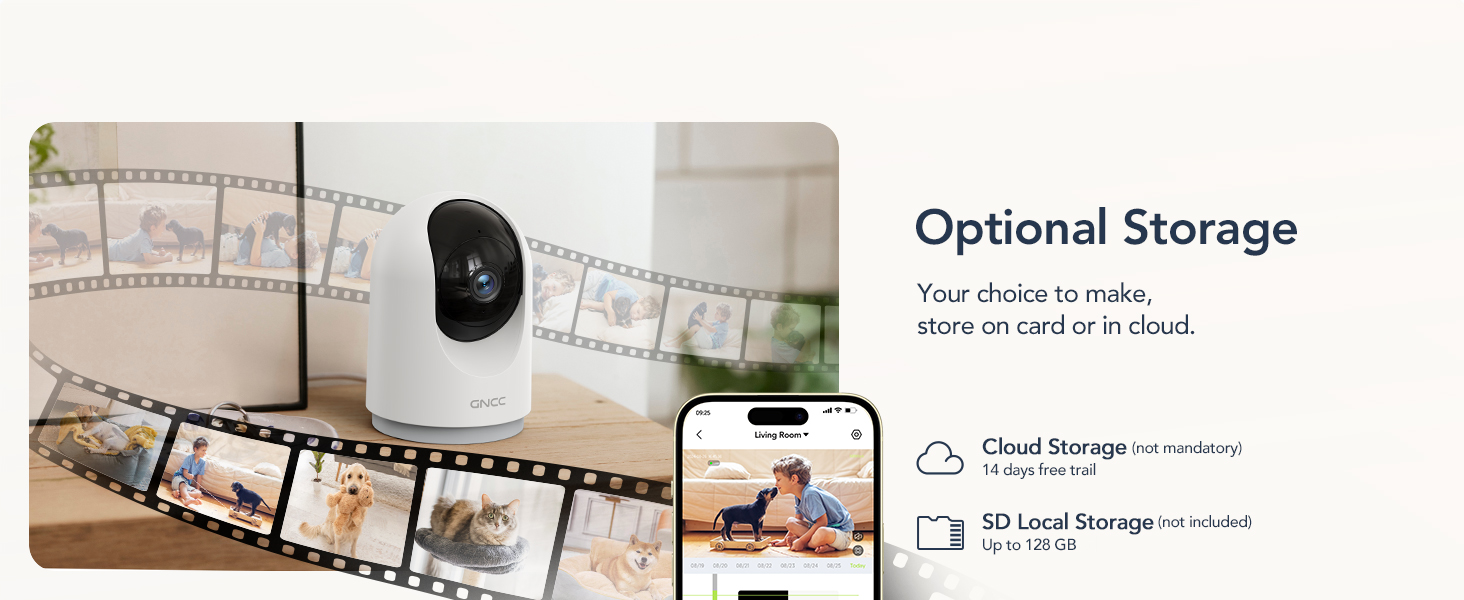
Image: Visual representation of the camera's optional storage methods: cloud storage and local SD card storage, with a smartphone showing recorded footage.
2.6 Smart-Home-Integration
The GNCC P5 camera is compatible with Amazon Alexa and Google Assistant, allowing for voice-controlled viewing of your live camera feed.
- Paarung: Follow the instructions in the Alexa or Google Home app to link your OSAIO account and discover your GNCC camera.
- Sprachbefehle: Use simple voice commands such as "Alexa, show me the baby's room" or "Hey Google, show me the living room camera" to view die Live-Übertragung auf kompatiblen Smart-Displays.

Image: A user commanding Alexa to display the camera feed on a smart display, illustrating the camera's integration with smart home systems.
3. Wartung
- Reinigung: Reinigen Sie Objektiv und Gehäuse der Kamera mit einem weichen, trockenen Tuch. Vermeiden Sie flüssige Reinigungsmittel oder Scheuermittel.
- Firmware-Updates: Periodically check the OSAIO app for available firmware updates. Keeping your camera's firmware updated ensures optimal performance and security. Follow the in-app instructions for any updates.
4. Fehlerbehebung
| Problem | Lösung |
|---|---|
| Die Kamera verbindet sich nicht mit dem WLAN. |
|
| Schlechte Videoqualität. |
|
| Keine Bewegungserkennungsalarme. |
|
| Zwei-Wege-Audio funktioniert nicht. |
|
5. Spezifikationen
| Besonderheit | Detail |
|---|---|
| Modellname | P5 |
| Verwendung im Innen- und Außenbereich | Innenbereich |
| Auflösung der Videoaufnahme | 2K FHD |
| Viewing-Winkel | 355 ° Horizontal, 90 ° Vertikal |
| Nachtsichtbereich | 33 Fuß |
| Konnektivitätsprotokoll | Wi-Fi (nur 2.4 GHz) |
| Stromquelle | Kabelgebunden (Typ C) |
| Kompatible Geräte | OSIAO App, Amazon Alexa, Google Assistant |
| Speicheroptionen | Micro-SD-Karte (bis zu 128 GB), Cloud-Speicher |
| Zwei-Wege-Audio | Ja |
| Bewegungserkennung | Yes, with Motion Tracking |
| Alarmtyp | Audio und Bewegung |
| Abmessungen (L x B x H) | 2.95 x 2.95 x 4.33 Zoll |
| Artikelgewicht | 6 Unzen (0.17 Kilogramm) |
| Bandtage | 5 Volt |
| Wastage | 3 Watt |
| Bildfrequenz | 10 Bilder pro Sekunde |
| Optischer Zoom | 4x |
6. Garantie und Support
Informationen zur Garantie und zum technischen Support finden Sie auf der offiziellen GNCC-Website. webBesuchen Sie die Website oder kontaktieren Sie direkt den Kundenservice. Bewahren Sie Ihren Kaufbeleg als Kaufnachweis für Garantieansprüche auf.
Online-Ressourcen:
- Besuchen Sie die GNCC-Shop auf Amazon für Produktaktualisierungen und verwandte Informationen.
Ask a question about this manual
Ask about setup, troubleshooting, compatibility, parts, safety, or missing instructions. Manuals+ will review the question and use this page’s manual context to help answer it.