
Epico Epico Keyboard Case
Epico iPad-Tastaturhülle – Benutzerhandbuch
Model: Epico Keyboard Case
Einführung
Transform your iPad into a versatile workstation with the Epico iPad Keyboard Case. This innovative accessory features a detachable keyboard with seven-colour backlighting, a multi-finger gesture touchpad, and comprehensive iPadOS shortcuts. Designed for both functionality and protection, it enhances your iPad experience for typing, watching, and browsing.

Image: The Epico iPad Keyboard Case with an iPad inserted, shown in a tilted typing position.
Merkmale
- Tastatur mit Hintergrundbeleuchtung: Seven distinct backlight colours with adjustable brightness levels for comfortable typing in any lighting condition.
- Touchpad Functionality: Multi-finger gesture touchpad provides precise control and enhanced navigation capabilities.
- Shortcut Integration: Comprehensive range of iPadOS shortcuts built into the keyboard for efficient device control and workflow optimisation.
- Vielseitiges Design: Includes detachable keyboard and tilted backside stand for multiple viewing angles and usage modes.
- Power Solution: Equipped with Li-ion battery and USB-C charging capability, operating independently from iPad's power source.
Packungsinhalt
- Epico iPad Keyboard Case
- USB-C zu USB-C Ladekabel
- Benutzerhandbuch (dieses Dokument)
Aufstellen
1. Aufladen der Tastatur
Before first use, fully charge the keyboard. Connect the provided USB-C to USB-C charging cable to the keyboard's USB-C port and the other end to a compatible USB-C power adapter (not included).
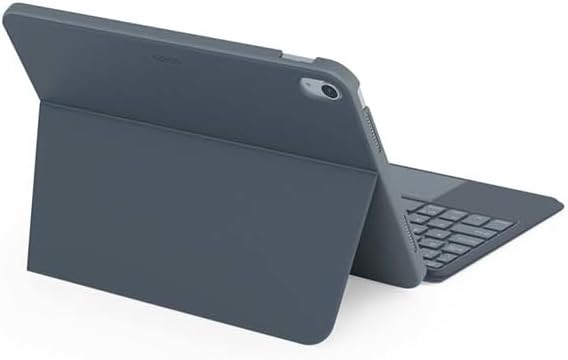
Abbildung: Seite view of the keyboard case, highlighting the USB-C charging port.
2. Einlegen Ihres iPads
- Gently align your iPad with the case's frame.
- Press firmly but carefully to secure the iPad into the protective shell. Ensure all edges are properly seated.

Bild: Rückseite view of the Epico iPad Keyboard Case, demonstrating the secure fit of the iPad.
3. Pairing with iPad
- Turn on the keyboard by sliding the power switch (usually located on the side or back of the keyboard).
- Gehen Sie auf Ihrem iPad zu Einstellungen > Bluetooth.
- Enable Bluetooth. The keyboard should appear in the "Other Devices" list as "Epico Keyboard" or similar.
- Tippen Sie auf den Tastaturnamen, um die Tastatur zu koppeln. Folgen Sie den Anweisungen auf dem Bildschirm.
- Once paired, the keyboard's indicator light will change, and it will be ready for use.
Bedienungsanleitung
Tastaturnutzung
The keyboard functions like a standard QWERTY keyboard. Ensure the keyboard is paired with your iPad before typing.

Bild: Vorderseite view of the Epico iPad Keyboard Case, displaying the full keyboard layout and touchpad.
Steuerung der Hintergrundbeleuchtung
- Drücken Sie die Glühbirne key (often near the function keys) to cycle through backlight colours.
- Drücken Fn + Glühbirne key to adjust backlight brightness levels.
Touchpad-Gesten
The integrated touchpad supports multi-finger gestures for enhanced navigation:
- Tippen mit einem Finger: Links Klick.
- Zwei-Finger-Tippen: Rechtsklick (Kontextmenü).
- Scrollen mit zwei Fingern: Scrollen Sie nach oben/unten oder nach links/rechts.
- Zum Zoomen zusammenziehen: Inhalte vergrößern/verkleinern.
- Refer to iPadOS settings for additional gesture customization.
iPadOS Shortcuts
The keyboard includes dedicated function keys for common iPadOS shortcuts. These may vary slightly by iPadOS version, but typically include:
- Heim: Zurück zum Startbildschirm.
- Suchen: Activate Spotlight search.
- Helligkeitsregelung: Bildschirmhelligkeit anpassen.
- Medienkontrolle: Play/Pause, Previous/Next track.
- Lautstärkeregelung: Passen Sie die Systemlautstärke an.
- Bildschirm sperren: Sperre dein iPad.
Wartung
Reinigung
- Use a soft, lint-free cloth to wipe the exterior of the case and keyboard.
- Bei hartnäckigen Flecken leicht dampReinigen Sie das Tuch mit Wasser oder einem milden, nicht scheuernden Reinigungsmittel.
- Avoid getting moisture into the keyboard keys or ports.
- Verwenden Sie keine aggressiven Chemikalien, Lösungsmittel oder Scheuermittel.
Lagerung
Bewahren Sie das Tastaturetui bei längerer Nichtbenutzung an einem kühlen, trockenen Ort auf. Stellen Sie sicher, dass die Tastatur ausgeschaltet ist, um die Batterielebensdauer zu verlängern.
Fehlerbehebung
- Tastatur verbindet sich nicht:
Ensure the keyboard is charged and turned on. Check iPad's Bluetooth settings to confirm it's enabled and the keyboard is paired. Try unpairing and re-pairing the keyboard.
- Tasten reagieren nicht:
Check battery level. Restart both the keyboard and your iPad. Ensure no debris is lodged under the keys.
- Hintergrundbeleuchtung funktioniert nicht:
Ensure the keyboard is on and charged. Cycle through backlight settings using the dedicated key.
- Touchpad reagiert nicht:
Ensure the touchpad is enabled (some keyboards have a function key to toggle it). Check iPadOS settings for touchpad functionality.
Technische Daten
| Marke | Epos |
| Modellname | Epico Keyboard Case |
| Kompatible Geräte | Apple iPad |
| Konnektivität | Bluetooth |
| Hintergrundbeleuchtung | 7-Colour, Adjustable Brightness |
| Touchpad | Multi-finger Gesture Support |
| Ladeanschluss | USB-C |
| Stromquelle | Eingebauter Lithium-Ionen-Akku |
| Artikelgewicht | 15.9 Unzen (ca. 450 g) |
| Produktabmessungen (L x B x H) | 9.94 x 7.24 x 0.48 Zoll (ca. 25.25 x 18.39 x 1.22 cm) |
| Material | Kunststoff, Metall |
Garantie und Support
This Epico product is covered by a manufacturer's warranty. Please refer to the warranty card included with your purchase or visit the official Epico webAuf der Webseite finden Sie die detaillierten Garantiebedingungen.
For technical support, troubleshooting assistance, or inquiries about your product, please contact Epico customer service through their official webWebsite oder die Kontaktinformationen auf Ihrem Kaufbeleg.
Ask a question about this manual
Ask about setup, troubleshooting, compatibility, parts, safety, or missing instructions. Manuals+ will review the question and use this page’s manual context to help answer it.