
1. Einleitung
This manual provides detailed instructions for the installation and operation of your ANKEWAY XBH-7703 Car Stereo Head Unit. This unit is designed to upgrade the in-car entertainment and navigation experience for specific Chevrolet, GMC, and Hummer H2 models.
Kompatible Fahrzeugmodelle:
- Chevrolet: Silverado, Tahoe, Colorado, and Suburban (2003–2006)
- GMC: Yukon, Sierra, and Canyon (2003–2006)
- Hummer: H2 (2003–2007)
For a complete list of compatible models, please refer to the product images or contact technical support.

Image: Compatibility chart for Chevrolet, GMC, and Hummer H2 models, showing the head unit installed in a compatible vehicle dashboard.
2. Lieferumfang
Prüfen Sie nach dem Öffnen der Verpackung, ob alle folgenden Komponenten enthalten sind:
- ANKEWAY XBH-7703 Car Stereo Head Unit
- Hinterenview Kamera
- Mikrofon
- CANbus Protocol Decoder
- Panel Removal Tools (various orange plastic tools)
- Stromkabel
- Radioantennenadapter
- Kamerakabel
- GPS-Antenne
- RCA-Kabel
- USB-Kabel (x2)
- User Manuals (Android Product Operating Manual, ZLINKS User Manual)

Image: A flat lay of all components included in the ANKEWAY XBH-7703 car stereo package, including the head unit, cables, camera, and tools.
Video: An unboxing video demonstrating the contents of the ANKEWAY car stereo package, including the head unit, various cables, camera, and installation tools.
3. Hauptmerkmale
- CarPlay and Android Auto (Wireless & Wired): Nahtlose Smartphone-Integration für Navigation, Musik und Anrufe.
- Android-System: Access to apps via Wi-Fi, split-screen mode, multi-language support.
- FM RDS Radio: Search and save favorite FM channels, adjust sound with DSP and equalizer.
- AHD hintenview Kamera: High-definition image input, night vision, automatic display on reverse.
- CANbus Adapter: Preserves steering wheel control functions.
- Systemaktualisierungen: Regular firmware updates for optimized performance.
- Einfache Installation: Pre-grouped cables and connectors for simplified setup.

Image: The ANKEWAY car stereo head unit showcasing die Apple CarPlay-Oberfläche mit verschiedenen App-Symbolen.

Image: The ANKEWAY car stereo head unit displaying the Android Auto interface with various app icons.
4. Installationsanleitung
The ANKEWAY XBH-7703 car stereo is designed for straightforward installation. The included cables are pre-grouped with connectors to match your vehicle's original system.
4.1. Vorbereitung
- Vor dem Starten des Fahrzeugs sicherstellen, dass die Zündung ausgeschaltet und die Batterie abgeklemmt ist.
- Use the provided panel removal tools to carefully detach the original car stereo and surrounding trim.
- Refer to your vehicle's specific service manual for detailed instructions on removing the factory head unit.
4.2. Komponenten verbinden
- Hauptstromkabelbaum: Connect the main power harness from the new head unit to the vehicle's wiring harness. The included CANbus decoder ensures compatibility and retains steering wheel controls.
- CANbus-Decoder: Connect the CANbus decoder to the main wiring harness as indicated in the diagram.
- Hinterenview Kamera: Hinten einbauenview camera at the rear of your vehicle. Connect its video output to the "CVBS-IN-1" RCA input on the head unit and the power wire to the reverse light circuit for automatic activation.
- GPS-Antenne: Montieren Sie die GPS-Antenne an einem Ort mit freiem Blick view des Himmels, typischerweise auf dem Armaturenbrett oder unter der Windschutzscheibe.
- Mikrofon: Schließen Sie das externe Mikrofon an, um die Anrufqualität zu verbessern. Positionieren Sie es in der Nähe des Fahrers, um eine optimale Sprachaufnahme zu gewährleisten.
- USB-Kabel: Connect the USB extension cables to the rear of the head unit and route them to a convenient location for connecting USB devices or for wired CarPlay/Android Auto.
- RCA-Kabel: Utilize the RCA cables for connecting external amplifiers or other audio/video components if desired.
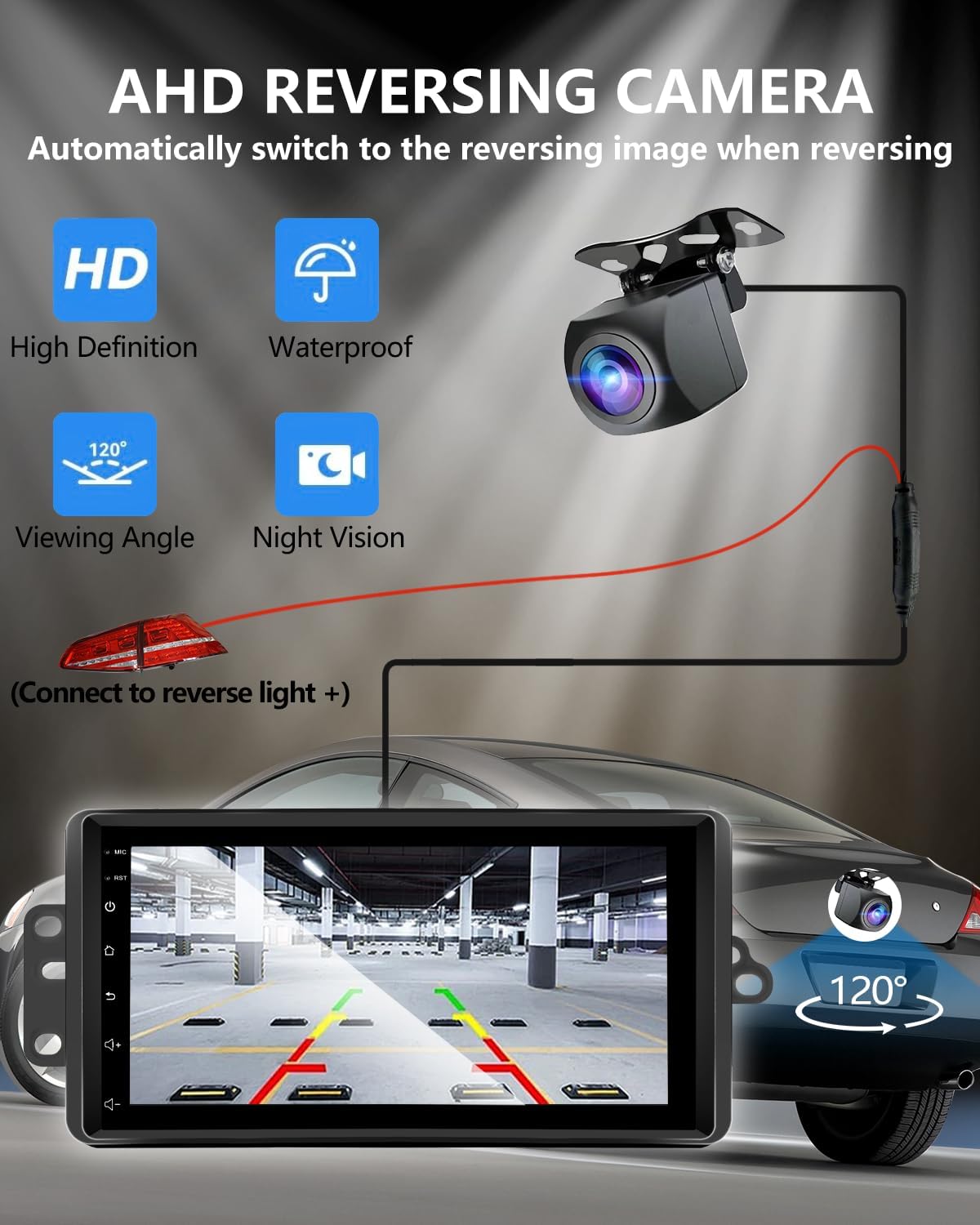
Image: A diagram illustrating the connection of the AHD rearview camera to the car stereo, showing the video input and power connection to the reverse light.
4.3. Letzte Schritte
- Schieben Sie das neue Autoradio vorsichtig in die Öffnung im Armaturenbrett und achten Sie darauf, dass keine Kabel eingeklemmt werden.
- Secure the head unit with the original screws or mounting brackets.
- Bringen Sie alle entfernten Zierteile wieder an.
- Schließen Sie die Fahrzeugbatterie wieder an.
- Turn on the ignition and test all functions of the new car stereo.
5. Bedienungsanleitung
5.1. Ersteinrichtung
Upon first power-on, the system may guide you through initial setup steps, including language selection and Wi-Fi connection.
5.2. CarPlay und Android Auto
Connect your iOS or Android smartphone via USB cable or wirelessly (via Bluetooth and Wi-Fi) to activate CarPlay or Android Auto. This allows access to compatible apps like navigation, music, and messaging directly on the head unit screen.

Image: A split image showing both the Apple CarPlay and Android Auto interfaces running on the car stereo screen.
5.3. GPS-Navigation
The unit supports GPS navigation. You can use pre-installed map applications or download others from the app store. Offline map support is available for navigation without an internet connection.

Image: The car stereo screen showing a GPS navigation map with icons for phone, messages, and music, alongside voice command prompts.
5.4. Sprachsteuerung
Utilize voice assistants (Siri for CarPlay, Google Assistant for Android Auto) for hands-free control of navigation, music playback, calls, and messages. This feature is active when CarPlay or Android Auto is running.

Image: The car stereo screen displaying various voice commands for Siri and Google Assistant, such as "Hey Siri, Call Tom" or "Hi Google, Play Music."
5.5. FM RDS Radio
Access the FM radio tuner to listen to local stations. The RDS (Radio Data System) feature displays station information where available. You can search for and save your favorite channels for quick access.
5.6. Lenkradsteuerung
Thanks to the integrated CANbus adapter, your vehicle's original steering wheel controls will function with the new head unit, allowing you to manage audio, calls, and other features without taking your hands off the wheel.

Image: The car stereo screen showing the FM radio interface and a separate image illustrating the functionality of steering wheel controls with the unit.
5.7. Internet Connectivity (Wi-Fi)
Connect the head unit to the internet via your mobile hotspot or a Wi-Fi network. This enables access to online content, app downloads, and real-time traffic updates for navigation.

Image: The car stereo screen showing various online applications like YouTube, TikTok, and social media, indicating Wi-Fi connectivity.
6. Wartung
To ensure the longevity and optimal performance of your ANKEWAY XBH-7703 Car Stereo Head Unit, follow these general maintenance guidelines:
- Reinigung: Reinigen Sie den Bildschirm und die Außenflächen mit einem weichen, trockenen Tuch. Vermeiden Sie Scheuermittel oder Lösungsmittel, die die Oberfläche beschädigen könnten.
- Software-Updates: Regularly check for and install system updates provided by ANKEWAY to ensure the latest features and security patches. Contact technical support for firmware update packages.
- Umgebungsbedingungen: Vermeiden Sie es, das Gerät extremen Temperaturen, direkter Sonneneinstrahlung über längere Zeiträume oder übermäßiger Feuchtigkeit auszusetzen.
7. Fehlerbehebung
Sollten Sie Probleme mit Ihrem Autoradio haben, beachten Sie bitte die folgenden gängigen Schritte zur Fehlerbehebung:
- Kein Strom: Prüfen Sie alle Stromanschlüsse und stellen Sie sicher, dass die Fahrzeugbatterie ordnungsgemäß angeschlossen ist. Vergewissern Sie sich, dass die Sicherungen intakt sind.
- Kein Ton: Überprüfen Sie die Lautsprecheranschlüsse. Stellen Sie sicher, dass die Lautstärke nicht stummgeschaltet oder auf Minimum eingestellt ist. Überprüfen Sie die Audioausgabeeinstellungen.
- CarPlay/Android Auto verbindet sich nicht: Ensure your phone's Bluetooth and Wi-Fi are enabled. Try connecting with a different USB cable. Restart both the head unit and your smartphone.
- Lenkradbedienelemente funktionieren nicht: Verify the CANbus decoder is correctly connected. Ensure the vehicle's original wiring is intact.
- Hinterenview Kamera zeigt kein Bild an: Check the camera's video input connection and power supply. Ensure the reverse gear is engaged.
- GPS-Signalprobleme: Stellen Sie sicher, dass die GPS-Antenne freie Sicht hat. view des Himmels. Vermeiden Sie Hindernisse.
If the problem persists after attempting these steps, please contact ANKEWAY technical support for further assistance.
8. Spezifikationen
| Besonderheit | Detail |
|---|---|
| Modellnummer | XBH-7703 |
| Betriebssystem | Android |
| Arbeitsspeicher (RAM) | 2 GB |
| Speicher (ROM) | 64 GB |
| Konnektivität | Bluetooth, USB, WLAN |
| Besondere Merkmale | Android Auto, Built-In Bluetooth, Built-In Wi-Fi, DSP, GPS Navigation |
| Kompatible Geräte | Ampschwerer |
| Steckertyp | Cinch |
| Audioausgabemodus | Stereo |
| Surround-Sound | 5.1 Kanalkonfiguration |
| Videokodierung | H.264, H.265/HEVC, MPEG-4 |
| Anzahl der Kanäle | 2 |
| Artikelgewicht | 3.09 Pfund |
| Verpackungsabmessungen | 11.42 x 7.28 x 3.94 Zoll |
9. Garantie und Support
For any questions regarding product accessories, system updates, or technical assistance, please contact ANKEWAY technical support. Our development team regularly releases firmware updates to optimize the system experience.
Die genauen Garantiebedingungen entnehmen Sie bitte Ihrer Kaufdokumentation.