
1. Einleitung
Thank you for choosing the LEFFOT M1 Plus Android 14.0 TV Box. This device is designed to transform your television into a smart entertainment hub, offering stunning 4K UHD visuals, powerful performance, and a wide range of connectivity options. This manual provides detailed instructions for setting up, operating, and maintaining your TV box to ensure an optimal user experience.
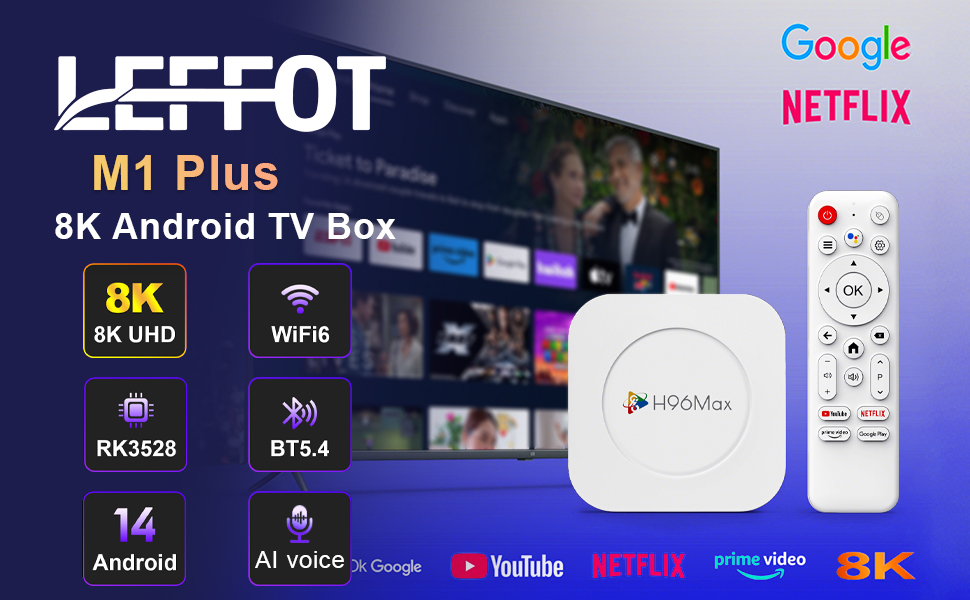
Bild 1.1: Überview of the LEFFOT M1 Plus Android TV Box highlighting its core features like 8K UHD, WiFi 6, BT 5.4, Android 14, and AI voice control.
2. Sicherheitshinweise
Bitte lesen Sie vor der Benutzung des Geräts alle Sicherheitshinweise sorgfältig durch. Die Nichtbeachtung dieser Hinweise kann zu Stromschlag, Brand oder Beschädigung des Geräts führen.
- Verwenden Sie nur das mitgelieferte Netzteil.
- Das Gerät darf weder Wasser, Feuchtigkeit noch extremen Temperaturen ausgesetzt werden.
- Sorgen Sie für eine ausreichende Belüftung rund um das Gerät, um eine Überhitzung zu vermeiden.
- Versuchen Sie nicht, das Gerät selbst zu zerlegen oder zu reparieren. Wenden Sie sich an qualifiziertes Servicepersonal.
- Halten Sie das Gerät von direkter Sonneneinstrahlung und Wärmequellen fern.
3. Packungsinhalt
Überprüfen Sie, ob alle Artikel im Paket vorhanden sind:
- LEFFOT M1 Plus Android TV Box
- Fernbedienung
- HDMI-Kabel
- Netzteil
- Benutzerhandbuch (dieses Dokument)
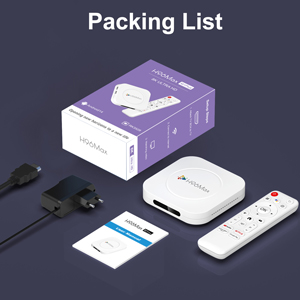
Image 3.1: The package contents including the TV box, remote control, power adapter, and HDMI cable.
4. Produktüberschreitungview
Familiarize yourself with the components and ports of your LEFFOT M1 Plus TV Box.
4.1. Device and Remote

Image 4.1: The LEFFOT M1 Plus TV Box (left) and its accompanying remote control (right).
4.2. Ports und Schnittstellen
The TV box features various ports for connectivity:
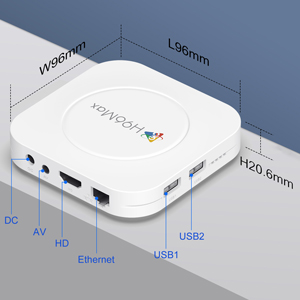
Abbildung 4.2: Detailansicht view of the TV box's ports: DC (power), AV (audio/video out), HD (HDMI), Ethernet, USB1, and USB2.
- Gleichstrom: Stromeingangsanschluss.
- EIN V: Analog audio/video output (for older TVs).
- HD: HDMI-Ausgang zum Anschluss an Ihren Fernseher.
- Ethernet: RJ-45 port for wired network connection.
- USB1 & USB2: USB-Anschlüsse zum Verbinden externer Geräte wie USB-Laufwerke, Tastaturen oder Mäuse.
5. Einrichtung
Follow these steps to set up your LEFFOT M1 Plus TV Box:
- Anschluss an den Fernseher: Connect one end of the provided HDMI cable to the "HD" port on the TV box and the other end to an HDMI input port on your television. Note the HDMI input number (e.g., HDMI 1, HDMI 2) on your TV.
- Strom anschließen: Plug the power adapter into the "DC" port on the TV box, then plug the adapter into a wall outlet.
- Einschalten: The TV box should automatically power on. If not, press the power button on the remote control.
- TV-Eingang auswählen: On your TV, use the remote control to select the corresponding HDMI input source you connected the TV box to.
- Assistent für die Ersteinrichtung: Folgen Sie den Anweisungen auf dem Bildschirm, um die Ersteinrichtung abzuschließen, einschließlich Sprachauswahl, Zeitzone und Netzwerkverbindung.
6. Bedienungsanleitung
Navigate and use your TV box effectively.
6.1. Grundlegende Navigation
- Verwenden Sie die Richtungsanzeige. (Oben, Unten, Links, Rechts) buttons on the remote to move between menu items and applications.
- Drücken Sie die OK Schaltfläche zum Auswählen eines Elements oder zum Bestätigen einer Aktion.
- Drücken Sie die Zurück Taste, um zum vorherigen Bildschirm zurückzukehren.
- Drücken Sie die Heim Schaltfläche zur Rückkehr zum Hauptbildschirm.
6.2. Zugriff auf Anwendungen
From the home screen, you can access pre-installed applications or download new ones from the Google Play Store. Navigate to the desired app icon and press OK um es zu starten.

Image 6.1: The Android 14.0 TV Box home screen displaying popular streaming applications.
6.3. Sprachsteuerung
The LEFFOT M1 Plus supports voice control via Google Assistant. To use this feature:
- Ensure your remote control is paired and has working batteries.
- Drücken Sie die Sprachassistent button (often a microphone icon) on your remote.
- Speak clearly into the remote's microphone. You can ask to open apps, search for content, or control playback.

Image 6.2: Demonstrating the convenient voice control feature using the remote and Google Assistant.
6.4. Media Playback and Display Features
Enjoy high-quality media with advanced features:
- 8K UHD: The device supports up to 8K*4K@23fps and 4Kx2K@60fps resolution with HDR10 for vibrant and detailed visuals.
- Airplay, DLNA, WiFidisplay: Easily cast content from your mobile devices to your TV screen.

Image 6.3: Experience crystal-clear 8K resolution with the LEFFOT M1 Plus.

Image 6.4: The TV box supports various connectivity options and display technologies like Airplay, DLNA, and WiFidisplay.
6.5. Anwendungsszenarien
The LEFFOT M1 Plus TV Box is versatile for various uses:
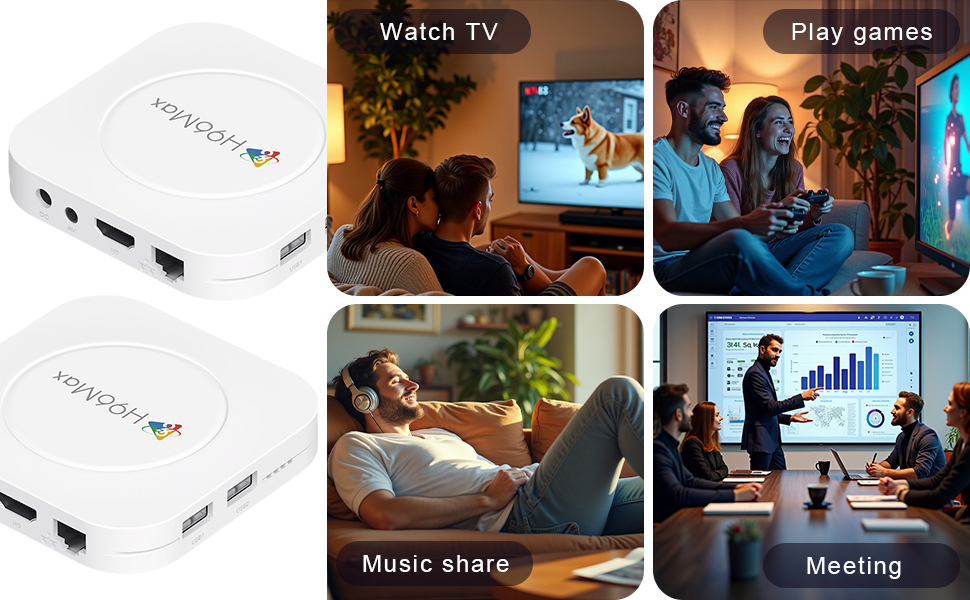
Image 6.5: The TV box can be used for watching TV, playing games, sharing music, and even for business presentations.
7. Konnektivität
7.1. WiFi Verbindung
The device supports 2.4G & 5G dual-band Wi-Fi 6 for fast and stable wireless internet.
- Gehe zu Einstellungen > Netzwerk & Internet.
- Einschalten W-lan.
- Wählen Sie Ihr Wi-Fi-Netzwerk aus der Liste aus.
- Geben Sie gegebenenfalls das Passwort ein und wählen Sie aus Verbinden.

Image 7.1: The TV box features advanced Wi-Fi 6 technology for faster and more reliable connections.
7.2. Ethernet-Verbindung
For a wired connection, plug an Ethernet cable into the "Ethernet" port on the TV box and the other end into your router/modem.
7.3. Bluetooth-Verbindung
The device supports Bluetooth 5.4 for connecting peripherals like headphones, game controllers, or speakers.
- Gehe zu Einstellungen > Verbundene Geräte > Neues Gerät koppeln.
- Versetzen Sie Ihr Bluetooth-Gerät in den Kopplungsmodus.
- Wählen Sie Ihr Gerät aus der Liste aus und folgen Sie den Anweisungen auf dem Bildschirm, um es zu koppeln.
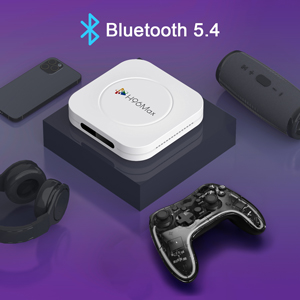
Image 7.2: The TV box supports Bluetooth 5.4 for seamless connection with various external devices.
8. Fehlerbehebung
In diesem Abschnitt finden Sie häufig auftretende Probleme und deren Lösungen.
| Problem | Mögliche Ursache | Lösung |
|---|---|---|
| Kein Strom | Netzteil nicht angeschlossen oder defekt. | Stellen Sie sicher, dass das Netzteil fest mit dem Gerät und einer funktionierenden Steckdose verbunden ist. Versuchen Sie es mit einer anderen Steckdose. |
| Kein Fernsehsignal | Falscher HDMI-Eingang am Fernseher ausgewählt; HDMI-Kabel locker oder defekt. | Verify TV input matches the HDMI port used. Check HDMI cable connections. Try a different HDMI cable or port. |
| Probleme mit der Wi-Fi-Verbindung | Falsches Passwort; Router zu weit entfernt; Störungen. | Re-enter Wi-Fi password. Move device closer to router. Restart router and TV box. |
| Fernbedienung reagiert nicht | Niedrige Batteriestände; Fernbedienung nicht gekoppelt. | Replace batteries. Re-pair the remote control if it's a Bluetooth remote (refer to device settings). |
| Apps stürzen ab oder laufen langsam | Zu viele Anwendungen laufen gleichzeitig; zu wenig Speicherplatz; Softwarefehler. | Close background apps. Clear app caches. Restart the TV box. Consider a factory reset if issues persist (data will be lost). |
9. Spezifikationen
Key technical specifications of the LEFFOT M1 Plus Android TV Box:
- Betriebssystem: Android 14.0
- CPU: RK3528 Quad-Core ARM Cortex-A53
- Grafikkarte: Mali-450 MP2
- RAM: 4 GB
- ROM: 32 GB
- Videoausgang: Supports 4Kx2K@60fps, 8K*4K@23fps, HDR10
- W-lan: 2.4G & 5G Dual-band Wi-Fi 6
- Ethernet: 100 Mio.
- Bluetooth: BT 5.4
- Häfen: HDMI, USB (x2), DC, AV, Ethernet
- Besondere Merkmale: Airplay, DLNA, WiFidisplay, Voice Control
- Abmessungen: 3.78 x 3.78 x 0.81 Zoll (96 x 96 x 20.6 mm)
- Gewicht: 4.3 Unzen (ca. 122 g)
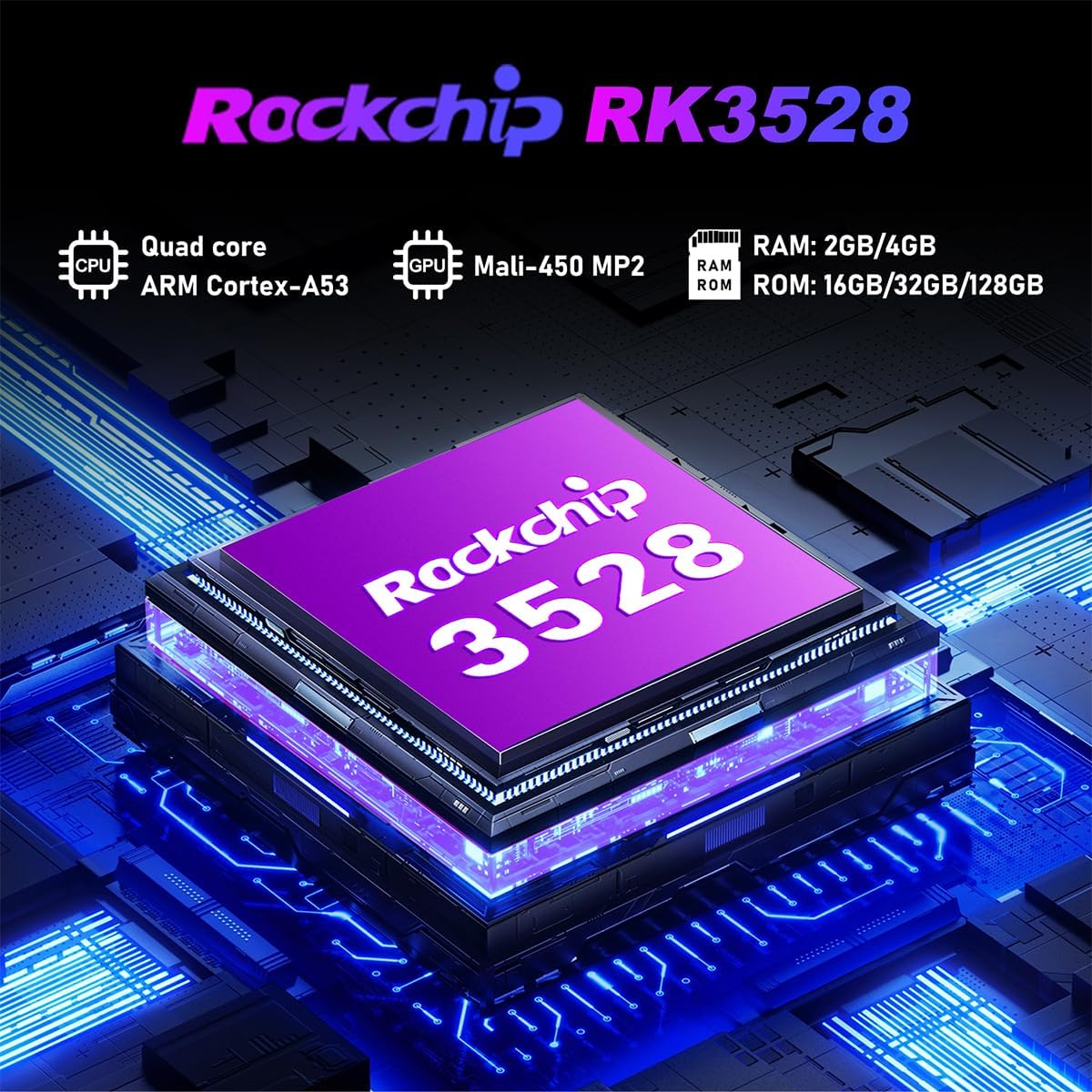
Abbildung 9.1: Detailansicht view of the Rockchip RK3528 processor, highlighting its quad-core CPU, Mali-450 MP2 GPU, and memory configurations.
10. Wartung
To ensure the longevity and optimal performance of your TV box:
- Reinigung: Reinigen Sie die Außenseite des Geräts mit einem weichen, trockenen Tuch. Verwenden Sie keine flüssigen Reiniger oder Sprays.
- Belüftung: Ensure the ventilation holes are not blocked. Do not place the device on soft surfaces that may obstruct airflow.
- Lagerung: Wenn das Gerät längere Zeit nicht benutzt wird, trennen Sie es vom Netzteil und bewahren Sie es an einem kühlen, trockenen Ort auf.
11. Garantie und Support
LEFFOT products are designed for reliability and performance. This product comes with a standard manufacturer's warranty. Please refer to the warranty card included in your package for specific terms and conditions.
For technical support, troubleshooting assistance, or warranty claims, please contact LEFFOT customer service through the retailer where you purchased the product or visit the official LEFFOT webWebsite für Kontaktinformationen.
Bitte bewahren Sie Ihren Kaufbeleg für Garantiezwecke auf.