
Einführung
Thank you for choosing the KOORUI S3241XO 31.5-inch 4K OLED Gaming Monitor. This manual provides essential information for setting up, operating, and maintaining your monitor. Please read it thoroughly before use to ensure optimal performance and safety.
Sicherheitshinweise
- Um Brände oder Stromschläge zu vermeiden, setzen Sie den Monitor weder Regen noch Feuchtigkeit aus.
- Öffnen Sie den Monitor nicht.asing. Im Inneren befinden sich keine vom Benutzer wartbaren Teile. Alle Wartungsarbeiten dürfen nur von qualifiziertem Servicepersonal durchgeführt werden.
- Stellen Sie den Monitor auf eine stabile, ebene Fläche, um zu verhindern, dass er herunterfällt.
- Sorgen Sie für ausreichende Belüftung um den Monitor herum. Blockieren Sie keine Lüftungsöffnungen.
- Verwenden Sie ausschließlich das vom Hersteller mitgelieferte Netzteil und die dazugehörigen Kabel.
- Trennen Sie den Monitor bei Gewittern oder wenn er längere Zeit nicht benutzt wird vom Stromnetz.
- Vermeiden Sie es, schwere Gegenstände auf das Netzkabel oder die Monitorkabel zu legen.
Packungsinhalt
Überprüfen Sie, ob alle Artikel in Ihrem Paket vorhanden sind:
- KOORUI S3241XO 31.5-inch 4K OLED Gaming Monitor
- HDMI 2.1-Kabel
- DisplayPort 1.4 Cable (1.8m)
- USB 3.0 AB-Kabel
- Typ-C-Kabel
- Netzkabel
- Netzteil
- Bedienungsanleitung
Aufstellen
1. Monitorbaugruppe
Befolgen Sie diese Schritte, um den Monitorständer zusammenzubauen und ihn am Bildschirm zu befestigen.

Image: The KOORUI S3241XO monitor with its stand, showcasing the display and connectivity options.
2. Verbindung zu Geräten herstellen
The monitor offers various connectivity options. Ensure your device supports the required output.
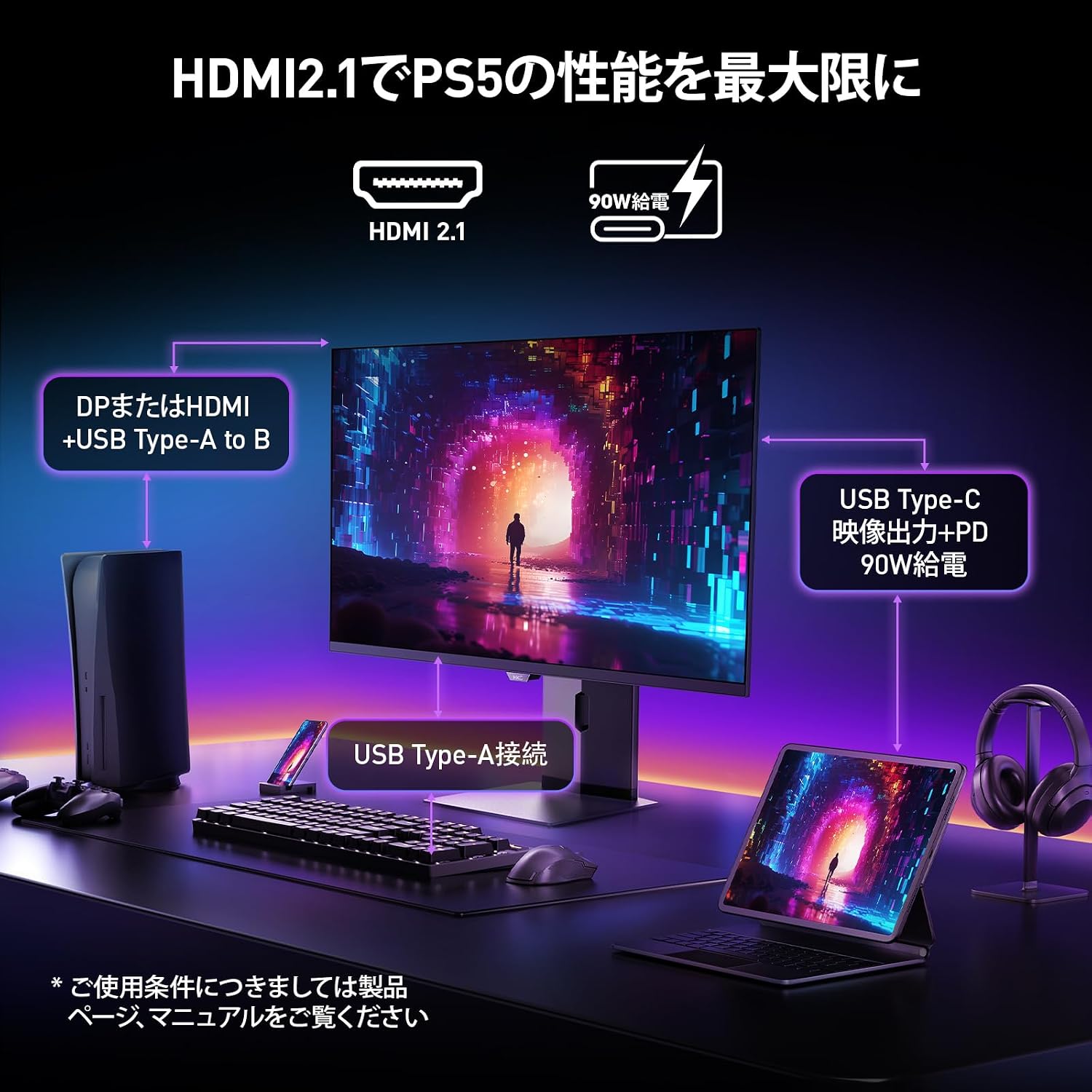
Image: A diagram illustrating how to connect various devices like a PS5, laptop, and peripherals to the monitor using HDMI 2.1, USB Type-C, and USB Type-A ports.
Hafen überview:

Bild: Detailliert view of the monitor's rear input/output ports with numerical labels for identification.
- Stromkabel: Connect the AC power cable to the monitor and a power outlet.
- USB Type-B (Upstream): Connect to your computer to enable the monitor's USB-A ports.
- USB 3.1 Typ-A (x2): Zum Anschließen von USB-Peripheriegeräten.
- HDMI 2.1 (x2): Connect to devices supporting HDMI 2.1 for 4K 240Hz output.
- DisplayPort 1.4: Connect to devices supporting DisplayPort 1.4 for 4K 240Hz output.
- Type-C (with PD): Connect to compatible devices for video input and power delivery (up to 90W).
- Kopfhörerausgang: Zum Anschluss von Kopfhörern oder externen Lautsprechern.
Bedienungsanleitung
1. Ein-/Ausschalten
Drücken Sie den Netzschalter, der sich normalerweise auf der Rück- oder Unterseite des Monitors befindet, um ihn ein- oder auszuschalten.
2. Bildschirmmenü (OSD)
Use the joystick or buttons on the monitor to navigate the OSD menu. The OSD allows you to adjust various settings.
Wichtige OSD-Einstellungen:
- Bildeinstellungen: Helligkeit, Kontrast, Schärfe und Farbtemperatur anpassen.
- Farbmodi: Select from various preset color modes, including a professional color mode for accurate color reproduction (99% DCI-P3, 100% sRGB, Delta E<2, True 10-bit color).
- Eingabequelle: Manually select the input source (HDMI 1, HDMI 2, DisplayPort, Type-C).
- Spielfunktionen: Access specific gaming modes (RPG, FPS, RCG) and settings like FreeSync and G-Sync compatibility.
- Ansprechzeit: The monitor features a 0.03ms (OD) response time for rapid image transitions.
- HDR True Black 400: Optimizes black levels for enhanced detail in dark scenes.
- DIC (Digital Image Control) Mode: Enable or disable DIC to prevent ghosting and improve image quality.

Image: Visual representation of the monitor's color accuracy and wide color gamut.

Image: Illustrates the difference in motion clarity at various refresh rates, highlighting the 240Hz 0.03ms response.

Image: Demonstrates the enhanced black levels and detail in dark scenes provided by the KOORUI QD OLED technology compared to a typical LCD.

Image: Shows the effect of Digital Image Control (DIC) mode on reducing ghosting for smoother visuals.
3. Ergonomische Anpassungen
Der Monitorständer ermöglicht verschiedene Einstellmöglichkeiten zur Optimierung Ihres Arbeitsplatzes. viewErfahrung:
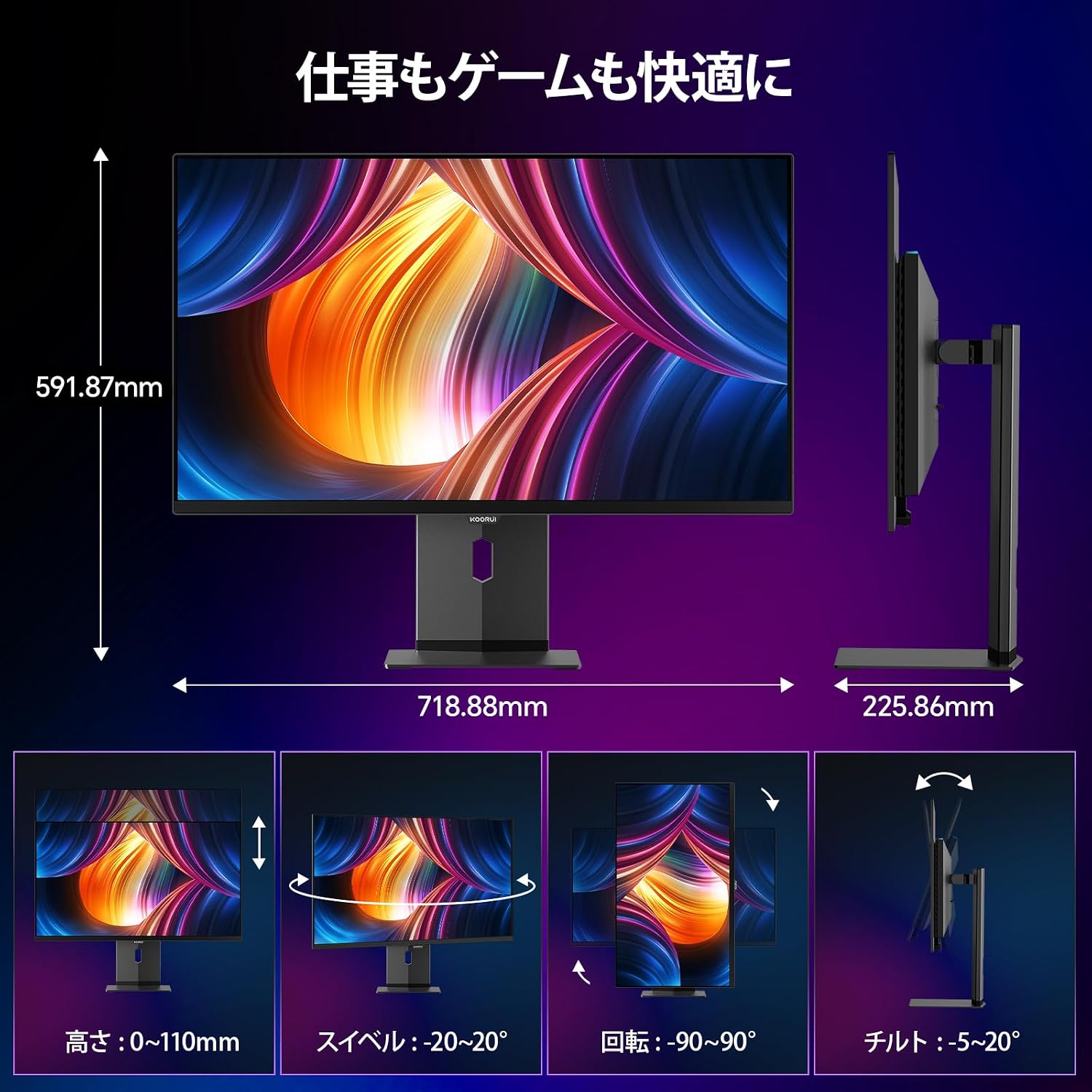
Image: Illustrations of the monitor's adjustable features: height, swivel, pivot (rotation), and tilt.
- Höhenverstellung: Adjust the display height by up to 110mm.
- Neigung: Neigen Sie den Bildschirm für bequemen Blickwinkel von -5° bis 20°. viewwinkeln.
- Schwenken: Swivel the monitor -20° to 20° horizontally.
- Pivot (Rotation): Rotate the screen -90° to 90° for portrait or landscape orientation.
Wartung
1. Monitor reinigen
- Ziehen Sie vor der Reinigung immer den Stecker aus der Steckdose.
- Benutzen Sie ein weiches, fusselfreies Tuch, dampMit Wasser oder einem milden, nicht scheuernden Bildschirmreiniger abspülen.
- Sprühen Sie den Reiniger nicht direkt auf den Bildschirm.
- Avoid using benzene, thinner, or any volatile solvents, as they may damage the screen surface.
2. Funktionen für die Augenpflege
Der Monitor verfügt über Funktionen zur Reduzierung der Augenbelastung bei längerer Nutzung:
- Hardware Blue Light Cut: Reduces harmful blue light emissions without affecting color accuracy.
- Flicker Guard: Beseitigt Bildschirmflimmern für ein komfortableres Seherlebnis. viewErfahrung.

Image: Demonstrates the effectiveness of hardware blue light reduction in preserving natural colors.

Image: Illustrates the difference between Flicker Guard off and on, showing reduced screen flickering.
3. Panel Protection Features
To prevent OLED burn-in, the monitor incorporates proprietary panel protection technologies:
- Pixelverschiebung: Periodically shifts pixels slightly to prevent static images from causing burn-in.
- Taskleistenerkennung: Detects static elements like the taskbar and adjusts their brightness to minimize burn-in risk.
- Graphene Sheet + Custom Heatsink: Advanced thermal management to maintain optimal operating temperature.

Image: Visual explanation of pixel shift, taskbar detection, and thermal management for panel protection.
Fehlerbehebung
Sollten Sie Probleme mit Ihrem Monitor haben, beachten Sie bitte die folgenden häufig auftretenden Probleme und Lösungen:
| Problem | Mögliche Ursache | Lösung |
|---|---|---|
| Kein Bild auf dem Bildschirm | Netzkabel nicht angeschlossen, falsche Eingangsquelle, Gerät nicht eingeschaltet. | Check power connections, select correct input source via OSD, ensure connected device is on. |
| Bildflimmern | Flicker Guard disabled, cable issue, graphics card driver issue. | Enable Flicker Guard in OSD, try a different cable, update graphics drivers. |
| Schlechte Farbqualität | Incorrect color mode, cable issue. | Adjust color settings in OSD, try a different cable. |
| Kein Ton über Kopfhörer | Headphones not properly connected, audio settings on device/monitor. | Ensure headphones are fully plugged in, check audio output settings on your computer and monitor. |
| USB-Anschlüsse funktionieren nicht | USB Type-B upstream cable not connected. | Connect the USB Type-B cable from the monitor to your computer. |
Technische Daten
| Besonderheit | Spezifikation |
|---|---|
| Marke | KOORUI |
| Modellnummer | S3241XO |
| Bildschirmgröße | 31.5 Zoll |
| Panel-Typ | OLED (QLED) |
| Auflösung | 4K UHD (3840 x 2160 Pixel) |
| Bildwiederholrate | 240 Hz |
| Ansprechzeit | 0.03 ms (OD) |
| Seitenverhältnis | 16:9 |
| Kontrastverhältnis | 1,500,000:1 |
| Helligkeit | 280 cd/m² |
| Farbumfang | 99 % DCI-P3, 100 % sRGB |
| Farbtiefe | True 10-bit (1.07 billion colors) |
| HDR-Unterstützung | DisplayHDR400 True Black |
| Adaptive Synchronisierung | FreeSync and G-Sync Compatible |
| Konnektivität | 2x HDMI 2.1, 1x DisplayPort 1.4, 1x Type-C (with 90W PD), 2x USB-A 3.1, 1x USB-B, 1x Headphone Jack |
| Ergonomie | Height Adjustment (110mm), Tilt (-5° to 20°), Swivel (-20° to 20°), Pivot (-90° to 90°) |
| VESA-Montierung | 100 x 100 mm |
| Abmessungen (B x H x T) | Approx. 71.9 x 59.2 x 22.6 cm (with stand) |
| Gewicht | Ca. 8.3 KG |
| Energieaufnahme | 264 Watt (max.) |
Garantie und Support
The KOORUI S3241XO monitor comes with a 3 Jahr Herstellergarantie. The LCD panel itself is covered by a 1-year warranty. For warranty claims or technical support, please contact KOORUI customer service.
KOORUI also offers a free recycling service for monitors. Please refer to the official KOORUI website or contact support for details on how to utilize this service.
Weitere Hilfe finden Sie unter KOORUI Brand Store.