
1. Einleitung
This manual provides essential information for setting up, operating, maintaining, and troubleshooting your GIGABYTE AORUS Elite 16 BWH gaming laptop. The AORUS Elite 16 BWH is designed for high-performance gaming and demanding applications, featuring an Intel Core Ultra 9 processor, NVIDIA GeForce RTX 5070 laptop GPU, a 16-inch WQXGA 165Hz display, and Windows 11 Pro.
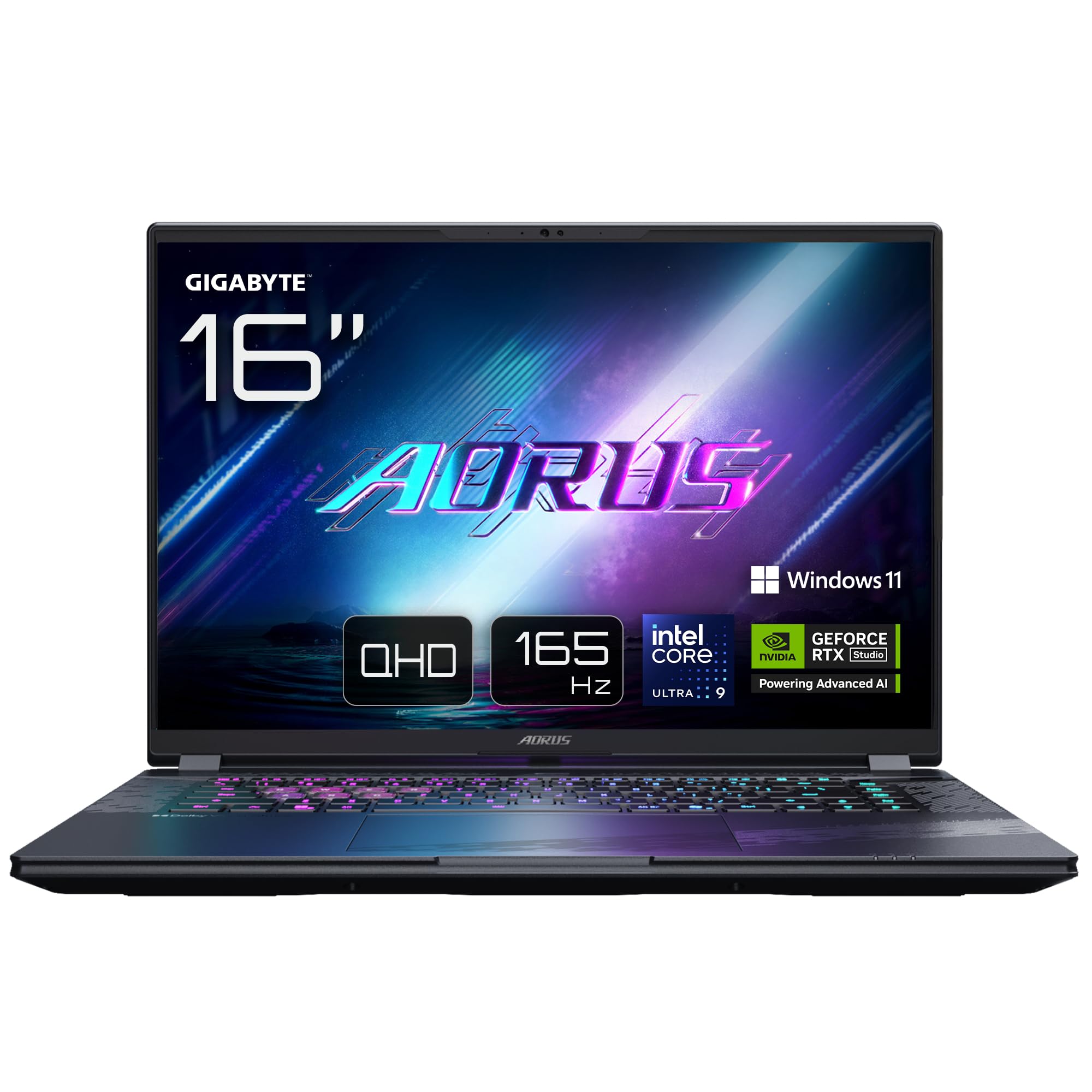
Image: The GIGABYTE AORUS Elite 16 BWH gaming laptop, showcasing its open display and keyboard.
2. Einrichtung
2.1 Auspacken und erste Inspektion
Nehmen Sie den Laptop und sämtliches Zubehör vorsichtig aus der Verpackung. Prüfen Sie, ob alle im Abschnitt „Lieferumfang“ aufgeführten Komponenten vorhanden und unbeschädigt sind.
- GIGABYTE AORUS ELITE 16 BWHC3FRC65SP Laptop
- Netzteil und Kabel
- Dokumentation (diese Bedienungsanleitung, Garantiekarte)
2.2 Stromversorgung anschließen
Connect the power adapter to the laptop's power input port and then plug the power cable into an electrical outlet. It is recommended to fully charge the battery before initial use.
2.3 Erstes Einschalten
Press the power button to turn on the laptop. Follow the on-screen instructions to complete the Windows 11 Pro setup process, including language selection, network connection, and user account creation.
2.4 Connecting Peripherals and Network
The laptop features various ports for connecting external devices and networks.
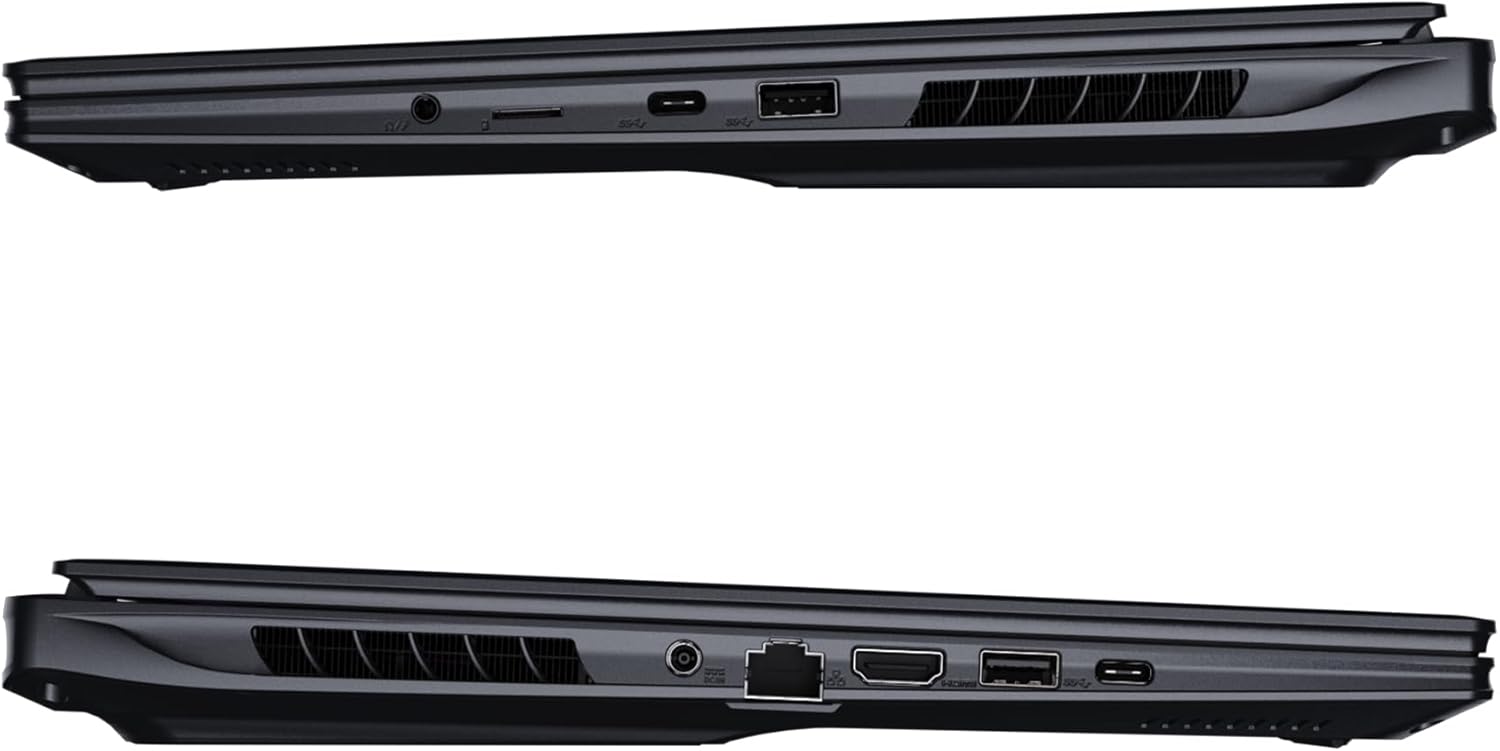
Abbildung: Seite view of the laptop illustrating the available ports for connectivity.
- USB-Anschlüsse: Schließen Sie USB-Geräte wie Mäuse, Tastaturen oder externe Speichermedien an.
- HDMI-Anschluss: Connect to an external display or TV.
- Thunderbolt 4-Port: Für schnelle Datenübertragung und Bildausgabe.
- Ethernet Anschluss: Für kabelgebundene Netzwerkverbindung.
- Kopfhöreranschluss: Zur Audioausgabe an Kopfhörer oder externe Lautsprecher.
- WLAN 7: Connect to wireless networks via the integrated Wi-Fi 7 module.
- Bluetooth 5.4: Koppeln Sie mit Bluetooth-fähigen Geräten.
3. Bedienung Ihres Laptops
3.1 Anzeigefunktionen
Your AORUS Elite 16 BWH features a 16-inch WQXGA (2560x1600) IPS display with a 165Hz refresh rate and 16:10 aspect ratio, offering a wide viewing experience. It supports Dolby Vision for enhanced visual quality and is Pantone validated for color accuracy.

Image: The laptop's 16:10 aspect ratio display, highlighting its IPS panel and Pantone validation.
3.2 Tastatur und Touchpad
The laptop is equipped with a backlit keyboard for comfortable typing in various lighting conditions and a responsive touchpad for navigation.
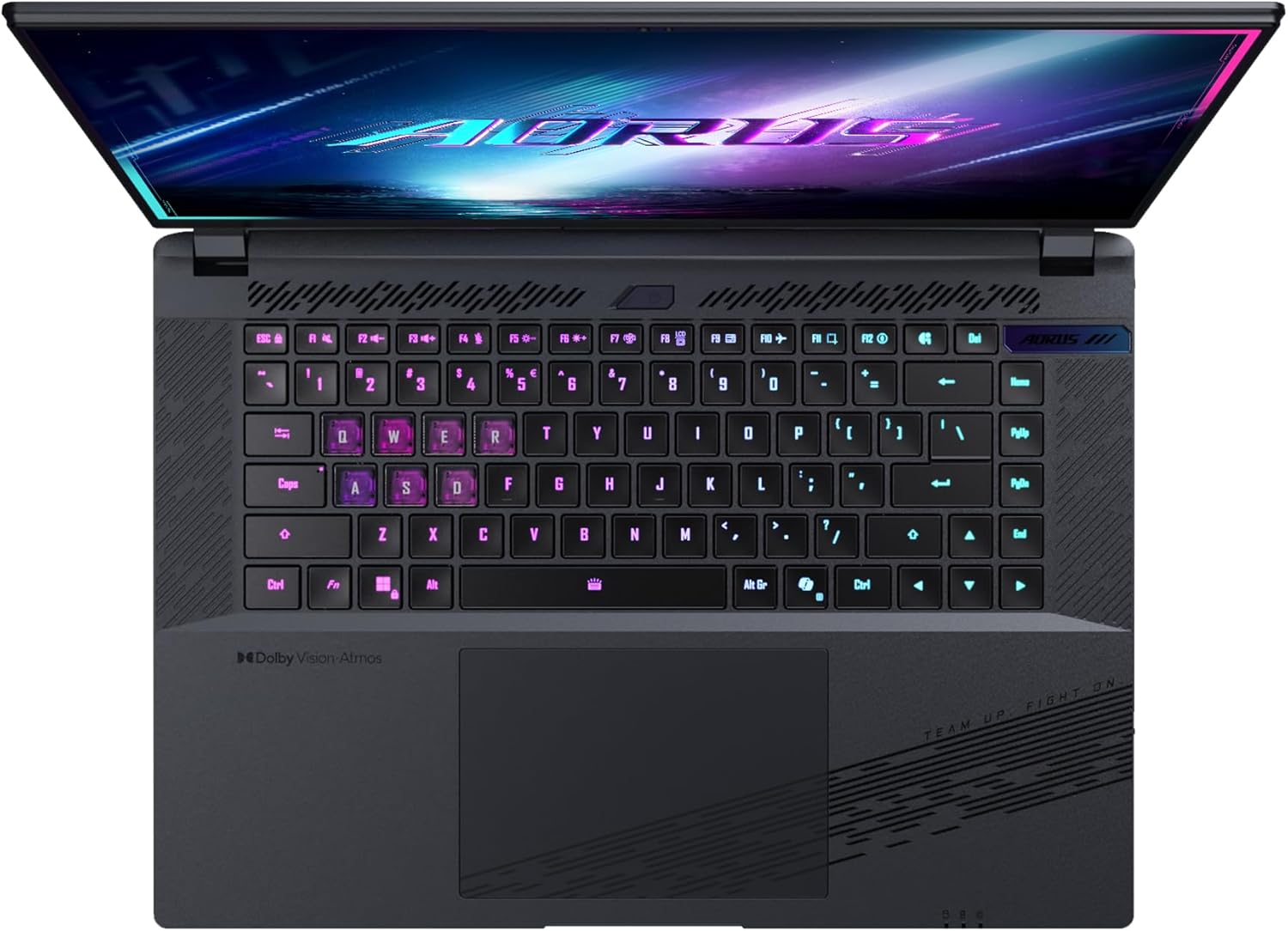
Bild: Draufsicht view of the laptop's keyboard, showcasing its backlit keys.
The keyboard also features a dedicated Copilot Key for quick access to AI functionalities in Windows 11.

Image: Close-up of the keyboard, highlighting the Copilot Key for AI features.
3.3 Audiosystem
Experience immersive audio with Dolby Atmos support and integrated 2W speakers. The laptop also includes a built-in microphone for communication.

Image: Visual representation of Dolby Atmos and Dolby Vision audio and visual enhancements.
3.4 Leistungsmerkmale
The AORUS Elite 16 BWH is powered by an Intel Core Ultra 9 processor with an integrated NPU for AI acceleration and an NVIDIA GeForce RTX 5070 laptop GPU, ensuring high performance for gaming and demanding tasks. It also features Advanced Optimus with DDS Technology for optimized graphics performance.

Bild: Eine detaillierte view of the Intel Core Ultra 9 processor chip.

Bild: Eine detaillierte view of the NVIDIA GeForce RTX 50 Series laptop GPU chip.
3.5 GiMATE AI Agent
Utilize GiMATE, your personal AI agent, to optimize performance, manage smart cooling, enhance privacy, control power settings, and improve audio and voice functionalities.

Image: GiMATE AI Agent interface showing various optimization features.
4. Wartung
4.1-Kühlsystem
The laptop features the WINDFORCE Infinity cooling system to maintain optimal temperatures during intensive use. Ensure the vents are clear of obstructions to allow proper airflow.

Image: Representation of the WINDFORCE Infinity cooling system.
4.2 Reinigung
Verwenden Sie ein weiches, fusselfreies Tuch, um den Bildschirm und die Außenflächen zu reinigen. Bei hartnäckigen Flecken dampBefeuchten Sie das Tuch leicht mit Wasser oder einem Bildschirmreiniger. Vermeiden Sie aggressive Chemikalien.
4.3 Batteriepflege
Um die Akkulaufzeit zu verlängern, vermeiden Sie extreme Temperaturen und lassen Sie den Laptop nicht über längere Zeiträume vollständig geladen oder vollständig entladen.
4.4 Softwareaktualisierungen
Regularly update your Windows operating system, drivers, and GIGABYTE software to ensure optimal performance and security.
5. Fehlerbehebung
5.1 Stromversorgungsprobleme
- Laptop lässt sich nicht einschalten: Ensure the power adapter is securely connected and the outlet is functional. Check the battery charge level.
- Akku wird nicht aufgeladen: Prüfen Sie, ob Netzteil und Kabel beschädigt sind. Versuchen Sie es mit einer anderen Steckdose.
5.2 Anzeigeprobleme
- Kein Bildschirm: Connect an external monitor to check if the issue is with the laptop's screen. Ensure the laptop is powered on.
- Flackernde oder verzerrte Anzeige: Update graphics drivers. Check display cable connections if using an external monitor.
5.3 Verbindungsprobleme
- WLAN-Verbindung wird nicht hergestellt: Prüfen Sie, ob WLAN in den Windows-Einstellungen aktiviert ist. Starten Sie Ihren Router und Ihren Laptop neu.
- Bluetooth-Gerät kann nicht gekoppelt werden: Stellen Sie sicher, dass sich das Gerät im Kopplungsmodus befindet und in Reichweite ist. Aktualisieren Sie die Bluetooth-Treiber.
5.4 Allgemeine Leistungsprobleme
- Langsame Leistung: Close unnecessary applications. Check for malware. Ensure sufficient free disk space.
- Überhitzung: Ensure cooling vents are clear. Use the laptop on a hard, flat surface.
Bei komplexeren Problemen wenden Sie sich bitte an den GIGABYTE-Support. webWebsite oder wenden Sie sich an den Kundendienst.
6. Spezifikationen
| Besonderheit | Detail |
|---|---|
| Marke | GIGABYTE |
| Modellname | AORUS ELITE 16 BWHC3FRC65SP |
| Bildschirmgröße | 16 Zoll |
| Farbe | Grau |
| Festplattengröße | 2000 GB (2x 1TB SSD Gen4) |
| CPU Modell | Intel Core Ultra 9 275HX |
| Installierte RAM-Größe | 32 GB DDR5 |
| Betriebssystem | Windows 11 Pro |
| Besonderheit | Backlit Keyboard, Memory Card Slot |
| Beschreibung der Grafikkarte | Gewidmet |
| Grafik-Coprozessor | NVIDIA GeForce RTX 5070 |
| Hard Disk Technology | SSD |
| Artikelgewicht | 2300 Gramm |
| Webcam Capability | Yes (Frontal) |
| Grafikkarten-RAM-Größe | 8 GB GDDR6 |
| Maximal unterstützter Arbeitsspeicher | 64 GB |
| Batterieenergieinhalt | 99 Watt-hours (Lithium-polymer, 4 cells) |
| Konnektivität | Bluetooth 5.4, Ethernet (10/1000 Mbit/s), HDMI (1 port), Thunderbolt 4 (1 port), USB 3.2 Gen 2 (2 ports), Wi-Fi 7 (802.11.be) |
| Prozessorgeschwindigkeit | 2.7 GHz (Max 5.4 GHz) |
| Anzahl der Prozessoren | 24 |
| Bildschirmauflösung | 2560 x 1600 Pixel (WQXGA) |
| Anzeigetyp | IPS-LCD |
| Audiofunktionen | Dolby Atmos, 2x 2W Integrated Speakers, Integrated Microphone |
7. Garantieinformationen
Your GIGABYTE AORUS Elite 16 BWH laptop comes with a 2 Jahr eingeschränkte Garantie. This warranty covers manufacturing defects and hardware malfunctions under normal use. Please retain your proof of purchase for warranty claims. For detailed terms and conditions, refer to the warranty card included with your product or visit the official GIGABYTE webWebsite.
8. Unterstützung
For technical assistance, driver downloads, and further product information, please visit the official GIGABYTE support webAuf dieser Website finden Sie auch häufig gestellte Fragen und Community-Foren.
- Offizieller GIGABYTE-Artikel WebWebsite: www.gigabyte.com
- Kundendienst: Refer to your regional GIGABYTE webWebsite für lokale Kontaktinformationen.