
Einführung
The SWIFT Swiftcam SC1003-CK is a high-resolution 10-megapixel digital camera designed for microscopic imaging. It allows users to capture full-color still images and live-stream video directly from their microscope to a computer. This camera is compatible with various microscope types through its versatile mounting system and connects via a high-speed USB 3.0 interface.
This manual provides detailed instructions for setting up, operating, and maintaining your Swiftcam SC1003-CK to ensure optimal performance and longevity.

Image: The SWIFT Swiftcam SC1003-CK 10MP Microscope Camera, highlighting its key features like 10 Megapixel resolution, CMOS sensor, USB 3.0, and compatibility with Windows/Mac/Linux.
Packungsinhalt
Bitte überprüfen Sie, ob alle unten aufgeführten Artikel in Ihrem Paket enthalten sind. Sollten Artikel fehlen oder beschädigt sein, kontaktieren Sie bitte unseren Kundenservice.
- Swiftcam Camera
- USB 3.0 Kabel
- 0.5x Reduction Lens
- Φ23.2-Φ30mm Eyepiece Tube Adapter
- Φ23.2-Φ30.5mm Eyepiece Tube Adapter
- Calibration Slider
- Software USB Disk
- Kurzanleitung
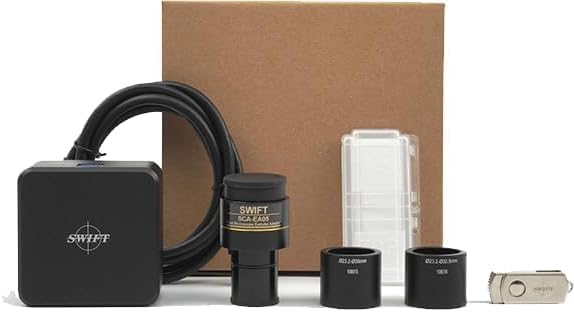
Image: All components included in the SWIFT Swiftcam SC1003-CK package, including the camera, cables, adapters, and software disk.
Installationsanweisungen
Follow these steps to properly set up your Swiftcam SC1003-CK with your microscope and computer.
- Step 1: Attach the Camera to the Microscope.
Secure the C-mount adapter to your microscope's trinocular port or eyepiece tube. Attach the reduction lens to the Swiftcam, then insert the Swiftcam assembly into the microscope's port. Use the appropriate eyepiece tube adapter (30mm or 30.5mm) if mounting into a standard eyepiece tube.
- Step 2: Connect to Computer.
Plug the USB 3.0 cable into the Swiftcam and then into an available USB 3.0 port on your desktop or laptop computer. Ensure a secure connection for optimal data transfer speeds.
- Step 3: Install Software.
Insert the provided software USB disk into your computer. Install the Swift Imaging 3.0 application. Once installed, open the application to begin creating live streams, capturing photos, recording videos, and annotating or editing your images.

Image: Visual guide illustrating the three setup steps: attaching the camera to the microscope, connecting the USB cable to a computer, and launching the Swift Imaging 3.0 software.
Bedienungsanleitung
Once the Swiftcam is set up and the software is installed, you can begin capturing microscopic images and videos.
Software überview (Swift Imaging 3.0)
The Swift Imaging 3.0 software provides a user-friendly interface for controlling your camera and managing your captures.
- Live View: Displays a real-time feed from the microscope camera.
- Fotoaufnahme: Click the photo icon to capture still images.
- Videoaufnahme: Click the video icon to start and stop recording video footage.
- Image and Video Management: Organize, view, and export your captured media.
- Annotation and Editing: Utilize built-in tools to add notes, measurements, or make basic edits to your images.
- Kalibrierung: Use the included calibration slider with the software's calibration tools for accurate measurements of your samples.

Image: The Swiftcam connected to a microscope and laptop, showing the software interface with options for photo and video capture.

Image: A microscope with the Swiftcam attached, displaying a live view of a biological sample on a laptop screen, demonstrating real-time observation.
Systemkompatibilität
The Swiftcam SC1003-CK and its accompanying software are compatible with a wide range of operating systems:
- Microsoft® Windows® Vista / 7 / 8 / 10 (32 & 64 bit)
- OSx (Mac OS X)
- Linux

Image: A laptop displaying a microscopic image, with icons for Linux, Windows, and Mac operating systems, indicating broad compatibility for the Swiftcam.
Wartung
Proper maintenance ensures the longevity and optimal performance of your Swiftcam SC1003-CK.
- Reinigung: Use a soft, lint-free cloth to gently wipe the camera body. For the lens, use a specialized lens cleaning solution and cloth to avoid scratches. Do not use harsh chemicals or abrasive materials.
- Lagerung: Bewahren Sie die Kamera bei Nichtgebrauch in einer trockenen, staubfreien Umgebung auf, vorzugsweise in der Originalverpackung oder einem Schutzkoffer.
- Handhabung: Avoid dropping or subjecting the camera to strong impacts. Handle the lens and sensor area with extreme care to prevent damage.
- Umgebungsbedingungen: Operate and store the camera within recommended temperature and humidity ranges to prevent condensation or overheating.
Fehlerbehebung
If you encounter issues with your Swiftcam SC1003-CK, refer to the following common troubleshooting tips.
| Problem | Mögliche Ursache | Lösung |
|---|---|---|
| Camera not detected by computer/software. |
|
|
| Poor image quality / blurry images. |
|
|
| Software issues (crashes, freezes). |
|
|
Für weitere Unterstützung konsultieren Sie bitte den Abschnitt „Garantie und Support“.
Technische Daten
Detailed technical specifications for the SWIFT Swiftcam SC1003-CK microscope camera.
| Besonderheit | Detail |
|---|---|
| Modellnummer | Swiftcam SC1003-CK |
| Material | Metall |
| Farbe | Schwarz |
| Sensortyp | CMOS |
| Auflösung | 10 Megapixel |
| Fachgebiet View | 40 Grad |
| Kompatibilität | Microsoft® Windows® Vista / 7 / 8 / 10 (32 & 64 bit), OSx (Mac OS X), Linux |
| Stromquelle | Kabelgebunden (USB 3.0) |
| Datenübertragung | USB 3.0 |
| Objective Holder | C-Mount |
| Pixelgröße | 1.55 µm x 1.55 µm |
| Sensorgröße | 1/2.3" |
| Expositionszeit | 0.1 ms ~ 2000 ms |
| Empfindlichkeit | 250 mV @ 1/30 s |
| Dunkles Signal | 0.25 mV @ 1/30 s |
| Scan-Modus | Progressiv |

Image: A detailed diagram showing the physical dimensions and technical specifications of the SWIFT Swiftcam SC1003-CK camera and its components.
Garantie und Support
SWIFT ensures the quality of its products. Each Swiftcam undergoes a 100% final inspection in a clean room before shipment to guarantee reliability.
If you encounter any problems during use or have questions, please contact the seller directly through the following steps:
- Click on the seller's name: Swift direct.
- Select "About the seller."
- Click "Ask a question."
The SWIFT support team is dedicated to assisting you and will make every effort to resolve your concerns.