
Einführung
This manual provides detailed instructions for the setup, operation, maintenance, and troubleshooting of your 3nStar SC415 Handheld Barcode Scanner. The SC415 is designed for efficient and reliable data collection, capable of reading both 1D and 2D barcodes, including those displayed on mobile device screens. Its autosense feature and included base allow for versatile handheld and hands-free operation.
Produktkomponenten
- 3nStar SC415 Handheld Barcode Scanner
- USB-Kabel
- Scanner Base for hands-free operation
Aufstellen
Befolgen Sie diese Schritte, um Ihren 3nStar SC415 Barcode-Scanner einzurichten:
- Schließen Sie das USB-Kabel an: Insert the USB cable into the port at the bottom of the scanner. Connect the other end of the USB cable to an available USB port on your computer or POS system.
- Treiberinstallation: Der Scanner ist in der Regel sofort einsatzbereit (Plug-and-Play). Ihr Betriebssystem sollte die benötigten Treiber automatisch erkennen und installieren. Warten Sie, bis die Installation abgeschlossen ist.
- Positionieren Sie die Basis: Place the scanner base on a stable, flat surface. The base allows for hands-free scanning using the autosense feature.
- Place Scanner in Base: Gently place the SC415 scanner into the base. Ensure it is seated securely. The scanner will automatically switch to autosense mode when placed in the base.
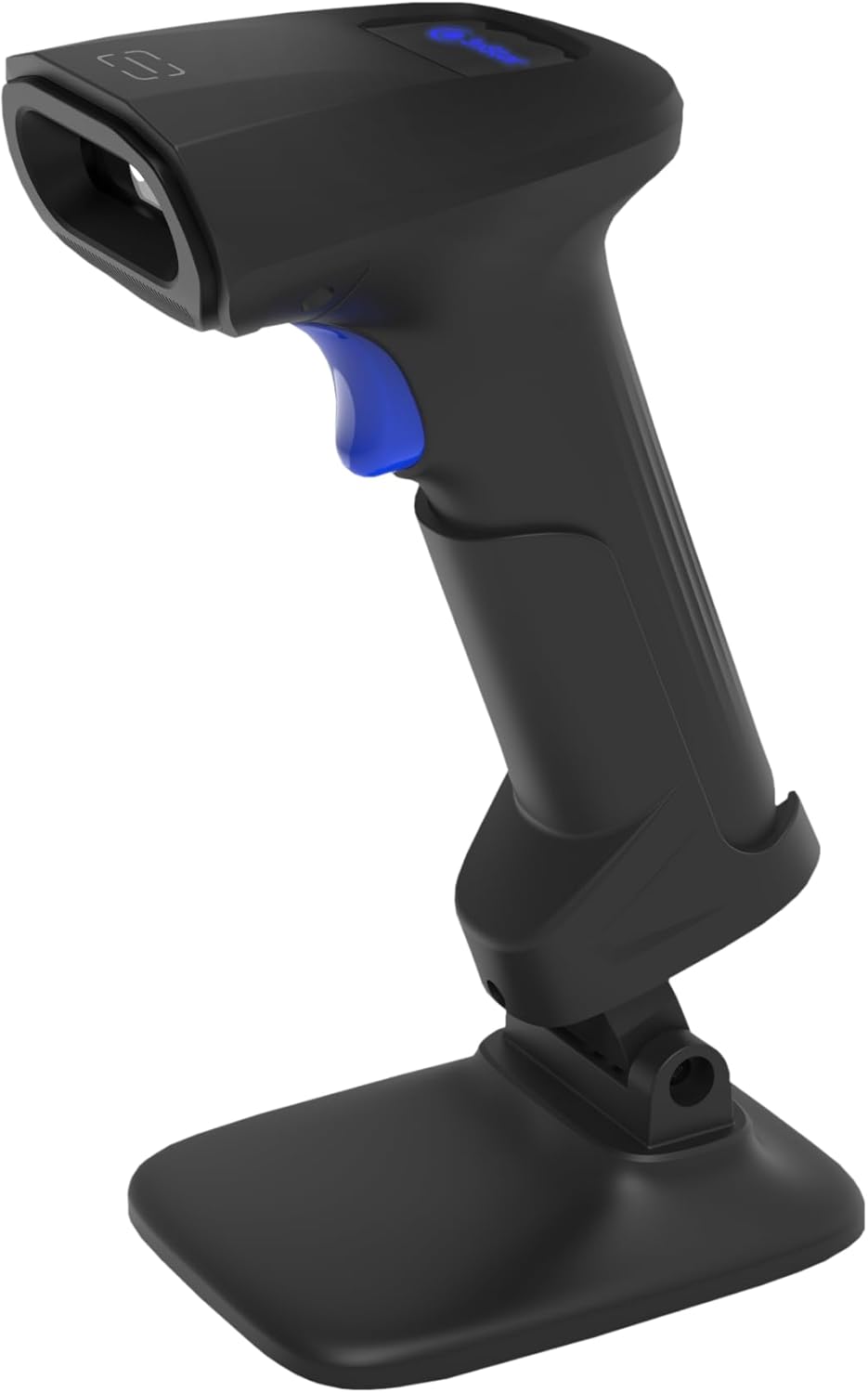
Image: The 3nStar SC415 barcode scanner securely placed in its dedicated base, ready for hands-free operation. The base provides stability and enables the autosense scanning mode.
Bedienungsanleitung
The SC415 scanner offers flexible operation modes:
Handheld-Scannen
- Halten Sie den Scanner fest: Halten Sie den Scanner bequem in der Hand.
- Aim at Barcode: Richten Sie das Scanfenster auf den Barcode, den Sie lesen möchten.
- Auslöser drücken: Press the trigger button located on the handle. A red aiming beam will appear.
- Scan-Bestätigung: Once the barcode is successfully read, the scanner will emit an audible beep and/or a visual indicator (e.g., LED flash). The data will be transmitted to your connected device.

Image: The 3nStar SC415 barcode scanner shown in a handheld position, illustrating how to grip the device for manual scanning. The blue trigger button is visible for activation.
Autosense (Hands-Free) Scanning
When the scanner is placed in its base, it automatically enters autosense mode:
- Artikel platzieren: Present the barcode of the item in front of the scanner's window.
- Automatischer Scan: The scanner will automatically detect the barcode and read it without requiring you to press the trigger.
- Scan-Bestätigung: A successful scan will be indicated by an audible beep and/or visual cue.
Scanning Mobile Phone Screens
The SC415 is capable of reading barcodes directly from mobile device screens. Ensure the screen brightness is adequate and avoid glare for optimal performance.
Wartung
Eine ordnungsgemäße Wartung gewährleistet die Langlebigkeit und optimale Leistung Ihres Scanners:
- Reinigung des Scanfensters: Verwenden Sie ein weiches, fusselfreies Tuch, leicht feucht.ampened with water or a mild, non-abrasive cleaner, to wipe the scanning window. Avoid using harsh chemicals, solvents, or abrasive materials, as these can damage the window.
- Reinigung des Casing: Wischen Sie die Außenseite abasinmit einem weichen, trockenen Tuch abwischen.
- Kabelinspektion: Periodically check the USB cable for any signs of wear, cuts, or damage. Replace if necessary.
- Lagerung: Bewahren Sie den Scanner bei Nichtgebrauch an einem sauberen, trockenen Ort fern von extremen Temperaturen und direkter Sonneneinstrahlung auf.
Fehlerbehebung
If you encounter issues with your SC415 scanner, refer to the following common problems and solutions:
| Problem | Mögliche Ursache | Lösung |
|---|---|---|
| Scanner lässt sich nicht einschalten | USB-Kabel nicht angeschlossen oder defekt. | Stellen Sie sicher, dass das USB-Kabel sowohl mit dem Scanner als auch mit dem Host-Gerät fest verbunden ist. Versuchen Sie es mit einem anderen USB-Anschluss oder -Kabel. |
| Scanner liest keine Barcodes | Barcode damaged or poorly printed. Incorrect aiming. Scanner not configured for barcode type. | Ensure the barcode is clear and undamaged. Aim the scanner directly at the center of the barcode. Refer to the programming guide (if available) to ensure the scanner supports the barcode type. |
| No data transmitted after scan | Incorrect interface settings. Host device not ready to receive input. | Verify the scanner is recognized by the host device (e.g., check Device Manager). Ensure the application on your computer is active and ready to receive keyboard input. |
| Autosense mode not working | Scanner not properly seated in base. Autosense feature disabled. | Ensure the scanner is firmly placed in its base. If issues persist, consult the full programming manual for autosense activation settings. |
Sollten diese Schritte Ihr Problem nicht lösen, wenden Sie sich bitte an den Kundendienst.
Technische Daten
Key technical specifications for the 3nStar SC415 Handheld Barcode Scanner:
| Besonderheit | Detail |
|---|---|
| Modell | SC415 |
| Scanrate | 60 Pages per second |
| Konnektivitätstechnologie | USB-Kabel |
| Stromquelle | Kabelgebundene Elektrik |
| Kompatible Geräte | Desktop-PCs, Laptops, Kassensysteme |
| Artikelgewicht | 4.5 Unzen |
| Verpackungsabmessungen | 8.66 x 5.12 x 4.33 Zoll |
| Hersteller | 3nStar |
Garantieinformationen
The 3nStar SC415 Handheld Barcode Scanner is covered by a manufacturer's warranty. For specific details regarding warranty duration and terms, please refer to the warranty card included with your product or visit the official 3nStar webWebsite.
Kundenservice
For further assistance, technical support, or inquiries regarding your 3nStar SC415 scanner, please contact 3nStar customer service. You can find contact information on the official 3nStar weboder über die Dokumentation Ihres Produkts.
Besuchen Sie die 3nStar Store for more information on 3nStar products.