
Einführung
Thank you for choosing the SENGBIRCH Keyboard Case for your Lenovo Tab M11 11" 2024. This manual provides essential information for the proper setup, operation, and maintenance of your new keyboard case. Please read it thoroughly before use to ensure optimal performance and longevity of the product.
Packungsinhalt
- 1 x Protective Case with Bluetooth Keyboard
- 1 x USB-C Ladekabel
- 1 x Benutzerhandbuch
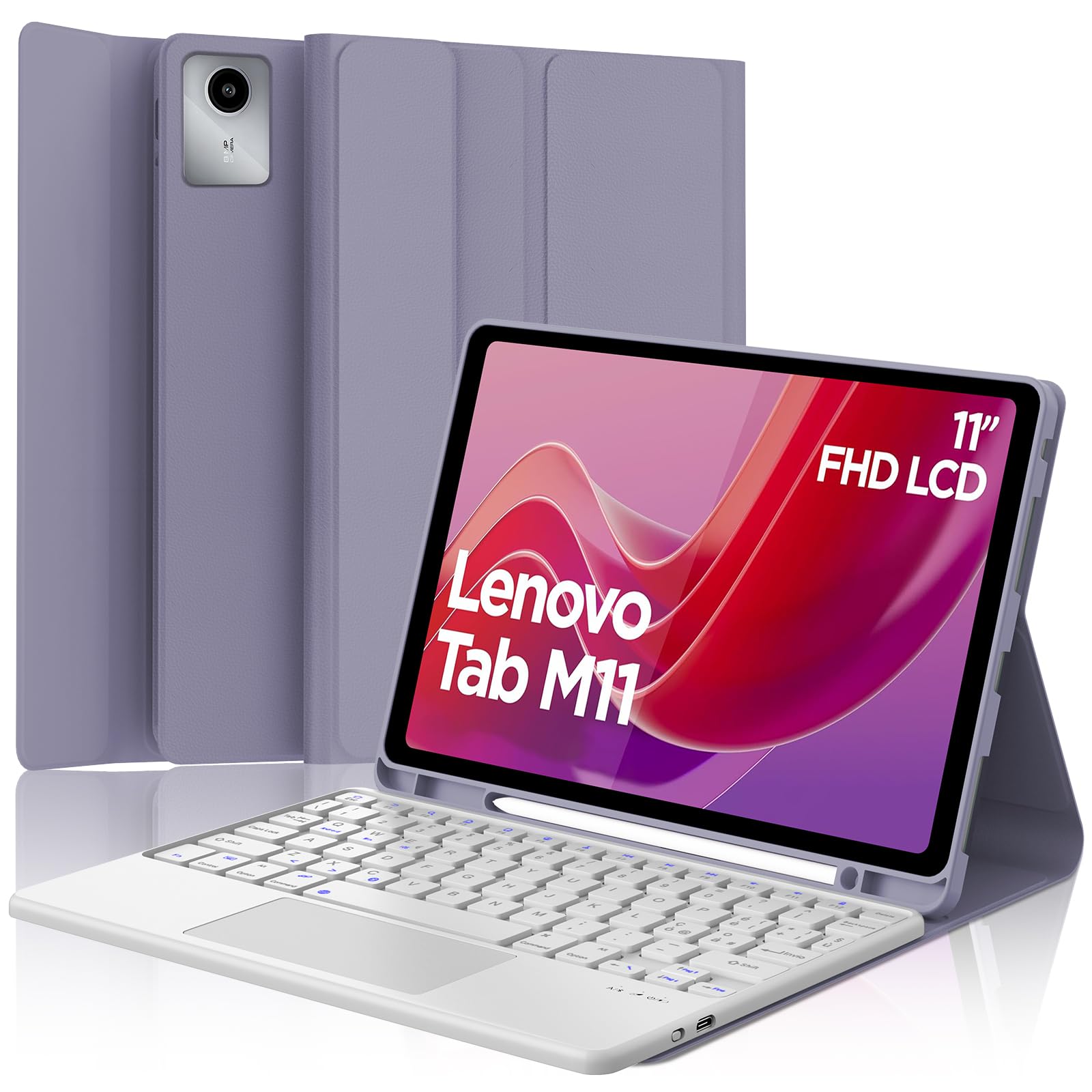
Image: The SENGBIRCH Keyboard Case for Lenovo Tab M11 11" 2024, showcasing die Tastatur und die Schutzhülle.
Installationsanweisungen
1. Kompatibilitätsprüfung
Diese Tastaturhülle wurde speziell für die Lenovo Tab M11 11" 2024 (Models TB330FU/TB330XU). Please verify your tablet model before proceeding.

Image: A visual guide illustrating compatibility with the Lenovo Tab M11 11" 2024 and incompatibility with other models like Lenovo Tab M10 Plus Gen 3 and Lenovo Tab M10.
2. Aufladen der Tastatur
- Schließen Sie das mitgelieferte USB-C-Ladekabel an den Ladeanschluss der Tastatur an.
- Verbinden Sie das andere Ende des Kabels mit einem USB-Netzteil (nicht im Lieferumfang enthalten) oder einem USB-Anschluss Ihres Computers.
- Die Ladeanzeige leuchtet auf. Der Akku benötigt 2–3 Stunden für eine vollständige Ladung.

Image: Close-up of the keyboard showing the USB-C charging port and a charging cable connected, indicating battery life and silent scissor keys.
3. Bluetooth-Kopplung
- Ensure the keyboard is charged. Turn on the keyboard by sliding the power switch.
- Drücken Sie die Verbinden button on the keyboard (usually indicated by a Bluetooth icon). The Bluetooth indicator light will start blinking.
- On your Lenovo Tab M11, go to Einstellungen > Bluetooth und schalten Sie Bluetooth ein.
- Your tablet will search for available devices. Select "Bluetooth Keyboard" or a similar name from the list.
- Sobald die Kopplung hergestellt ist, hört die Bluetooth-Anzeigeleuchte auf der Tastatur auf zu blinken.

Image: A diagram illustrating the wireless Bluetooth connection of the keyboard to various devices, including smartphones, tablets, and laptops, supporting iOS, Android, and Windows operating systems.
4. Einsetzen des Tablets in die Hülle
Carefully align your Lenovo Tab M11 with the protective case. Ensure all ports, buttons, and the camera are correctly aligned with the case's precise cutouts. The magnetic design will help secure the tablet and keyboard in place.
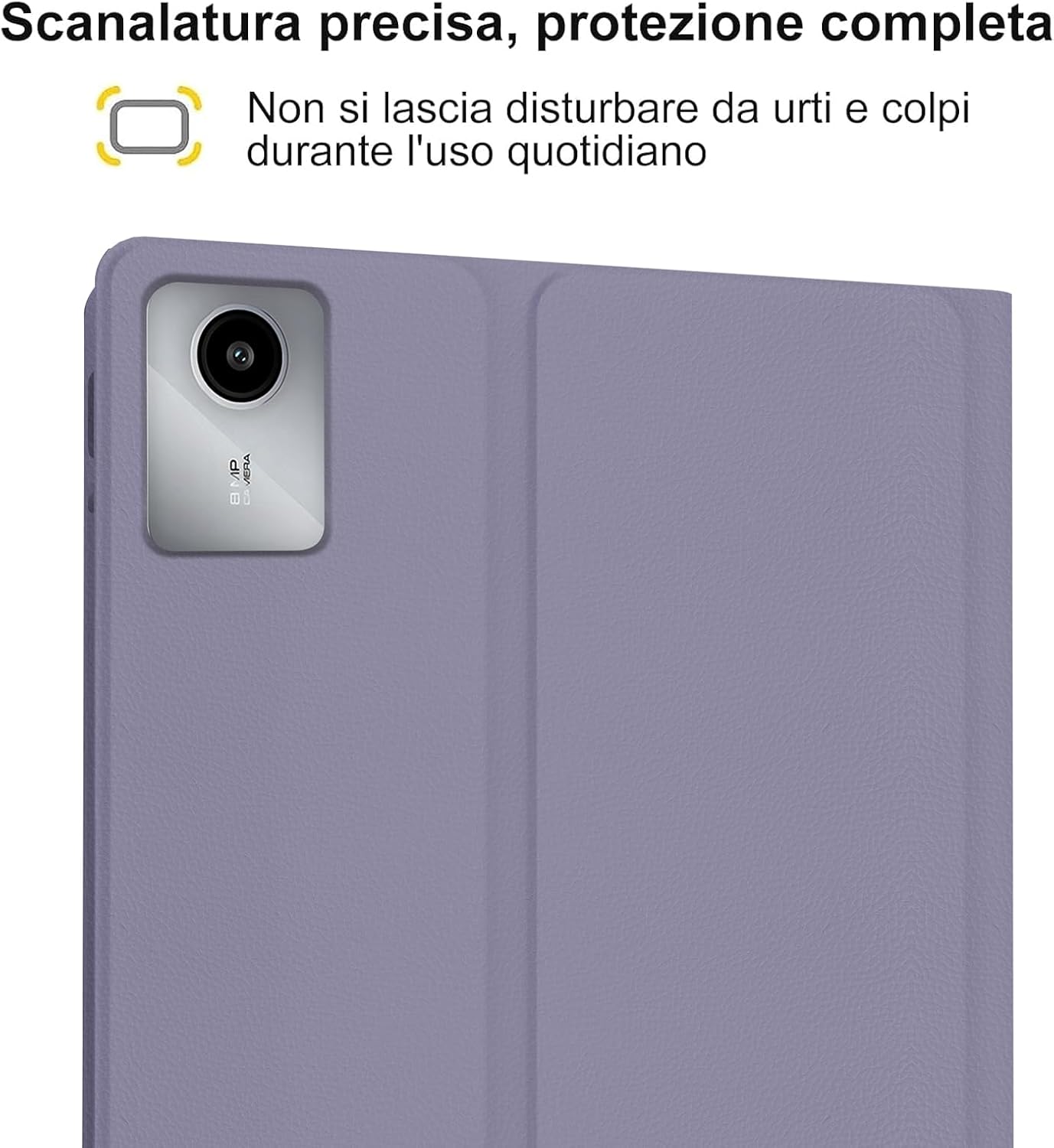
Image: A close-up of the tablet's camera module perfectly aligned with the precise cutout in the protective case, emphasizing full protection against daily impacts.
Bedienungsanleitung
1. Verwenden der Tastatur
The keyboard features an Italian QWERTY layout. It provides a tactile typing experience with scissor-key mechanisms for comfortable and efficient input. Familiarize yourself with the function keys (Fn) for shortcuts.

Bild: Eine detaillierte view of the Italian QWERTY keyboard layout, highlighting its magnetic attachment, over 100 hours of battery life, and USB-C charging capability.
2. Verwendung des Trackpads
The integrated trackpad allows for precise navigation and control, similar to a laptop. It supports multi-touch gestures (e.g., two-finger scroll, pinch-to-zoom) depending on your tablet's operating system settings.
3. Hintergrundbeleuchtung anpassen
The keyboard features 7-color backlighting with 3 adjustable brightness levels. Use the dedicated backlight key (often indicated by a light bulb icon or Fn + a specific key) to cycle through colors and brightness settings.
4. Automatic Wake/Sleep Function
The case supports automatic wake/sleep functionality. Opening the case will wake your tablet, and closing it will put your tablet to sleep, conserving battery life.

Image: Two illustrations demonstrating the automatic wake-up function when the case is opened and the automatic sleep function when the case is closed.
5. Einstellbar ViewWinkel
The case allows you to adjust the tablet's viewing angle for comfortable use, whether typing, watching videos, or browsing. The non-slip grooves ensure stability at various angles.
Image: A diagram showing the tablet case propped up at different viewing angles (120°, 125°, 130°) with non-slip grooves for stability, illustrating ergonomic viewing-Positionen.
Wartung
Reinigung des Gehäuses und der Tastatur
- Wischen Sie die Außenseite des Gehäuses mit einem weichen, fusselfreien Tuch ab.amp Tuch. Vermeiden Sie aggressive Chemikalien oder Scheuermittel.
- For the keyboard, use a soft, dry cloth or a can of compressed air to remove dust and debris from between the keys.
- Stellen Sie sicher, dass die Tastatur vor der Reinigung ausgeschaltet ist.
Batteriepflege
- Laden Sie die Tastatur regelmäßig auf, um die Batterieleistung zu erhalten.
- Vermeiden Sie häufiges vollständiges Entladen des Akkus.
- Wenn Sie die Tastatur über einen längeren Zeitraum lagern, laden Sie sie auf etwa 50 % auf und bewahren Sie sie an einem kühlen, trockenen Ort auf.
Fehlerbehebung
Tastatur verbindet sich nicht über Bluetooth
- Batterie prüfen: Stellen Sie sicher, dass die Tastatur vollständig aufgeladen ist.
- Aus- und Wiedereinschalten: Schalten Sie die Tastatur aus und dann wieder ein.
- Reparatur: Delete the keyboard from your tablet's Bluetooth device list and attempt to pair it again.
- Tablet-Bluetooth: Stellen Sie sicher, dass Bluetooth auf Ihrem Tablet aktiviert ist und ordnungsgemäß funktioniert.
Hintergrundbeleuchtung funktioniert nicht
- Überprüfen Sie die Leistung: Stellen Sie sicher, dass die Tastatur über ausreichend Akkuladung verfügt.
- Hintergrundbeleuchtungstaste: Press the backlight key (or Fn + backlight key) to cycle through brightness levels and colors.
Trackpad reagiert nicht
- Bluetooth Verbindung: Stellen Sie sicher, dass die Tastatur ordnungsgemäß über Bluetooth verbunden ist.
- Neustart: Schalten Sie die Tastatur aus und wieder ein.
- Tablet-Einstellungen: Check your tablet's settings for trackpad or mouse options to ensure it's enabled.
Probleme beim Aufladen
- Kabelprüfung: Stellen Sie sicher, dass das USB-C-Kabel sowohl mit der Tastatur als auch mit der Stromquelle fest verbunden ist.
- Energiequelle: Versuchen Sie es mit einem anderen USB-Netzteil oder einem anderen USB-Anschluss am Computer.
- Kabelschaden: Überprüfen Sie das Ladekabel auf Beschädigungen.
Technische Daten
| Besonderheit | Detail |
|---|---|
| Marke | SENGBIRCH |
| Kompatible Geräte | Lenovo Tab M11 11" 2024 (TB330FU/TB330XU) |
| Konnektivitätstechnologie | Bluetooth |
| Tastaturbeschreibung | Accessible (Italian QWERTY Layout) |
| Besonderheit | Trackpad, Backlit Keyboard (7 colors, 3 brightness levels) |
| Stromquelle | Batteriebetrieben (Lithium-Polymer) |
| Akkulaufzeit (Dauerbetrieb) | Bis zu 24 Stunden (3 Tage) |
| Standby-Zeit | 3 Monate |
| Ladezeit | 2-3 Stunden (über USB-C) |
| Material | TPU, ABS, Synthetic Leather |
| Artikelgewicht | 700 g |
| Verpackungsabmessungen | 26 x 18 x 3 cm |
Garantieinformationen
Dieses SENGBIRCH-Produkt wird mit einem Zwei Jahre Garantie Diese Garantie gilt ab Kaufdatum. Sie deckt Herstellungsfehler und Mängel ab, die bei normalem Gebrauch auftreten. Schäden durch Missbrauch, Unfälle, unbefugte Änderungen oder normale Abnutzung sind nicht abgedeckt.
Bitte bewahren Sie Ihren Kaufbeleg für Garantieansprüche auf.
Unterstützung
If you encounter any problems or have questions regarding your SENGBIRCH Keyboard Case, please do not hesitate to contact our customer support team. We are committed to providing satisfactory service and assistance.
Bei Fragen zur Unterstützung nutzen Sie bitte die auf der Produktverpackung angegebenen Kontaktinformationen oder die offizielle Website von SENGBIRCH. webWebsite.