
1. Einleitung
This manual provides essential information for the safe and efficient use of your BOOX Go 7 ePaper Tablet. Please read it thoroughly before operating the device and retain it for future reference.

Figure 1.1: BOOX Go 7 ePaper Tablet
2. Sicherheitshinweise
- Setzen Sie das Gerät keinen extremen Temperaturen, direkter Sonneneinstrahlung oder hoher Luftfeuchtigkeit aus.
- Lassen Sie das Gerät nicht fallen und setzen Sie es keinen starken Stößen aus.
- Verwenden Sie zum Aufladen ausschließlich das mitgelieferte USB-Kabel.
- Keep the device away from water and liquids, despite its water-repellent features.
- Versuchen Sie nicht, das Gerät selbst zu zerlegen oder zu reparieren. Wenden Sie sich an autorisiertes Servicepersonal.
3. Packungsinhalt
Überprüfen Sie, ob alle Artikel im Paket vorhanden sind:
- BOOX Go 7 ePaper Tablet
- USB-Kabel
- Kurzanleitung (kann je nach Region variieren)

Figure 3.1: BOOX Go 7 Package Contents
4. Gerät überview
4.1 Physikalische Komponenten
Familiarize yourself with the main components of your BOOX Go 7 tablet:
- E Ink Screen: 7-inch monochrome display with 300 ppi resolution.
- Frontlicht: Adjustable illumination for reading in various lighting conditions.
- Page-Turn Buttons: Ergonomically designed buttons for easy navigation.
- USB-C-Anschluss: Zum Aufladen und zur Datenübertragung.
- Netzschalter: Befindet sich am oberen Rand.
- Eingebautes Mikrofon: Für Audioeingang.
- Eingebaute Dual-Lautsprecher: Für Audioausgabe.

Figure 4.1: Page-Turn Buttons and Water-Repellent Protection
5. Einrichtung
5.1 Erstaufladung
Before first use, fully charge your BOOX Go 7 tablet. Connect the provided USB-C cable to the device and a compatible power adapter (not included) or a computer's USB port. The charging indicator will show the charging status.
5.2 Ein-/Ausschalten
- So schalten Sie das Gerät ein: Press and hold the Power button until the BOOX logo appears.
- So schalten Sie das Gerät aus: Halten Sie die Ein-/Aus-Taste gedrückt und wählen Sie dann auf dem Bildschirm die Option „Ausschalten“ aus.
- Zum Schlafen/Aufwachen: Drücken Sie kurz die Power-Taste.
5.3 Netzwerkverbindung (WLAN)
- Vom Startbildschirm aus wischen Sie von oben nach unten, um auf das Schnellzugriffsfeld zuzugreifen.
- Tippen Sie auf das WLAN-Symbol, um WLAN zu aktivieren.
- Halten Sie das WLAN-Symbol gedrückt, um die WLAN-Einstellungen zu öffnen.
- Wählen Sie das gewünschte Netzwerk aus der Liste aus und geben Sie gegebenenfalls das Passwort ein.
- Sobald die Verbindung hergestellt ist, zeigt das Wi-Fi-Symbol eine erfolgreiche Verbindung an.
6. Bedienungsanleitung
6.1 Grundlegende Navigation
- Touch-Screen: Tap, swipe, and pinch to navigate menus, open applications, and interact with content.
- Page-Turn Buttons: Use the physical buttons on the side to turn pages in documents and books.
6.2 Reading Documents and Books
The BOOX Go 7 supports various document formats. Open your desired file from the library. Use the page-turn buttons or swipe gestures to navigate through pages. Adjust font size, contrast, and frontlight settings for optimal reading comfort.
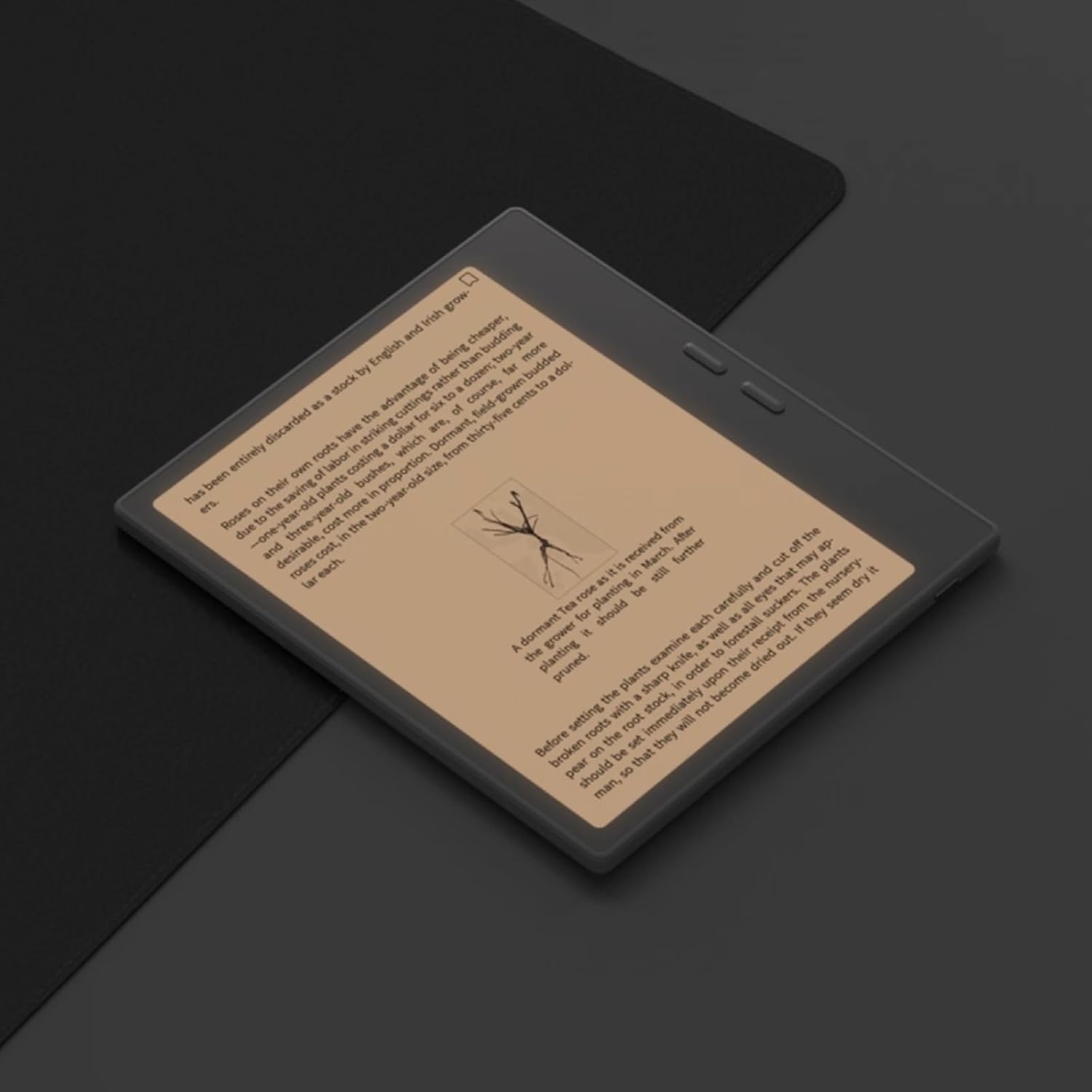
Figure 6.1: Reading with Frontlight
6.3 Verwendung von Android-Anwendungen
As an Android 13 device, the BOOX Go 7 allows installation of various applications from the Google Play Store. Navigate to the App Store, search for your desired application, and install it. Note that some applications may not be fully optimized for ePaper displays.

Figure 6.2: Various Android Applications on BOOX Go 7
6.4 Notizen machen und Zeichnen
Utilize the stylus (if included or purchased separately) for note-taking, sketching, and annotating documents. The device offers various templates and tools for creative and organizational tasks.

Figure 6.3: Stylus Use for Note-Taking

Figure 6.4: Handwriting to Text Conversion
7. Wartung
7.1 Gerät reinigen
Use a soft, lint-free cloth to gently wipe the screen and body of the device. Do not use harsh chemicals, abrasive cleaners, or excessive moisture.
7.2 Softwareaktualisierungen
Regularly check for and install software updates to ensure optimal performance and access to new features. Connect to Wi-Fi and navigate to Einstellungen > System > Systemaktualisierung um nach verfügbaren Updates zu suchen.
8. Fehlerbehebung
- Gerät lässt sich nicht einschalten: Stellen Sie sicher, dass das Gerät aufgeladen ist. Schließen Sie es an eine Stromquelle an und versuchen Sie es erneut.
- Bildschirm reagiert nicht: Perform a soft reset by holding the Power button for 10-15 seconds.
- Probleme mit der Wi-Fi-Verbindung: Verify your Wi-Fi password and router settings. Try restarting your router and the device.
- Anwendungen stürzen ab: Ensure applications are updated to their latest versions. Clear the app's cache or reinstall if issues persist.
9. Spezifikationen
| Marke | BOOX |
| Modellname | Gehe 7 |
| Speicherkapazität | 64 GB |
| Bildschirmgröße | 7 Zoll |
| Maximale Bildschirmauflösung | 300 Pixels per inch |
| Betriebssystem | Android 13 |
| Farbe | Noir (Schwarz) |
| Installierte RAM-Größe | 4 GB |
| Besondere Merkmale | USB OTG support, Expandable storage, Stylus support |
| Modelljahr | 2025 |
| Akku-Typ | Lithium-Ionen |
| Batterieenergieinhalt | 8.8 Wattstunden |
| Prozessormarke | Qualcomm |
| Beschreibung des Prozessors | Qualcomm Snapdragon |
| Kamera | Keine Kamera |
| Sensortyp | Gyroskop |
| Item Dimensions (LxWxT) | 15.6L x 0.6W x 13.7T centimeters |
| Eingabemethode | Touchscreen with stylus |
| Beschreibung der Grafikkarte | Integriert |
| Kompatible Geräte | Stift |
| Anzeigetyp | Elektronische Tinte |
| Bildschirmauflösung | 1280 x 800 Pixel |
| Seitenverhältnis | 16:10 |
| Hardware-Konnektivität | USB |
| Wireless-Technologie | Bluetooth, Wi-Fi (802.11ax) |
| Anzahl USB-Anschlüsse | 1 |

Figure 9.1: BOOX Go 7 Energy Label (EPREL-Link)
10. Garantieinformationen
The BOOX Go 7 ePaper Tablet comes with a 2 Jahr eingeschränkte Garantie. This warranty covers manufacturing defects under normal use. For specific terms and conditions, please refer to the warranty card included in your package or contact customer support.
The standard return policy allows for returns within 30 days of purchase for refund or replacement.
11. Unterstützung
For technical assistance, troubleshooting, or warranty claims, please contact BOOX customer service. You can find support resources and submit inquiries through the official BOOX help center.
- Firmware-Updates: BOOX commits to at least 3 years of firmware updates for each product.
- Cloud-Speicher: 10 GB of free cloud storage is provided for each user.
- Ansprechzeit: Kundenanfragen werden in der Regel innerhalb von 24 Stunden beantwortet.
Weitere Informationen finden Sie im BOOX Brand Store on Amazon.