
Einführung
This manual provides essential information for the HP 15 Smartchoice Laptop, model fc1038AU. It covers initial setup, basic operation, maintenance tips, troubleshooting common issues, and detailed product specifications. Please read this manual thoroughly to ensure proper use and longevity of your device.

Bild: Vorderseite view of the HP 15 Smartchoice Laptop.
1. Einrichtung
1.1 Auspacken und erste Inspektion
Nehmen Sie alle Komponenten vorsichtig aus der Verpackung. Überprüfen Sie, ob alle im Abschnitt „Lieferumfang“ aufgeführten Artikel vorhanden und unbeschädigt sind.
- Laptop
- Power Adapter (65 W USB Type-C®)
- Benutzerhandbuch (dieses Dokument)
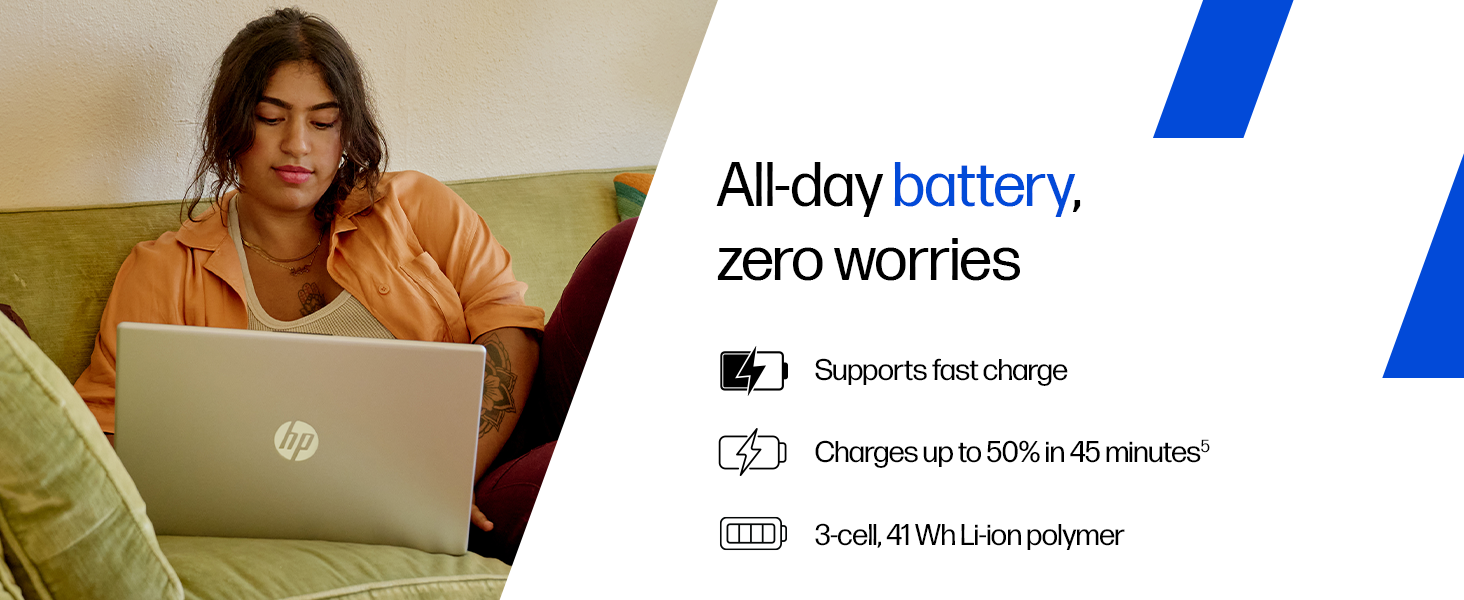
Image: Contents of the HP laptop box, including the laptop, power adapter, and user manual.
1.2 Stromversorgung anschließen
Connect the power adapter to the laptop's AC smart pin port and then plug it into a power outlet. The laptop battery supports fast charging, reaching approximately 50% charge in 45 minutes.
Image: Illustration of connecting the power adapter to the laptop.
1.3 Erster Start und Windows-Einrichtung
Press the power button to turn on the laptop. Follow the on-screen instructions to complete the Windows 11 Home setup. This includes setting up your region, language, network connection, and user account.
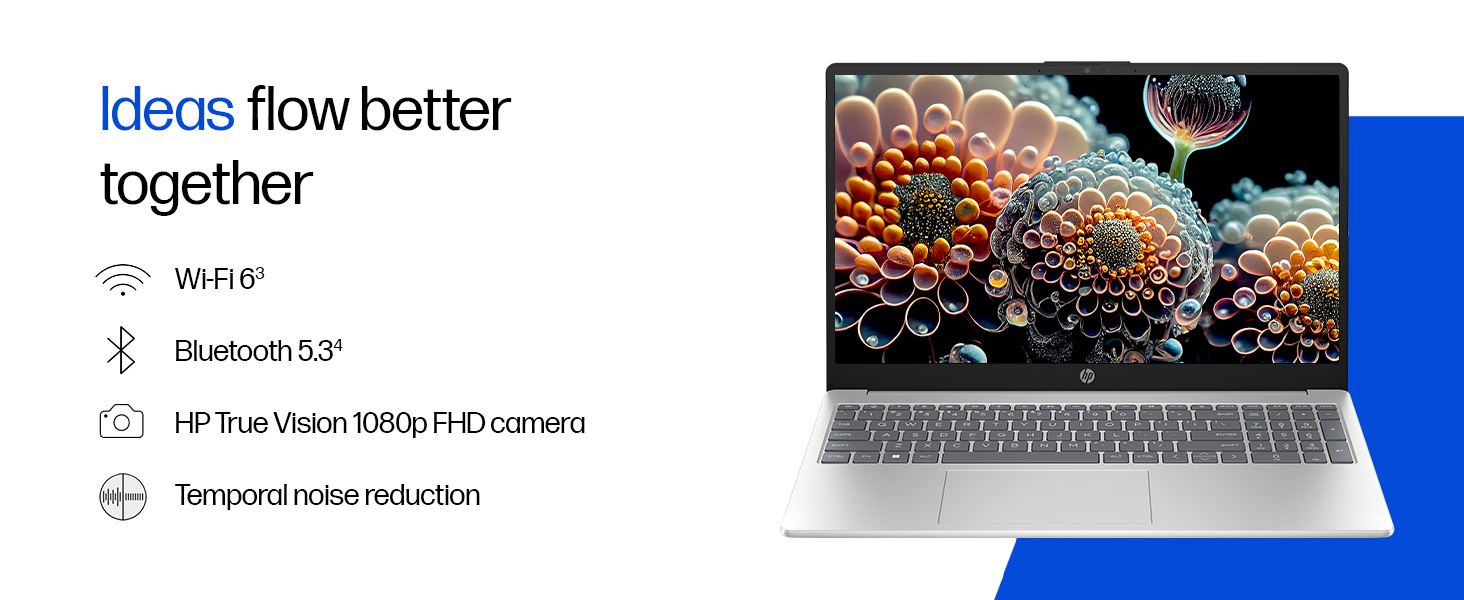
Image: A user interacting with the Windows 11 setup on the HP laptop.
2. Bedienung Ihres Laptops
2.1 Ein-/Ausschalten und Schlafmodus
- Einschalten: Drücken Sie den Ein-/Ausschalter auf der Tastatur.
- Abschalten: Klicken Sie auf die Starttaste, dann auf Ein/Aus und wählen Sie „Herunterfahren“.
- Schlafen: Schließen Sie den Deckel oder drücken Sie die Starttaste, dann die Ein-/Aus-Taste und wählen Sie „Ruhezustand“.
2.2 Tastatur und Touchpad
The laptop features a full-size, backlit, soft grey keyboard with a numeric keypad for comfortable typing and data entry. The HP Imagepad provides precise navigation.
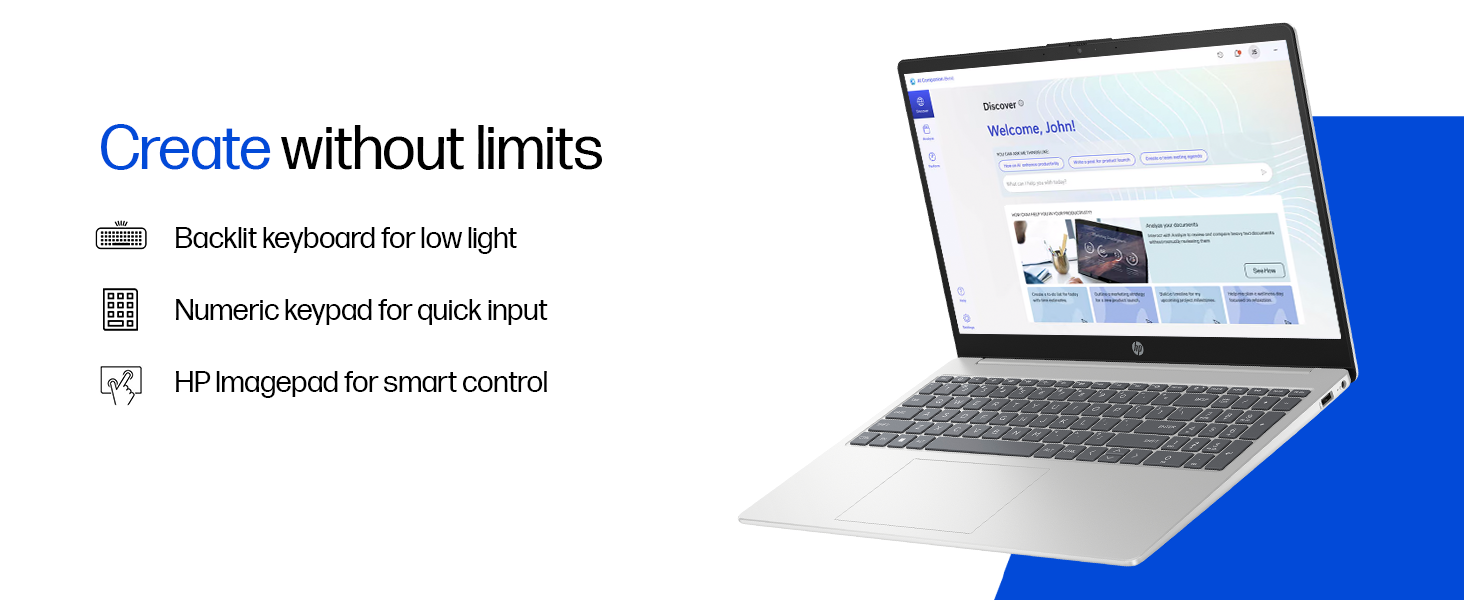
Bild: Nahaufnahme view of the backlit keyboard and numeric keypad.
2.3 Anzeige
Your laptop is equipped with a 39.6 cm (15.6") diagonal FHD (1920 x 1080) micro-edge, anti-glare display with 250 nits brightness and 45% NTSC color gamut. This design minimizes reflections and provides a wide viewing-Bereich.
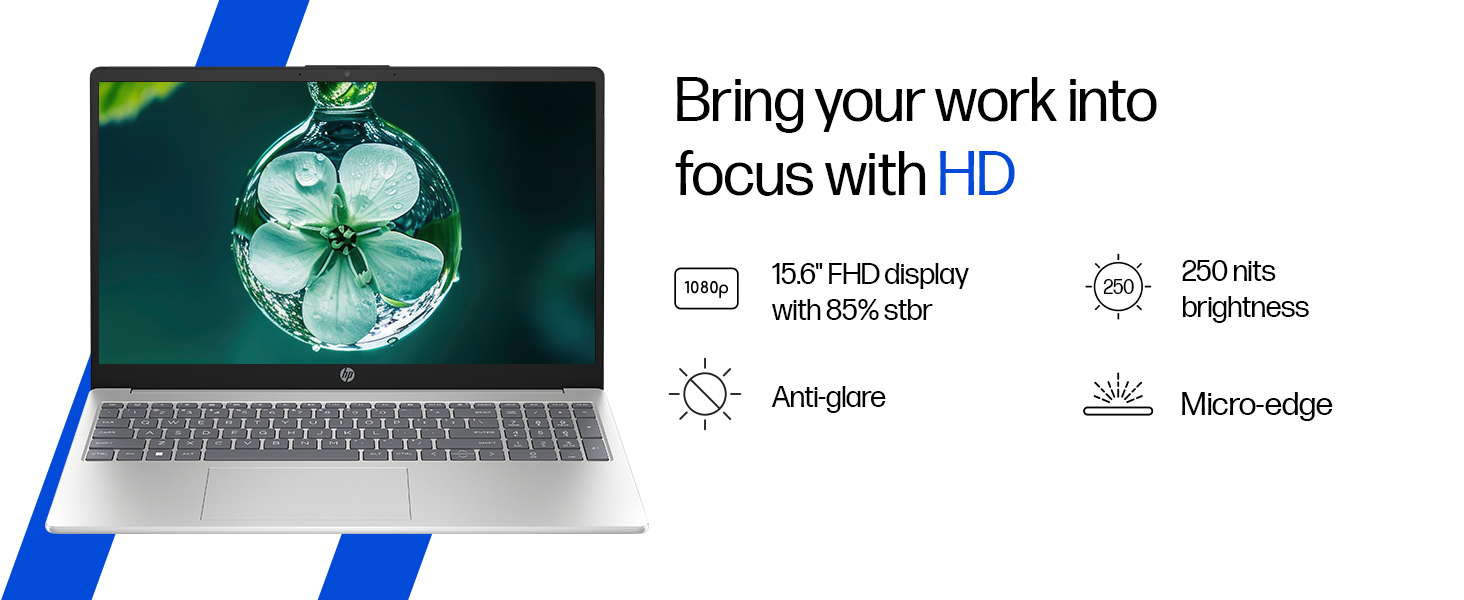
Image: The laptop's 15.6-inch FHD micro-edge display.
2.4 Anschlüsse und Konnektivität
The laptop offers various ports for connecting peripherals and external devices:
- 1 USB Type-C 10Gbps signaling rate (supports USB Power Delivery, DisplayPort 1.4, HP Sleep and Charge)
- 2 USB Typ-A 5 Gbit/s Signalrate
- 1 AC Smart Pin
- 1 HDMI-out 1.4b
- 1 Kopfhörer-/Mikrofon-Kombibuchse
For wireless connectivity, it includes Realtek Wi-Fi 6 (2x2) and Bluetooth 5.3.

Abbildung: Seite view of the laptop highlighting the various ports available.
2.5 Kamera und Audio
The HP True Vision 1080p FHD camera features temporal noise reduction and an integrated privacy shutter. Dual array digital microphones and dual speakers provide clear audio for communication and entertainment.
Image: Close-up of the HP True Vision 1080p FHD camera with its privacy shutter.
3. Wartung
3.1 Reinigung Ihres Laptops
- Bildschirm: Benutzen Sie ein weiches, fusselfreies Tuch, dampMit Wasser oder einem Bildschirmreiniger abspülen. Scharfe Chemikalien vermeiden.
- Tastatur und Gehäuse: Verwenden Sie ein weiches, trockenes Tuch. Bei hartnäckigem Schmutz ein leicht dämpfendes Tuch verwenden.amp cloth can be used. Compressed air can help remove debris from between keys.
- Vor der Reinigung unbedingt sicherstellen, dass der Laptop ausgeschaltet und vom Stromnetz getrennt ist.
3.2 Batteriepflege
The laptop uses a 3-cell, 41 Wh Li-ion polymer battery. To maximize battery lifespan:
- Vermeiden Sie extreme Temperaturen.
- Entladen Sie den Akku nicht häufig vollständig.
- Wenn Sie den Laptop über einen längeren Zeitraum lagern, laden Sie den Akku auf etwa 50 % auf und bewahren Sie ihn an einem kühlen, trockenen Ort auf.
4. Fehlerbehebung
This section addresses common issues you might encounter with your HP laptop.
4.1 Stromversorgungsprobleme
- Laptop lässt sich nicht einschalten: Ensure the power adapter is securely connected to both the laptop and a working power outlet. Try a different outlet. If the battery is completely drained, it may take a few minutes to show signs of life after plugging in.
- Akku wird nicht aufgeladen: Verify the power adapter is functioning. Check the charging indicator light on the laptop. If issues persist, contact support.
4.2 Anzeigeprobleme
- Leerer Bildschirm: Connect an external monitor to check if the display output works. If it does, the laptop screen might have an issue. If not, there might be a graphics card or system issue.
- Flackernder Bildschirm: Aktualisieren Sie Ihre Grafiktreiber. Passen Sie die Bildwiederholfrequenz in den Windows-Einstellungen an.
4.3 Verbindungsprobleme
- WLAN-Verbindung wird nicht hergestellt: Stellen Sie sicher, dass WLAN in den Windows-Einstellungen aktiviert ist. Starten Sie Ihren Router und Ihren Laptop neu. Aktualisieren Sie die WLAN-Treiber.
- Bluetooth-Gerät kann nicht gekoppelt werden: Ensure Bluetooth is enabled on both devices. Make sure the device is in pairing mode. Remove and re-add the device in Windows Bluetooth settings.
4.4 Leistungsprobleme
- Langsame Leistung: Schließen Sie unnötige Anwendungen. Überprüfen Sie den Task-Manager auf hohe CPU-/RAM-Auslastung. Stellen Sie sicher, dass ausreichend Speicherplatz auf der SSD vorhanden ist. Führen Sie einen Virenscan durch.
- Überhitzung: Ensure ventilation vents are clear. Use the laptop on a hard, flat surface. Consider reducing heavy workload if persistent.
5. Spezifikationen
| Besonderheit | Detail |
|---|---|
| Marke | HP |
| Modellname | HP Laptop (fc1038AU) |
| Prozessor | AMD Ryzen 7 7735HS (up to 4.75 GHz max boost clock, 8 cores, 16 threads, 16 MB L3 cache) |
| RAM | 16 GB DDR5-4800 MT/s (2 x 8 GB) |
| Lagerung | 512 GB PCIe Gen4 NVMe M.2 SSD |
| Grafik | AMD Radeon 680M Grafikkarte |
| Anzeige | 39.6 cm (15.6") diagonal, FHD (1920 x 1080), micro-edge, anti-glare, 250 nits, 45% NTSC |
| Betriebssystem | Windows 11 Home Single Language |
| Vorinstallierte Software | MS Office Home 2024, 1 year Microsoft 365 Basic Free |
| Häfen | 1 USB Type-C (10Gbps, PD, DP 1.4, HP Sleep and Charge), 2 USB Type-A (5Gbps), 1 AC smart pin, 1 HDMI-out 1.4b, 1 Headphone/microphone combo |
| Kabellose Konnektivität | Realtek Wi-Fi 6 (2x2), Bluetooth 5.3 |
| Kamera | HP True Vision 1080p FHD camera with temporal noise reduction and privacy shutter |
| Audio | Dual speakers, Integrated dual array digital microphones |
| Tastatur | Full-size, backlit, soft grey keyboard with numeric keypad |
| Batterie | 3-cell, 41 Wh Li-ion polymer (supports fast charge: approx. 50% in 45 minutes) |
| Gewicht | 1.59 kg |
| Farbe | Natürliches Silber |
| Abmessungen (L x B x H) | 23.6 x 36 x 1.9 cm |
6. Garantie und Support
6.1 Garantieinformationen
Your HP 15 Smartchoice Laptop comes with a 1 Jahr Herstellergarantie from the date of purchase. This warranty covers manufacturing defects and hardware failures under normal use conditions.
For detailed terms and conditions, please refer to the warranty documentation included with your product or visit the official HP support webWebsite.
6.2 Kundendienst
If you encounter any technical issues or have product-related queries, please contact HP Customer Support:
- Gebührenfreie Rufnummern: 1800-258-7170 or 1860-258-3079
- Online-Hilfe: Besuchen Sie den offiziellen HP Support website for drivers, manuals, and troubleshooting guides.
When contacting support, please have your laptop's model number (fc1038AU) and serial number ready. The serial number is typically located on a sticker on the bottom of the laptop or can be found in the system information within Windows.