
1. Einleitung
This manual provides detailed instructions for the setup, operation, maintenance, and troubleshooting of your OMOTON Bluetooth Keyboard. Please read this manual thoroughly before using the product to ensure proper functionality and longevity.
2. Packungsinhalt
Überprüfen Sie, ob alle Artikel im Paket vorhanden sind:
- 1 x OMOTON Bluetooth-Tastatur
- 1 x Typ-C-Ladekabel
- 1 x Benutzerhandbuch (dieses Dokument)
3. Produktmerkmale
- Multisystemkompatibilität: Supports iOS, Windows, and Android operating systems.
- Kompakt und tragbar: Ultra-thin design (6.6mm thickness) and lightweight (0.42 pounds) for easy transport. Dimensions: 9.7"L x 5.9"W x 0.2"H.
- Verbessertes Tipperlebnis: Features large keycaps for comfortable and precise typing.
- Wiederaufladbarer Akku: Built-in 500mAh lithium battery provides up to 200 hours of working time on a 2-3 hour charge.
- 7-farbige Hintergrundbeleuchtung: Adjustable backlight with 7 color options and 3 brightness levels for typing in various lighting conditions.
- Automatischer Schlafmodus: Schont den Akku, indem nach 30 Minuten Inaktivität in den Schlafmodus gewechselt wird.
4. Einrichtungsanweisungen
4.1 Aufladen der Tastatur
Before initial use, fully charge the keyboard. Connect the provided Type-C charge cable to the keyboard's charging port and to a USB power source. The charge indicator light will illuminate during charging and turn off when fully charged.
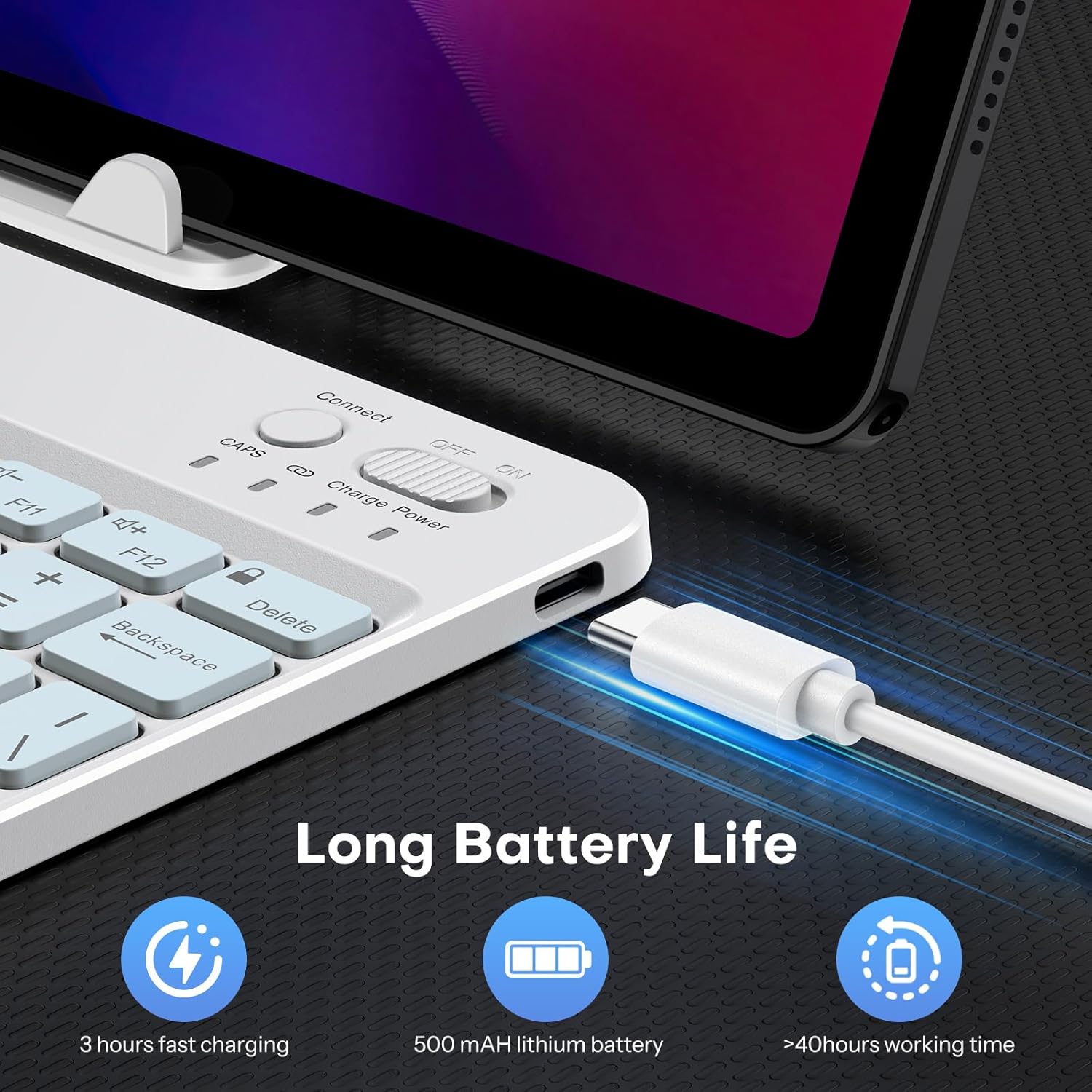
Image: Close-up of the keyboard showing the Type-C charging port and cable connected. The image highlights the charging process and the port location.
4.2 Bluetooth-Kopplung
- Schalten Sie die Tastatur ein, indem Sie den Netzschalter in die Position „EIN“ schieben. Die Betriebsanzeigeleuchte leuchtet kurz auf.
- Press the 'Connect' button (usually located near the power switch) to enter pairing mode. The Bluetooth indicator light will flash, indicating it is ready to pair.
- On your device (tablet, phone, computer), enable Bluetooth and search for available devices.
- Select 'OMOTON Keyboard' (or similar name) from the list of found devices.
- Geben Sie bei Aufforderung den auf Ihrem Gerät angezeigten Kopplungscode über die OMOTON-Tastatur ein und drücken Sie die Eingabetaste.
- Once paired, the Bluetooth indicator light on the keyboard will stop flashing and remain solid for a few seconds, then turn off. The keyboard is now connected.

Abbildung: Draufsicht view of the OMOTON Bluetooth Keyboard, highlighting the power switch and the 'Connect' button, which are essential for initiating Bluetooth pairing.
4.3 Wechsel der Betriebssysteme
The keyboard is compatible with multiple operating systems. It is crucial to switch to the correct system mode for optimal functionality. Press the following key combinations:
- FN+A: For iOS / iPadOS / macOS devices
- FN + S: Für Windows-Geräte
- FN + D: Für Android-Geräte

Image: A visual guide on the keyboard showing the FN key combined with A, S, or D keys to switch between iOS, Windows, and Android operating system modes.
5. Bedienungsanleitung
5.1 Hintergrundbeleuchtungssteuerung
The keyboard features a 7-color adjustable backlight with 3 brightness levels.
- To turn the backlight on/off or adjust brightness, press the Fn gleichzeitig mit dem Glühbirnen-Symbol-Taste (usually located near the right Ctrl key). Repeated presses will cycle through brightness levels or turn off the backlight.
- To change backlight colors, press the Fn gleichzeitig mit dem color palette icon key (usually located next to the lightbulb icon key). Repeated presses will cycle through the 7 available colors.

Image: The OMOTON Bluetooth Keyboard displaying various backlight colors, illustrating the 7-color and 3-brightness level adjustment feature.
5.2 Automatischer Ruhemodus
To conserve battery life, the keyboard will automatically enter sleep mode after 30 minutes of inactivity. To wake the keyboard, press any key. There may be a slight delay as the keyboard reconnects to your device.
5.3 Funktionstasten
The top row of keys (F1-F12) can be used as standard function keys or as multimedia/shortcut keys. To access the secondary function (e.g., volume control, media playback), press the Fn gleichzeitig die gewünschte Funktionstaste drücken.
6. Wartung
Um die Langlebigkeit und optimale Leistung Ihrer OMOTON Bluetooth-Tastatur zu gewährleisten, beachten Sie bitte folgende Wartungshinweise:
- Reinigung: Reinigen Sie die Tastaturoberfläche mit einem weichen, trockenen und fusselfreien Tuch. Bei hartnäckigem Schmutz leicht andrücken.ampBefeuchten Sie das Tuch mit Wasser oder einer milden Reinigungslösung. Vermeiden Sie übermäßige Feuchtigkeit.
- Lagerung: Bewahren Sie die Tastatur bei Nichtgebrauch an einem kühlen, trockenen Ort fern von direkter Sonneneinstrahlung und extremen Temperaturen auf.
- Vermeiden Sie Flüssigkeiten: Die Tastatur darf nicht mit Flüssigkeiten in Berührung kommen. Verschüttete Flüssigkeiten können dauerhafte Schäden verursachen.
- Vorsichtig handhaben: Vermeiden Sie es, die Tastatur fallen zu lassen oder starken Stößen auszusetzen, da dies die internen Komponenten beschädigen kann.
7. Fehlerbehebung
7.1 Keyboard Keys Not Working or Responding
- Confirm Device's Operating System: Ensure you have selected the correct operating system mode on the keyboard. Press FN+A für iOS FN+S für Windows oder FN+D für Android.
- Bluetooth-Verbindung prüfen: Verify that the keyboard is properly paired and connected to your device. If not, re-initiate the pairing process (Section 4.2).
- Batteriestand: Stellen Sie sicher, dass die Tastatur über ausreichend Akkuladung verfügt. Laden Sie sie gegebenenfalls auf.
- Geräte neu starten: Try turning off and on both the keyboard and your device, then attempt to reconnect.

Image: A troubleshooting graphic explaining how to fix issues with keyboard keys not working, emphasizing confirming the device's operating system and switching modes.
7.2 Bluetooth-Verbindungsprobleme
- Distanz: Ensure the keyboard is within the effective range of your device's Bluetooth signal (typically up to 10 meters).
- Interferenz: Entfernen Sie sich von anderen drahtlosen Geräten, die Störungen verursachen könnten.
- Gerät vergessen: On your device, 'forget' or 'remove' the keyboard from your Bluetooth device list, then attempt to pair again.
8. Spezifikationen
| Marke | OMOTON |
| Modell | B0F65RJ45J |
| Konnektivitätstechnologie | Bluetooth |
| Kompatible Geräte | Tablet, Android, Windows, iOS |
| Tastaturlayout | QWERTY |
| Besondere Merkmale | Backlit (7 colors, 3 brightness levels), Ergonomic, Lightweight |
| Batteriekapazität | 500mAh Lithiumbatterie |
| Ladezeit | 2-3 Stunden |
| Arbeitszeit | Bis zu 200 Stunden |
| Produktabmessungen (L x B x H) | 9.7" x 5.9" x 0.2" (247 mm x 150 mm x 6.6 mm) |
| Gewicht | 0.42 Pfund |
| Material | Plastik |

Image: A visual comparison of the OMOTON Bluetooth Keyboard's dimensions against a smartphone and a tablet, illustrating its compact and portable size.
9. Garantieinformationen
Die OMOTON Bluetooth-Tastatur wird mit einer 12 Monate Garantie from the date of purchase. This warranty covers manufacturing defects and malfunctions under normal use. It does not cover damage caused by misuse, accidents, unauthorized modifications, or external factors.
Bitte bewahren Sie Ihren Kaufbeleg für Garantieansprüche auf.
10. Kundendienst
If you encounter any issues or have questions regarding your OMOTON Bluetooth Keyboard that are not addressed in this manual, please contact OMOTON customer support through the retailer's platform or the official OMOTON webUnsere Website. Unser Support-Team steht Ihnen gerne zur Verfügung.
Weitere Informationen finden Sie im OMOTON Store auf Amazon.