
Einführung
This manual provides detailed instructions for the HOU Combo Keyboard Case, designed to enhance your iPad experience with a detachable keyboard, multi-touch trackpad, and comprehensive protection. Please read this manual thoroughly before using the product to ensure proper operation and longevity.
Kompatibilität
The HOU Combo Keyboard Case is compatible with the following 10.2-inch iPad models:
- iPad 9th Generation (2021): Model Numbers A2602, A2603, A2604, A2605
- iPad 8th Generation (2020): Model Numbers A2270, A2428, A2429, A2430
- iPad 7th Generation (2019): Model Numbers A2200, A2197, A2198

Abbildung 1: Visuelle Übersicht der kompatiblen iPad-Modelle.
Produkteigenschaften
- Magnetisches, abnehmbares Design: The keyboard connects magnetically to the case, allowing for easy attachment and detachment. This enables independent use of the case and keyboard.
- 360° drehbarer Ständer: The integrated stand supports both landscape and portrait viewing modes, with adjustable angles from 90° to 170°.
- Umfassender Schutz: Constructed from high-strength silicone, the case provides 360° all-around protection for your iPad, including reinforced corners.
- Integrierter Stifthalter: An elastic rear pen holder and magnetic pencil slot secure your Apple Pencil, preventing loss.
- High-Performance Keyboard: Features a 78-key layout with high-resilience keys for a comfortable typing experience.
- 7-farbige Hintergrundbeleuchtung: The keyboard includes a 7-color backlight with three adjustable brightness levels for various lighting conditions.
- Responsive Multi-Touch Trackpad: A large, high-precision touchpad supports full iOS gestures for fluid navigation and multitasking.
- Ultraleicht und tragbar: The entire unit is designed for portability, with the case weighing only 290g and the total weight around 590g.
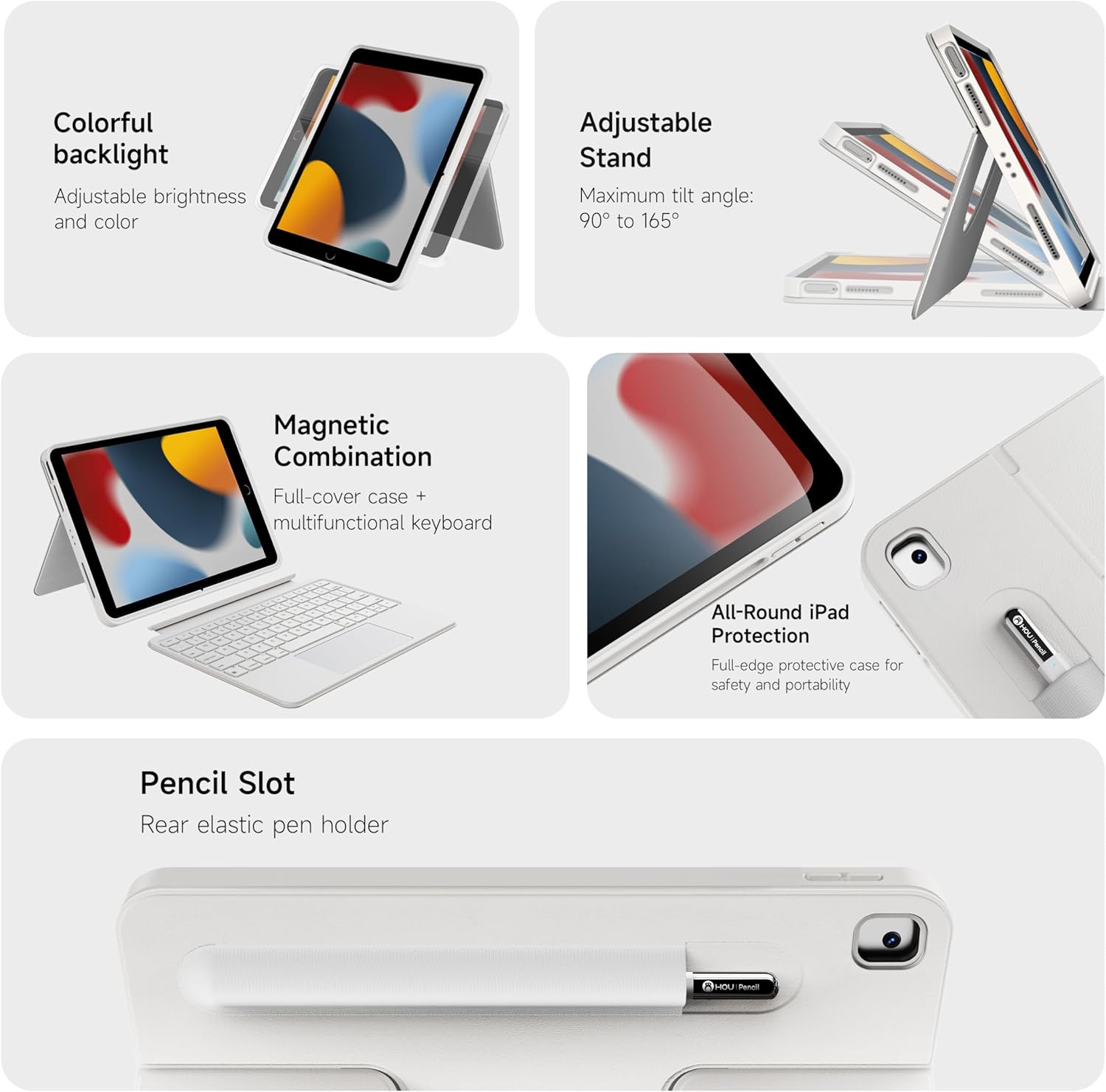
Abbildung 2: Überview der wichtigsten Produktmerkmale.

Abbildung 3: Ausführlich view of keyboard and touchpad features.

Figure 4: The 78-key keyboard layout.
Installationsanweisungen
- Tastatur aufladen: Before first use, fully charge the keyboard using the provided USB-C cable. The charging port is located on the side of the keyboard.
- iPad in die Hülle einsetzen: Carefully place your iPad into the protective silicone case, ensuring all ports and buttons align correctly with the case cutouts. The reinforced corners provide a snug fit and enhanced protection.
- Tastatur anschließen (optional): The keyboard attaches magnetically to the case. Simply align the keyboard with the bottom edge of the iPad case until it snaps into place.
- Tastatur einschalten: Locate the power switch on the side of the keyboard and slide it to the "On" position. A small indicator light will illuminate.
- Bluetooth-Pairing:
- On your iPad, go to "Settings" > "Bluetooth".
- Stellen Sie sicher, dass Bluetooth eingeschaltet ist.
- The iPad will search for nearby devices. Select "HOU Keyboard" (or similar name) from the list of available devices.
- Follow any on-screen prompts to complete the pairing process. Once paired, the keyboard will automatically connect to your iPad when powered on and within range.
Video 1: Demonstrates the setup and features of the HOU Combo Keyboard Case, including magnetic detachment, stand functionality, and keyboard operation.
Bedienungsanleitung
- Verwenden des Trackpads: The large multi-touch trackpad supports various iOS gestures for navigation, scrolling, and app control. Refer to your iPad's iOS settings for a full list of supported gestures.
- Adjusting Keyboard Backlight: Press the dedicated backlight key (often indicated by a light bulb icon) to cycle through 7 different colors and three brightness levels.
- Utilizing the 360° Rotating Stand: The integrated stand allows you to position your iPad in both landscape and portrait orientations. The stand can rotate 360 degrees and adjust angles from 90° to 170° for optimal viewing.
- Detaching the Keyboard: To use your iPad as a tablet, simply pull the keyboard away from the magnetic connection. The case can be used independently.
- Securing Apple Pencil: Place your Apple Pencil in the elastic holder or magnetic slot on the back of the case for secure storage.

Abbildung 5: Bspamples of the keyboard case in use for productivity and leisure.

Figure 6: The ultra-light design of the keyboard case emphasizes its portability.

Figure 7: The keyboard case transforms your iPad into a functional laptop.
Wartung
- Reinigung: Verwenden Sie ein weiches,amp cloth to wipe down the case and keyboard. Avoid harsh chemicals or abrasive materials. Ensure the keyboard is powered off before cleaning.
- Batteriepflege: Um die Akkulaufzeit zu verlängern, sollte die Tastatur nicht häufig vollständig entladen werden. Laden Sie sie regelmäßig auf, insbesondere wenn sie längere Zeit gelagert wird.
- Lagerung: Bewahren Sie die Tastaturhülle bei Nichtgebrauch an einem kühlen, trockenen Ort fern von direkter Sonneneinstrahlung und extremen Temperaturen auf.
Fehlerbehebung
- Tastatur verbindet sich nicht:
- Stellen Sie sicher, dass die Tastatur eingeschaltet und vollständig aufgeladen ist.
- Check your iPad's Bluetooth settings to confirm the keyboard is paired and connected. If not, try re-pairing.
- Starten Sie sowohl Ihr iPad als auch die Tastatur neu.
- Trackpad reagiert nicht:
- Stellen Sie sicher, dass die Tastatur per Bluetooth verbunden ist.
- Prüfen Sie in den iPad-Einstellungen, ob die Trackpad-Funktionalität gegeben ist.
- Reinigen Sie die Oberfläche des Trackpads, um eventuelle Verunreinigungen zu entfernen.
- Tasten reagieren nicht:
- Verify the keyboard is powered on and connected.
- Stellen Sie sicher, dass der Akku der Tastatur nicht kritisch schwach ist.
Technische Daten
| Besonderheit | Detail |
|---|---|
| Marke | HOU |
| Kompatible Geräte | iPad 9th, 8th, 7th Generation (10.2 inch) |
| Konnektivitätstechnologie | Bluetooth |
| Tastaturbeschreibung | Multimedia |
| Besondere Merkmale | Backlit, Detachable Case, Hotkeys and Media Keys, Portable, Trackpad, 360° Rotatable Stand |
| Farbe | Weiß (RGB-Hintergrundbeleuchtung) |
| Material | Silikon |
| Artikelgewicht | 1.98 Pfund (ca. 0.9 kg) |
| Case Weight (approx.) | 0.64 Pfund (ca. 290 g) |
| Im Lieferumfang enthaltene Komponenten | Tastatur, Gehäuse |
Garantie und Support
For warranty information and customer support, please refer to the product packaging or contact HOU customer service directly. Keep your purchase receipt for warranty claims.