Einführung
This manual provides essential information for setting up, operating, maintaining, and troubleshooting your Thunderobot Zero 18 Pro 5070 Ti Gaming Laptop. Please read this guide thoroughly to ensure optimal performance and longevity of your device.
Lieferumfang
Prüfen Sie beim Auspacken, ob alle unten aufgeführten Artikel vorhanden sind:
- THUNDEROBOT Zero Laptop
- Netzteil
- Benutzerhandbuch (dieses Dokument)
- Garantiekarte
If any items are missing or damaged, contact your retailer or Thunderobot customer support immediately.
Aufstellen
Erstes Einschalten
- Schließen Sie das Netzteil an den Stromeingang des Laptops und anschließend an eine Wandsteckdose an.
- Öffnen Sie den Laptopdeckel.
- Drücken Sie den Netzschalter, um den Laptop einzuschalten.
- Folgen Sie den Anweisungen auf dem Bildschirm, um die Einrichtung von Windows 11 Home abzuschließen.
Anschließen von Peripheriegeräten
Utilize the available ports to connect external devices such as a mouse, keyboard, external display, or other accessories. Refer to the "Connectivity (Ports)" section for port details.
Bedienungsanleitung
Ein-/Ausschalten
- To power on: Press the power button located on the keyboard deck.
- To shut down: Click the Start button, then Power, and select "Shut down".
- To restart: Click the Start button, then Power, and select "Restart".
- To sleep: Close the laptop lid or click the Start button, then Power, and select "Sleep".
Keyboard and RGB Lighting
The laptop features a full-size keyboard with per-key customizable RGB backlighting and a dedicated numeric keypad.
- Per-Key RGB Backlight: Customize individual key lighting through the AI Intelligent Control Center software.
- Funktionstasten: Verwenden Sie die Fn key in combination with other keys for various functions (e.g., volume control, screen brightness, keyboard backlight adjustment).
- Performance Mode Switching: Dedicated keys (Fn+Space) allow for quick toggling between performance profiles.
- One-Click Cooling: A dedicated key (often near the numeric keypad) can activate maximum cooling. Ensure cooling mode is exited before using the first three keys to switch modes.
Anzeigefunktionen
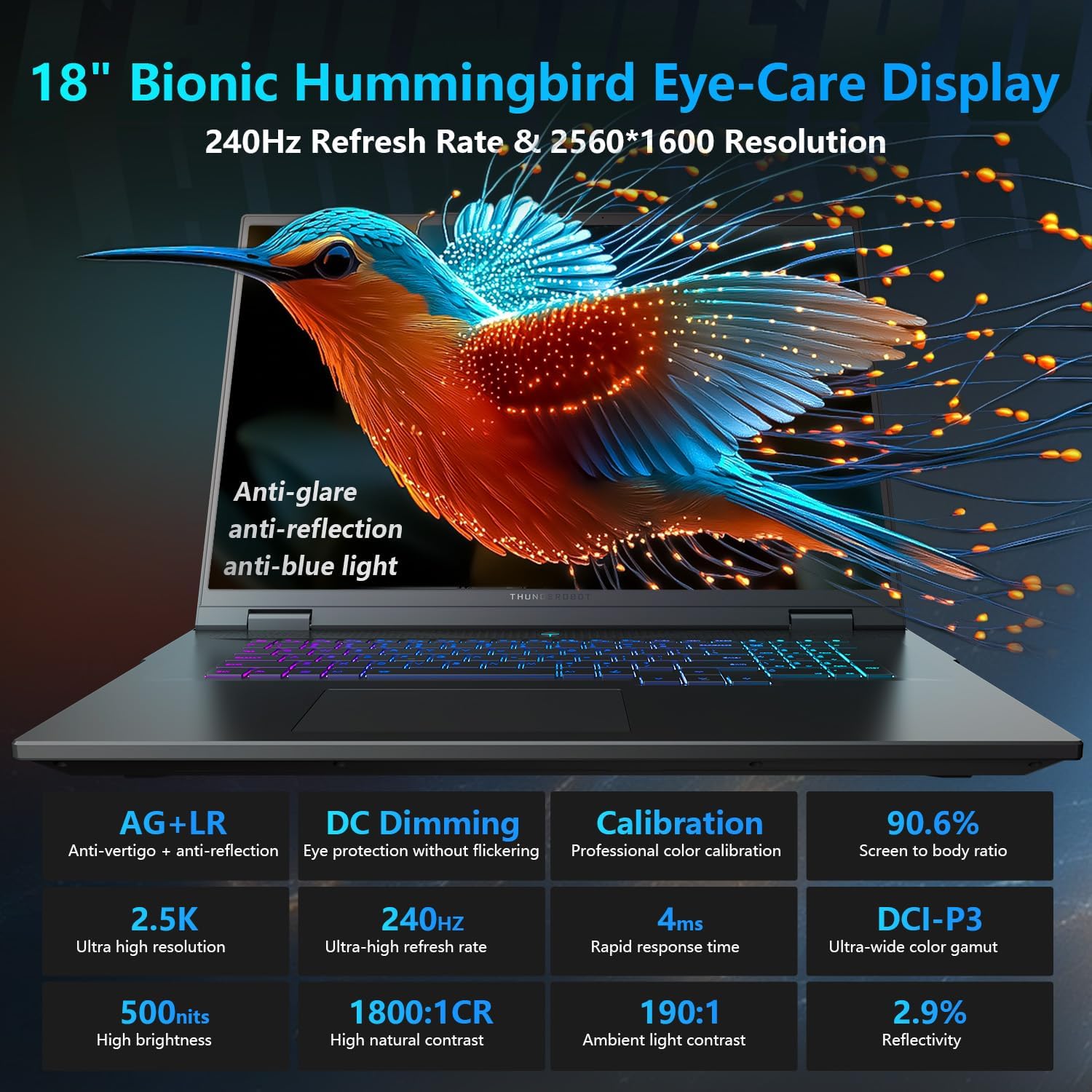
The 18-inch QHD+ (2560x1600) Bionic Hummingbird Eye-Care display offers a 240Hz refresh rate and 4ms response time for clear and fluid visuals. It includes anti-glare, anti-reflection, and anti-blue light technologies for eye comfort.

Connectivity (Ports)
The laptop is equipped with various ports for extensive connectivity:
- 3 x Superspeed USB Typ-A Anschlüsse
- 2 x Superspeed USB Type-C ports (including Thunderbolt 5 support)
- 1 x HDMI port (HDMI 2.1)
- 1 x RJ-45 Ethernet-Anschluss
- 1 x Audioanschluss (3.5 mm)
- UHS-II SD-Kartenleser
- Wi-Fi 6E for high-speed wireless internet
- Bluetooth for wireless peripheral connections

Kühlsystem
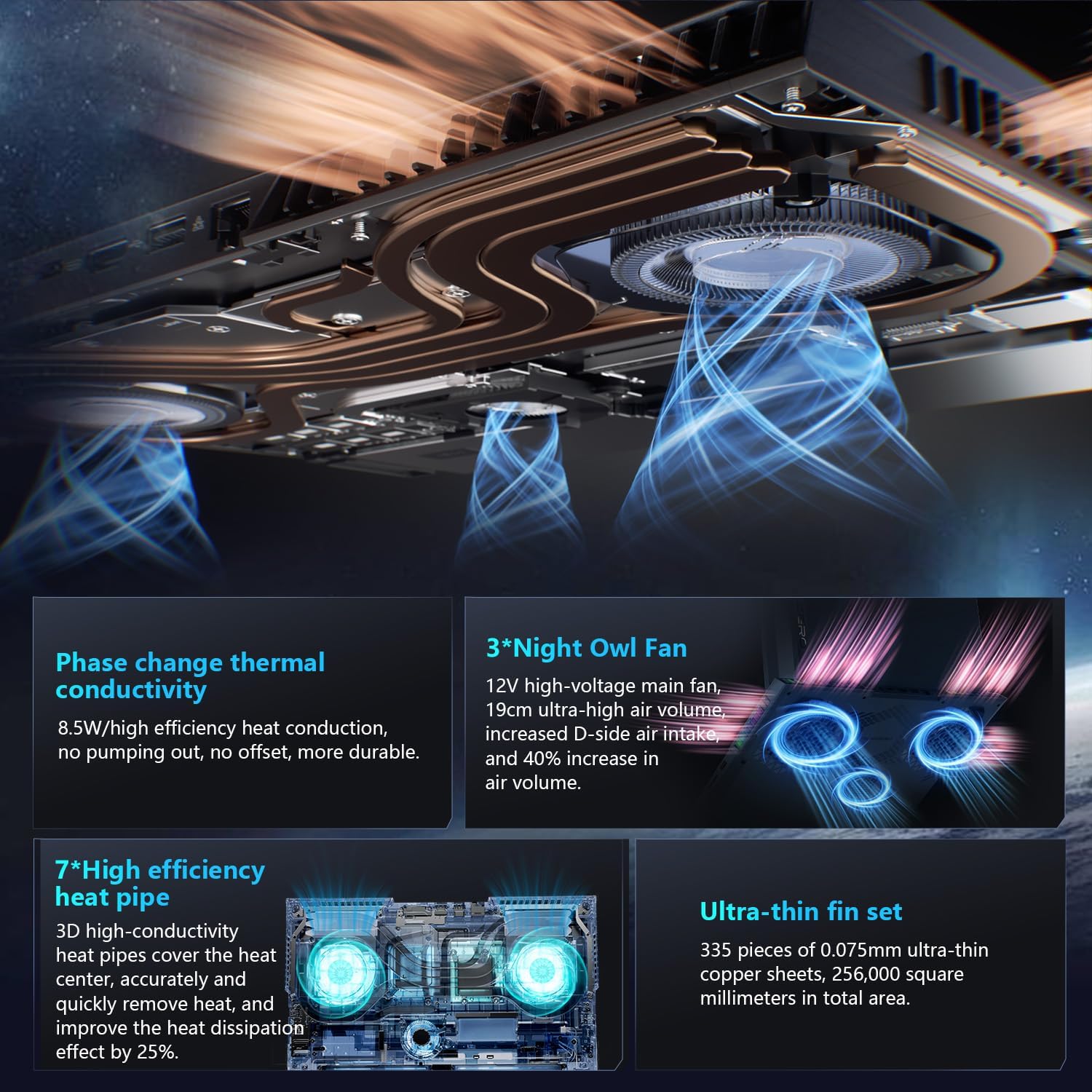
The advanced cooling system features 3 Night Owl fans, 7 high-efficiency heat pipes, and 338 ultra-thin copper fins to ensure optimal thermal management during intensive use, allowing for 270W super performance release.
AI Intelligent Control Center
The AI Intelligent Control Center software allows for comprehensive system management, including performance tuning, intelligent light adjustment, and personalized customization. This includes monitoring CPU/GPU temperatures and fan speeds.
- Leistungsoptimierung: Adjust power settings for quiet, balanced, or turbo modes.
- Intelligent Light Adjustment: Customize keyboard, strip, and logo RGB lighting effects.
- Systemüberwachung: View real-time CPU and GPU status.
Hinweis: Für die Umschaltung des Systemmodus im Control Center muss das Gerät an eine Stromquelle angeschlossen sein.
Wartung
Laptop reinigen
- Bildschirm: Benutzen Sie ein weiches, fusselfreies Tuch, dampMit Wasser oder einem Bildschirmreiniger abspülen. Scharfe Chemikalien vermeiden.
- Tastatur und Gehäuse: Oberflächen mit einem weichen Tuch abwischen. Staub in Ritzen mit Druckluft entfernen.
- Vents: Periodically clean the cooling vents with compressed air to prevent dust buildup, which can affect performance.
Batteriepflege
- Vermeiden Sie häufiges vollständiges Entladen des Akkus.
- Bewahren Sie den Laptop an einem kühlen, trockenen Ort auf, wenn er längere Zeit nicht benutzt wird.
- For optimal battery health, avoid extreme temperatures.
Software-Updates
Regularly check for and install operating system updates (Windows Update) and driver updates (via Thunderobot's official website or the AI Intelligent Control Center) to ensure system stability and performance.
Fehlerbehebung
| Problem | Mögliche Ursache | Lösung |
|---|---|---|
| Der Laptop lässt sich nicht einschalten. | Kein Strom, leerer Akku oder Hardwareproblem. |
|
| Der Bildschirm ist leer oder schwarz. | Anzeigeeinstellungen, angeschlossener externer Monitor oder Hardwareproblem. |
|
| Überhitzung während des Gebrauchs. | Blocked vents, high performance settings, or dust buildup. |
|
| Probleme mit der WLAN-Verbindung. | WLAN deaktiviert, Treiberprobleme oder Routerprobleme. |
|
For further assistance, please contact Thunderobot customer support.
Technische Daten
| Besonderheit | Detail |
|---|---|
| Modellname | Zero 18 Pro |
| Prozessor | Intel Core Ultra 9 275HX (24 Cores, 24 Threads, up to 5.40GHz) |
| Grafik | NVIDIA GeForce RTX 5070 Ti (8 GB GDDR6 dediziert) |
| RAM | 32 GB DDR5 (4800 MHz) |
| Lagerung | 2 TB PCIe M.2 SSD |
| Anzeige | 18-inch QHD+ (2560x1600) 240Hz Bionic Hummingbird Eye-Care Display |
| Betriebssystem | Windows 11 Home |
| Konnektivität | Wi-Fi 6E, Bluetooth, 3x USB-A, 2x USB-C (Thunderbolt 5), HDMI 2.1, RJ-45, Audio Port |
| Tastatur | Per-Key RGB Backlit, Numeric Keypad |
| Abmessungen (LxBxH) | 16.04 x 11.78 x 1.41 Zoll |
| Artikelgewicht | 15 Pfund |
| Stromquelle | Wechselstrom & Batterie |
Garantie und Support
Every Thunderobot laptop includes a 12 Monate Garantie, offering expert support, thorough diagnostics, and genuine parts if a repair is needed. Additionally, a 90 Tage Garantie is provided on all warranty replacement parts, ensuring hassle-free repairs. Your complete satisfaction is our commitment.
For technical support, warranty claims, or service inquiries, please visit the official Thunderobot website or contact their customer service department. Keep your purchase receipt and serial number handy for faster service.