
Einführung
The ASUS TUF Gaming VG249QM5A is a 23.8-inch Full HD monitor designed for an enhanced gaming experience. It incorporates a 240Hz refresh rate and 0.3ms response time, alongside AMD FreeSync™ Premium and NVIDIA® G-SYNC® compatibility for smooth visuals. This monitor offers improved color performance, Gaming AI features, and convenient control via the DisplayWidget Center.
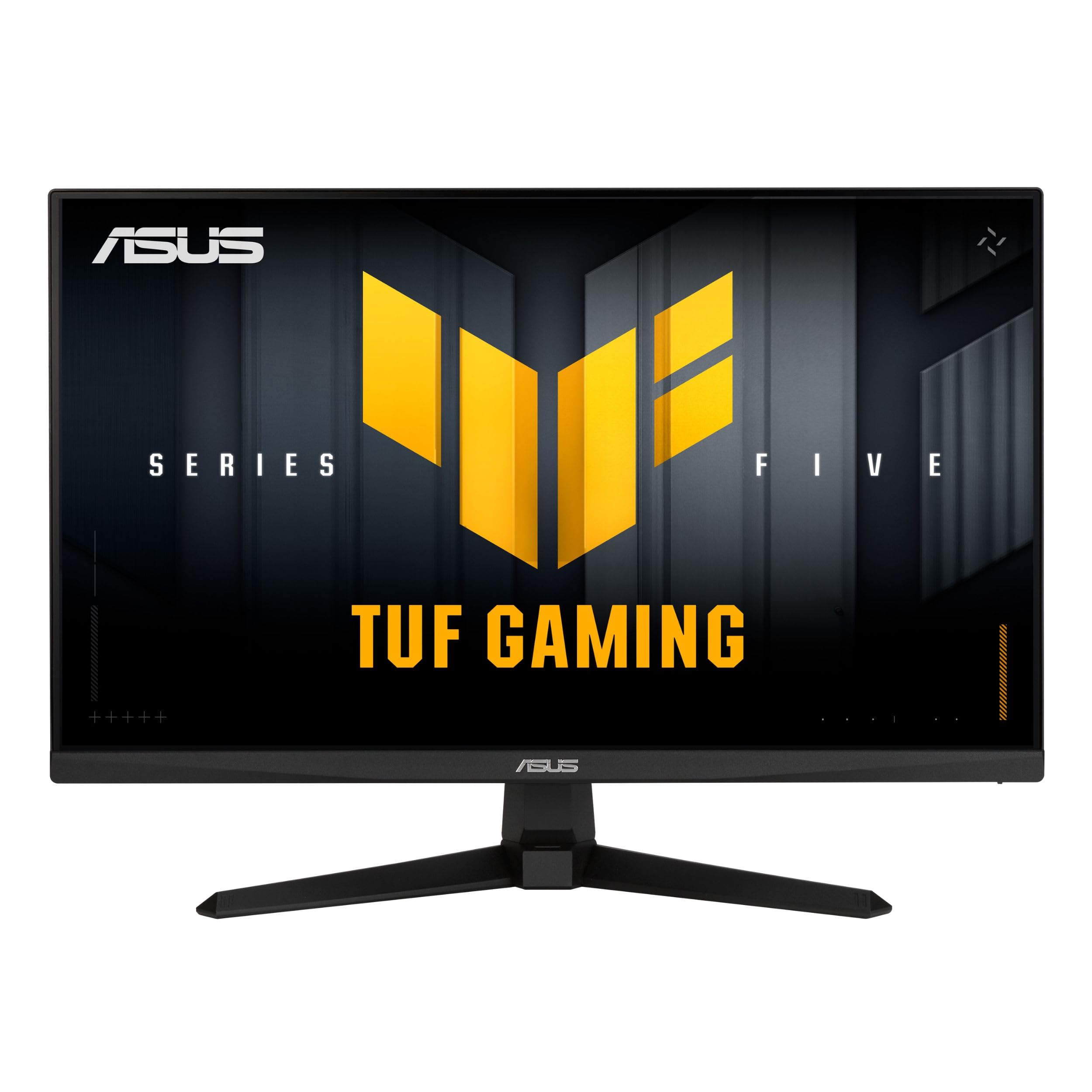
Bild: Vorderseite view of the ASUS TUF Gaming VG249QM5A monitor.
Lieferumfang
Verify that all the following items are present in your product packaging:
- ASUS TUF Gaming VG249QM5A Monitor
- DisplayPort-Kabel
- L-förmiger Schraubendreher
- Netzkabel
- Kurzanleitung
- Garantiekarte
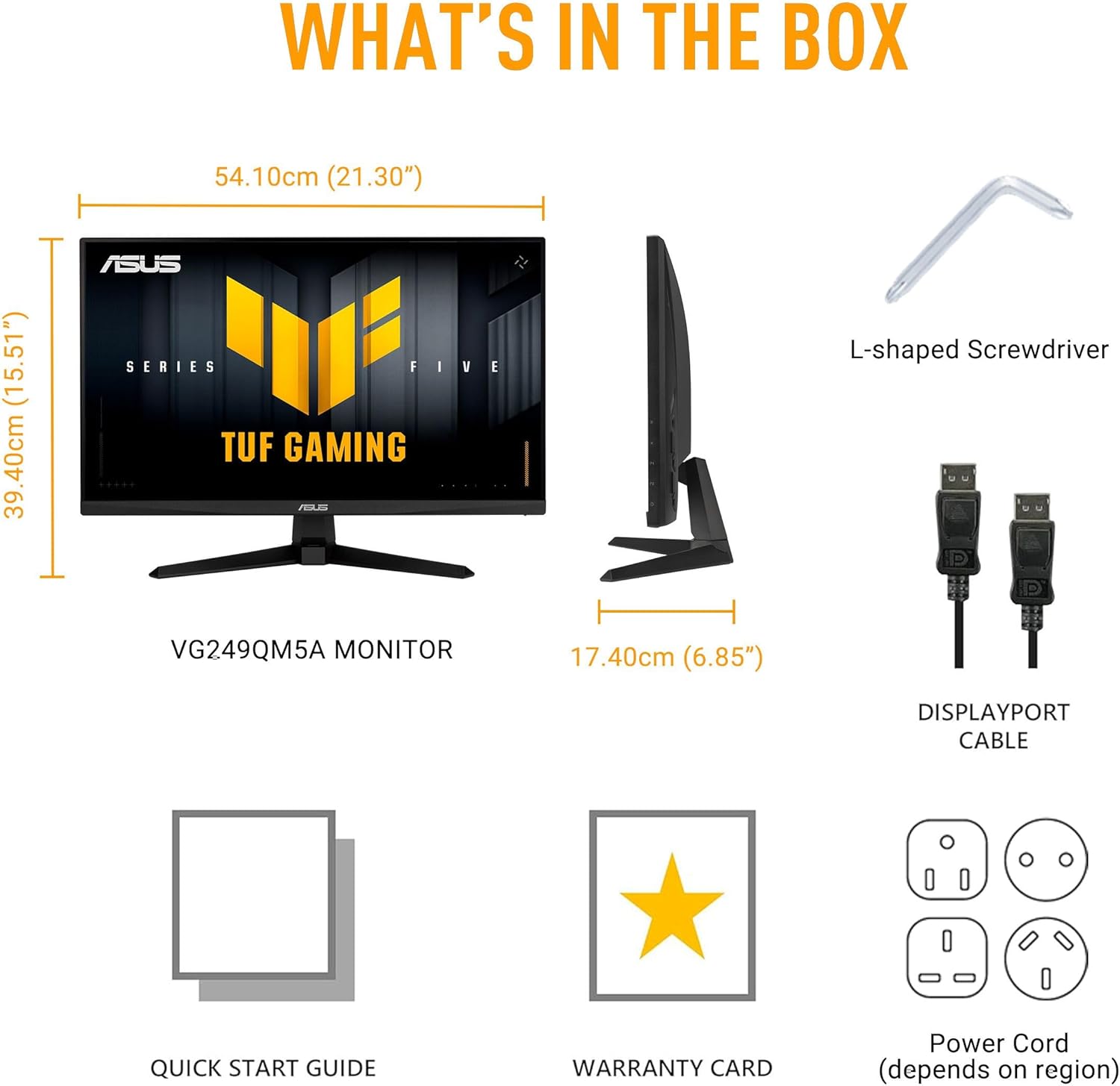
Image: Diagram showing the monitor, DisplayPort cable, L-shaped screwdriver, power cord, quick start guide, and warranty card included in the box.
Aufstellen
1. Monitorbaugruppe
Carefully remove the monitor and its components from the packaging. Attach the stand base to the stand neck, then secure the assembled stand to the back of the monitor panel. Ensure all connections are firm.
2. Verbindungskabel
Schließen Sie die erforderlichen Kabel an den Monitor und Ihren Computer an:
- Netzkabel: Verbinden Sie ein Ende des Netzkabels mit dem Stromeingang des Monitors und das andere Ende mit einer Steckdose.
- DisplayPort-Kabel: For optimal performance, connect the included DisplayPort cable from your computer's graphics card to the DisplayPort input on the monitor.
- HDMI-Kabel: Alternatively, you can use HDMI cables to connect to the monitor's HDMI 2.0 ports.
- Kopfhörerbuchse: Connect your headphones or external speakers to the earphone jack for audio output.

Image: The monitor connected to a desktop computer with various cables.

Bild: Nahaufnahme view of the monitor's rear ports, including two HDMI 2.0 ports, one DisplayPort, and an earphone jack.
Monitor bedienen
Wichtigste Leistungsmerkmale
- Schnelles IPS-Panel: Erleben Sie lebendige Farben und eine breite viewwinkeln.
- 240Hz Bildwiederholfrequenz: Provides extremely fluid visuals for fast-paced gaming.
- 0.3ms Response Time (min): Minimizes motion blur and ghosting for sharp images.
- G-SYNC Compatible & FreeSync Premium: Ensures tear-free and stutter-free gameplay by synchronizing the monitor's refresh rate with your GPU's frame rate.
- Extreme Low Motion Blur Sync (ELMB SYNC): Enables ELMB simultaneously with variable refresh rate technologies, further reducing ghosting and tearing.
- 99 % sRGB-Farbraumabdeckung: Delivers accurate and rich color reproduction.

Image: Infographic highlighting key upgrades including speed (0.3ms, 240Hz), fluidity (FreeSync Premium, G-SYNC, ELMB SYNC), Gaming AI, colors (99% sRGB), and simplicity (DisplayWidget Center).

Abbildung: Der Monitor zeigtasing a high-speed gaming scene, emphasizing its fast IPS, Full HD, 0.3ms, and 240Hz capabilities.

Image: A visual comparison demonstrating improved game fluidity with Variable Refresh Rate (VRR) enabled, highlighting G-SYNC, FreeSync Premium, and ELMB SYNC.
Gaming AI Technology
The monitor includes TUF Gaming A.I. technology with AI-powered features to enhance your gaming experience:
- Dynamic Crosshair: Bietet ein Fadenkreuz auf dem Bildschirm für eine verbesserte Zielgenauigkeit.
- AI Visual: Optimizes visual settings based on game content.

Image: Demonstrations of Dynamic Crosshair (before and after) and AI Visual (before and after) features in gaming scenarios.
DisplayWidget Center
The DisplayWidget Center software allows for easy access to On-Screen Display (OSD) settings and monitor adjustments using your mouse. This provides a user-friendly interface for customizing various display parameters, managing firmware updates, and controlling multi-screen setups.

Image: A screenshot of the DisplayWidget Center interface, showing options for customizable settings, firmware update notifications, and multiscreen control.
Eye Care Features and Ergonomic Design
This monitor incorporates features designed to reduce eye strain during extended use and offers flexible positioning options:
- Entspiegelter Bildschirm: Reduces reflections from ambient light, improving visibility.
- Blaulichtfilter: Adjustable levels to reduce harmful blue light emissions.
- Flimmerfreie Technologie: Eliminates screen flickering to minimize eye fatigue.
- Ergonomisches Design: The stand allows for tilt, swivel, pivot, and height adjustments to achieve a comfortable view, um die Position zu ändern.
Video: An official ASUS video demonstrating the eye care features (anti-glare, blue light filter, flicker-free) and ergonomic design of ASUS monitors, including adjustable stand functionality.
Wartung
Um die Langlebigkeit und optimale Leistung Ihres Monitors zu gewährleisten, befolgen Sie bitte diese Wartungsrichtlinien:
- Reinigen des Bildschirms: Wischen Sie den Bildschirm vorsichtig mit einem weichen, fusselfreien Tuch ab. Bei hartnäckigen Flecken leicht andrücken.ampBefeuchten Sie das Tuch mit Wasser oder einem speziellen Bildschirmreiniger. Vermeiden Sie aggressive Chemikalien oder Scheuermittel.
- Reinigung des Casing: Verwenden Sie ein weiches, trockenes Tuch, um den Monitor zu reinigen.asing.
- Belüftung: Um eine Überhitzung zu vermeiden, stellen Sie sicher, dass die Lüftungsöffnungen des Monitors frei und nicht verstopft sind.
- Handhabung: Vermeiden Sie es, schwere Gegenstände auf den Monitor zu stellen oder übermäßigen Druck auf den Bildschirm auszuüben.
- Ausschalten: Schalten Sie den Monitor immer aus, wenn er längere Zeit nicht benutzt wird.
Fehlerbehebung
Sollten Sie Probleme mit Ihrem Monitor haben, beachten Sie bitte die folgenden gängigen Schritte zur Fehlerbehebung:
- Kein Display/Stromanschluss:
- Prüfen Sie, ob das Netzkabel sowohl am Monitor als auch an der Steckdose fest angeschlossen ist.
- Stellen Sie sicher, dass der Netzschalter am Monitor gedrückt ist.
- Überprüfen Sie, ob die Steckdose funktioniert.
- Kein Signal:
- Confirm that the video cable (DisplayPort or HDMI) is securely connected to both the monitor and your computer's graphics card.
- Ensure the correct input source is selected on the monitor (use the OSD menu).
- Prüfen Sie, ob Ihr Computer eingeschaltet ist und sich nicht im Ruhemodus befindet.
- Bildqualitätsprobleme (unscharf, verzerrt, falsche Farben):
- Passen Sie die Auflösungs- und Bildwiederholfrequenzeinstellungen Ihres Computers an die native Auflösung des Monitors (1920x1080) und die gewünschte Bildwiederholfrequenz (bis zu 240 Hz) an.
- Setzen Sie die Anzeigeeinstellungen des Monitors über das OSD-Menü auf die Werkseinstellungen zurück.
- Aktualisieren Sie Ihre Grafikkartentreiber.
- Check for physical damage to the video cable.
- Flackernder Bildschirm:
- Ensure Flicker-Free technology is enabled (if applicable via OSD or DisplayWidget Center).
- Prüfen Sie, ob externe Störungen durch andere elektronische Geräte vorliegen.
If the issue persists after attempting these steps, please contact ASUS customer support.
Technische Daten
| Besonderheit | Spezifikation |
|---|---|
| Marke | ASUS |
| Modellnummer | VG249QM5A |
| Bildschirmgröße | 24 Inches (23.8-inch viewfähig) |
| Bildschirmauflösung | 1920 x 1080 Pixel (Full HD) |
| Maximale Bildschirmauflösung | 1920 x 1080 Pixel |
| Bildwiederholrate | 240 Hz |
| Ansprechzeit | 0.3ms (min) |
| Panel-Typ | Schnelles IPS |
| Farbumfang | 99 % sRGB |
| Adaptive Sync-Technologie | G-SYNC Compatible, FreeSync Premium |
| Seitenverhältnis | 16:9 |
| Beschreibung der Bildschirmoberfläche | Matt |
| Konnektivität | DisplayPort, HDMI 2.0 (x2), Earphone Jack |
| Artikelgewicht | 7.5 Pfund |
| Produktabmessungen (L x B x H) | 6.9 x 21.3 x 15.5 Zoll |
| Farbe | SCHWARZ |
Garantie und Support
The ASUS TUF Gaming VG249QM5A monitor typically comes with a 3 Jahr Herstellergarantie. Please refer to the included Warranty Card for specific terms, conditions, and registration details.
Für technischen Support, Treiber-Downloads oder weitere Hilfe besuchen Sie bitte die offizielle ASUS-Supportseite. webWebsite:
When contacting support, have your monitor's model number (VG249QM5A) and serial number readily available.