
1. Einleitung
Thank you for choosing the TCL Gaming Monitor 25G54. This monitor is designed to provide an immersive gaming experience with its advanced display technology and high performance. This manual will guide you through the setup, operation, and maintenance of your new monitor.
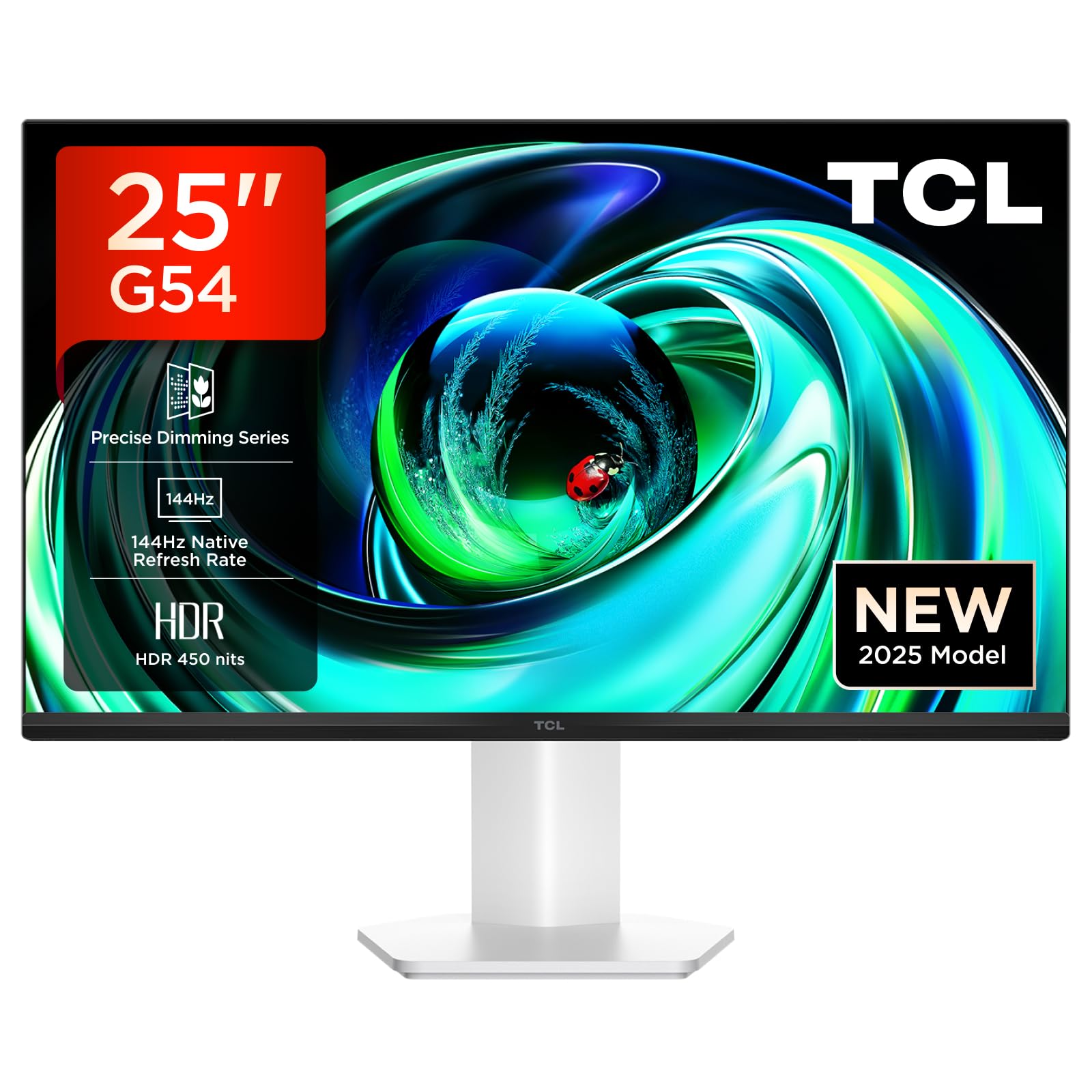
Abbildung 1: Vorderseite view of the TCL Gaming Monitor 25G54.
2. Sicherheitshinweise
Bitte lesen Sie vor der Verwendung des Monitors alle Anweisungen sorgfältig durch. Bewahren Sie diese Bedienungsanleitung zum späteren Nachschlagen auf.
- Um Brände oder Stromschläge zu vermeiden, setzen Sie den Monitor weder Regen noch Feuchtigkeit aus.
- Öffnen Sie den Monitor nicht.asing. Im Inneren befinden sich keine vom Benutzer wartbaren Teile. Alle Wartungsarbeiten dürfen nur von qualifiziertem Fachpersonal durchgeführt werden.
- Stellen Sie den Monitor auf eine stabile, ebene Fläche, um zu verhindern, dass er herunterfällt.
- Sorgen Sie für ausreichende Belüftung um den Monitor herum. Blockieren Sie keine Lüftungsöffnungen.
- Verwenden Sie ausschließlich das vom Hersteller mitgelieferte Netzteil und die dazugehörigen Kabel.
- Ziehen Sie den Netzstecker aus der Steckdose, wenn der Monitor längere Zeit nicht benutzt wird.
3. Packungsinhalt
Überprüfen Sie, ob alle Artikel in Ihrem Paket vorhanden sind:
- TCL Gaming Monitor 25G54
- Monitorständer (Fuß und Hals)
- Stromkabel
- HDMI-Kabel
- Benutzerhandbuch und Garantiekarte
Note: Specific cable types (e.g., DisplayPort) may vary by region or package.
4. Einrichtung
4.1 Montage des Ständers
- Nehmen Sie die Monitor- und Standfußkomponenten vorsichtig aus der Verpackung.
- Befestigen Sie den Stativhals am Monitorpanel. Achten Sie darauf, dass er sicher einrastet oder, wie in der Kurzanleitung beschrieben, mit Schrauben befestigt ist.
- Befestigen Sie den Standfuß am Standhals und sichern Sie ihn mit der mitgelieferten Schraube.
- Stellen Sie den zusammengebauten Monitor auf einen stabilen Schreibtisch.
4.2 Anschließen des Monitors
The monitor supports various input options. Connect the appropriate cable from your computer or gaming console to the monitor.
- HDMI-Verbindung: Verwenden Sie ein HDMI-Kabel, um Ihr Gerät mit dem HDMI-Anschluss des Monitors zu verbinden.
- DisplayPort-Verbindung: Verwenden Sie ein DisplayPort-Kabel, um Ihr Gerät mit dem DisplayPort des Monitors zu verbinden.
- USB-Anschlüsse: Nutzen Sie die USB-Anschlüsse zum Anschließen von Peripheriegeräten.

Abbildung 2: Rückseite view showing the monitor's connectivity ports including HDMI, DisplayPort, and USB.
4.3 Einschalten
- Verbinden Sie das Netzkabel mit dem Stromeingang des Monitors und anschließend mit einer Steckdose.
- Press the power button, usually located on the back or bottom of the monitor, to turn it on.
5. Bedienungsanleitung
5.1 Bildschirmmenü (OSD)
The OSD menu allows you to adjust various monitor settings. Access it using the joystick button, typically located on the back of the monitor.

Figure 3: Illustration of the joystick button for OSD menu navigation.
Gängige OSD-Einstellungen:
- Helligkeit Kontrast: Passen Sie die Helligkeits- und Kontrastwerte des Displays an.
- Farbeinstellungen: Modify color temperature, gamma, and color space (e.g., DCI-P3, sRGB).
- Eingabequelle: Manually select the active input (HDMI, DisplayPort).
- Spielfunktionen: Enable/disable FreeSync, adjust response time, and other gaming-specific enhancements.
- Bildmodus: Select preset display modes for different content types (e.g., Standard, Game, Movie).
5.2 Ergonomische Anpassungen
Der Monitorständer bietet ergonomische Einstellmöglichkeiten für optimale Positionierung. viewKomfort.
- Neigung: Stellen Sie den vertikalen Winkel des Bildschirms ein.
- Schwenken: Drehen Sie den Bildschirm horizontal.
- Höhenverstellung: Stellen Sie den Bildschirm auf Augenhöhe ein.
- Drehpunkt: Drehen Sie den Bildschirm ins Hoch- oder Querformat.

Figure 4: Illustration of the monitor's ergonomic stand, showing tilt and height adjustment capabilities.
6. Funktionen
The TCL Gaming Monitor 25G54 incorporates several key technologies for superior performance:
- Mini-LED-Technologie: Combines QLED and OLED advantages for precise, pixel-level illumination, offering sharp contrast and a wide color gamut.
- Präzise Dimmer-Serie: Enhances overall image quality by optimizing light and shadow, providing a high-quality visual experience.
- HDR 400 nit Brightness: With a peak brightness of 450 nits and a contrast ratio of 4,500,000:1, it delivers extended dynamic range and vivid details in both dark and bright areas.
- 144Hz Bildwiederholfrequenz: Ensures smooth and fluid images in all gaming scenes and actions, minimizing motion blur.
- 1 ms (GTG) Reaktionszeit: An extremely fast response time reduces ghosting and blurring, allowing for quick target acquisition.
- 93% DCI-P3 Wide Color Gamut: Displays vibrant colors with professional-level accuracy, revealing an immersive world of color.
- TÜV Rheinland Flicker-Free & Low Blue Light: Certified for eye protection, this mode blocks harmful blue light and eliminates flicker for prolonged viewKomfort.

Abbildung 5: Überview of the TCL 25G54 Mini LED Monitor's key features.
7. Wartung
Durch sachgemäße Wartung wird die Langlebigkeit und optimale Leistung Ihres Monitors sichergestellt.
- Reinigen des Bildschirms: Wischen Sie den Bildschirm vorsichtig mit einem weichen, fusselfreien Tuch ab. Bei hartnäckigen Flecken verwenden Sie ein für Monitore geeignetes Reinigungsmittel, das Sie auf das Tuch und nicht direkt auf den Bildschirm auftragen.
- Reinigung des Casing: Verwenden Sie ein weiches, trockenes Tuch, um den Monitor abzuwischen.asing. Vermeiden Sie scheuernde Reinigungsmittel.
- Belüftung: Ensure the ventilation openings are clear of dust and debris. Use compressed air to clean if necessary.
- Ausschalten: Vor der Reinigung oder wenn der Monitor längere Zeit nicht benutzt wird, schalten Sie ihn immer aus und ziehen Sie den Netzstecker.
8. Fehlerbehebung
Sollten Sie Probleme mit Ihrem Monitor haben, beachten Sie bitte die folgenden gängigen Lösungsansätze:
| Problem | Mögliche Ursache | Lösung |
|---|---|---|
| Kein Bild auf dem Bildschirm | Power cable disconnected, input cable loose, incorrect input source selected. | Check power and input cable connections. Select correct input source via OSD. |
| Das Bild ist unscharf oder verzerrt. | Incorrect resolution, faulty cable, graphics driver issue. | Set display resolution to 1920x1080. Try a different cable. Update graphics drivers. |
| Flackernder Bildschirm | Refresh rate mismatch, faulty cable, external interference. | Ensure refresh rate is set to 144Hz. Try a different cable. Check for nearby electronic devices. |
| Kein Ton | Audio cable not connected, volume too low, incorrect audio output selected. | Connect headphones to the monitor's audio output. Adjust volume. Select monitor as audio output on your device. |
Sollte das Problem nach Anwendung dieser Lösungsansätze weiterhin bestehen, wenden Sie sich bitte an den TCL-Kundendienst.
9. Spezifikationen
| Besonderheit | Spezifikation |
|---|---|
| Marke | TCL |
| Modellnummer | 25G54 |
| Bildschirmgröße | 25 Zoll |
| Auflösung | 1920x1080 (FHD) |
| Panel-Typ | IPS |
| Bildwiederholrate | 144 Hz |
| Ansprechzeit | 1 ms (GTG) |
| Helligkeit | 450 Nits |
| Kontrastverhältnis | 4,500,000:1 |
| HDR-Unterstützung | VESA Display HDR 400 |
| Farbumfang | 93 % DCI-P3 |
| Viewing-Winkel | 178 Grad |
| Konnektivität | 1x HDMI, 1x DisplayPort, 4x USB, Headphone Output |
| Adaptive Synchronisierung | FreeSync |
| Abmessungen (TxBxH) | 18.2 x 55.6 x 43.9 cm |
| Gewicht | 4.39 kg |
| Besondere Merkmale | Mini LED, Flicker-Free, Low Blue Light |
10. Garantie und Support
Your TCL Gaming Monitor 25G54 comes with a 2-year manufacturer's warranty. For warranty claims, technical support, or service inquiries, please visit the official TCL support webBesuchen Sie unsere Website oder wenden Sie sich an Ihren Händler vor Ort.
Weitere Informationen finden Sie im TCL Store auf Amazon.
11. Recyclinginformationen
Please dispose of this product responsibly. Electronic waste should not be disposed of with household waste. Follow local regulations for the proper disposal of electronic devices. This helps protect the environment and human health.