
OMOTON B0FCMD15TF
OMOTON Foldable Bluetooth Keyboard with Touchpad (QWERTZ Layout)
Model: B0FCMD15TF
Marke: OMOTON
1. Einleitung
Thank you for choosing the OMOTON Foldable Bluetooth Keyboard with Touchpad. This portable QWERTZ keyboard is designed for convenience and efficiency, offering multi-device connectivity and an integrated touchpad. This manual provides detailed instructions for setup, operation, and maintenance to ensure optimal performance.
2. Packungsinhalt
Bitte prüfen Sie das Paket auf folgende Artikel:
- OMOTON Faltbare Bluetooth-Tastatur
- Handy-Ständer
- Typ C Ladekabel
- Tragetasche
- Bedienungsanleitung
3. Produktüberschreitungview
The OMOTON Foldable Bluetooth Keyboard features a compact QWERTZ layout with 78 full-size keys and a multi-touch touchpad. It supports connection to up to three devices simultaneously across iOS, Android, and Windows operating systems. Its magnetic folding design makes it highly portable.
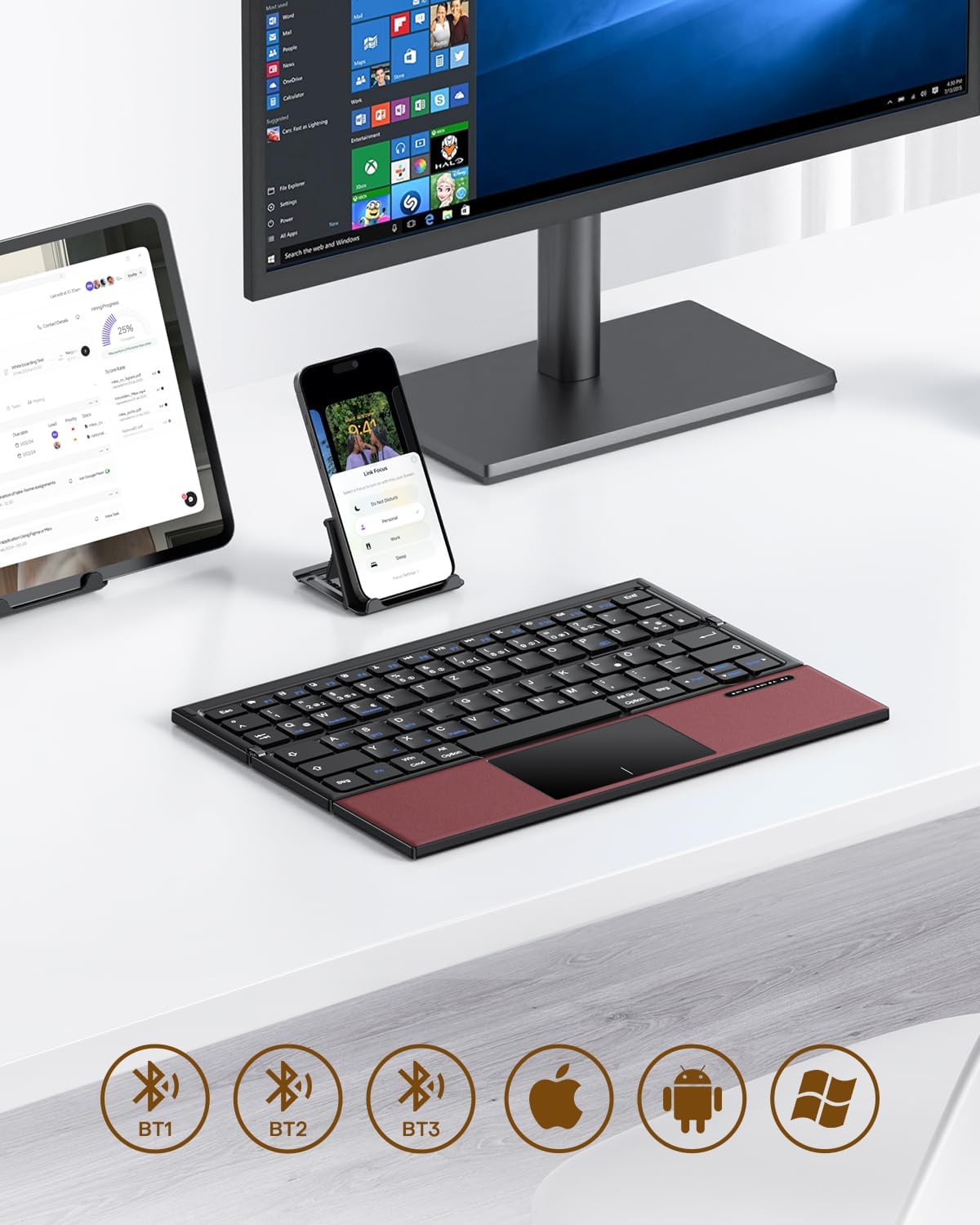
Image 3.1: The OMOTON Foldable Bluetooth Keyboard in use with a tablet, smartphone, and monitor, demonstrating multi-device connectivity via BT1, BT2, and BT3 channels.
Hauptmerkmale:
- Dreifach gefaltetes Design: Kompakt und tragbar für Reisen.
- Integriertes Touchpad: Multi-touch functionality for navigation without an external mouse.
- Konnektivität mehrerer Geräte: Connects to up to three Bluetooth-enabled devices (BT1, BT2, BT3).
- QWERTZ Layout: Standard German keyboard layout with 78 full-size keys.
- Wiederaufladbarer Akku: Eingebauter 180-mAh-Akku mit Typ-C-Ladeanschluss.

Image 3.2: Close-up details of the keyboard, highlighting its magnetic closure, indicator lights, silent scissor keys, elegant PU leather finish, and durable metal hinge.
Portabilität:
The keyboard's compact, tri-fold design makes it ideal for travel and on-the-go use. It easily fits into bags and pockets, making it a convenient companion for various environments.

Image 3.3: The keyboard in use in a cafe, on an airplane, and in a meeting room, demonstrating its versatility for different work and travel scenarios.

Image 3.4: The folded keyboard being placed into a carrying case inside a bag and slipped into a jacket pocket, illustrating its compact size and ease of transport.
4. Einrichtung
4.1 Aufladen der Tastatur
Before first use, fully charge the keyboard. Use the included Type-C charging cable to connect the keyboard to a power source (e.g., computer USB port, USB wall adapter).
- Die Betriebsanzeigeleuchte zeigt den Ladestatus an.
- Eine vollständige Aufladung dauert in der Regel 2-3 Stunden.
- The keyboard offers up to 60 hours of operating time and 90 days of standby time on a full charge.

Image 4.1: The keyboard connected via its Type-C port for charging, with icons indicating charging time, working time, and standby time.
4.2 Koppeln mit einem Gerät
The keyboard supports up to three Bluetooth connections (BT1, BT2, BT3). Follow these steps to pair your keyboard with a device:
- Einschalten: Unfold the keyboard to automatically power it on. The indicator light will flash.
- Kanal auswählen: Drücken Sie die Fn + BT1, Fn + BT2, oder Fn + BT3 keys simultaneously to select a Bluetooth channel. The corresponding indicator light will flash slowly.
- Kopplungsmodus aktivieren: Drücken Fn+C (or the Bluetooth icon key) to enter pairing mode. The selected channel indicator light will flash rapidly.
- Bluetooth auf dem Gerät aktivieren: Gehen Sie auf Ihrem Gerät (Smartphone, Tablet, Laptop) zu den Bluetooth-Einstellungen und schalten Sie Bluetooth ein.
- Tastatur auswählen: Suchen nach "OMOTON Keyboard" (or similar) in the list of available devices and select it to connect.
- Verbindung bestätigen: Sobald die Verbindung hergestellt ist, hört die Kontrollleuchte auf der Tastatur auf zu blinken und leuchtet einige Sekunden lang dauerhaft, bevor sie erlischt.
Note: The Type-C cable is for charging only and does not support wired connectivity.
4.3 Umschalten zwischen Geräten
Um zwischen gekoppelten Geräten zu wechseln, drücken Sie einfach Fn + BT1, Fn + BT2, oder Fn + BT3 to select the desired channel. The keyboard will automatically connect to the last paired device on that channel.
5. Bedienungsanleitung
5.1 Tastaturlayout und Sondertasten
The keyboard features a QWERTZ layout with 78 standard keys and 12 multimedia shortcuts. Familiarize yourself with the layout for efficient typing.

Image 5.1: The keyboard displaying its full-size keys and integrated multi-touch touchpad, designed for a laptop-like typing experience.
5.2 Verwendung des Touchpads
The multi-touch touchpad supports various gestures for navigation. This eliminates the need for an external mouse.
- Tippen mit einem Finger: Links Klick.
- Zwei-Finger-Tippen: Rechtsklick (Kontextmenü).
- Scrollen mit zwei Fingern: Scrollen Sie nach oben/unten oder nach links/rechts.
- Zum Zoomen zusammenziehen: Zoom in/out (supported on some devices/apps).
- Wischgesten: Specific gestures may vary by operating system (Windows, Android, iOS).
Note for iPad users: You may need to enable "AssistiveTouch" in your iPad settings for full touchpad functionality. Some gestures may vary between applications. Scrolling direction can be adjusted in your device settings.
5.3 Energiesparmodus
To conserve battery, the keyboard will automatically enter sleep mode after 30 minutes of inactivity. To wake it up, press any key.
5.4 Ergonomic Usage
For comfortable and ergonomic typing, ensure your screen is positioned correctly to maintain a healthy posture.

Image 5.2: A visual guide showing the recommended ergonomic posture for using the keyboard with a screen, emphasizing proper neck and back alignment.
6. Wartung
- Reinigung: Reinigen Sie die Tastaturoberfläche mit einem weichen, trockenen Tuch. Bei hartnäckigem Schmutz leicht andrücken.ampBefeuchten Sie das Tuch mit Wasser oder einer milden Reinigungslösung. Vermeiden Sie übermäßige Feuchtigkeit.
- Lagerung: When not in use, fold the keyboard and store it in the provided carrying case to protect it from dust and scratches.
- Batteriepflege: Avoid fully discharging the battery frequently. Charge the keyboard regularly, especially if it will be stored for an extended period.
- Vermeiden Sie extreme Bedingungen: Setzen Sie die Tastatur keinen extremen Temperaturen, direkter Sonneneinstrahlung oder hoher Luftfeuchtigkeit aus.
7. Fehlerbehebung
7.1 Tastatur verbindet sich nicht
- Stellen Sie sicher, dass die Tastatur eingeschaltet (aufgeklappt) ist.
- Stellen Sie sicher, dass Bluetooth auf Ihrem Gerät aktiviert ist.
- Check if the keyboard is in pairing mode (indicator light flashing rapidly after pressing Fn+C).
- Ensure you have selected the correct Bluetooth channel (BT1, BT2, or BT3).
- Versuchen Sie, die Tastatur über die Bluetooth-Einstellungen Ihres Geräts zu entkoppeln und anschließend erneut zu koppeln.
- Stellen Sie sicher, dass der Akku der Tastatur geladen ist.
7.2 Touchpad reagiert nicht
- Stellen Sie sicher, dass die Tastatur ordnungsgemäß über Bluetooth verbunden ist.
- For iPad users, verify that "AssistiveTouch" is enabled in your iPad settings.
- Starten Sie die Tastatur und Ihr Gerät neu.
- Reinigen Sie die Touchpad-Oberfläche, um Schmutz und Ablagerungen zu entfernen.
7.3 Incorrect Key Output (QWERTZ vs. QWERTY)
- This keyboard has a QWERTZ layout. Ensure your device's software keyboard setting is also set to QWERTZ (German layout) for correct character output.
- If your device is set to QWERTY, some keys (e.g., Y/Z, special characters) will not match the physical keyboard. Adjust your device's input language/keyboard layout settings.
7.4 Kurze Akkulaufzeit
- Stellen Sie sicher, dass die Tastatur vor der Benutzung vollständig aufgeladen ist.
- The keyboard automatically enters sleep mode after 30 minutes of inactivity to save power.
- Avoid leaving the keyboard unfolded and powered on when not in use for extended periods.
8. Spezifikationen
| Marke | OMOTON |
| Modell | B0FCMD15TF |
| Konnektivitätstechnologie | Bluetooth |
| Kompatible Geräte | iPadOS, iOS, Android, Windows (Laptops, PCs, Tablets, Smartphones) |
| Tastaturlayout | QWERTZ (Deutsches Tastaturlayout) |
| Anzahl der Schlüssel | 78 |
| Besondere Merkmale | Foldable, Portable, Rechargeable, Integrated Multi-touch Touchpad |
| Material | Kunststoff, Polyurethan (PU) |
| Batteriekapazität | 180 mAh Lithium-Ionen-Akku |
| Ladeanschluss | Typ C |
| Ladezeit | Ca. 2-3 Stunden |
| Betriebsdauer | Bis zu 60 Stunden |
| Standby-Zeit | Bis zu 90 Tage |
| Gefaltete Abmessungen | 25.3 x 6 x 2.1 cm |

Image 8.1: Visual representation of the keyboard's dimensions when unfolded and folded, alongside a tablet and smartphone for scale.
9. Garantie und Support
OMOTON products come with a standard warranty. For detailed warranty information, please refer to the warranty card included in your package or visit the official OMOTON webWebsite.
If you encounter any issues or have questions regarding your OMOTON Foldable Bluetooth Keyboard, please contact OMOTON Customer Support:
- WebWebsite: Offizieller OMOTON-Shop auf Amazon
Please have your model number (B0FCMD15TF) and purchase details ready when contacting support.
Ask a question about this manual
Ask about setup, troubleshooting, compatibility, parts, safety, or missing instructions. Manuals+ will review the question and use this page’s manual context to help answer it.