
Einführung
This manual provides essential information for setting up, operating, maintaining, and troubleshooting your NIMO 15.6-inch FHD Gaming Laptop, model Nimo N153. Please read this manual thoroughly before using your device to ensure proper function and longevity.

Image: The NIMO 15.6-inch FHD Gaming Laptop, showcasing sein elegantes Design.
Lieferumfang
Bitte überprüfen Sie nach dem Auspacken, ob alle unten aufgeführten Artikel vorhanden sind:
- 1 x Nimo N153 Laptop
- 1 x Typ-C 100W PD Schnellladegerät
- 1 x Benutzerhandbuch (dieses Dokument)
- Windows 11 Home (vorinstalliert)
- Garantie- und Rückgabeinformationen
Aufstellen
1. Erstes Einschalten und Laden
Before first use, connect the laptop to the power adapter and a wall outlet. The Type-C 100W PD Fast Charger is designed for efficient charging. Allow the battery to charge sufficiently before disconnecting.

Image: The compact Type-C 100W PD Fast Charger included with the laptop.
2. Operating System Setup (Windows 11)
Upon first boot, follow the on-screen instructions to complete the Windows 11 Home setup. This includes selecting your region, language, connecting to a Wi-Fi network, and creating a user account.
3. Einrichtung des Fingerabdrucklesers
For enhanced security, set up the integrated fingerprint reader. Navigate to Windows Settings > Accounts > Sign-in options and follow the prompts to register your fingerprint.

Image: Close-up of the laptop's keyboard, highlighting the fingerprint reader and backlit keys.
4. Peripheriegeräte anschließen
Der Laptop verfügt über verschiedene Anschlüsse zum Verbinden externer Geräte:
- USB-Anschlüsse: Connect USB devices such as mice, keyboards, and external storage.
- HDMI-Anschluss: Schließen Sie einen externen Monitor oder Fernseher für eine erweiterte Anzeige an.
- Typ-C-Anschlüsse: For data transfer, charging, and connecting compatible Type-C accessories.
- Micro-SD-Kartensteckplatz: Insert Micro SD cards for additional storage or data transfer.
- Kopfhöreranschluss: Schließen Sie Kopfhörer oder externe Lautsprecher an.
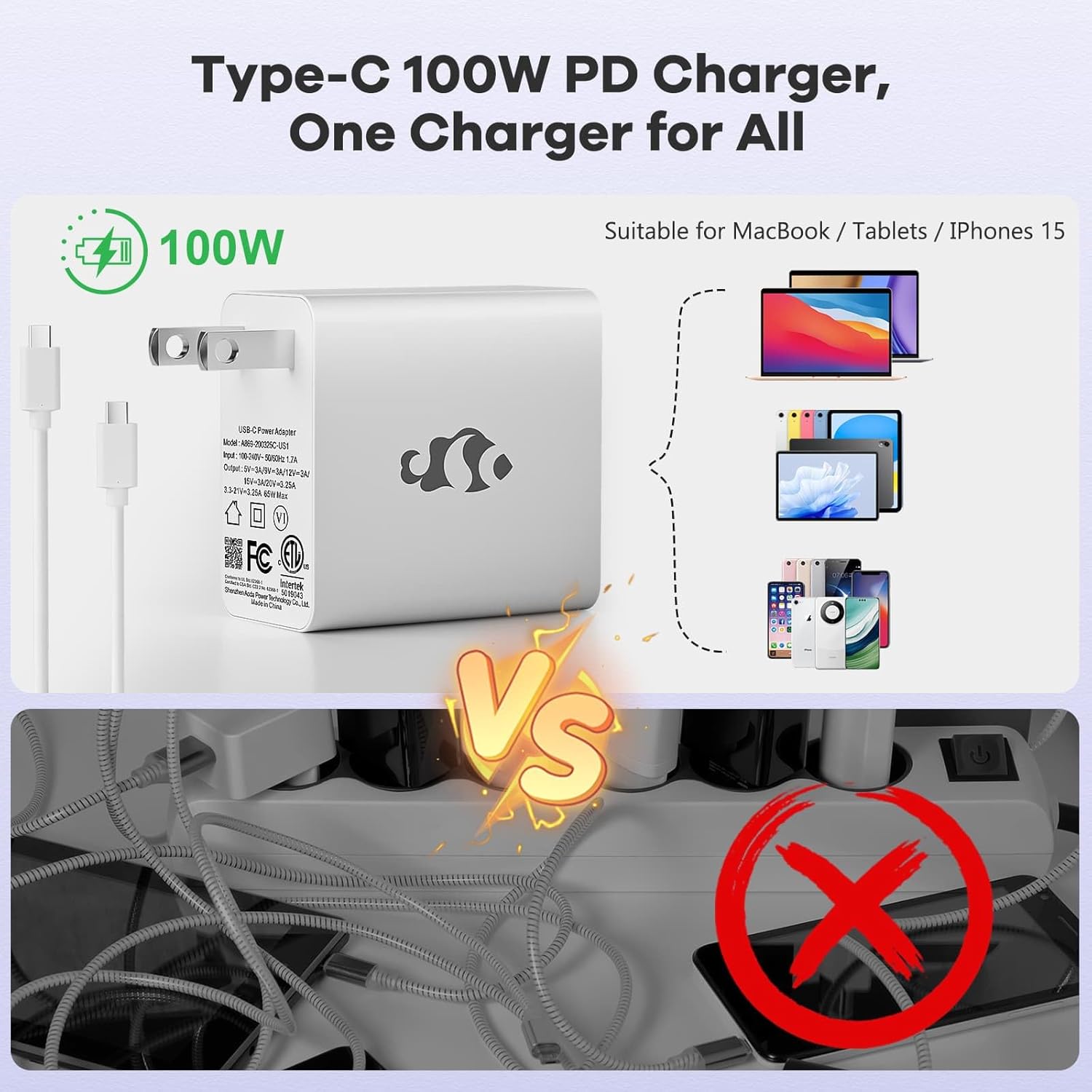
Image: Diagram illustrating the various ports available on the NIMO laptop, including USB, HDMI, Type-C, Micro SD, and headphone jack.
Bedienungsanleitung
1. Ein-/Ausschalten und Schlafmodus
- Einschalten: Drücken Sie den Ein-/Ausschalter auf der Tastatur.
- Ausschalten: Klicken Sie in Windows auf die Schaltfläche „Start“ und wählen Sie dann „Ein/Aus“ > „Herunterfahren“.
- Schlafmodus: Schließen Sie den Laptopdeckel oder klicken Sie auf die Start-Taste und wählen Sie dann Ein/Aus > Ruhezustand.
2. Keyboard and Touchpad Functions
- Tastatur mit Hintergrundbeleuchtung: The keyboard features backlighting for use in low-light conditions. Use the dedicated function key (Fn + F key combination, typically) to adjust brightness or toggle it on/off.
- Numerische Tastatur: The full-size keyboard includes a numeric keypad for convenient data entry.
- Multi-Touch-Touchpad: Supports various gestures for navigation and control within Windows. Refer to Windows settings for touchpad gesture customization.
3. Drahtlose Konnektivität
- W-lan: Um eine Verbindung zu einem drahtlosen Netzwerk herzustellen, klicken Sie auf das Wi-Fi-Symbol in der Taskleiste, wählen Sie das gewünschte Netzwerk aus und geben Sie gegebenenfalls das Passwort ein.
- Bluetooth: Um Bluetooth-Geräte zu koppeln, gehen Sie zu Windows-Einstellungen > Bluetooth & Geräte und folgen Sie den Anweisungen zum Hinzufügen eines neuen Geräts.
4. WebKameraschild
The laptop is equipped with a physical webcam shield for privacy. Slide the shield to cover or uncover the webKamera nach Bedarf.
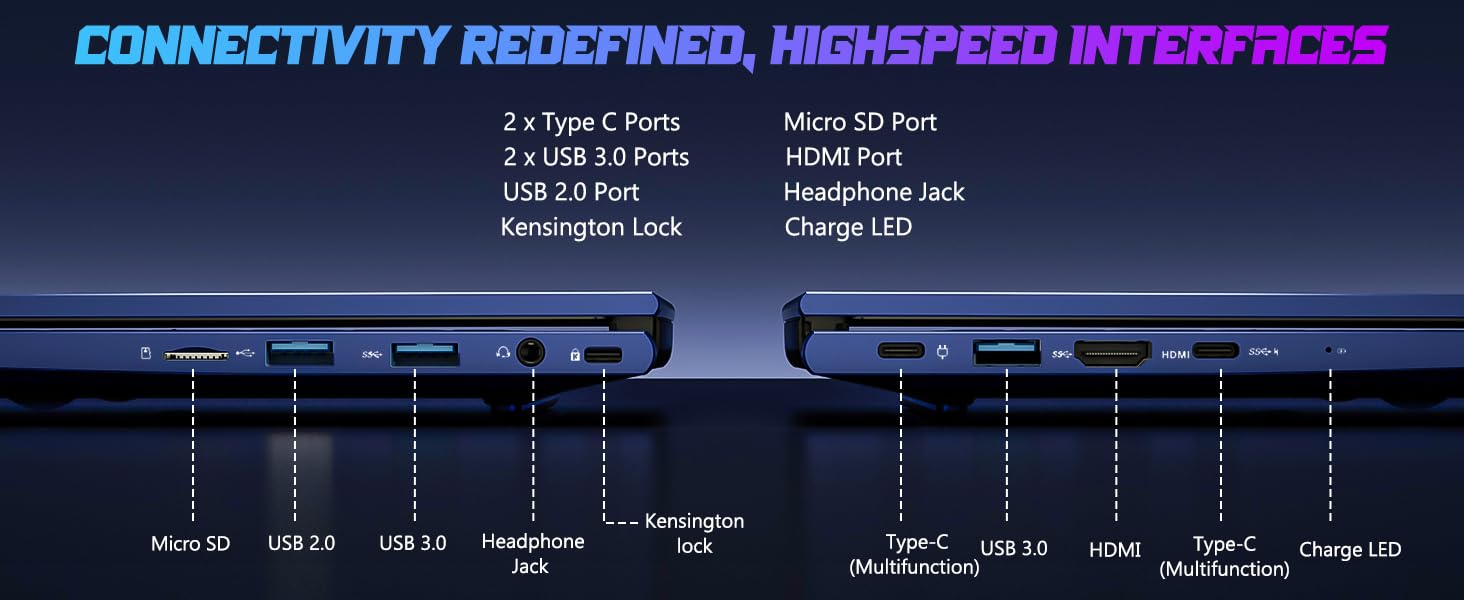
Image: Illustration of the laptop's webcam with a privacy shield feature.
5. Anzeigefunktionen
The 15.6-inch FHD IPS anti-glare display (1920x1080 resolution) provides clear visuals. Adjust display settings such as brightness and resolution through Windows Display Settings.

Image: The NIMO laptop displaying a vibrant image on its 15.6-inch FHD IPS screen.
Wartung
1. Reinigung des Laptops
- Bildschirm: Benutzen Sie ein weiches, fusselfreies Tuch, dampMit Wasser oder einem Bildschirmreiniger abspülen. Flüssigkeit nicht direkt auf den Bildschirm sprühen.
- Tastatur und Gehäuse: Verwenden Sie ein weiches, trockenes Tuch. Bei hartnäckigem Schmutz ein leicht dämpfendes Tuch verwenden.amp Ein Tuch kann verwendet werden, wobei darauf zu achten ist, dass keine Flüssigkeit in die Öffnungen eindringt.
- Häfen: Halten Sie die Anschlüsse frei von Staub und Schmutz. Verwenden Sie bei Bedarf Druckluft und halten Sie die Dose dabei senkrecht.
2. Software-Updates
Regularly check for and install Windows updates to ensure system stability, security, and optimal performance. Go to Windows Settings > Windows Update.
3. Aufrüstbarkeit
The Nimo N153 laptop supports upgradable dual-channel memory and detachable RAM/SSD. If you plan to upgrade components, it is recommended to consult a qualified technician or refer to NIMO's official support resources to avoid voiding your warranty or damaging the device.
Fehlerbehebung
If you encounter issues with your NIMO laptop, try the following basic troubleshooting steps:
- Kein Strom: Ensure the charger is securely connected to both the laptop and a working power outlet. Check the charge LED indicator.
- Anzeigeprobleme: If the screen is blank, try connecting an external monitor via HDMI to check if the issue is with the laptop's internal display. Ensure display drivers are up to date.
- Verbindungsprobleme (WLAN/Bluetooth): Restart the laptop and your router/Bluetooth device. Check Windows network settings to ensure Wi-Fi and Bluetooth are enabled.
- Langsame Leistung: Close unnecessary applications, check for malware, and ensure sufficient free storage space on the SSD.
- System friert ein: Halten Sie den Netzschalter 10-15 Sekunden lang gedrückt, um das Herunterfahren zu erzwingen, und starten Sie den Laptop anschließend neu.
Bei komplexeren Problemen oder wenn das Problem weiterhin besteht, wenden Sie sich bitte an den NIMO-Kundendienst.
Technische Daten
| Besonderheit | Detail |
|---|---|
| Marke | NIMO |
| Modellname | Nimo N153 |
| Bildschirmgröße | 15.6 Zoll |
| Auflösung | 1920x1080 Pixels (FHD IPS Anti-glare) |
| CPU Modell | AMD Ryzen 5 6600H (6 Kerne, 12 Threads, bis zu 4.5 GHz) |
| Grafik-Coprozessor | AMD Radeon 660M (Integrierte GPU) |
| Größe des installierten RAM-Speichers | 16 GB DDR5 (4800 MHz) |
| Festplattengröße | 1 TB SSD (PCIe 4.0) |
| Betriebssystem | Windows 11 Home |
| Besondere Merkmale | Tastatur mit Hintergrundbeleuchtung, Fingerabdruckleser, HD-Audio, Ziffernblock WebKameraschild |
| Konnektivitätstechnologie | WLAN (802.11a/b/g/n/ac), Bluetooth |
| Häfen | 2x Type-C, 2x USB 3.0, 1x USB 2.0, 1x HDMI, 1x Micro SD, 1x Headphone Jack, Kensington Lock |
| Akkulaufzeit | Up to 5 Hours (Usage), Up to 7 Hours (Standby) |
| Batteriekapazität | 53.58 Wattstunden |
| Ladegerät | 100W GaN Type-C PD Fast Charger |
| Artikelgewicht | 3.8 Pfund |
| Abmessungen (L x B x T) | 14.07" x 8.98" x 0.76" |
Hinweis: Spezifikationen können ohne vorherige Ankündigung geändert werden.
Garantie und Support
1. Herstellergarantie
Your NIMO N153 laptop is covered by a 2 Jahr Herstellergarantie from Nimo Direct Inc. This warranty covers defects in materials and workmanship under normal use. Please retain your proof of purchase for warranty claims.
2. Rückgaberecht
NIMO bietet ein 90-Tage-Rückgaberecht ohne Probleme. If you are not satisfied with your purchase, you may return the product within 90 days of purchase. Refer to your purchase documentation for specific return procedures.
3. Kundendienst
Für technische Unterstützung, Garantieansprüche oder sonstige produktbezogene Anfragen wenden Sie sich bitte an den NIMO-Kundendienst:
- E-Mail: service@nimopc.com
- Online: Besuchen Sie die offizielle NIMO-Website. webWebsite mit Supportressourcen und Kontaktmöglichkeiten.
Unser engagiertes Support-Team steht Ihnen gerne zur Verfügung.

Image: NIMO customer service representatives ready to assist.