Einführung
This manual provides detailed instructions for the setup, operation, and maintenance of your HANNspree HT240CUA 23.8-inch Multitouch Monitor. Please read this manual thoroughly before using the product to ensure proper functionality and to prevent damage.
Packungsinhalt
Verify that all items listed below are included in your product package. If any items are missing or damaged, please contact your retailer.
- HANNspree HT240CUA Multitouch Monitor
- Stromversorgung
- Netzkabel (1.5 m)
- HDMI-Kabel
- USB-AC-Kabel
- Garantiekarte
- Kurzanleitung
Produkt überview
The HANNspree HT240CUA is a 23.8-inch multitouch monitor designed for versatile use in various environments. It features PCAP touch technology with 10 touch points, Full HD resolution, optical bonding, and a durable 7H tempered glass surface.
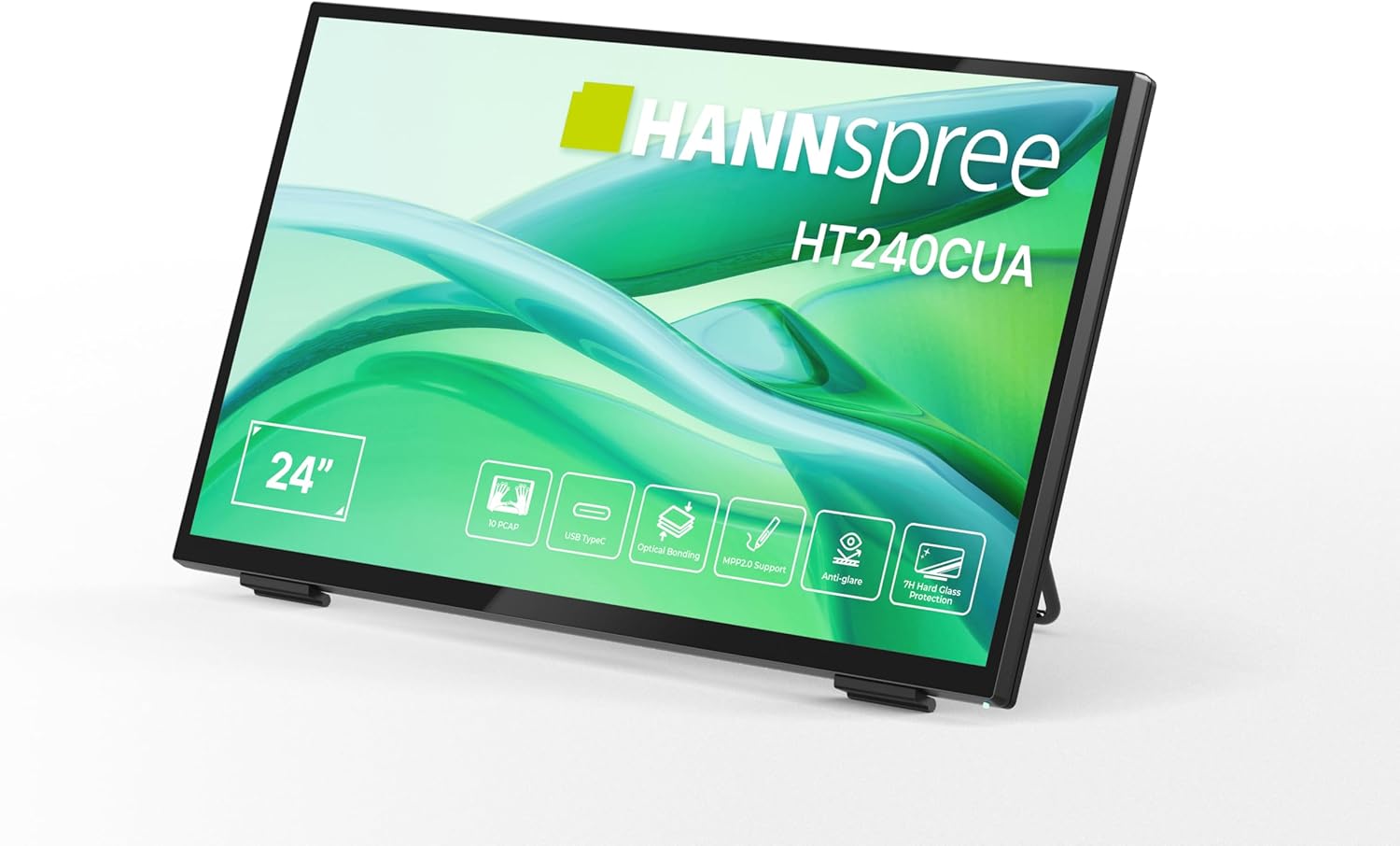
Front view of the HANNspree HT240CUA monitor, showcasing sein schlankes Design und sein 24-Zoll-Display.

Hinteren view of the HANNspree HT240CUA monitor, highlighting the various input/output ports including USB Type-C, HDMI, and DisplayPort.
Aufstellen
- Unpacking the Monitor: Carefully remove the monitor and all accessories from the packaging. Place the monitor on a stable, flat surface.
- Anschließen der Stromversorgung:
- Schließen Sie das Netzkabel an das Netzteil an.
- Plug the power supply into the DC IN port on the back of the monitor.
- Stecken Sie das andere Ende des Stromkabels in eine geerdete Steckdose.
- Anschließen an einen Computer:
- USB-Typ-C-Anschluss: For video, audio, and touch functionality with a single cable, connect the supplied USB A-C cable to the USB Type-C port on the monitor and to a compatible USB Type-C port on your computer.
- HDMI-Verbindung: Verbinden Sie ein Ende des HDMI-Kabels mit dem HDMI-Anschluss des Monitors und das andere Ende mit dem HDMI-Ausgang Ihres Computers.
- DisplayPort-Verbindung: Connect a DisplayPort cable (not included) to the DP port on the monitor and to the DisplayPort output on your computer.
- VGA-Anschluss: Connect a VGA cable (not included) to the VGA port on the monitor and to the VGA output on your computer.

Diagram illustrating the versatile connectivity options available on the HANNspree HT240CUA monitor, including USB-C, DisplayPort, HDMI, and VGA.
- Einstellen des Ständers: The monitor features an ergonomically adjustable stand with a tilt angle of 15-70 degrees. Adjust the stand to your preferred viewing-Winkel.
- VESA-Montage (optional): The monitor supports VESA mount 100 x 100 mm for alternative mounting solutions, such as wall mounts or mini PC attachments.
Bedienungsanleitung
Ein-/Ausschalten
Drücken Sie den Netzschalter an der Seite des Monitors, um ihn ein- oder auszuschalten.
Using the Multitouch Functionality
The HT240CUA supports 10-point PCAP multitouch. Ensure your operating system is configured for touch input.

Image showing the HANNspree HT240CUA monitor in use with 10-point multitouch functionality, allowing for smooth and precise interactions.
MPP 2.0 Stylus Support
The monitor supports MPP 2.0 compatible styluses (pen not included) for a pen-like writing and drawing experience with precise accuracy and low latency.
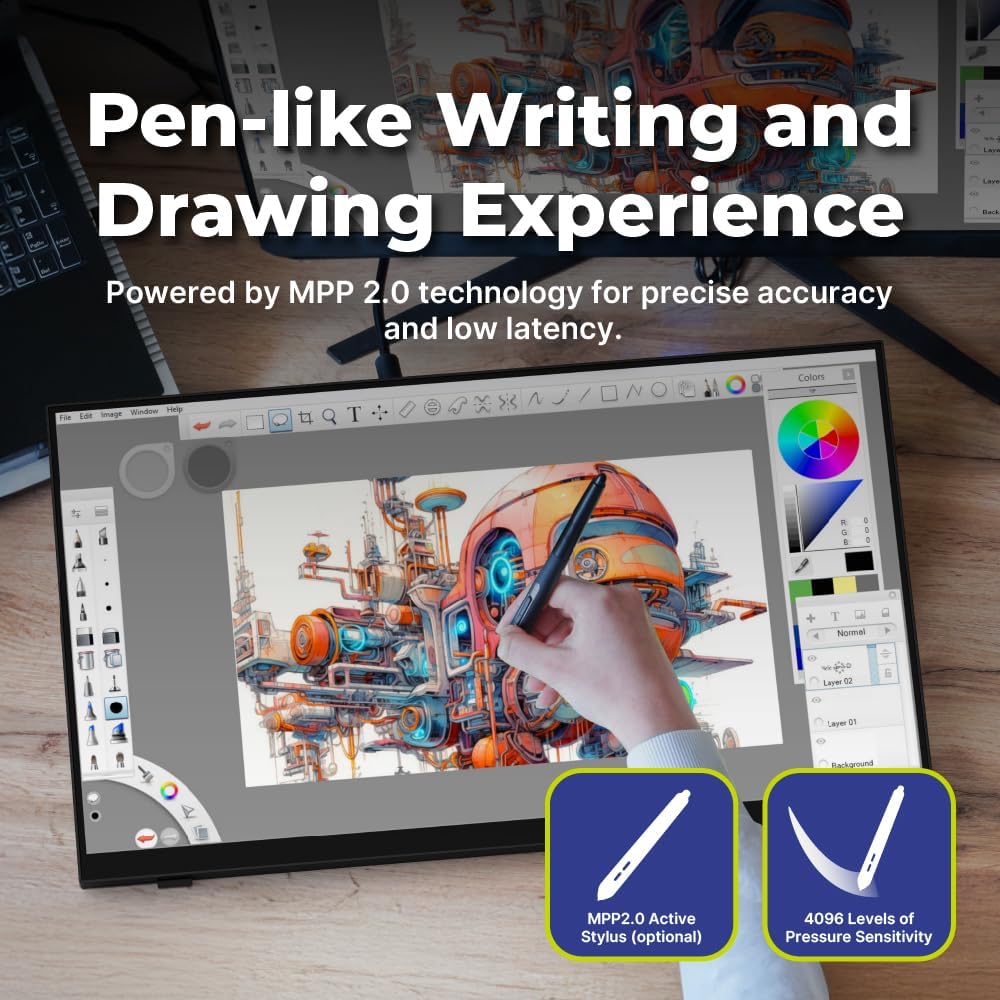
Illustration of the HANNspree HT240CUA monitor's support for MPP 2.0 styluses, enabling a natural writing and drawing experience.
Bildschirmmenü (OSD)
Use the buttons on the side of the monitor to navigate and adjust settings in the OSD menu. Common settings include brightness, contrast, input source selection, and color temperature.
- MENU-Taste: Öffnet das OSD-Menü.
- AUF/AB-Tasten: Navigieren Sie durch die Menüoptionen.
- ENTER-Taste: Wählt eine Option aus oder bestätigt eine Einstellung.
- EXIT-Taste: Exits the current menu or the OSD.
Wartung
Reinigen des Monitors
Um den Monitorbildschirm und c zu reinigenasing:
- Schalten Sie den Monitor aus und ziehen Sie das Netzkabel ab.
- Benutzen Sie ein weiches, fusselfreies Tuch, dampmit Wasser oder einem nicht scheuernden Bildschirmreiniger abspülen.
- Wischen Sie den Bildschirm vorsichtig ab und casing. Avoid applying excessive pressure.
- Do not use alcohol, benzene, thinners, or other harsh chemicals, as these may damage the screen surface or casing.
Lagerung
Wenn Sie den Monitor über einen längeren Zeitraum lagern, stellen Sie sicher, dass er ausgeschaltet, vom Stromnetz getrennt und an einem kühlen, trockenen Ort, fern von direkter Sonneneinstrahlung und extremen Temperaturen, aufbewahrt wird.
Fehlerbehebung
Sollten Sie Probleme mit Ihrem Monitor haben, beachten Sie bitte die folgenden häufig auftretenden Probleme und Lösungen.
Kein Strom
- Ensure the power cable is securely connected to the monitor and the electrical outlet.
- Überprüfen Sie die ordnungsgemäße Funktion der Steckdose, indem Sie ein anderes Gerät anschließen.
- Prüfen Sie das Netzteil auf sichtbare Beschädigungen.
Kein Bild auf dem Bildschirm
- Confirm that the monitor is powered on.
- Check the video cable (HDMI, DisplayPort, USB-C, VGA) connections at both the monitor and the computer.
- Stellen Sie sicher, dass im OSD-Menü des Monitors die richtige Eingangsquelle ausgewählt ist.
- Testen Sie den Monitor nach Möglichkeit mit einem anderen Computer oder einer anderen Videoquelle.
Die Touch-Funktion funktioniert nicht.
- For USB Type-C connections, ensure the cable supports data transfer for touch.
- If using HDMI/DP/VGA, ensure a separate USB cable is connected from the monitor's USB upstream port to your computer for touch data.
- Check your computer's operating system settings for touch screen calibration or driver issues.
- Restart both the monitor and the computer.
Probleme mit der Bildqualität
- Passen Sie Helligkeit, Kontrast und Farbeinstellungen über das OSD-Menü an.
- Stellen Sie sicher, dass die Bildschirmauflösung Ihres Computers auf die native Auflösung des Monitors (1920 x 1080) eingestellt ist.
- Prüfen Sie, ob der Bildschirm oder die Kabel physische Schäden aufweisen.
Technische Daten
| Besonderheit | Spezifikation |
|---|---|
| Bildschirmgröße | 23.8 Zoll |
| Auflösung | 1920 x 1080 (Full HD) |
| Seitenverhältnis | 16:9 |
| Touch Technology | PCAP, 10-point multitouch |
| Oberflächenhärte | 7H gehärtetes Glas |
| Helligkeit | 270 cd/m² |
| Konnektivität | USB Type-C (Video/Audio/Touch), HDMI, DisplayPort, VGA, USB Hub 3.0 (2x) |
| Lautsprecher | Integriert |
| Neigungswinkel | 15-70 Grad |
| VESA-Montierung | 100 x 100 mm |
| Stiftunterstützung | MPP 2.0 (pen not included) |
| Produktabmessungen (L x B x H) | 21.65 x 13.12 x 1.94 Zoll |
| Artikelgewicht | 12.39 Pfund |
Garantie und Support
For warranty information, please refer to the included Warranty Card in your package. For technical support or service inquiries, please visit the official HANNspree webWebsite oder wenden Sie sich an die Kundendienstabteilung.
Keep your purchase receipt and product serial number (found on the back of the monitor) readily available when contacting support.


