
1. Einleitung
The Thunderobot L1 Computer Monitor Lamp is designed to provide optimal lighting for your workspace, focusing on eye comfort and visual clarity. It features an asymmetric light source, high color rendering (Ra≥95), flicker-free illumination, low blue light protection, and adjustable color temperature and brightness levels.
2. Sicherheitshinweise
- Stellen Sie sicher, dass die lamp is securely placed on the monitor to prevent accidental falls.
- Setzen Sie das l nicht ausamp zu Wasser oder übermäßiger Feuchtigkeit.
- Avoid disassembling the product. Contact support for repairs.
- Verwenden Sie zur Stromversorgung ausschließlich das mitgelieferte USB-Kabel.
- Außerhalb der Reichweite von Kindern aufbewahren.
3. Packungsinhalt
Überprüfen Sie, ob alle Artikel im Paket vorhanden sind:
- Thunderobot L1 Computer Monitor Lamp
- USB-Stromkabel
- Bedienungsanleitung
4. Einrichtungsanweisungen
- Positionierung des Lamp: Gently place the Thunderobot L1 Monitor Lamp on top of your computer monitor. The gravity-activated clamping mechanism and silicone anti-slip stabilizers will help secure it in place. Adjust the lamp's angle using the dual-pivot adjustment system to direct light onto your workspace without screen glare.
- Strom anschließen: Connect the provided USB cable to the USB-C port on the lamp and plug the other end into an available USB port on your computer or a USB power adapter (not included). The lamp wird sich einschalten.

Image: The Thunderobot L1 lamp features a gravity-activated clamp, silicone stabilizers, and a dual-pivot adjustment system for secure and flexible positioning.
Video: This video demonstrates the assembly and installation of the Thunderobot L1 Computer Monitor Lamp, showing how to attach it to a monitor and connect the power cable.
5. Bedienungsanleitung
The Thunderobot L1 Monitor Lamp features intuitive touch controls located on the top surface of the lamp.
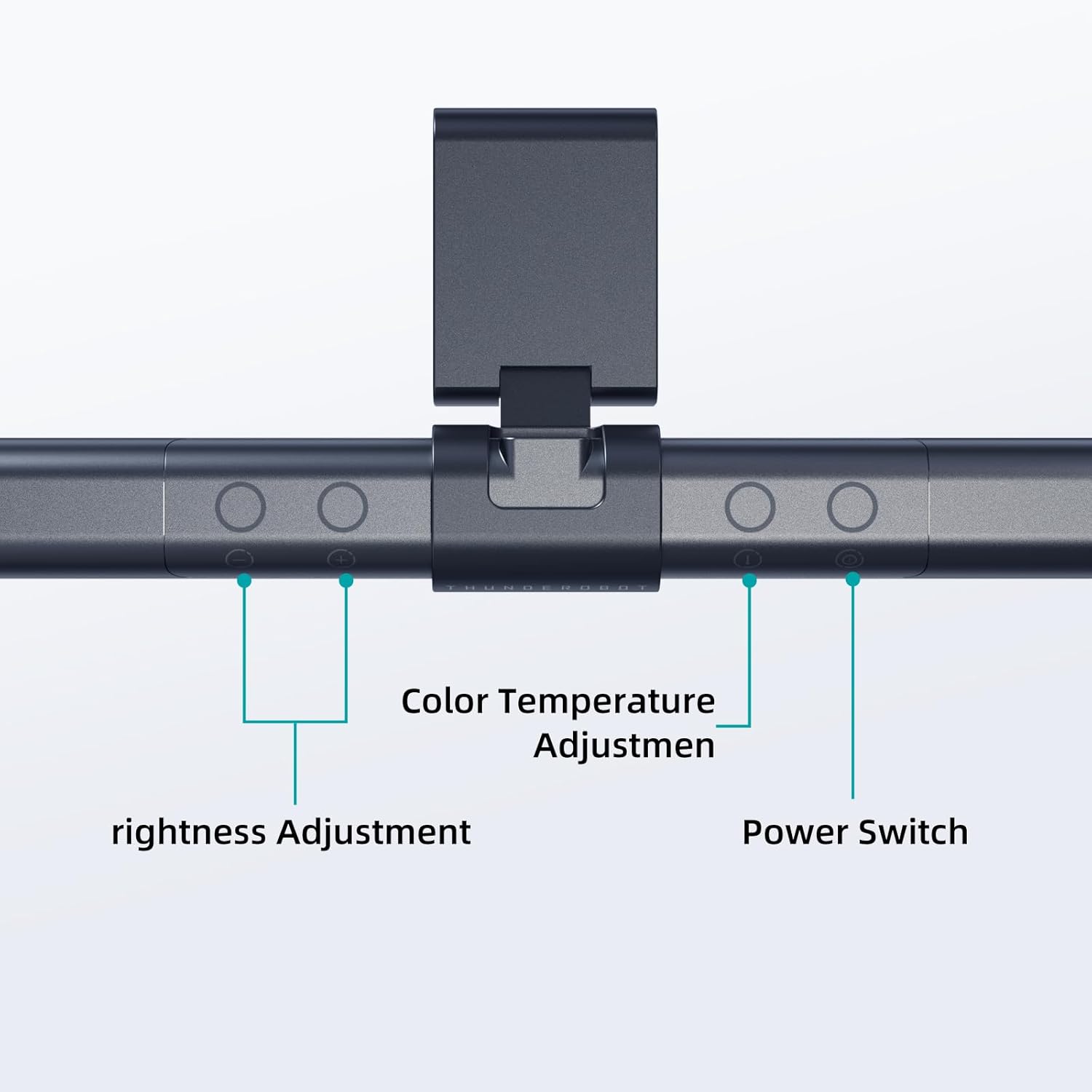
Image: The touch controls include buttons for brightness adjustment, color temperature adjustment, and power.
- Ein-/Ausschalten: Drücke den Power Knopf (O), um das lamp ein oder aus.
- Helligkeitsanpassung: Verwenden Sie die Helligkeitsregler (+ Und -) to cycle through ten levels of brightness.
- Anpassung der Farbtemperatur: Drücken Sie die Farbtemperaturtaste (i) to switch between six different color temperature settings.

Bild: Das lamp offers six adjustable color temperatures, ranging from 3000K (Warm Light) to 6000K (Cool White Light), suitable for various activities like movie viewing, reading, studying, and working.
6. Hauptmerkmale
- Asymmetric Light Source: The advanced asymmetric light design ensures uniform light distribution across the workspace, eliminating screen glare and shadows. This optimizes the light path for comfortable, prolonged use.
- Ra≥95 High Color Rendering: With a color rendering index of Ra≥95, the lamp accurately reproduces colors, providing a vivid and true-to-life visual experience for various tasks.
- Flimmerfreie Beleuchtung: Equipped with flicker-free technology, this lamp provides constant, stable illumination, reducing eye strain and headaches associated with traditional lighting.
- Low Blue Light Protection: Advanced low blue light technology reduces harmful blue wavelengths, alleviating eye strain, dryness, and fatigue, especially during extended screen time.
- Six Color Temperatures: Offers a versatile range of six color temperature options, from warm white to cool white, allowing users to customize the lighting atmosphere for different scenarios and preferences.
- Ten-Level Dimming: Provides ten adjustable brightness levels for precise control over illumination intensity.

Image: The Ra≥95 High CRI ensures colors are displayed accurately and vibrantly, as demonstrated by the fruit comparison.

Bild: Das lamp provides low blue light protection, reducing harmful blue light exposure for eye comfort.
7. Spezifikationen
| Besonderheit | Detail |
|---|---|
| Technische Daten | 3.5"T x 17.7"B x 3.85"H |
| Artikelgewicht | 16 Unzen |
| Lamp Typ | Schreibtisch Lamp |
| Schattenfarbe | Schwarz |
| Schirmmaterial | Polyester |
| Schaltertyp | Druckknopf |
| Konnektivitätstechnologie | USB (zur Stromversorgung) |
| Bandtage | 12 Volt |
| Farbe | Schwarz |
| Form | Wohnung |
| Materialtyp | Polycarbonat |
| Modellnummer | TH-L1-B2 |
8. Wartung
- Reinigung: Vor der Reinigung die Stromzufuhr unterbrechen. Verwenden Sie ein weiches, trockenes Tuch, um die Oberfläche abzuwischen.amp. Keine Scheuer- oder Lösungsmittel verwenden.
- Lagerung: Bei längerer Nichtbenutzung lagern Sie das lamp an einem kühlen, trockenen Ort.
9. Fehlerbehebung
- Lamp geht nicht an:
- Stellen Sie sicher, dass das USB-Kabel fest mit beiden Anschlüssen verbunden istamp und die Stromquelle.
- Verify that the power source (USB port or adapter) is functional.
- Licht flackert:
- Überprüfen Sie die Stromverbindung.
- Sollte das Flackern anhalten, wenden Sie sich bitte an den Kundendienst.
- Controls are unresponsive:
- Disconnect and reconnect the power cable to reset the lamp.
- Achten Sie darauf, dass Ihre Finger sauber und trocken sind, wenn Sie Touch-Bedienelemente verwenden.
10. Garantie und Support
Thunderobot provides 1-year product quality support for the L1 Computer Monitor Lamp. For warranty claims or technical assistance, please contact Thunderobot customer service.