
1. Einleitung
Thank you for choosing the Dierya x TMKB M1 Wireless Gaming Mouse. This manual provides detailed instructions on how to set up, operate, and maintain your new gaming mouse. The M1 mouse offers versatile connectivity, high-precision tracking, and customizable features to enhance your gaming and productivity experience.
2. Produktüberschreitungview
2.1 Komponenten und Bedienelemente
Familiarize yourself with the various buttons and features of your Dierya M1 mouse:
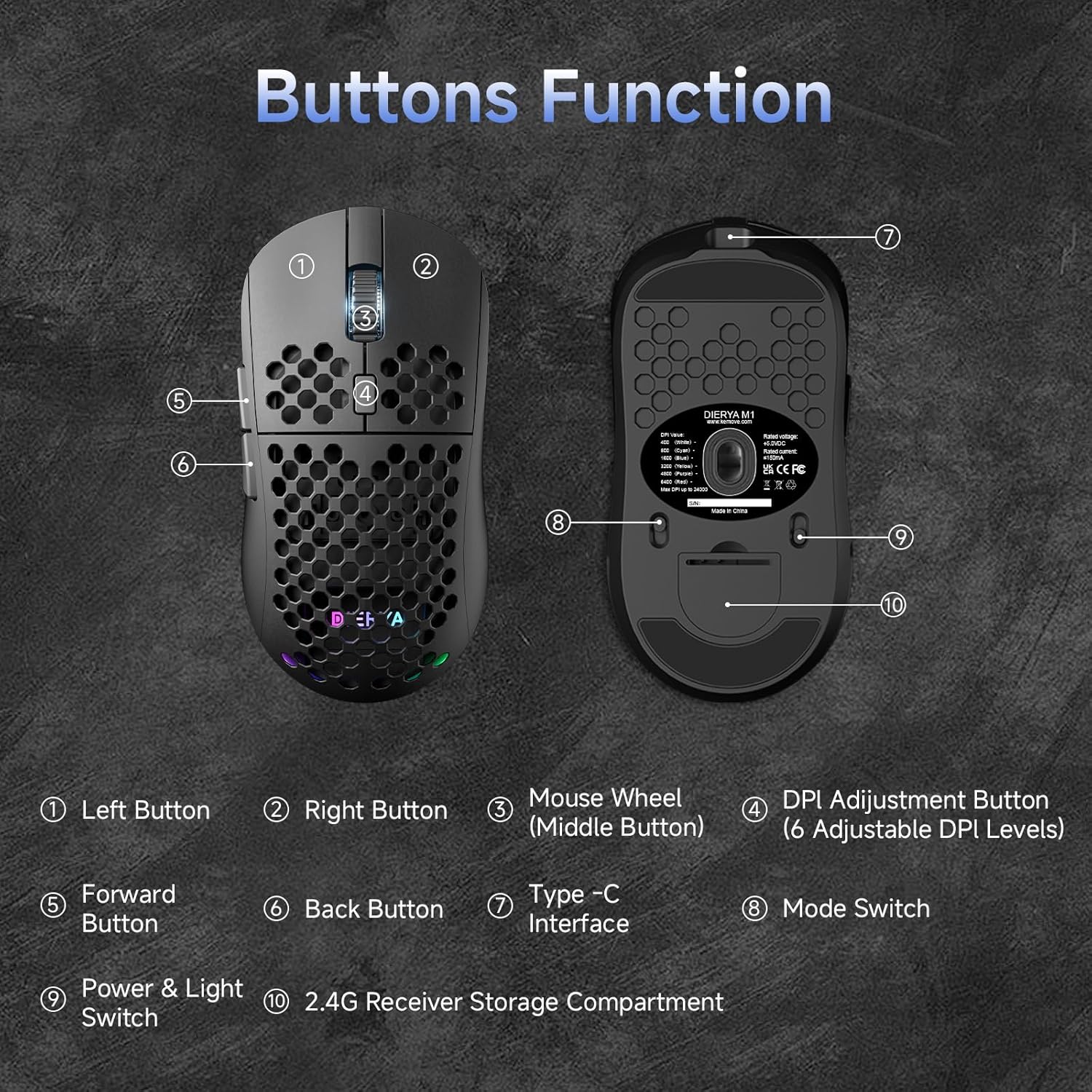
This diagram illustrates the various components of the Dierya M1 wireless gaming mouse. It highlights the Linke Taste (1), Rechter Knopf (2), Mouse Wheel (Middle Button) (3), DPI Adjustment Button (4) with 6 adjustable DPI levels, Forward Button (5), Back Button (6), Type-C Interface (7) for charging and wired connection, Modusschalter (8) for selecting connection type, Power & Light Switch (9)und die 2.4G Receiver Storage Compartment (10) befindet sich auf der Unterseite.
2.2 Hauptmerkmale
- Optischer Sensor mit 24,000 DPI: Adjustable DPI range from 200 to 24,000, with 6 preset levels (400-6400 DPI).
- Dreimodus-Konnektivität: Supports ultra-fast 2.4GHz wireless, energy-efficient Bluetooth 5.2, and stable USB-C wired connections.
- Lange Akkulaufzeit: 1000mAh battery provides up to 180 hours in ECO mode or 48 hours with RGB lighting, with 1-hour fast charging.
- Leichtes und ergonomisches Design: Weighs only 90g with a honeycomb shell for breathability and a symmetrical design (125x63x41 mm).
- Programmierbare Tasten: 6 customizable buttons via the M1 Driver software (Windows only).
- Dynamische RGB-Beleuchtung: 13 integrated RGB lighting effects with 16.8 million customizable colors.
- Hohe Leistung: 125-1000 Hz polling rate, 300 IPS tracking speed, and 35G acceleration.
- Langlebige Schalter: Equipped with Huano switches rated for 20 million clicks and 100% PTFE feet for smooth gliding.
3. Einrichtung
3.1 Aufladen der Maus
Before first use, it is recommended to fully charge the mouse. Connect the provided USB-C cable to the Type-C Interface (7) on the mouse and the other end to a USB power source (e.g., computer USB port, USB wall adapter).
- The mouse charges in approximately 1 hour.
- The scroll wheel LED will indicate charging status (e.g., red for charging, green for fully charged).
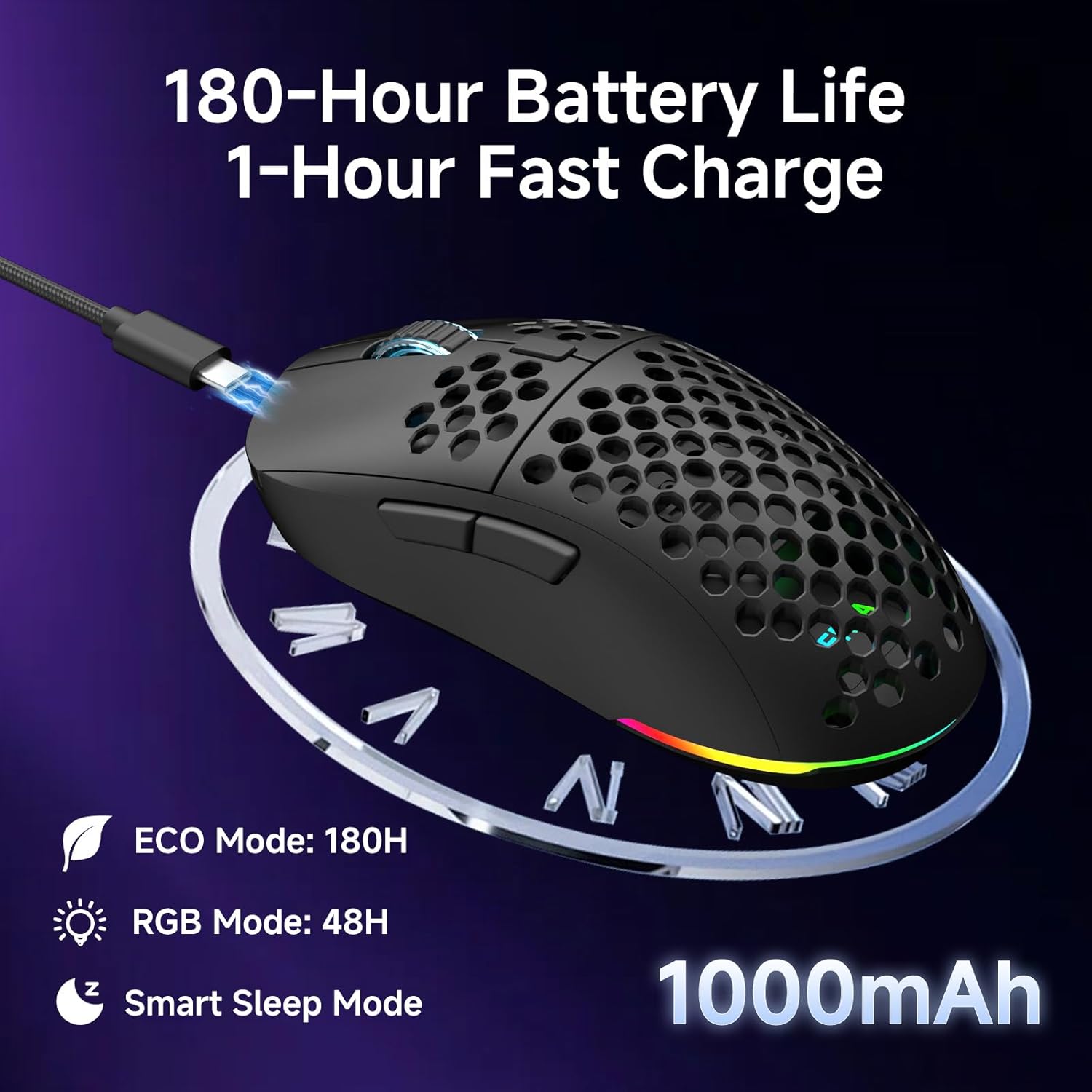
The Dierya M1 mouse features a 1000mAh battery, providing up to 180 hours of use in ECO mode or 48 hours with RGB lighting enabled. It supports fast charging, reaching full capacity in approximately 1 hour via the included USB-C cable. The mouse also includes a smart sleep mode to conserve power during inactivity.
3.2 Anschließen der Maus
The Dierya M1 mouse offers three connection modes: 2.4GHz Wireless, Bluetooth 5.2, and USB-C Wired.

The Dierya M1 mouse supports three flexible connection modes: Bluetooth 5.2 for energy-efficient pairing with up to two devices, 2.4GHz Wireless via a USB dongle for ultra-fast response, and a stable USB-C Wired connection for charging and direct use. Each mode offers a different polling rate, with 2.4GHz and wired modes providing 1000Hz, and Bluetooth offering 125Hz.
3.2.1 2.4-GHz-Funkverbindung
- Locate the 2.4G receiver in the storage compartment (10) on the underside of the mouse.
- Schließen Sie den 2.4-GHz-Empfänger an einen freien USB-Anschluss Ihres Computers an.
- Set the Mode Switch (8) on the underside of the mouse to the '2.4G' position.
- The mouse should connect automatically. The polling rate for this mode is 1000 Hz.
3.2.2 Bluetooth 5.2-Verbindung
- Set the Mode Switch (8) on the underside of the mouse to the 'BT' position.
- Öffnen Sie auf Ihrem Computer oder Gerät die Bluetooth-Einstellungen und suchen Sie nach neuen Geräten.
- Select 'Dierya M1' from the list of available devices to pair.
- The mouse supports Bluetooth 5.2 and has a polling rate of 125 Hz in this mode.
3.2.3 Kabelgebundene USB-C-Verbindung
- Connect the USB-C cable to the Type-C Interface (7) on the mouse.
- Verbinden Sie das andere Ende des USB-C-Kabels mit einem freien USB-Anschluss an Ihrem Computer.
- The mouse will automatically switch to wired mode and begin charging. The polling rate for this mode is 1000 Hz.
4. Bedienungsanleitung
4.1 DPI-Anpassung
The Dierya M1 mouse features a dedicated DPI Adjustment Button (4) to cycle through preset DPI levels. The scroll wheel LED color indicates the current DPI setting.
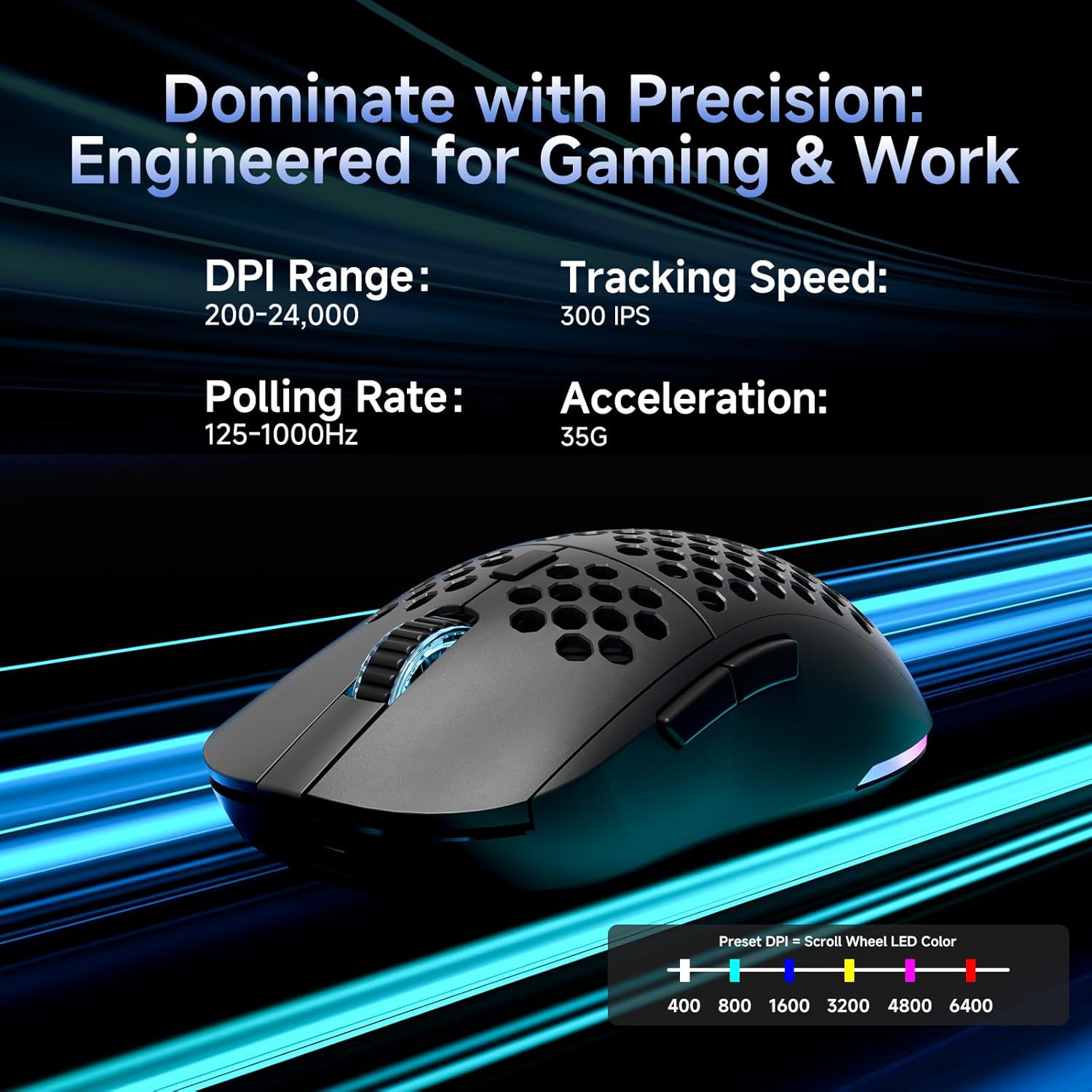
This image details the performance specifications of the Dierya M1 mouse, including a DPI range of 200-24,000, a tracking speed of 300 IPS, a polling rate of 125-1000Hz, and 35G acceleration. It also shows the preset DPI levels (400, 800, 1600, 3200, 4800, 6400) and the color indicators on the scroll wheel for each setting.
- Press the DPI Adjustment Button (4) to cycle through the 6 default DPI settings: 400, 800, 1600, 3200, 4800, and 6400 DPI.
- Each DPI level is indicated by a specific color on the scroll wheel LED.
- For custom DPI settings and a wider range (200-24,000 DPI), use the M1 Driver software.
4.2 RGB-Beleuchtungssteuerung
The Dierya M1 mouse features dynamic RGB lighting. You can control the lighting effects and colors using the M1 Driver software.
- The mouse has 13 built-in RGB lighting effects.
- Use the M1 Driver software to customize colors (16.8 million options), brightness, and speed of the lighting effects.
- The Power & Light Switch (9) on the underside can be used to turn the lighting on or off.
4.3 Programmierbare Tasten und Software
The M1 mouse has 6 programmable buttons that can be customized using the dedicated M1 Driver software.

The Dierya M1 driver software, currently available for Windows, allows users to customize various aspects of the mouse. This includes reassigning the 6 programmable buttons, creating macros, adjusting DPI settings, modifying the polling rate, and personalizing the 13 dynamic RGB lighting effects with 16.8 million colors.
- Software-Kompatibilität: The M1 Driver software is currently only available for Windows operating systems.
- Tastenbelegung: Reassign functions to any of the 6 programmable buttons (Left, Right, Middle, DPI, Forward, Back).
- Makroerstellung: Create and assign complex macros to streamline in-game actions or productivity tasks.
- DPI & Polling Rate: Fine-tune DPI settings beyond the presets and adjust the polling rate.
- RGB-Anpassung: Personalize lighting effects, colors, and patterns.
- Profile Management: Save and load different profiles für verschiedene Spiele oder Anwendungen.
4.4 Energiesparmodi
The M1 mouse is designed with automatic power-saving features to extend battery life:
- The mouse will enter an automatic power-saving mode after 1-5 minutes of inactivity.
- This inactivity time can be adjusted via the M1 Driver software.
- Um die Maus zu aktivieren, bewegen Sie sie einfach oder klicken Sie auf eine beliebige Taste.
5. Wartung
Proper maintenance ensures the longevity and optimal performance of your Dierya M1 mouse.
- Reinigung: Wischen Sie die Oberfläche der Maus mit einem weichen, trockenen Tuch ab. Bei hartnäckigem Schmutz verwenden Sie ein leicht feuchtes Tuch.amp Ein Tuch kann verwendet werden, achten Sie jedoch darauf, dass keine Feuchtigkeit in die Maus eindringt. Vermeiden Sie aggressive Chemikalien oder Scheuermittel.
- Sensorwartung: Um eine genaue Abtastung zu gewährleisten, halten Sie den optischen Sensor an der Unterseite der Maus sauber und frei von Staub und Schmutz.
- Batteriepflege: Avoid fully discharging the battery frequently. For long-term storage, charge the mouse to about 50% and store it in a cool, dry place.
- Lagerung: Bewahren Sie die Maus bei Nichtgebrauch an einem sauberen, trockenen Ort fern von extremen Temperaturen auf.
6. Fehlerbehebung
If you encounter issues with your Dierya M1 mouse, refer to the following common troubleshooting steps:
| Problem | Mögliche Ursache | Lösung |
|---|---|---|
| Maus reagiert nicht (2.4 GHz) | Niedriger Batteriestand, Empfänger nicht angeschlossen, falscher Modus, Störungen. | Charge the mouse. Ensure 2.4G receiver is securely plugged in. Set Mode Switch to '2.4G'. Try a different USB port. Reduce distance to receiver. |
| Maus reagiert nicht (Bluetooth) | Low battery, incorrect mode, not paired, Bluetooth off on device. | Charge the mouse. Set Mode Switch to 'BT'. Ensure Bluetooth is enabled on your device. Re-pair the mouse in Bluetooth settings. |
| Maus reagiert nicht (kabelgebunden) | Cable not connected, faulty cable/port. | Ensure USB-C cable is securely connected to both mouse and computer. Try a different USB port or cable. |
| Ungenaue Verfolgung | Verschmutzter Sensor, ungeeignete Oberfläche, falsche DPI-Einstellung. | Clean the optical sensor. Use a mouse pad or a clean, non-reflective surface. Adjust DPI settings. |
| RGB-Beleuchtung funktioniert nicht | Lighting switched off, low battery, software issue. | Check Power & Light Switch (9). Charge the mouse. Check settings in M1 Driver software. |
| Tasten nicht programmierbar | M1 Driver not installed/running, not on Windows. | Ensure M1 Driver software is installed and running (Windows only). Check software settings. |
7. Spezifikationen
| Modellname | M1 |
| Marke | Dierya |
| Konnektivitätstechnologie | 2.4-GHz-Funk, Bluetooth 5.2, USB-C-Kabel |
| Bewegungserkennungstechnologie | Optisch |
| DPI-Bereich | 200 - 24,000 DPI (6 preset levels: 400, 800, 1600, 3200, 4800, 6400) |
| Abfragerate | 125-1000 Hz |
| Tracking-Geschwindigkeit | 300 IPS |
| Beschleunigung | 35 G |
| Anzahl der Tasten | 6 (Programmierbar) |
| Batteriekapazität | 1000 mAh Lithium-Ionen- |
| Akkulaufzeit | Up to 180 hours (ECO mode), 48 hours (RGB mode) |
| Ladezeit | Ca. 1 Stunde |
| Gewicht | 90 Gramm |
| Maße | 125 x 63 x 41 mm |
| Schaltertyp | Huano (20 million clicks) |
| Fußmaterial | 100 % PTFE |
| Betriebssystemkompatibilität | Windows, macOS, Linux, Chrome OS |
| Driver Software Compatibility | Nur Windows |
8. Garantie und Support
8.1 Herstellergarantie
The Dierya M1 Wireless Gaming Mouse comes with a 1 Jahr HerstellergarantieDiese Garantie deckt Material- und Verarbeitungsfehler bei normalem Gebrauch ab. Bitte bewahren Sie Ihren Kaufbeleg für Garantieansprüche auf.
8.2 Kundendienst
For further assistance, technical support, or warranty inquiries, please refer to the official Dierya website or contact your retailer. Ensure you have your product model (M1) and proof of purchase ready when seeking support.