
1. Einleitung
Welcome to the user manual for your MEIZE D116 Android 14 Tablet. This guide provides essential information to help you set up, operate, maintain, and troubleshoot your device. Please read this manual thoroughly to ensure optimal performance and longevity of your tablet.
2. Packungsinhalt
Bevor Sie beginnen, überprüfen Sie bitte, ob alle Artikel in Ihrem Paket vorhanden sind:
- MEIZE D116 Android 14 Tablet
- Tastatur
- Maus
- Berühren Sie Stift
- Schutzhülle
- Ladeadapter
- USB-C-Kabel
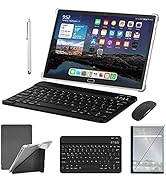
Image: The MEIZE D116 Tablet displayed with its complete set of accessories, including the keyboard, mouse, touch pen, protective case, charging adapter, and USB-C cable.
3. Gerätelayout
Familiarize yourself with the physical components of your MEIZE D116 tablet:

Image: A detailed diagram illustrating the location of the front camera, flash, rear camera, headphone jack, Micro SD slot, Type-C charging port, volume up/down buttons, and power button on the MEIZE D116 Tablet.
- Frontkamera: Für Videoanrufe und Selfies.
- Rear Camera & Flash: Für hochauflösende Fotos und Videos.
- Kopfhöreranschluss (3.5 mm): Schließen Sie kabelgebundene Kopfhörer an.
- Micro-SD-Steckplatz: Legen Sie eine Micro-SD-Karte zur Speichererweiterung ein.
- Typ C-Anschluss: Zum Aufladen und zur Datenübertragung.
- Lautstärketasten: Lautstärke anpassen.
- Netzschalter: Zum Ein-/Ausschalten oder Neustarten gedrückt halten; kurz drücken, um in den Ruhemodus zu wechseln.
- Referenten: Befindet sich am unteren Rand für den Audioausgang.
4. Einrichtung
4.1 Aufladen des Tablets
Before first use, fully charge your tablet. Connect the USB-C cable to the tablet's Type-C port and the other end to the charging adapter. Plug the adapter into a power outlet. The battery indicator on the screen will show charging status.
4.2 Ein-/Ausschalten
- So schalten Sie das Gerät ein: Press and hold the Power Button until the MEIZE logo appears.
- So schalten Sie das Gerät aus: Press and hold the Power Button until the power options appear on screen, then select "Power Off."
- Neustarten: Halten Sie den Netzschalter gedrückt, bis die Energieoptionen angezeigt werden, und wählen Sie dann „Neustart“.
4.3 Ersteinrichtungsassistent
Beim ersten Einschalten führt Sie das Tablet durch einen anfänglichen Einrichtungsprozess:
- Wählen Sie Ihre bevorzugte Sprache.
- Connect to a Wi-Fi network. This is crucial for downloading updates and setting up your Google account.
- Sign in with your Google account or create a new one. This is required to access the Google Play Store and other Google services.
- Follow the on-screen prompts to set up security features (PIN, pattern, or password) and other preferences.
4.4 Anschlusszubehör
Your MEIZE D116 tablet supports various accessories for enhanced productivity.
4.4.1 Bluetooth-Tastatur und -Maus
So verbinden Sie die mitgelieferte Bluetooth-Tastatur und -Maus:
- Stellen Sie sicher, dass Tastatur und Maus geladen und eingeschaltet sind.
- Gehen Sie auf Ihrem Tablet zu Einstellungen > Verbundene Geräte > Bluetooth.
- Bluetooth ein-/ausschalten On.
- The tablet will scan for available devices. Select the keyboard and mouse from the list to pair them. Follow any on-screen pairing instructions.

Image: A user operating the MEIZE D116 Tablet with an external Bluetooth keyboard and mouse, demonstrating its laptop-like functionality.
4.4.2 Touch Pen
The touch pen can be used for precise input, drawing, and navigation. No pairing is required for basic touch pen functionality.
5. Grundlegende Bedienung
5.1 Touchscreen-Gesten
- Klopfen: Wählen Sie ein Element aus oder öffnen Sie eine App.
- Tippen und halten: Kontextmenüs aufrufen oder Symbole verschieben.
- Wischen: Navigieren Sie durch Bildschirme oder scrollen Sie durch Inhalte.
- Pinch-to-Zoom: Bilder vergrößern oder verkleinern und web Seiten.
5.2 Navigation auf dem Startbildschirm
The home screen is your central hub for apps and widgets. You can customize it by adding or removing app icons and widgets.
5.3 App-Verwaltung
- Apps installieren: Laden Sie Apps aus dem Google Play Store herunter.
- Apps deinstallieren: Tap and hold an app icon, then drag it to the "Uninstall" option, or go to Einstellungen > Apps.
- Apps schließen: Swipe up from the bottom of the screen and swipe away the app card to close it.
5.4 Split-Screen-Funktionalität
The Android 14 operating system allows for split-screen multitasking. To use this feature:
- Öffne die erste App, die du verwenden möchtest.
- Wischen Sie vom unteren Bildschirmrand nach oben, um auf die zuletzt verwendeten Apps zuzugreifen. view.
- Tippe auf das App-Symbol oben auf der Karte der ersten App.
- Select "Split top" or "Split screen."
- Wählen Sie eine zweite App aus Ihren zuletzt verwendeten Apps oder dem App-Drawer aus, um die andere Hälfte des Bildschirms zu füllen.
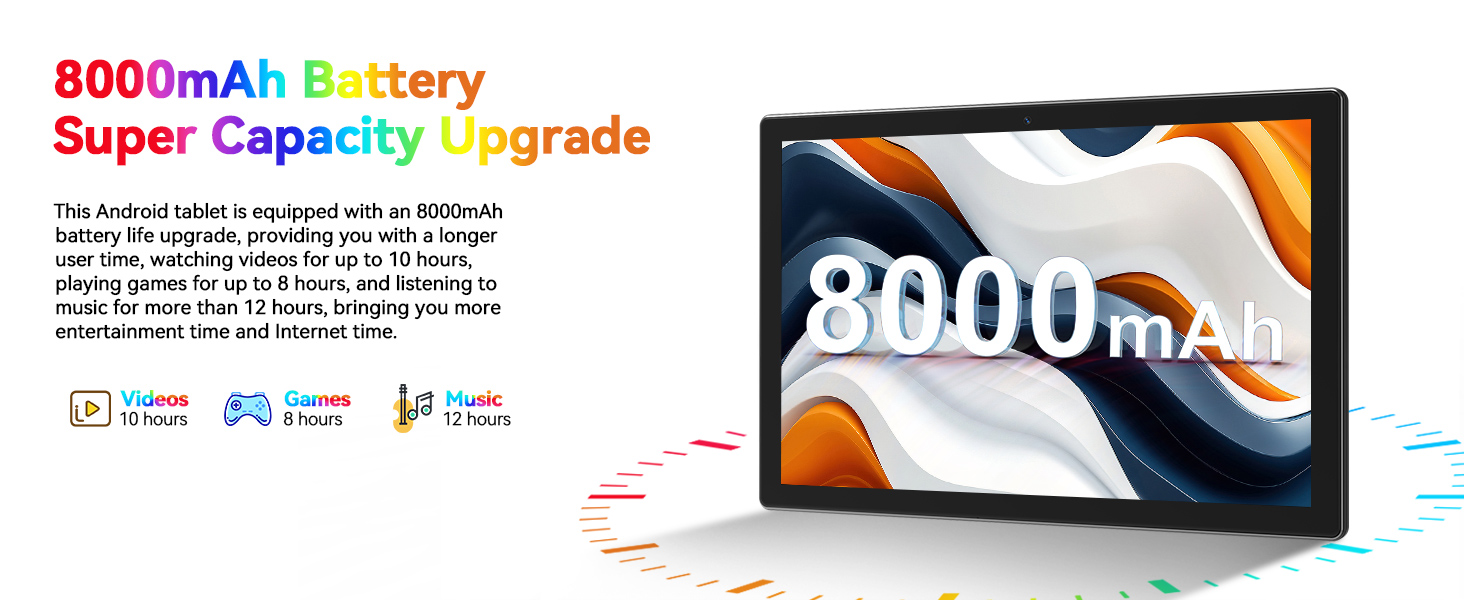
Bild: Examples of the MEIZE D116 Tablet in various usage scenarios, including video conferencing, reading, and professional work tasks.
6. Konnektivität
6.1 Wi-Fi-Verbindung
Your tablet supports 5G/2.4G dual-band Wi-Fi for stable and fast internet access.
- Gehe zu Einstellungen > Netzwerk & Internet > WLAN.
- WLAN ein-/ausschalten On.
- Wählen Sie das gewünschte Netzwerk aus der Liste aus und geben Sie gegebenenfalls das Passwort ein.

Image: The MEIZE D116 Tablet screen prominently displaying the 5G Wi-Fi symbol, indicating its capability for high-speed wireless connectivity.
6.2Bluetooth 5.0
Bluetooth 5.0 allows you to connect wireless headphones, speakers, keyboards, mice, and other compatible devices.
- Gehe zu Einstellungen > Verbundene Geräte > Bluetooth.
- Bluetooth ein-/ausschalten On.
- Wählen Sie aus der Liste das Gerät aus, das Sie koppeln möchten.
6.3 3.5-mm-Kopfhörerbuchse
For wired audio, connect your headphones to the 3.5mm headphone jack located on the tablet's side.
7. Kameranutzung
The MEIZE D116 tablet features a 13MP rear camera and an 8MP front camera for capturing photos and videos.
- Öffnen Sie die Kamera-App von Ihrem Startbildschirm oder aus der App-Übersicht.
- Wechseln Sie mithilfe des Kamera-Umschaltsymbols zwischen Front- und Rückkamera.
- Tippen Sie auf den Auslöser, um ein Foto aufzunehmen, oder drücken Sie die Aufnahmetaste, um die Videoaufnahme zu starten/stoppen.
- Access various camera modes and settings within the app for different effects and adjustments.

Bild: Examples demonstrating the clarity and detail captured by the 13MP rear camera and 8MP front camera of the MEIZE D116 Tablet.
8. Speicherung und Speicher
Your tablet comes with 128GB of internal storage and 8GB of RAM (expandable to 16GB virtually). You can further expand storage up to 512GB using a Micro SD card.

Image: The MEIZE D116 Tablet showcasing its large memory capacity, including 128GB internal storage, 16GB (8+8) running memory, and support for up to 512GB additional expansion.
8.1 Erweiterbarer Speicher
To insert a Micro SD card:
- Locate the Micro SD slot on the side of the tablet.
- Führen Sie die Micro-SD-Karte vorsichtig in den Steckplatz ein, bis sie einrastet.
- Das Tablet erkennt den neuen Speicher. Möglicherweise werden Sie aufgefordert, ihn für die Verwendung als portablen oder internen Speicher zu formatieren.
9. Batteriemanagement
The MEIZE D116 tablet is equipped with an 8000mAh battery, providing extended usage times.

Image: The MEIZE D116 Tablet with a visual representation of its 8000mAh battery, along with icons indicating approximate usage durations: 10 hours for videos, 8 hours for games, and 12 hours for music.
9.1 Optimieren der Akkulaufzeit
- Reduzieren Sie die Bildschirmhelligkeit.
- Schalten Sie WLAN und Bluetooth aus, wenn Sie sie nicht benötigen.
- Schließe Hintergrund-Apps.
- Aktivieren Sie den Batteriesparmodus in Einstellungen > Akku.
10. Wartung
10.1 Gerät reinigen
Reinigen Sie Bildschirm und Gehäuse des Tablets mit einem weichen, fusselfreien Tuch. Vermeiden Sie die Verwendung aggressiver Chemikalien oder scheuernder Materialien.
10.2 Softwareaktualisierungen
Prüfen Sie regelmäßig, ob Software-Updates verfügbar sind, und installieren Sie diese, um sicherzustellen, dass Ihr Tablet über die neuesten Funktionen und Sicherheitspatches verfügt. Gehen Sie zu Einstellungen > System > Systemupdate.
11. Fehlerbehebung
Sollten Sie Probleme mit Ihrem Tablet haben, beachten Sie bitte die folgenden gängigen Lösungsansätze:
- Gerät lässt sich nicht einschalten: Ensure the tablet is charged. Connect it to the charger and try powering on again.
- Probleme mit der Wi-Fi-Verbindung: Restart your tablet and your Wi-Fi router. Forget the network in settings and reconnect.
- Langsame Leistung: Close unnecessary background apps. Clear cache for frequently used apps. Consider performing a factory reset if performance does not improve (see below).
- Apps stürzen ab: Ensure apps are updated. Clear the app's cache and data in Einstellungen > Apps.
11.1 Werksreset
Durch das Zurücksetzen auf Werkseinstellungen werden alle Daten auf Ihrem Tablet gelöscht und der ursprüngliche Werkszustand wiederhergestellt. Sichern Sie daher vorab alle wichtigen Daten.
- Gehe zu Einstellungen > System > Optionen zurücksetzen.
- Wählen Alle Daten löschen (Werksreset).
- Bestätigen Sie Ihre Entscheidung und folgen Sie den Anweisungen auf dem Bildschirm.
12. Spezifikationen
Detailed technical specifications for the MEIZE D116 Android 14 Tablet:
| Besonderheit | Spezifikation |
|---|---|
| Marke | MEIZ |
| Modellname | T116 - Die wunderbare Welt der Träume |
| Betriebssystem | Android 14 |
| Bildschirmgröße | 10.1 Zoll |
| Bildschirmauflösung | 1280 x 800 Pixel |
| Prozessor | Achtkernprozessor, 2 GHz (MediaTek) |
| RAM | 8GB (16GB Expandable) |
| Interner Speicher | 128 GB |
| Erweiterbarer Speicher | Bis zu 512 GB (Micro-SD) |
| Rückfahrkamera | 13 Megapixel |
| Frontkamera | 8 Megapixel |
| Batteriekapazität | 8000 mAh |
| Durchschnittliche Akkulaufzeit | 10 Stunden |
| Kabellose Konnektivität | 802.11ac, 802.11b, 802.11g, 802.11n (5G/2.4G Dual Band Wi-Fi), Bluetooth 5.0 |
| Technische Daten | 10 x 7 x 0.3 Zoll |
| Artikelgewicht | 2.99 Pfund |
13. Garantie und Support
13.1 Eingeschränkte Garantie
Your MEIZE D116 tablet is covered by a limited manufacturer's warranty against defects in materials and workmanship under normal use. Please refer to the warranty card included in your package for specific terms and conditions, including warranty period and coverage details.
13.2 Kundendienst
For any questions, technical assistance, or warranty claims, please contact the MEIZE professional customer service team. They are dedicated to providing support and have extensive experience in assisting customers. Contact information can typically be found on the MEIZE official webauf der Website oder auf den Verpackungsmaterialien.