
Einführung
The Turtle Beach Rematch Advanced Wired Gaming Controller is designed for enhanced gaming performance across Xbox Series X|S, Xbox One, and Windows PC platforms. This manual provides detailed instructions for setup, operation, customization, and maintenance to ensure optimal use of your controller.
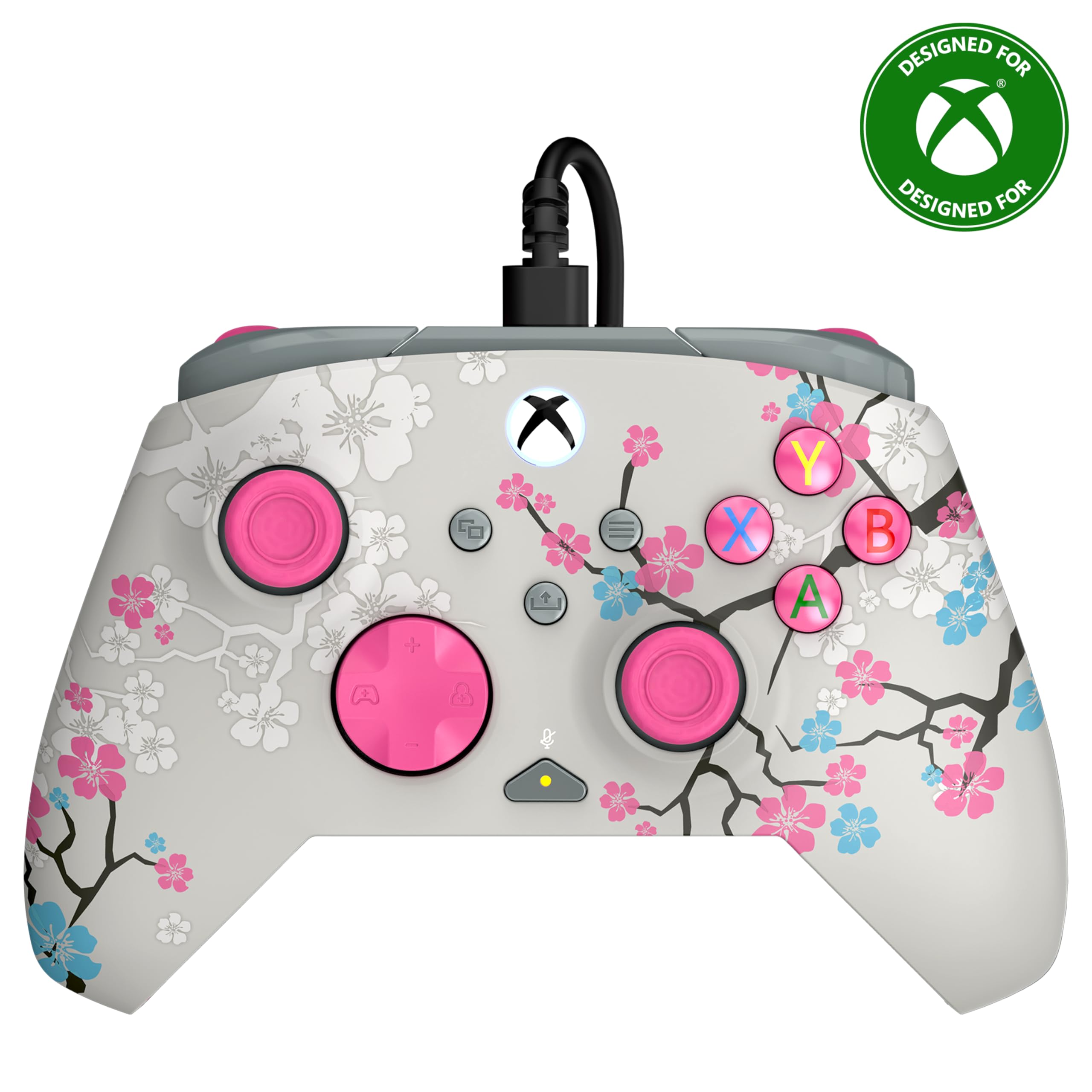
Image: The Turtle Beach Rematch Advanced Wired Gaming Controller in Cherry Blossom design, showcasing its vibrant aesthetic.
Packungsinhalt
- Turtle Beach Rematch Advanced Wired Gaming Controller
- Detachable 8ft / 2.5m USB-C Wired Connection Cable
Aufstellen
Anschließen des Controllers
- Locate the USB-C port on the top of your Rematch Advanced controller.
- Connect the smaller end of the provided USB-C cable to the controller's port.
- Connect the larger USB-A end of the cable to an available USB port on your Xbox console or Windows PC.
- Der Controller schaltet sich automatisch ein und verbindet sich. Die Xbox-Taste am Controller leuchtet auf, um eine erfolgreiche Verbindung anzuzeigen.
Bedienungsanleitung
Grundlegende Bedienelemente
The Rematch Advanced controller features standard Xbox button layouts including A, B, X, Y buttons, D-pad, left and right analog sticks, bumpers (LB, RB), and triggers (LT, RT). Familiarize yourself with these controls for basic gameplay.
Bord-Audiosteuerung
The controller includes integrated audio controls for convenient management of game and chat audio. Use the dedicated buttons on the D-pad for quick adjustments.

Image: The D-pad area of the controller, highlighting the built-in audio controls for game/chat mix, master volume, and mic mute.
- Game/Chat Mix: Adjust the balance between game audio and chat audio.
- Master-Lautstärke: Control the overall volume level.
- Mikrofon stumm: Schnelles Stummschalten oder Aufheben der Stummschaltung Ihres Mikrofons.
Remappable Quick-Action Back Buttons
Two programmable quick-action buttons are located on the back of the controller, allowing you to assign frequently used functions for improved responsiveness.

Image: The back of the controller, illustrating the placement of the two mappable quick-action buttons.
To map these buttons, refer to the Control Hub App section or the video below for detailed instructions.
Video: A demonstration on how to set up functions for the remappable back buttons on the controller.
2-Stop True Hall Effect Hair Triggers
The hair triggers feature two stop points, allowing for faster reaction times in games. Adjust the trigger stops to your preference for short or full pull distances.

Bild: Eine detaillierte view of the controller's trigger, highlighting the 2-stop True Hall Effect Hair Trigger functionality.
Dual Rumble Motors and Impulse Triggers
Experience immersive feedback through dual rumble motors in the grips and impulse triggers, providing realistic vibrations for in-game events.
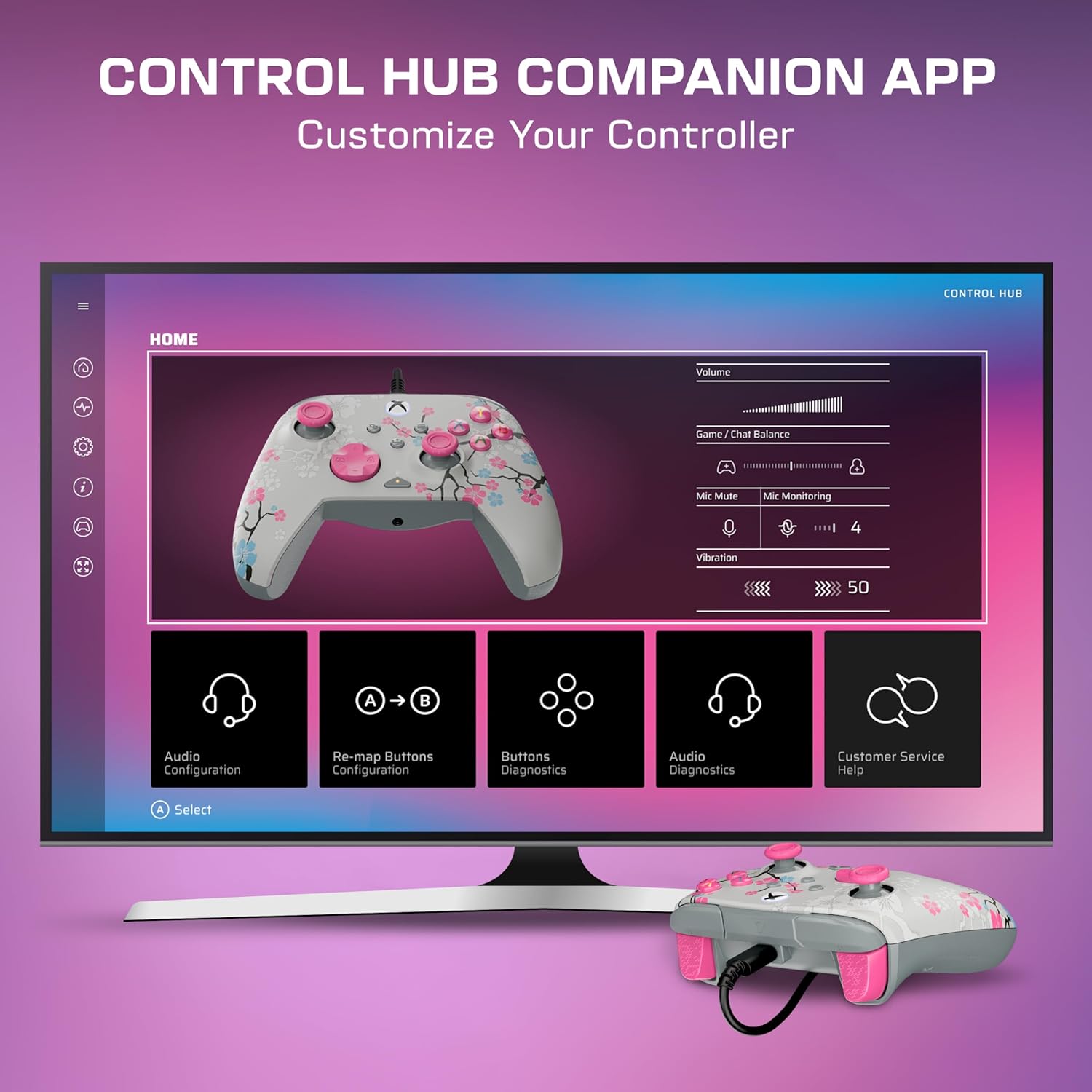
Bild: Ein transparentes view of the controller's side, revealing the internal dual rumble motors and impulse triggers for enhanced haptic feedback.
Control Hub App
Download the Turtle Beach Control Hub App for comprehensive controller configuration and diagnostics. The app allows you to customize button mappings, adjust audio settings, and perform diagnostic tests.

Image: A display showing the Turtle Beach Control Hub App, illustrating the various customization and diagnostic options available for the controller.
Besondere Merkmale
Glow-in-the-Dark Design
The Cherry Blossom design features elements that glow in the dark after exposure to UV light, adding a unique visual effect to your controller.

Image: The Cherry Blossom controller design illuminated with a glow-in-the-dark effect.
Ergonomisches Design
The controller is designed for extended comfort during long gaming sessions, featuring a comfortable grip and balanced weight.
Wartung
Reinigung
- Verwenden Sie ein weiches, trockenes Tuch, um die Oberfläche des Controllers abzuwischen.
- Bei hartnäckigen Verschmutzungen leicht dampspülen Sie das Tuch mit Wasser aus. Vermeiden Sie aggressive Chemikalien oder Scheuermittel.
- Ensure the controller is disconnected from any power source before cleaning.
Lagerung
Store the controller in a cool, dry place away from direct sunlight and extreme temperatures to prevent damage.
Fehlerbehebung
Controller reagiert nicht
- Stellen Sie sicher, dass das USB-C-Kabel sowohl mit dem Controller als auch mit der Konsole/dem PC fest verbunden ist.
- Versuchen Sie, den Controller an einen anderen USB-Anschluss anzuschließen.
- Starten Sie Ihre Xbox-Konsole oder Ihren PC neu.
- Verify that the controller's firmware is up to date using the Control Hub App.
Audio Probleme
- Check headphone connections to the controller's 3.5mm jack.
- Adjust game/chat mix and master volume using the on-board controls.
- Ensure your microphone is not muted.
- Test audio settings within your console or PC's system settings.
Technische Daten
| Besonderheit | Detail |
|---|---|
| Kompatible Geräte | PC, Windows, Xbox One, Xbox Series S, Xbox Series X |
| Controllertyp | Gamepad |
| Konnektivitätstechnologie | USB A, USB C (Wired) |
| Zusätzliche Merkmale | Ergonomic, Headphone Jack, Multiuse, Rumble |
| Anzahl der Tasten | 14 |
| Artikelgewicht | 13.76 Unzen |
| Artikelabmessungen (T x B x H) | 2.82"T x 6.9"B x 6.9"H |
| Modellname | Rematch Advanced (TBC-2004-85) |
| UPC | 840454400540 |
Garantie und Support
For detailed warranty information and support resources, please visit the official Turtle Beach support page:
Turtle Beach Warranty and End-User License
For further assistance, contact Turtle Beach customer support through their webWebsite.

Image: The product packaging displaying the 'Officially Licensed By Xbox' badge.