
Pisichen HD-22INTS-NEW
Pisichen 22 Inch Touchscreen Monitor User Manual
Model: HD-22INTS-NEW
Einführung
This manual provides detailed instructions for the installation, operation, and maintenance of your Pisichen 22 Inch FHD 1080P Touchscreen Monitor. Please read this manual thoroughly before using the product to ensure proper functionality and to prevent damage.
Produkteigenschaften
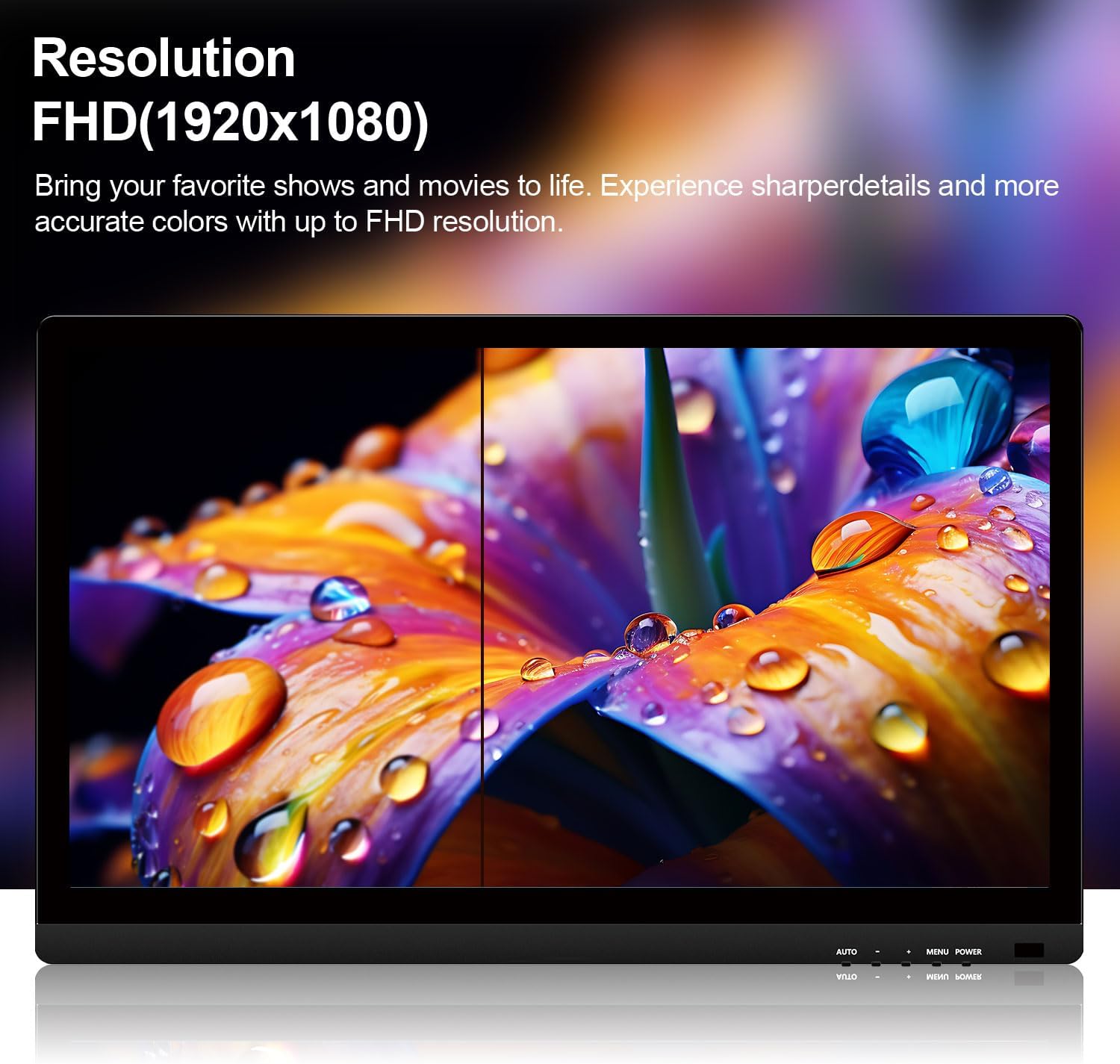
- 22-Inch Full HD (1920x1080P) Display: Provides crisp and detailed images with vibrant colors.
- 10-Point Capacitive Touch: Responsive multi-touch technology for intuitive interaction.
- Vielseitige Konnektivität: Equipped with HDMI, VGA, and USB ports for broad compatibility.
- Eingebaute Lautsprecher: Integriertes Audio für mehr Komfort.
- VESA-Halterung kompatibel: Unterstützt 75x75mm VESA-Montage für flexible Installation.
- Stabiler Stand: Designed to minimize wobbling during touch operation.
- Rahmenloses Design: Modern aesthetic with narrow bezels.
Packungsinhalt
Bitte überprüfen Sie, ob alle unten aufgeführten Artikel in Ihrem Paket enthalten sind:
- Pisichen 22 Inch Touchscreen Monitor
- Netzteil
- HDMI-Kabel
- VGA-Kabel
- USB-A to USB-B Cable (for touch functionality)
- Bedienungsanleitung

This image displays the 22-inch touchscreen monitor along with all the cables and power adapter necessary for its operation, including an HDMI cable, VGA cable, USB cable for touch, and the power supply.
Installationsanweisungen
1. Zusammenbau des Ständers
The monitor comes with a pre-attached stand designed for stability. Ensure the monitor is placed on a flat, stable surface. The stand is fixed and offers limited adjustability for angle. For enhanced stability during touch use, the stand is securely fastened.

This image illustrates the robust design of the monitor's stand, engineered to provide stability and prevent wobbling during touch interactions. It shows the base and the connection point to the monitor.
2. VESA-Wandmontage (optional)
The monitor supports VESA 75x75mm mounting standards. This allows for installation on compatible wall mounts or adjustable arms (sold separately). To mount the monitor, remove the stand (if detachable) and secure the monitor to the VESA mount using appropriate screws.

Dieses Bild zeigt die Rückseite. view of the monitor, clearly indicating the VESA 75x75mm mounting pattern for wall or arm installation. It also shows the overall dimensions of the monitor.
3. Verbindungskabel
Verbinden Sie die erforderlichen Kabel mit den entsprechenden Anschlüssen auf der Rückseite des Monitors und Ihres Computers:
- Leistung: Connect the power adapter to the DC port on the monitor and then to a power outlet.
- Video-Eingang:
- For HDMI connection: Connect one end of the HDMI cable to the monitor's HDMI port and the other end to your computer's HDMI output.
- For VGA connection: Connect one end of the VGA cable to the monitor's VGA port and the other end to your computer's VGA output.
- Touch-Funktionalität: To enable touch input, connect the USB-A to USB-B cable from the monitor's USB port to an available USB port on your computer.
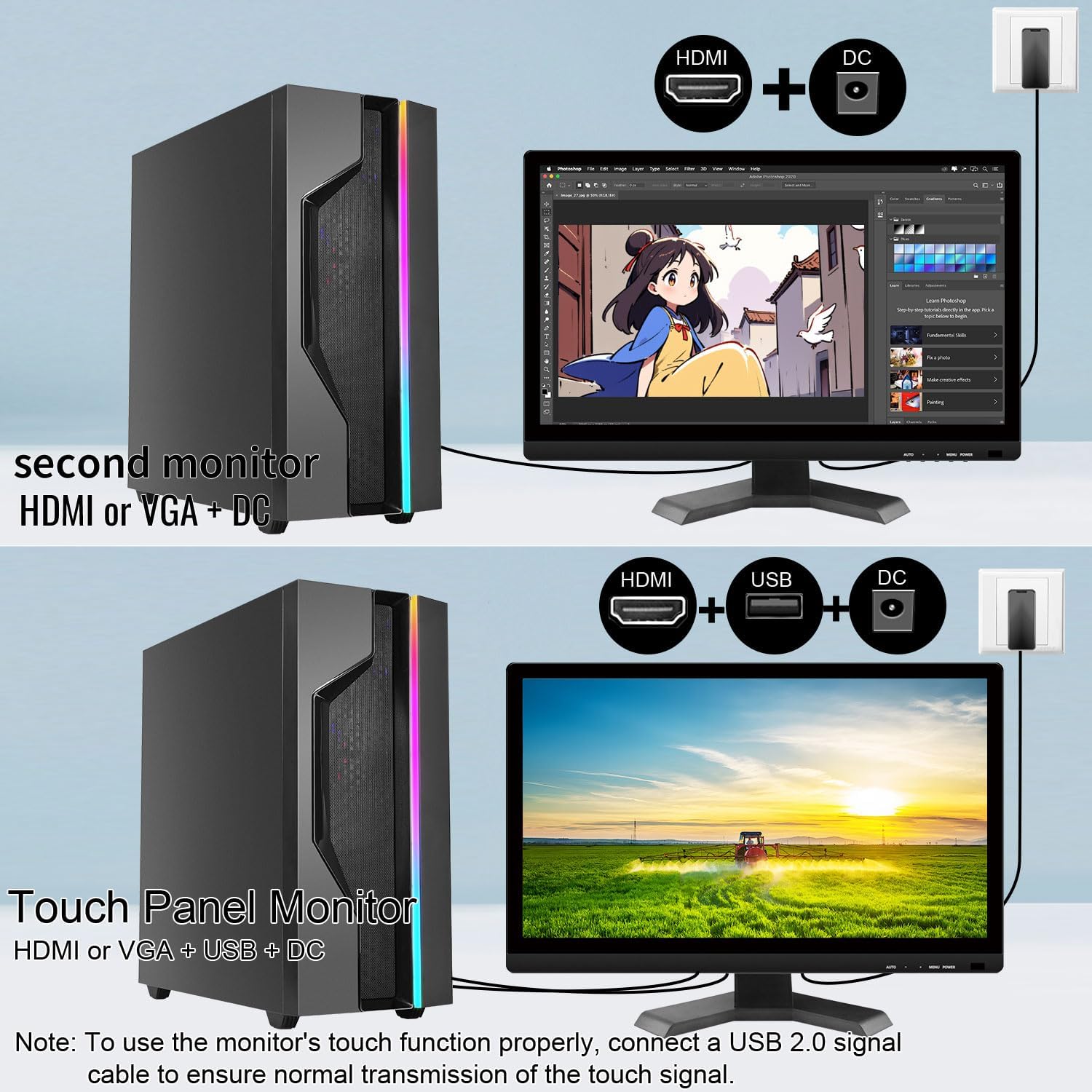
This diagram illustrates the required cable connections for the monitor. It shows the HDMI, VGA, USB, and DC power ports, and how they connect to a computer to enable both display and touch functions.

This image highlights the different input and output ports available on the monitor, including HDMI, VGA, DC power input, and a USB port for touch functionality.
Bedienungsanleitung
1. Ein-/Ausschalten
Drücken Sie die LEISTUNG button located on the bottom right of the monitor to turn it on or off. The power indicator light will illuminate when the monitor is active.
2. Bildschirmmenü (OSD)
Use the buttons on the bottom right of the monitor to navigate and adjust settings:
- SPEISEKARTE: Öffnet das OSD-Menü.
- +: Navigiert nach oben oder erhöht Werte.
- -: Navigiert nach unten oder verringert Werte.
- WAGEN: Automatische Anpassung der Bildeinstellungen (für VGA-Eingang).
Common OSD settings include brightness, contrast, color temperature, and input source selection.
3. Touch-Funktionalität
Once the USB cable is connected to your computer, the monitor's 10-point multi-touch function will be active. This allows for gestures such as tapping, swiping, pinching to zoom, and two-handed operations, similar to a tablet or smartphone.

This image demonstrates the monitor's multi-touch capability, showing two individuals simultaneously interacting with the screen, highlighting its responsiveness and support for multiple touch signals.
This image illustrates the convenience of the touchscreen, showing a user interacting directly with the display for tasks like zooming, eliminating the need for a traditional mouse and keyboard in certain applications.
4. Eingebaute Lautsprecher
The monitor includes built-in speakers for audio output. Audio will be routed through HDMI or VGA (if supported by your system) and can be controlled via your computer's volume settings or the monitor's OSD menu.
Anwendungen und Anwendungsfälle
The Pisichen touchscreen monitor is designed for various environments and applications:
- Einzelhandels- und Gastronomiesysteme: Ideal for point-of-sale (POS) systems and ordering machines, enabling fast and interactive transactions.
- Büro für vertikale Bildschirme: Suitable for displaying code, documents, or data in a vertical orientation, reducing the need for scrolling.
- Selbstbedienungsterminals: Perfect for bank ATMs, hospital registration, and airport check-in, allowing users to complete tasks independently.
- Lager- und Logistikmanagement: Facilitates inventory inquiry and goods sorting with quick touch responses.
- Produktionslinienkonsole: Used for real-time monitoring and adjusting production parameters directly on the screen.

This image depicts the monitor being used as a POS system in a retail setting, demonstrating its utility for interactive ordering and checkout processes.

This image shows the monitor configured in a vertical orientation, suitable for tasks like programming or document review, allowing more content to be viewed without scrolling.
Wartung
Um die Langlebigkeit und optimale Leistung Ihres Monitors zu gewährleisten, befolgen Sie bitte diese Wartungsrichtlinien:
- Reinigen des Bildschirms: Wischen Sie den Bildschirm vorsichtig mit einem weichen, fusselfreien Tuch ab. Bei hartnäckigen Flecken leicht andrücken.ampBefeuchten Sie das Tuch mit Wasser oder einem für Bildschirme geeigneten Reinigungsmittel. Vermeiden Sie aggressive Chemikalien oder Scheuermittel.
- Reinigung des Casing: Verwenden Sie ein weiches, trockenes Tuch, um den Monitor zu reinigen.asing.
- Belüftung: Um eine Überhitzung zu vermeiden, stellen Sie sicher, dass die Lüftungsöffnungen des Monitors frei und nicht verstopft sind.
- Lagerung: Bei längerer Nichtbenutzung sollte der Monitor an einem kühlen, trockenen Ort, fern von direkter Sonneneinstrahlung und extremen Temperaturen aufbewahrt werden.
Fehlerbehebung
If you encounter issues with your Pisichen touchscreen monitor, refer to the following common solutions:
Kein Display / Stromproblem
- Stellen Sie sicher, dass das Netzteil sowohl mit dem Monitor als auch mit einer funktionierenden Steckdose fest verbunden ist.
- Check if the power indicator light on the monitor is on. If not, press the POWER button.
- Verify that the video cable (HDMI or VGA) is correctly connected to both the monitor and your computer.
- Try connecting the monitor to a different power outlet or using a different power cable if available.
Touch-Funktion funktioniert nicht
- USB-Verbindung: Ensure the USB-A to USB-B cable is securely connected from the monitor's USB port to your computer's USB port. The touch function requires this dedicated USB connection in addition to the video cable.
- Treiberinstallation: For Windows operating systems, the touch functionality is typically plug-and-play. If issues persist, check your computer's Device Manager for any unrecognized devices or update USB drivers.
- Windows-Kalibrierung: If touching the display moves the cursor incorrectly, go to Control Panel > Hardware and Sound > Tablet PC Settings. Select this touchscreen monitor when prompted and follow the calibration instructions.
- macOS Compatibility: Due to macOS system restrictions, the touch function of this monitor will nicht work after connecting to a MacBook or other Apple devices.
- Nicht unterstützte Geräte: Some devices, including PS3/4/5, Switch, Xbox, Steam Deck, TV stick, TV cube, and certain Apple products, do not support touch functionality with this monitor due to platform-specific restrictions.

This image presents a list of frequently asked questions, providing quick answers to common concerns regarding touch connectivity, cursor behavior, stand adjustability, and compatibility with macOS.

This image visually lists devices such as PlayStation consoles, Xbox, Nintendo Switch, and Steam Deck, indicating that their platforms do not support the touch functionality of this monitor.
Wobbly Stand
- Ensure the monitor is placed on a completely flat and stable surface.
- While the stand is designed for stability, excessive force during touch interaction may cause slight movement. Use gentle and controlled touches.
- If wobbling is significant, consider VESA mounting the monitor to a more rigid arm or wall mount.
Technische Daten
| Besonderheit | Spezifikation |
|---|---|
| Marke | Pisichen |
| Modellnummer | HD-22INTS-NEW |
| Bildschirmgröße | 22 Zoll |
| Auflösung | FHD 1080p (1920 x 1080 Pixel) |
| Seitenverhältnis | 16:9 |
| Bildschirmfinish | Glänzend |
| Kontrastverhältnis | 800:1 |
| Bildwiederholrate | 60 Hz |
| Anzeigetyp | LED |
| Helligkeit | 250 Lux |
| Ansprechzeit | 5 Millisekunden |
| Konnektivitätstechnologie | HDMI, VGA, USB (for touch) |
| Hardware-Konnektivität | HDMI, USB 2.0 Type B, VGA |
| Zusätzliche Merkmale | Built-In Speakers, Frameless, Touchscreen |
| Produktabmessungen (T x B x H) | 2 x 52 x 38 Zentimeter (ca. 1.98 x 51.82 x 37.85 cm) |
| Artikelgewicht | 4.08 kg |
| VESA-Kompatibilität | 75 x 75 mm |
| Ursprungsland | China |
Garantieinformationen
This product comes with a limited warranty. For specific details regarding the warranty period and coverage, please refer to the warranty card included in your product packaging or contact customer support. The warranty description in the product specifications indicates a period of "1", which typically refers to one year from the date of purchase.
Kundenservice
If you experience any problems that are not listed in this manual or require further assistance, please contact our customer service team. When contacting support, please provide a detailed description of the issue, including any relevant pictures or videos, to help our technical team identify and resolve the problem efficiently.
E-Mail-Adresse des Kundendienstes: support_2308@163.com
You may also contact us via the Amazon platform for support.
Ask a question about this manual
Ask about setup, troubleshooting, compatibility, parts, safety, or missing instructions. Manuals+ will review the question and use this page’s manual context to help answer it.