
Einführung
The RAPOO E9050L is a versatile wireless keyboard designed for seamless connectivity across multiple devices and operating systems. Its ultra-slim profile, quiet keys, and long-lasting rechargeable battery make it ideal for various environments, from office to travel. This manual provides detailed instructions for setup, operation, maintenance, and troubleshooting to ensure optimal use of your keyboard.
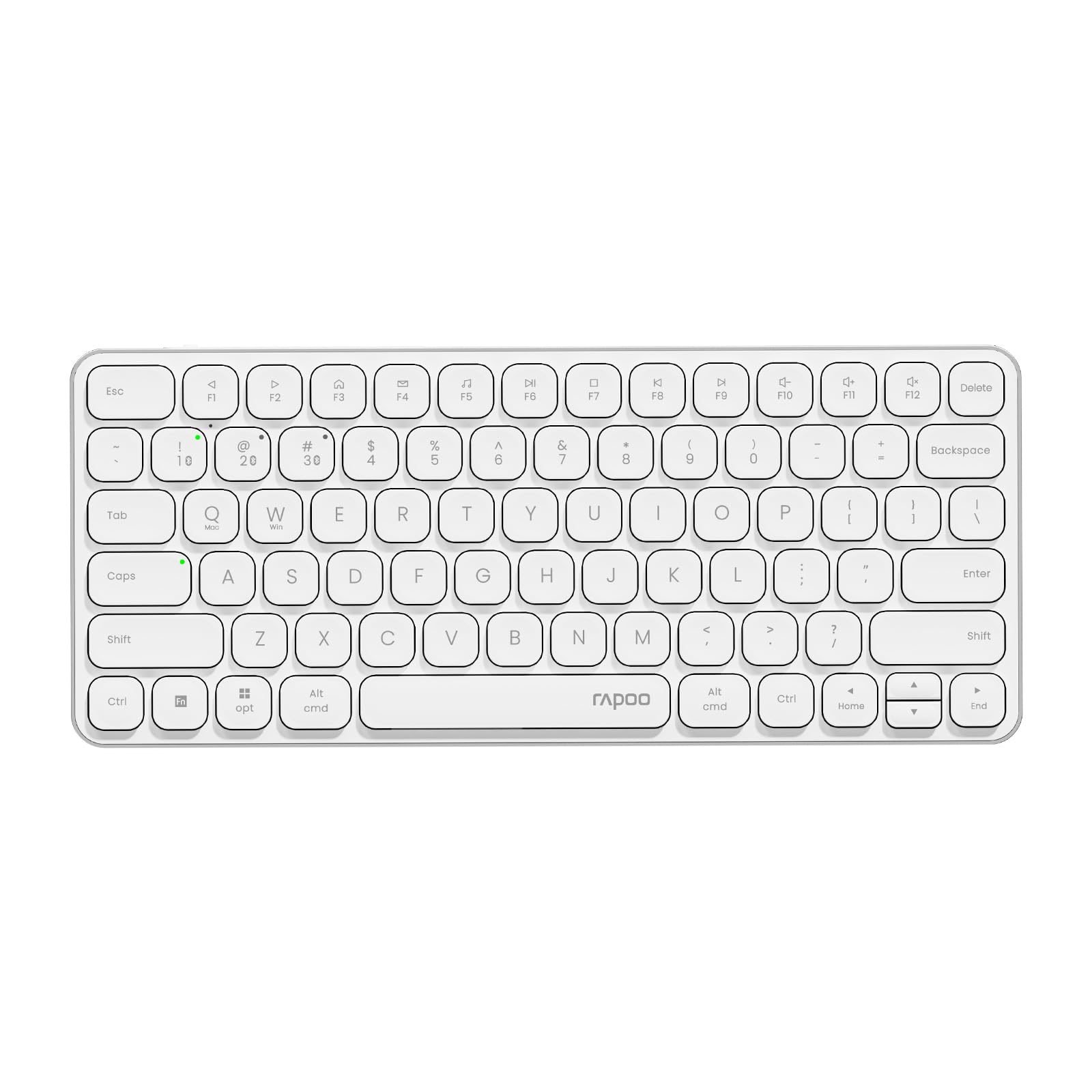
Image: The RAPOO E9050L Wireless Keyboard, showcasing sein elegantes Design.
Aufstellen
Packungsinhalt
- RAPOO E9050L Wireless Keyboard
- USB-C-Ladekabel
- Bedienungsanleitung
Aufladen der Tastatur
The E9050L features a built-in rechargeable battery. Before first use, fully charge the keyboard using the provided USB-C cable. A full charge can provide up to 90 days of continuous use. A quick 10-minute charge can provide enough power for one day of use.

Image: Diagram illustrating the rechargeable battery and charging indicators.
Connecting to Devices (Multi-Device & Multi-OS)
The keyboard supports wireless connection via 2.4GHz USB receiver or Bluetooth 5.0/4.0, allowing connection to up to 4 devices simultaneously. You can seamlessly switch between a notebook PC, desktop PC, tablet, or smartphone.

Image: Visual representation of multi-device and multi-OS connectivity options.
- Drahtlose 2.4-GHz-Verbindung:
Stecken Sie den USB-Empfänger in einen freien USB-Anschluss Ihres Computers. Die Tastatur sollte sich automatisch verbinden. - Bluetooth Verbindung:
Press and hold the Bluetooth pairing key (usually indicated by a Bluetooth icon or a specific Fn key combination) until the indicator light flashes. On your device (PC, tablet, smartphone), enable Bluetooth and search for "RAPOO E9050L". Select it to pair. - Wechseln zwischen Geräten:
Use the dedicated device switching keys (e.g., Fn + 1, Fn + 2, Fn + 3, Fn + 4) to switch between your paired devices. The corresponding indicator light will show which device is currently active.

Image: Icons representing compatibility with various operating systems including Windows, Mac OS, Linux, iOS, Android, and Chrome OS.
Bedienungsanleitung
Key Functions and Multimedia Hotkeys
The E9050L features a compact 78-key layout with 12 multimedia hotkeys for quick access to common functions like play/pause, volume control, and email. These functions are accessed by pressing the Fn key in combination with the corresponding F-keys (F1-F12).

Image: Diagram showing the multimedia hotkeys and their functions when used with the Fn key.
Betriebssystemwechsel
The keyboard supports dual system compatibility. To switch between Windows and Mac OS layouts, use the following key combinations:
- Für Windows: Drücken Sie Fn + W
- For Mac OS: Press Fn + Q
Kontrollleuchten
The keyboard includes indicator lights for device connection, Caps Lock status, and battery level. These lights provide clear visual feedback on the keyboard's current state, addressing user feedback for improved clarity.

Bild: Nahaufnahme view of the device indicator lights and Caps Lock indicator.
Tipperfahrung
The E9050L utilizes thin chiclet keycaps and a scissor-switch mechanism, providing a quiet and comfortable typing experience. The ultra-thin design (0.2 inches / 0.53 cm) reduces wrist strain, eliminating the need for a separate palm rest.

Bild: Detailliert view of the thin chiclet keycaps and scissor-switch mechanism.
Wartung
To ensure the longevity and optimal performance of your RAPOO E9050L keyboard, follow these maintenance guidelines:
- Reinigung: Mit einem weichen, fusselfreien Tuch leichtampened with water or a mild cleaning solution to wipe the keycaps and surface. Avoid harsh chemicals or abrasive materials.
- Staubentfernung: Verwenden Sie Druckluft, um Staub und Schmutz zwischen den Tasten zu entfernen.
- Vermeiden Sie Flüssigkeiten: Do not expose the keyboard to excessive moisture or submerge it in liquids. In case of spills, immediately disconnect the keyboard and allow it to dry completely before reuse.
- Lagerung: Bewahren Sie die Tastatur an einem kühlen, trockenen Ort fern von direkter Sonneneinstrahlung und extremen Temperaturen auf.
Fehlerbehebung
If you encounter issues with your RAPOO E9050L keyboard, refer to the following common solutions:
- Tastatur verbindet sich nicht:
- Stellen Sie sicher, dass die Tastatur aufgeladen ist.
- Verify that the 2.4GHz USB receiver is properly inserted or that Bluetooth is enabled and paired on your device.
- Versuchen Sie, die Bluetooth-Verbindung erneut zu koppeln oder den USB-Empfänger erneut einzustecken.
- Ensure you are on the correct device channel (Fn + 1/2/3/4).
- Keys Not Responding or Delayed Response:
- Check the battery level; low battery can affect performance.
- Ensure the keyboard is within range of your device (for Bluetooth/2.4GHz).
- Interference from other wireless devices can cause issues; try moving closer to your device or away from other wireless sources.
- Starten Sie Ihren Computer oder Ihr Gerät neu.
- Incorrect Key Output (e.g., @ key types "):
- This often indicates an incorrect keyboard layout setting on your operating system. Ensure your device's keyboard settings match the US layout of the E9050L.
- Verify the correct OS mode is selected on the keyboard (Fn + W for Windows, Fn + Q for Mac).
- Caps Lock / Device Indicator Not Working:
- Stellen Sie sicher, dass die Tastatur eingeschaltet und angeschlossen ist.
- If the issue persists, try restarting the keyboard and your device.
Technische Daten
| Besonderheit | Detail |
|---|---|
| Marke | RAPOO |
| Modellnummer | E9050L |
| Kompatible Geräte | Smartphones, Tablets, Notebook PCs, Desktop PCs |
| Konnektivitätstechnologie | Bluetooth, USB (2.4GHz) |
| Tastaturbeschreibung | Integriert |
| Empfohlene Verwendung | Personal, Business, Student, Everyday Use |
| Besondere Merkmale | Ergonomic, Silent |
| Farbe | Weiß |
| Produktabmessungen (L x B x H) | 28.4 cm x 11.9 cm x 1.3 cm (11.18 Zoll x 4.69 Zoll x 0.51 Zoll) |
| Material | Plastic (with aluminum frame) |
| Stromquelle | Batteriebetrieben (wiederaufladbar) |
| Schaltertyp | Mechanical (Scissor-switch) |
| Tastaturlayout | QWERTY (US Layout) |
| Unterstützte Betriebssysteme | Linux, Windows, Mac OS, iOS, Android, Chrome OS |
| Anzahl der Schlüssel | 78 |

Image: Diagram showing the precise dimensions of the RAPOO E9050L keyboard.
Garantie und Support
Garantieinformationen
The RAPOO E9050L Wireless Keyboard comes with a 1 Jahr Herstellergarantie Diese Garantie gilt ab Kaufdatum und deckt Material- und Verarbeitungsfehler bei normalem Gebrauch ab. Bitte bewahren Sie Ihren Kaufbeleg für Garantieansprüche auf.
Kundenservice
For technical assistance, troubleshooting, or warranty inquiries, please contact RAPOO customer support through the official website or your retailer. Detailed contact information can typically be found on the product packaging or the RAPOO official support page.