
Einführung
The Norwii N21 is a versatile Bluetooth presentation clicker designed to enhance your presentations. It combines multiple functions into one device, including wireless slide control, a telescopic pointer, a touchscreen stylus, a laser pointer, volume control, and a countdown timer with vibration alerts. This manual provides detailed instructions for setting up and operating your Norwii N21 presenter.
Hauptmerkmale
- Duale Konnektivität: Connects via Bluetooth or a USB-A receiver for broad compatibility.
- Präsentationssteuerung: Navigate slides forward and backward, activate full screen or black screen, and adjust system volume.
- Telescopic Pointer: Extends up to 65cm for physical pointing during presentations.
- Touchscreen-Stift: Integrated stylus on the telescopic pointer for writing on touch screens.
- Laserpointer: Built-in red laser for highlighting specific content. (Class II laser product)
- Countdown-Timer: Features vibration alerts at 10, 5, and 0 minutes before the set time ends, helping manage presentation duration.
- USB-C wiederaufladbar: Equipped with a 360mAh lithium battery, offering weeks of use on a 2-hour charge.
- Reprogrammable Buttons: Customize button functions via the Norwii Presenter software.

Abbildung 1: Überview of Norwii N21's six-in-one functionality.
Packungsinhalt
The Norwii N21 package typically includes:
- Norwii N21 Presentation Clicker
- USB-A Receiver (stored inside the clicker)
- USB-C-Ladekabel
- Bedienungsanleitung
- Schlüsselband (kann je nach Verpackung variieren)
Aufstellen
1. Aufladen des Geräts
Before first use, fully charge the Norwii N21. Connect the provided USB-C cable to the charging port on the side of the presenter and to a USB power source. The display will show the battery percentage during charging. A full charge takes approximately 2 hours and provides weeks of usage.

Figure 2: Charging the Norwii N21 via USB-C port.
2. Ein-/Ausschalten
Locate the power switch on the side of the device. Slide it to the "ON" position to power on the presenter. The display will show the current battery level. Slide to "OFF" to power off.
3. Verbindung mit Ihrem Gerät herstellen
The Norwii N21 offers two connection methods: Bluetooth and USB-A receiver.
Bluetooth Verbindung:
- Stellen Sie sicher, dass der Presenter eingeschaltet ist.
- Drücken Sie lange die Setting/Bluetooth button (often marked with a gear or Bluetooth icon) until the blue LED starts blinking. This indicates pairing mode.
- On your computer or tablet, go to Bluetooth settings and select "Norwii Presenter" from the list of available devices to pair.
- Once paired, the blue LED will stop blinking and remain solid. The presenter will automatically reconnect to the last paired device when powered on.

Figure 3: Bluetooth pairing with a tablet.
USB-A Receiver Connection:
- Locate the USB-A receiver, typically stored in the tail end of the presenter.
- Stecken Sie den USB-A-Empfänger in einen freien USB-Anschluss Ihres Computers.
- The computer should automatically detect and install the necessary drivers (Plug and Play).
- When both Bluetooth and USB-A are connected, the USB-A connection takes priority.

Figure 4: Connecting via USB-A receiver.
Bedienungsanleitung
Machen Sie sich mit den Tasten und ihren Funktionen vertraut:
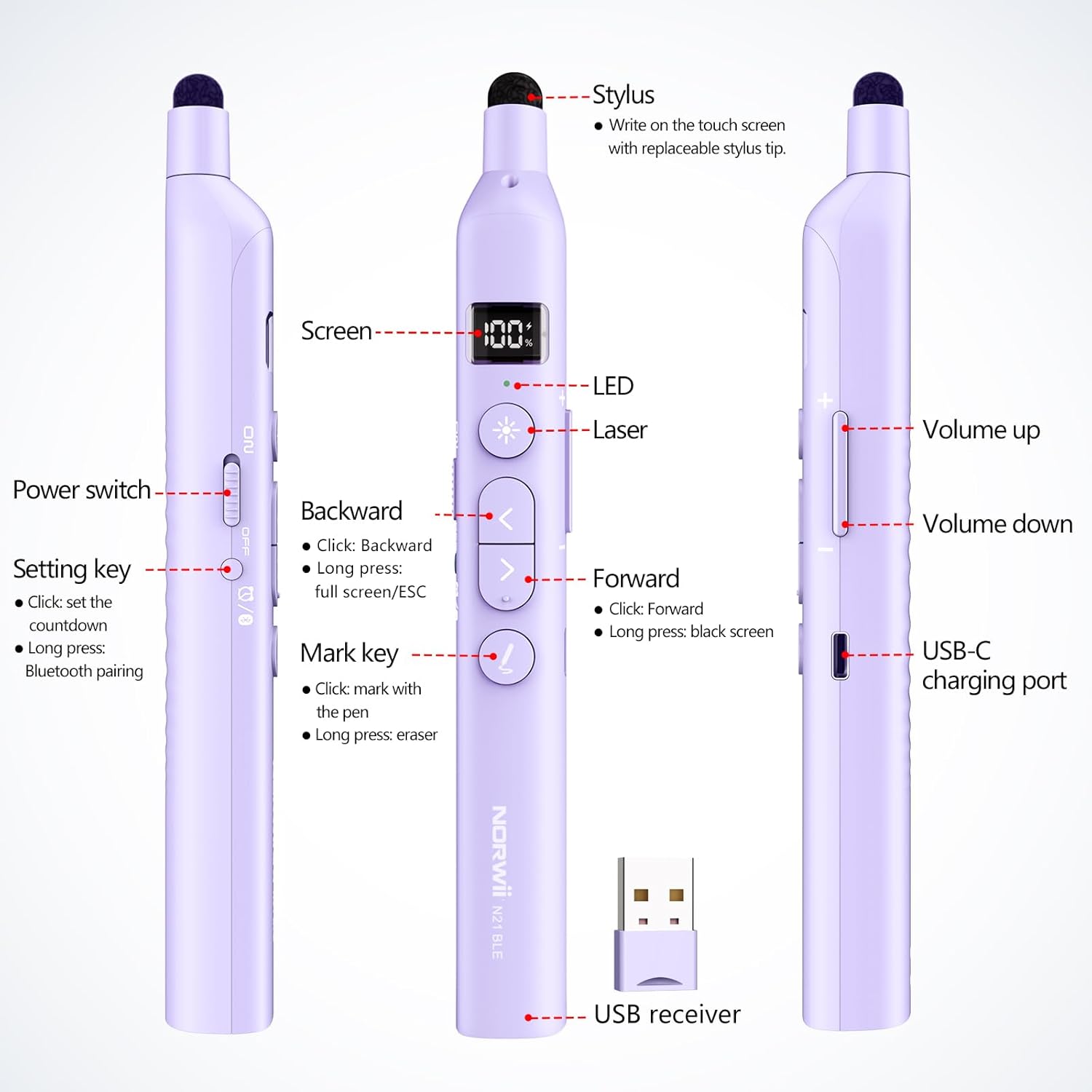
Figure 5: Norwii N21 button layout and functions.
- Forward Button (>):
- Short press: Advance to the next slide.
- Long press: Activate black screen or Exit (Esc) in presentation software.
- Backward Button (<):
- Short press: Go back to the previous slide.
- Long press: Activate full screen in presentation software.
- Laserknopf (Sternsymbol):
- Press to activate the red laser pointer. Release to turn off.
- Mark Key (Pen icon):
- Short press: Enter pen mode for annotation (e.g., in PowerPoint).
- Long press: Activate eraser function.
- Lautstärketasten (+/-):
- Press to adjust the system volume up or down.
- Telescopic Pointer:
- Gently pull the tip to extend the telescopic pointer. It can extend up to 65cm.
- Use the soft stylus tip on the end for interacting with touchscreens.

Figure 6: Using the retractable pointer and stylus for annotation.
Countdown-Timer
- Drücken Sie kurz die Setting/Bluetooth button to enter timer mode.
- Verwenden Sie die Forward (>) Und Backward (<) buttons to adjust the desired countdown time.
- Drücken Sie die Setting/Bluetooth button again or wait 5 seconds for the timer to start automatically.
- The presenter will vibrate at 10, 5, and 0 minutes remaining to alert you.
- Drücken Sie zweimal die Setting/Bluetooth button to quickly restart the last set countdown.

Figure 7: Setting and using the countdown timer.
Customizing Button Functions (Compatibility Modes)
The Forward and Backward buttons support four modes for different presentation software. Long-press the Backward (<) Und Forward (>) buttons simultaneously for 3 seconds to switch between modes:
- Oben unten: For PowerPoint, Keynote, and similar applications.
- Links rechts: For Prezi, Propresenter, MediaShout, and similar applications.
- Bild auf/Bild ab: For Google Slides, web browsers, photo viewer und mehr.
- Hoch-/Runterscrollen: For e-books and other scrolling content.
You can also customize key functions using the Norwii Presenter software, available for download from the official Norwii webWebsite.

Figure 8: Switching between compatibility modes.

Figure 9: Customizing buttons via Norwii Presenter software.
Kompatibilität
The Norwii N21 is compatible with a wide range of devices and operating systems:
- Betriebssysteme: Windows, macOS, Linux, Android.
- Präsentationsprogramm: PowerPoint, Prezi, Keynote, Propresenter, MediaShout, Google Slides, and more.
- Kompatible Geräte: Laptops, Personal Computers, Tablets, Home Theater systems.

Figure 10: Broad compatibility with various operating systems.
Technische Daten
| Modellnummer | N21 |
| Konnektivität | Bluetooth, 2.4GHz USB-A Receiver |
| Drahtlose Reichweite | Bis zu 100 Meter (328 Fuß) |
| Lasertyp | Red Laser (Class II) |
| Telescopic Pointer Length | Extends up to 65 cm |
| Batterie | Eingebauter 360mAh Lithium-Akku |
| Ladeanschluss | USB-C |
| Artikelgewicht | 2.24 Unzen |
| Technische Daten | 72.24 x 11.61 x 5.2 inches (Note: This dimension seems unusually large for a clicker, likely a packaging or shipping dimension. Actual device is compact.) |
Wartung
- Halten Sie das Gerät sauber, indem Sie es mit einem weichen, trockenen Tuch abwischen.
- Setzen Sie das Gerät keinen extremen Temperaturen, Feuchtigkeit oder direkter Sonneneinstrahlung aus.
- Store the USB-A receiver inside the presenter when not in use to prevent loss.
- Ensure the telescopic pointer is fully retracted before storing to prevent damage.
Fehlerbehebung
- Gerät reagiert nicht:
- Prüfen Sie, ob das Gerät eingeschaltet und vollständig aufgeladen ist.
- Ensure the USB-A receiver is securely plugged in or Bluetooth is properly paired.
- Try restarting your computer or the presenter.
- Laserpointer funktioniert nicht:
- Stellen Sie sicher, dass das Gerät eingeschaltet ist.
- Press the laser button firmly.
- Slide control issues:
- Verify the presenter is in the correct compatibility mode for your software (see "Customizing Button Functions").
- Ensure the presentation software is in focus on your computer.
Sicherheitshinweise
- Lasersicherheit: This product contains a Class II laser. Do not stare directly into the laser beam or point it at people or animals. Avoid direct eye exposure.
- Bewahren Sie das Gerät außerhalb der Reichweite von Kindern auf.
- Versuchen Sie nicht, das Gerät zu zerlegen oder zu verändern. Dies kann zum Erlöschen der Garantie führen und Sicherheitsrisiken bergen.
- Verwenden Sie ausschließlich das mitgelieferte oder empfohlene Ladekabel.
Offizielles Produktvideo
Video 1: N21 BLE Product Introduction by NORWII. This video provides a brief overview of the Norwii N21 Bluetooth Presentation Clicker's features and functionality.
Garantie und Support
Norwii products are designed for reliability and performance. For warranty information, technical support, or service inquiries, please refer to the contact information provided on the product packaging or visit the official Norwii webWebsite. Bewahren Sie Ihren Kaufbeleg für Garantieansprüche auf.