
Xbox EP2-29563
Xbox Wireless Controller Storm Breaker Special Edition
Modell: EP2-29563
Marke: Xbox
Einführung
The Xbox Wireless Controller Storm Breaker Special Edition is designed to provide an enhanced gaming experience across multiple platforms. This controller features a unique aesthetic with classic grays and blacks, offset with whites, along with textured grips for improved handling. It offers seamless connectivity and customizable controls to optimize your gameplay.
Hauptmerkmale
- Storm Breaker Special Edition Design: Features a distinctive gray, black, and white pattern.
- Textured Triggers: Provides enhanced grip and control during gameplay.
- Gummierte Griffe: Located on the back cases for secure handling.
- Wireless & Bluetooth Connectivity: Easily pairs with Xbox consoles, PCs, and mobile devices.
- Teilen Knopf: Seamlessly capture and share screenshots and game recordings.
- Anpassbare Tastenbelegung: Personalize controls using the Xbox Accessories app.
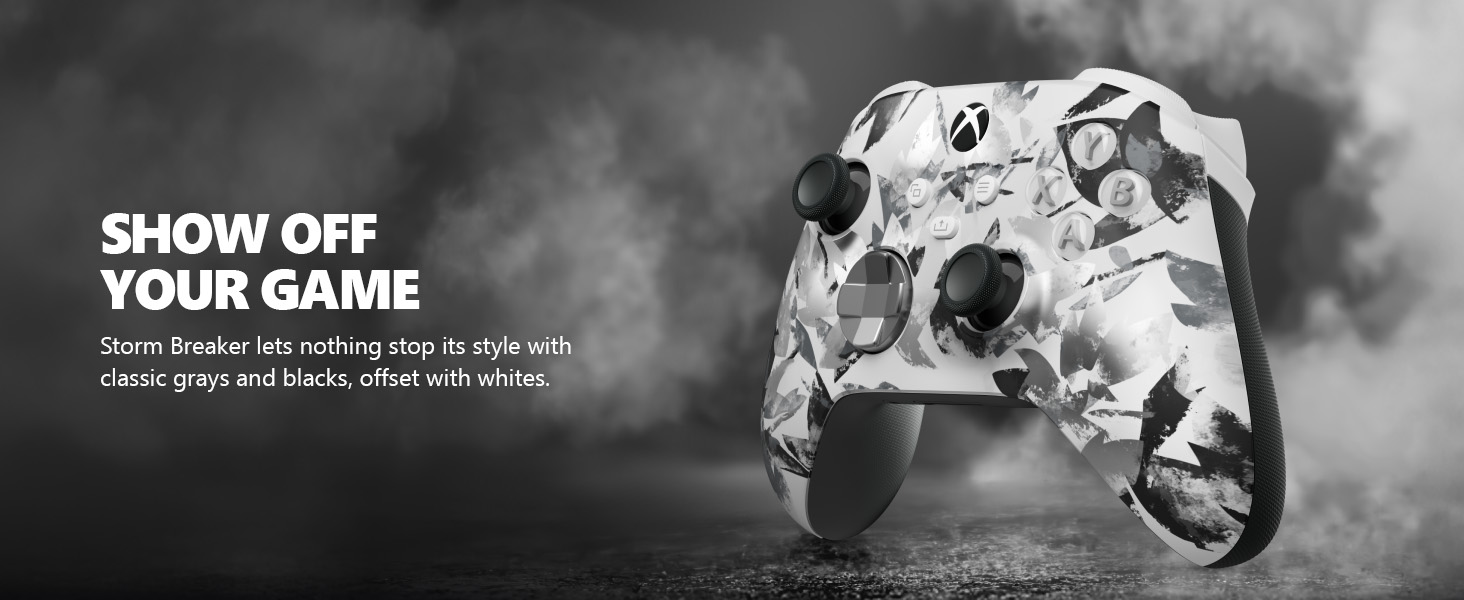
Image: The Xbox Wireless Controller Storm Breaker Special Edition showcasing its distinctive color scheme.
Aufstellen
1. Einlegen der Batterie
The controller requires two AA batteries (included). To install:
- Suchen Sie das Batteriefach auf der Rückseite des Controllers.
- Press the small tab and lift the battery cover.
- Legen Sie die beiden AA-Batterien ein und achten Sie dabei auf die richtige Polarität (+ und -).
- Bringen Sie die Batterieabdeckung wieder an, bis sie einrastet.
2. Kopplung mit Geräten
The controller supports both Xbox Wireless and Bluetooth for versatile connectivity.
- Für Xbox-Konsole:
- Schalte deine Xbox-Konsole ein.
- Press the Xbox button on your controller to turn it on.
- Halten Sie die Pair-Taste gedrückt (⏚) on the top of the controller until the Xbox button flashes rapidly.
- Press the Pair button on your Xbox console (usually near the USB port or on the front).
- The Xbox button on the controller will become solid when connected.
- For PC (Windows 10/11) via Bluetooth:
- Stellen Sie sicher, dass Bluetooth auf Ihrem PC aktiviert ist.
- Press the Xbox button on your controller to turn it on.
- Halten Sie die Pair-Taste gedrückt (⏚) on the top of the controller until the Xbox button flashes rapidly.
- Gehen Sie auf Ihrem PC zu Einstellungen > Geräte > Bluetooth und andere Geräte.
- Select "Add Bluetooth or other device" and then "Bluetooth".
- Choose "Xbox Wireless Controller" from the list and follow on-screen prompts.
- Für Mobilgeräte (Android/iOS):
- Aktivieren Sie Bluetooth auf Ihrem Mobilgerät.
- Press the Xbox button on your controller to turn it on.
- Halten Sie die Pair-Taste gedrückt (⏚) on the top of the controller until the Xbox button flashes rapidly.
- On your mobile device, search for Bluetooth devices and select "Xbox Wireless Controller" to pair.
Video: Ein überview of the Xbox Wireless Controller, demonstrating its physical features and ports, useful for understanding setup.
Bedienung des Controllers
1. Grundlegende Steuerelemente
- Daumensticks: Use for movement and camera control.
- Steuerkreuz: Ideal for precise directional input in games and menu navigation.
- A-, B-, X-, Y-Tasten: Primary action buttons for in-game commands.
- Triggers (LT/RT) & Bumpers (LB/RB): Used for various actions like shooting, accelerating, or menu selection.
2. Teilen-Button
The dedicated Share button (⤓) allows you to quickly capture and share your gaming moments:
- Press once to take a screenshot.
- Press and hold to record the last 30 seconds of gameplay.
3. Kopfhöreranschluss
A 3.5mm audio jack is located at the bottom of the controller, allowing you to connect compatible headsets for in-game audio and chat.
4. Customization with Xbox Accessories App
Download the Xbox Accessories app on your Xbox console or Windows PC to customize button mapping and create personalized controller profiles.
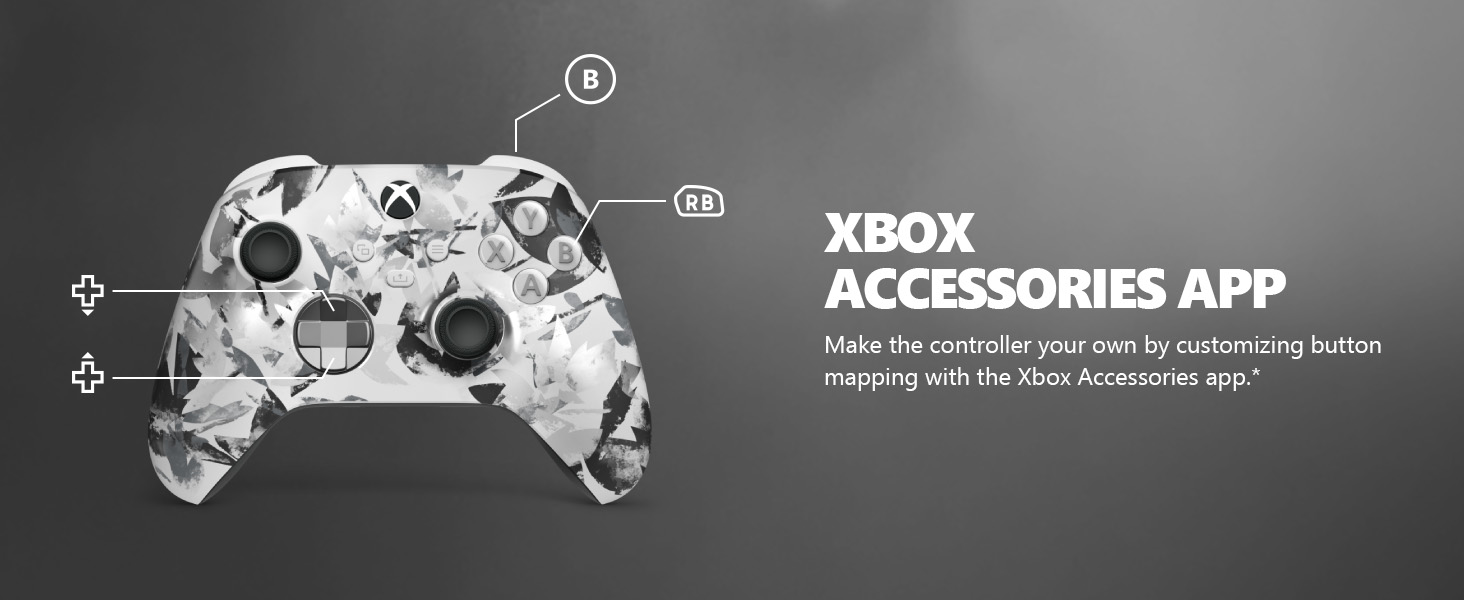
Image: The Share button and an illustration of button mapping customization via the Xbox Accessories app.
Wartung
- Reinigung: Reinigen Sie den Controller mit einem weichen, trockenen Tuch. Vermeiden Sie scheuernde Reiniger oder Lösungsmittel.
- Batteriepflege: Um ein Auslaufen zu verhindern, entfernen Sie die Batterien, wenn der Controller längere Zeit nicht benutzt wird.
- Lagerung: Bewahren Sie den Controller an einem kühlen, trockenen Ort fern von direkter Sonneneinstrahlung und extremen Temperaturen auf.
Fehlerbehebung
- Controller stellt keine Verbindung her:
- Stellen Sie sicher, dass die Batterien richtig eingelegt und geladen sind.
- Re-attempt the pairing process as described in the Setup section.
- Prüfen Sie, ob es zu Störungen durch andere drahtlose Geräte kommt.
- Update controller firmware via the Xbox Accessories app.
- Tasten reagieren nicht:
- Reinigen Sie den Bereich um die Tasten, um sämtliche Rückstände zu entfernen.
- Test the controller with another device or game to isolate the issue.
- Kurze Akkulaufzeit:
- Verwenden Sie frische, hochwertige AA-Batterien.
- Consider using a rechargeable battery pack (sold separately) for extended play.
Technische Daten
| Besonderheit | Detail |
|---|---|
| Modellnummer | EP2-29563 |
| Konnektivität | Xbox Wireless, Bluetooth |
| Kompatibilität | Xbox Series X|S, Xbox One, Windows 10/11, Android, iOS |
| Stromquelle | 2 AA-Batterien (im Lieferumfang enthalten) |
| Audio Port | 3.5-mm-Kopfhöreranschluss |
| Maße | 6.91 x 5.61 x 2.76 Zoll |
| Gewicht | 14.1 Unzen |
| Hersteller | Microsoft |
Garantie und Support
For warranty information and technical support, please refer to the documentation included with your product or visit the official Xbox support webBewahren Sie Ihren Kaufbeleg für Garantieansprüche auf.
Online-Hilfe: support.xbox.com
Ask a question about this manual
Ask about setup, troubleshooting, compatibility, parts, safety, or missing instructions. Manuals+ will review the question and use this page’s manual context to help answer it.