1. Einleitung
Thank you for choosing the Roinvou 4+64G Android 15 Car Radio. This manual provides detailed instructions for the installation, operation, and maintenance of your new car stereo system. Please read this manual thoroughly before use to ensure proper functionality and safety.
This advanced car radio features a 9-inch high-resolution touchscreen, wireless CarPlay and Android Auto, robust performance with Android 15, and integrated GPS navigation. It is designed to enhance your driving experience with modern connectivity and entertainment options.

Video 1: "More Features of Our Products" - This video provides a visual demonstration of the various features and capabilities of the Roinvou car radio, offering a quick overview seiner Funktionalität.
2. Fahrzeugkompatibilität
This Roinvou Android car radio is specifically designed for Toyota Camry models manufactured between 2006 and 2011. It is fully compatible with both factory JBL sound systems and models equipped with original large screens.
To ensure proper fitment, please verify your car's model and production year. If you have any doubts regarding compatibility, please contact customer support with your car's details and a picture of your dashboard.

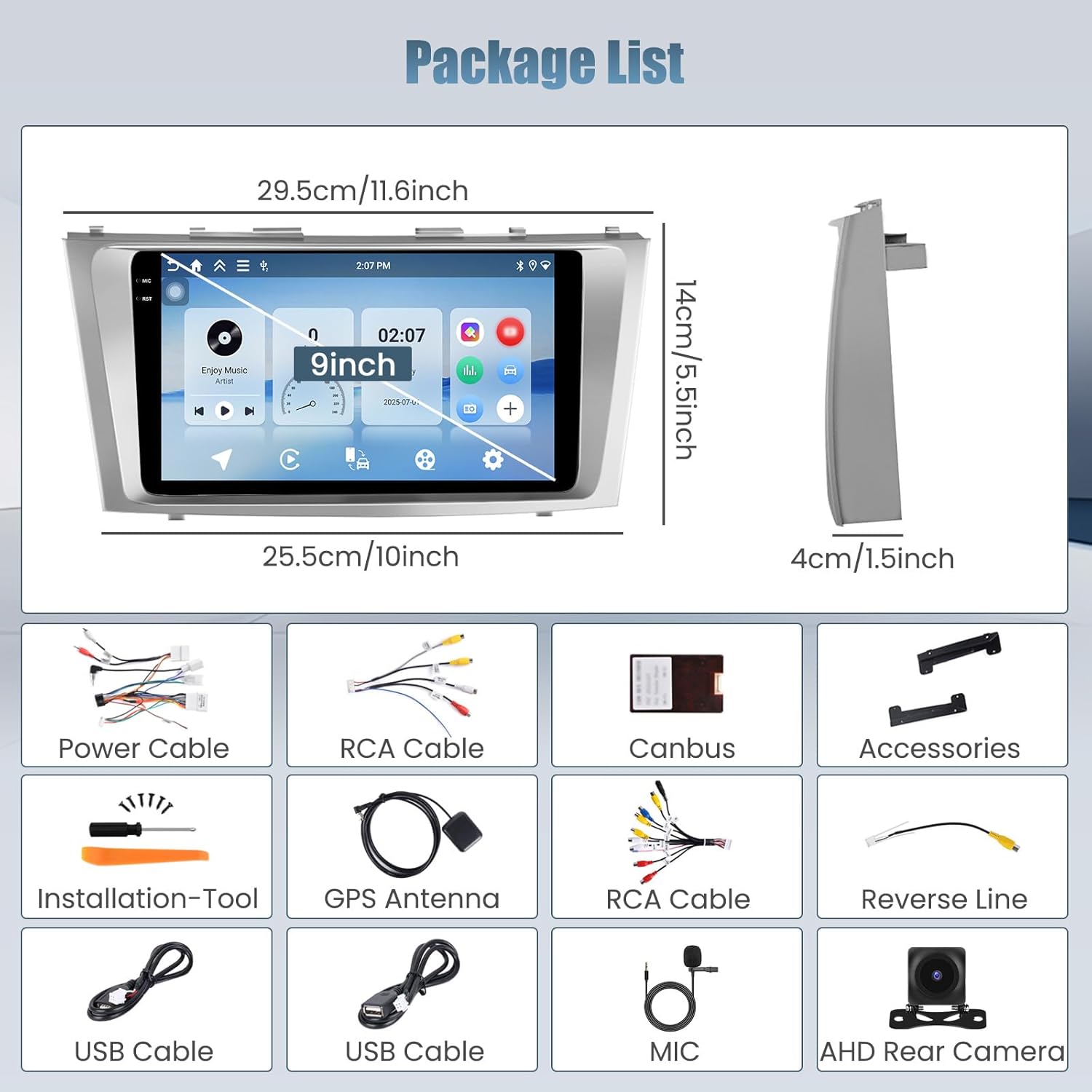
3. Packungsinhalt
Bitte prüfen Sie das Paket auf folgende Artikel:
- Roinvou Car Stereo (for Toyota Camry)
- 1 x Stromkabel
- 1 x Canbus
- 2 x RCA-Kabelbaum
- 1 x Radioantenne
- 1 x Radio-Adapterkabel
- 1 x GPS-Antenne
- 1 x AHD-Rückfahrkamera
- 1 x externes Mikrofon
- 1 x Rückfahrkamera-Eingangskabel
- 2 x USB-Kabel
- 1 x Installationswerkzeug & Zubehör
4. Einrichtung und Installation
Eine Installation durch einen Fachmann wird empfohlen. Stellen Sie sicher, dass die Stromzufuhr zum Fahrzeug unterbrochen ist, bevor Sie mit der Installation beginnen.
4.1 Dashboard Panel Removal
Carefully pry out the air vent trim panel and disconnect the emergency light and vehicle status indicator light cables. Then, remove the two fixing screws at the top of the OEM head unit.
Video 2: "How to install VQU car radio for 06-11 Toyota Camry with JBL" - This video demonstrates the step-by-step process of removing the original car radio and installing the new unit, specifically for Toyota Camry models with JBL sound systems.
Video 3: "How to install RUICAR radio for Camry 2007-2011" - This video provides an alternative installation guide for the car radio in Toyota Camry models from 2007-2011, detailing the removal and replacement process.
4.2 Center Console Panel Removal
Pry out the center console panel. Shift the gear into 'D' and unscrew the gear shift knob. When lifting the center console panel, carefully disconnect all connecting cables on the back. Remove the two fixing screws at the bottom of the OEM head unit.
4.3 Kabelverbindungen
Connect the OEM wiring harness to the new unit's power cable. For newer Camry models, connect the steering wheel control cable and the radio antenna cable. For older models, these two cables may not be necessary.

4.4 Installation der Rückfahrkamera
Open the trim panel on the tailgate. Locate the positive wire of the reverse light and connect the red wire of the camera extension cable to it. Route the cable through the license plate light housing into the vehicle interior and connect it to the camera extension cable.

5. Bedienungsanleitung
5.1 Kabelloses CarPlay & Android Auto
Enjoy effortless connectivity by mirroring your iPhone or Android phone seamlessly. Once connected, access navigation, calls, messages, and music directly on the car radio, keeping your hands on the wheel.
Video 4: "Carplay & Android Auto & Mirror Link Connection Reference" - This video demonstrates the connection process for CarPlay, Android Auto, and Mirror Link, showing how to integrate your smartphone with the car radio.

5.2 High-Resolution Touchscreen
The 1280x720 In-Cell touchscreen delivers crisp and vibrant visuals for seamless operation. The responsive display ensures a smooth and intuitive user experience for navigation, settings, and multimedia.

5.3 GPS-Navigation
The unit supports BeiDou, GLONASS, GPS, and Galileo satellite navigation systems. You can use pre-installed maps or download your preferred navigation apps from the Play Store.

5.4 Audio & Customization
Fine-tune your listening experience with EQ settings and FM/RDS radio. The user-friendly UI supports split-screen functionality, allowing you to multitask with navigation and music simultaneously.


5.5 Lenkradsteuerung (SWC)
The unit is compatible with your vehicle's steering wheel controls for added convenience and safe driving. Refer to the installation video for detailed SWC setup.
Video 5: "How to get in swc learning" - This video guides users through the process of setting up and learning steering wheel controls for the car radio.

6. Fehlerbehebung
If you encounter any issues with your Roinvou car radio, please refer to the following resources:
- Häufige Probleme: For general troubleshooting, consult the comprehensive guide provided by the manufacturer.
- Probleme mit dem Touchscreen: If you experience problems with the touchscreen, there are specific videos available to help diagnose and resolve these issues.
Video 6: "XGU Car Navigation System: How to fix touchscreen issues?" - This video provides solutions and guidance for resolving common touchscreen problems encountered with car navigation systems.
Video 7: "Fixes 90% of Common Issues: Essential Troubleshooting Guide" - This video offers a comprehensive guide to fixing the most common issues that users might encounter with the car radio system.
7. Spezifikationen
- Marke: Roinvou
- Modell: 4+64G Android 15 Car Radio
- Betriebssystem: Android 15
- Prozessor: 4 Kerne
- RAM: 4 GB
- Lagerung: 64 GB
- Bildschirmgröße: 9 Zoll
- Bildschirmauflösung: 1280 x 720 (In-Cell Touchscreen)
- Konnektivität: Bluetooth 5.0, 5GHz WiFi, USB
- Navigation: GPS, BeiDou, GLONASS, Galileo (North America maps included)
- Audioausgabemodus: Stereo
- Besondere Merkmale: Wireless CarPlay, Android Auto, Wireless & Wired Mirror Link, FM/RDS, EQ Settings, UI Display, Split Screen, SWC (Steering Wheel Control)
- Mitgeliefertes Zubehör: AHD Backup Camera, External Microphone, Installation Tool
8. Garantie und Support
Your Roinvou car radio comes with a 1 Jahr Garantie vom Hersteller.
Bei Fragen, technischem Support oder Garantieansprüchen wenden Sie sich bitte an unser Kundendienstteam:
- Amazon Chat: You can reach us directly through Amazon Chat.
- E-Mail: roinvouservices@163.com
Our professional technical team and customer service team are dedicated to ensuring your satisfaction. All messages will be replied to within 24 hours, excluding holidays.
